How to Import Shopify Orders and Stock Levels into Sage 50 (2026)
Step-by-step guide to importing Shopify orders and stock levels into Sage 50. Automate order entry and inventory updates in one workflow — save 15+ hours weekly and cut data-entry errors.
If you run a Shopify store and use Sage 50 for accounting, you already know the pain. Every order that comes through your store needs to be manually entered into Sage 50 — customer details, line items, taxes, shipping, discounts. One by one. Order after order. Day after day.
For stores processing 10-20 orders per day, that's easily 2-3 hours of pure data entry. For high-volume stores, it can consume an entire workday. And every keystroke is a chance for error — wrong tax amounts, mismatched SKUs, duplicate customers.
There's a better way. In this guide, we'll walk you through every method for importing Shopify orders into Sage 50, from fully manual to fully automated, so you can choose the approach that fits your business.
In this guide:
- Why manual entry fails
- Does Shopify integrate with Sage 50?
- Methods to import Shopify orders
- How Sagify automates the process
- What gets imported
- Common integration issues
- Real customer results
- FAQ
Why Manual Shopify-to-Sage 50 Entry Is Unsustainable
Manual order entry might work when you're processing a handful of orders per week. But as your Shopify store grows, the cracks start to show:
- Time drain: Each invoice takes 3-5 minutes to enter manually. At 20 orders per day, that's over an hour just on data entry — before you even reconcile anything.
- Error accumulation: Typos in customer names, incorrect tax calculations, wrong SKU assignments. Even a 2% error rate across hundreds of orders creates significant accounting headaches at month-end.
- Delayed financials: If your team can't keep up with order entry, your Sage 50 data falls behind. You're making business decisions based on yesterday's numbers — or last week's.
- Staff burnout: Nobody went into accounting to copy-paste order data between two screens. Repetitive data entry is the fastest way to lose good bookkeepers.
- Scaling bottleneck: When a promotion drives a surge in orders, manual entry becomes the bottleneck. You either hire more staff or fall behind.
The gap between your Shopify storefront and Sage 50 back office shouldn't require a human bridge. Let's look at how to close it.
Does Shopify Integrate with Sage 50?
Shopify does not natively integrate with Sage 50. There is no built-in connector, plugin, or official integration between the two platforms. Most businesses either enter orders manually, export CSV files and reformat them, or use third-party integration software like Sagify to automatically import Shopify orders into Sage 50.
Because Sage 50 is a desktop accounting application and Shopify is a cloud-based e-commerce platform, bridging the two requires a tool that can communicate with both the Shopify API and the local Sage 50 company file. That's exactly what Sagify was built to do. For a full overview of how the Shopify Sage 50 integration works, see our complete integration guide.
Methods to Import Shopify Orders into Sage 50
There are three main approaches, each with different trade-offs in terms of time, accuracy, and cost.
Method 1: Manual Entry
The most basic approach — open your Shopify admin in one window, Sage 50 in another, and type everything in by hand. You do this already.
Process:
- Open the order in Shopify
- Create a new sales invoice in Sage 50
- Manually enter the customer name and address
- Add each line item with the correct SKU, quantity, and price
- Enter tax amounts, shipping charges, and any discounts
- Save and move to the next order
Pros:
- No additional software needed
- Full control over every entry
Cons:
- Extremely time-consuming (3-5 minutes per order)
- High error rate
- Does not scale
- No audit trail between systems
Method 2: Copy-Paste from Shopify Reports
Some businesses try to speed things up by exporting Shopify order data as CSV files and using them as a reference while entering invoices into Sage 50. However, Sage 50 does not support importing sales invoices or orders from CSV files — there is no built-in CSV import for transactions.
Process:
- Export orders from Shopify as CSV
- Open the CSV as a reference spreadsheet
- Manually create each invoice in Sage 50, copying data from the spreadsheet
Pros:
- Slightly faster than switching between Shopify admin and Sage 50
- Easier to work through a batch of orders in sequence
Cons:
- Still entirely manual data entry — the CSV is just a reference, not an import
- No time saved on the actual Sage 50 side
- Same error rate as fully manual entry
- No automatic customer or product creation
Method 3: Human-in-the-Loop Import with Sagify
Sagify is a desktop application built specifically to bridge Shopify and Sage 50. You define rule-based logic that matches your existing workflows — which orders become invoices, which become sales orders, how customers are matched, which accounts to use. Then every day, week, or month, you open Sagify, select a date range, click import, and watch as all your Shopify orders get imported and converted to sales invoices or orders in Sage 50.
Process:
- Configure your import rules once (invoice vs. sales order, customer matching, account mapping)
- Open Sagify, select your date range, and click "Process"
- Sagify fetches orders from Shopify and creates the corresponding documents in Sage 50
You stay in control of when imports run and how orders are handled. Sagify does the heavy lifting. Let's break down exactly how it works.
How Sagify Automates Order Import
Sagify is a Windows desktop application that connects to your Shopify store via the Shopify API and writes directly to your Sage 50 company file. You set the rules, and Sagify executes them on your schedule. Here's the step-by-step setup and workflow.
Initial Setup
- Download and install Sagify from ezapps.io/products/sagify-us
- Create a free account — you get a trial period to test with your actual data
- Connect your Shopify store — Sagify walks you through OAuth authentication so it can securely read your store's data and orders
- Link your Sage 50 company — point Sagify to your Sage 50 company file and enter your credentials
- Map your accounts — select your Accounts Receivable, Sales, and Tax accounts in Sage 50
Day-to-Day Workflow
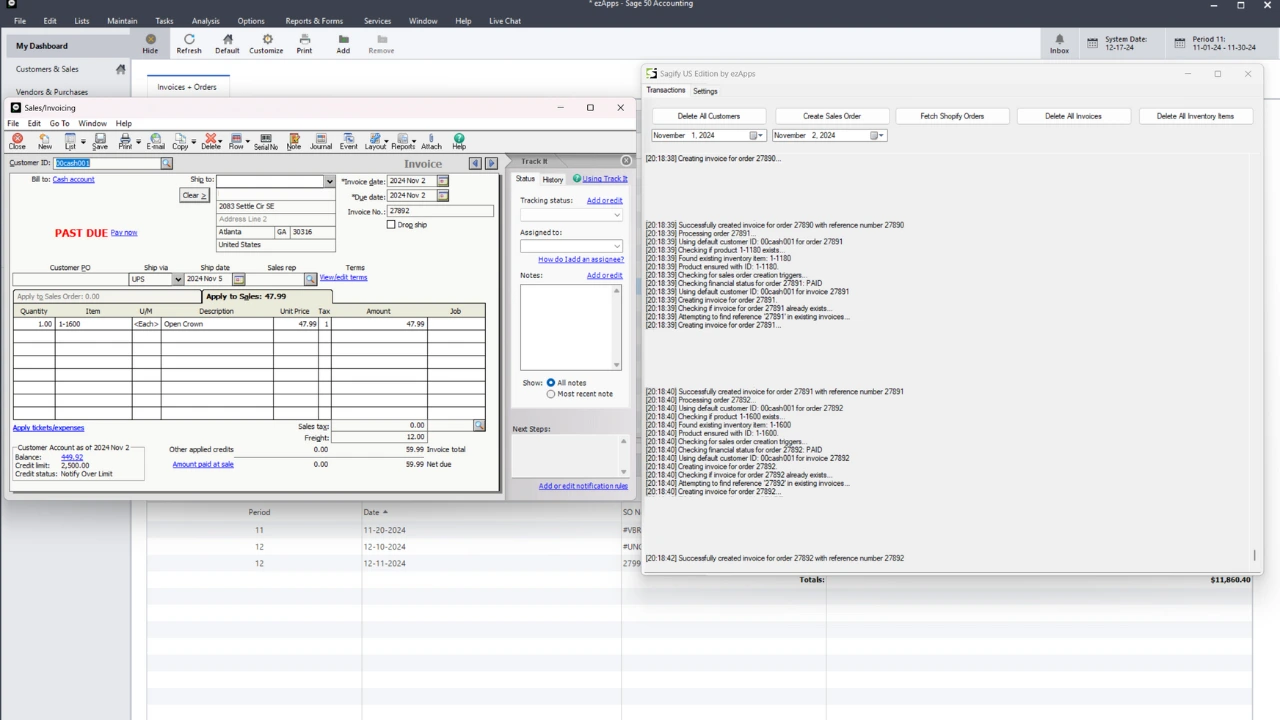
Once configured, your daily workflow looks like this:
- Open Sagify on your desktop
- Select a date range — for example, yesterday's orders, or the past week
- Choose your import type — sales invoices or sales orders
- Click "Process" — Sagify fetches all orders in the date range and creates the corresponding documents in Sage 50
Sagify processes each invoice in under 2 seconds. A day's worth of orders that took 2 hours to enter manually now takes minutes if not seconds.
Importing Shopify Stock Levels into Sage 50
When Sagify imports an order, it does more than create the invoice — it also updates the inventory quantity for each line item in Sage 50. That means your stock-on-hand stays accurate without a second reconciliation step. Sagify matches by SKU, creates any missing inventory items automatically, and supports Shopify product variants.
If you need standalone inventory sync (push stock levels without waiting for orders, or reconcile a full catalog), see our guide on /blogs/how-to-sync-sage50-and-shopify-inventory.
Configuring Import Behavior
Sagify gives you control over how orders are imported:
- Invoice vs. Sales Order: Configure rules based on customer tags, order tags, or metafields to determine whether an order becomes a sales invoice or a sales order in Sage 50
- Customer Matching: Choose whether to match Shopify customers to existing Sage 50 customers or consolidate all orders under a single account; for example, "Online Shopify Sales"
- Account Mapping: Select which Sage 50 GL revenue and receivable accounts to use
- Duplicate Prevention: Sagify tracks which orders have already been imported and skips them automatically — no duplicate invoices
What Gets Imported
Sagify doesn't just import order totals. It brings over the complete order data so your Sage 50 records are fully detailed and accurate.
Orders and Invoices
- Order number and date
- Line items with SKU, description, quantity, and unit price
- Discounts (both line-item and order-level)
- Shipping charges
- Payment status and method
- Order notes and tags
Customer Data
- Customer name and email
- Billing address
- Shipping address
- Automatic customer creation in Sage 50 if the customer doesn't exist
- Smart matching to prevent duplicate customer records
Products and Inventory
- SKU-based product matching between Shopify and Sage 50
- Automatic product creation for new SKUs
- Inventory quantity updates as orders are imported
- Support for product variants
Taxes
- Tax amounts per line item
- Multiple tax rate support
- Proper tax account mapping in Sage 50
- Handles tax-exempt orders correctly
Refunds
- Refund amounts and reasons
- Credit note creation in Sage 50
- Partial refund support
Common Challenges and How Sagify Solves Them
Importing orders between two complex systems inevitably creates friction. Here's how Sagify handles the most common issues. For a deeper dive, see our complete troubleshooting guide.
Missing Products in Sage 50
The problem: A customer orders a product that exists in Shopify but hasn't been created in Sage 50 yet. Most import methods fail here.
Sagify's solution: Sagify automatically detects missing inventory items and creates them in Sage 50 with the correct SKU, description, and pricing. No manual intervention needed.
Customer Duplicates
The problem: The same customer places multiple orders with slight variations in their name or address. You end up with "John Smith," "john smith," and "J. Smith" as three separate customers in Sage 50.
Sagify's solution: Sagify uses intelligent matching to identify existing customers and consolidate records. You can also choose to route all orders through a single cash customer account if that better fits your workflow.
Tax Calculation Mismatches
The problem: Shopify calculates taxes based on the customer's shipping address, but your Sage 50 tax codes may not align perfectly, leading to rounding differences.
Sagify's solution: Sagify maps Shopify tax amounts directly to your configured Sage 50 tax accounts, preserving the exact tax amounts from each order rather than recalculating them.
Order Duplication
The problem: You accidentally import the same batch of orders twice, creating duplicate invoices in Sage 50.
Sagify's solution: Sagify maintains a record of every imported order and automatically skips any order that has already been processed. Even if you select an overlapping date range, you'll never get duplicates.
High-Volume Processing
The problem: During sales events (Black Friday, holiday season), order volume spikes 5-10x. Manual entry is impossible, and CSV imports choke on the volume.
Sagify's solution: Sagify handles high order volumes efficiently. Each invoice processes in under 2 seconds, so even hundreds of orders can be imported in a single session.
Real Results from Real Businesses
Don't take our word for it. Here's what actual Sagify users have experienced.
Tula Hats: From 3+ Hours to Minutes
Tula Hats, a 36-year-old wholesale hat business, spent years searching for a solution to connect their Shopify store with Sage 50. Their team was spending over 3 hours daily on manual order entry. After implementing Sagify, that time dropped to minutes per day. Read the full Tula Hats case study to see how they transformed their workflow.
Emergent Respiratory: Scaling Without Adding Staff
Emergent Respiratory Products needed to process a growing volume of Shopify orders into Sage 50 without hiring additional staff for data entry. Sagify allowed them to scale their order processing while maintaining accuracy in their accounting records. Read the full Emergent Respiratory case study to learn how they achieved this.
Ready to see it in action? Book a free demo and we'll walk you through how Sagify works with your specific Sage 50 setup.
Frequently Asked Questions
How long does it take to set up Sagify?
Most businesses are up and running within 30 minutes. The setup involves connecting your Shopify store, linking your Sage 50 company file, and mapping your accounts. We also offer a white-glove setup service where our team handles the entire configuration for you.
Does Sagify work with both Sage 50 US and Sage 50 Canada?
Yes. There are two editions of Sagify — one for Sage 50 US and one for Sage 50 Canada. Each is built specifically for the respective version of Sage 50.
Will Sagify work with my version of Sage 50?
Sagify supports current and recent versions of Sage 50. If you're unsure about compatibility, contact our support team and we'll verify your setup.
Can I choose which orders to import?
Yes. You select a date range each time you run Sagify, giving you full control over which orders are imported. You can also configure rules to determine whether specific orders become sales invoices or sales orders based on tags and metafields.
Is my data stored on external servers?
No. Sagify does not store your business data on any servers or databases. It acts as a direct bridge between your Shopify store and your local Sage 50 installation. The only data Sagify stores is anonymous telemetry to help improve the product. We don't see company data or anything related to your orders.
Can I try Sagify before purchasing?
Yes. Sagify offers a free trial with full access to all features. Test it with your real Shopify orders and Sage 50 company file to see the results firsthand.
The Fastest Way to Import Shopify Orders into Sage 50
Manual entry wastes hours and introduces errors. CSV imports help but still require manual reformatting and review every time. Neither approach scales with your business.
Automated integration tools like Sagify eliminate the entire process, creating Sage 50 invoices directly from Shopify orders in seconds. Your accounting stays accurate, your team stays focused on higher-value work, and your financials are always up to date.
Ready to Stop Entering Orders by Hand?
Get started with Sagify today — download the free trial and see the difference automated order import makes. Or book a free demo to see it working with your Sage 50 setup before you commit.
Related Reading
- Shopify Sage 50 Integration with Sagify - Complete overview of Sagify's integration capabilities
- How to Sync Sage 50 and Shopify Inventory - Guide to keeping inventory aligned across platforms
- Common Sage 50 Shopify Integration Issues - Troubleshooting guide for integration challenges
- Tula Hats Case Study - How a wholesale business eliminated 3+ hours of daily data entry
- Emergent Respiratory Case Study - Scaling order processing without additional staff
Ready to get started?
Schedule a demo to see how we can help streamline your workflow.
Related articles
Inventory Problems Start Upstream — Not in the Warehouse
Bad data, not bad counting. Why orders don't sync, refunds don't decrement, adjustments don't propagate. Data hygiene before physical reconciliation.
The Hidden Risks of Manual Shopify-to-Sage 50 Data Entry
Audit failure, tax errors, fraud risk, and key-person dependency. The real costs of manual Shopify to Sage 50 data entry beyond time.

How Manual Order Re-Entry Silently Corrupts Your Accounting Data
The hidden cost of manual order entry. Error rates, compounding mistakes, tax drift, and why data corruption isn't visible until month-end reconciliation.