How to Import Credit Card Statements into Sage 50
Two ways to get a credit card statement into Sage 50 US: key each charge as a payment, or post the statement PDF with Sagify. Steps, trade-offs and how to avoid duplicates.
There are two ways to get a credit card statement into Sage 50: type each charge in as a payment, or let a tool read the statement PDF and post the payments for you. This guide walks through both for Sage 50 US Edition, with the trade-offs, so you can pick the one that fits your volume.
In this guide:
- How a credit card should be set up in Sage 50
- Method 1: enter each charge by hand
- Method 2: post the statement PDF with Sagify
- How to avoid entering a charge twice
- Which method to choose
- FAQ
How a Credit Card Should Be Set Up in Sage 50
Whatever method you use, the bookkeeping is the same. The card is a liability account in your chart of accounts (for example 2310 - Visa Payable). Each charge is a payment to a vendor that credits the card's account and debits an expense account. When you pay the card issuer, that payment moves money from the bank account to the card's liability account and brings its balance down.
Done this way, the card account in Sage 50 can be reconciled against the statement like a bank account, and each vendor's history shows what you spent with them.
Method 1: Enter Each Charge by Hand
This is what most Sage 50 companies do today.
- Open Tasks → Payments (or Write Checks for a charge with no invoice behind it).
- Choose the vendor, or type the payee name.
- Set the cash account to the card's liability account.
- Enter the charge date, the amount and the expense account.
- Save, and repeat for every line on the statement.
It needs nothing extra and it is accurate when done carefully. The cost is time: every line needs a vendor, a date, an amount and an account, and at month-end you still have to tick the lines off against the statement to find the one you missed or keyed twice.
Method 2: Post the Statement PDF with Sagify
Sagify is a Windows app that works on your Sage 50 company file. Its Banking tab turns the statement PDF itself into Sage 50 payments.

- Set up the card once. Tell Sagify the account ending printed on the statement, the Sage 50 account its balance lives in, the issuer vendor, and the accounts for interest and fees.
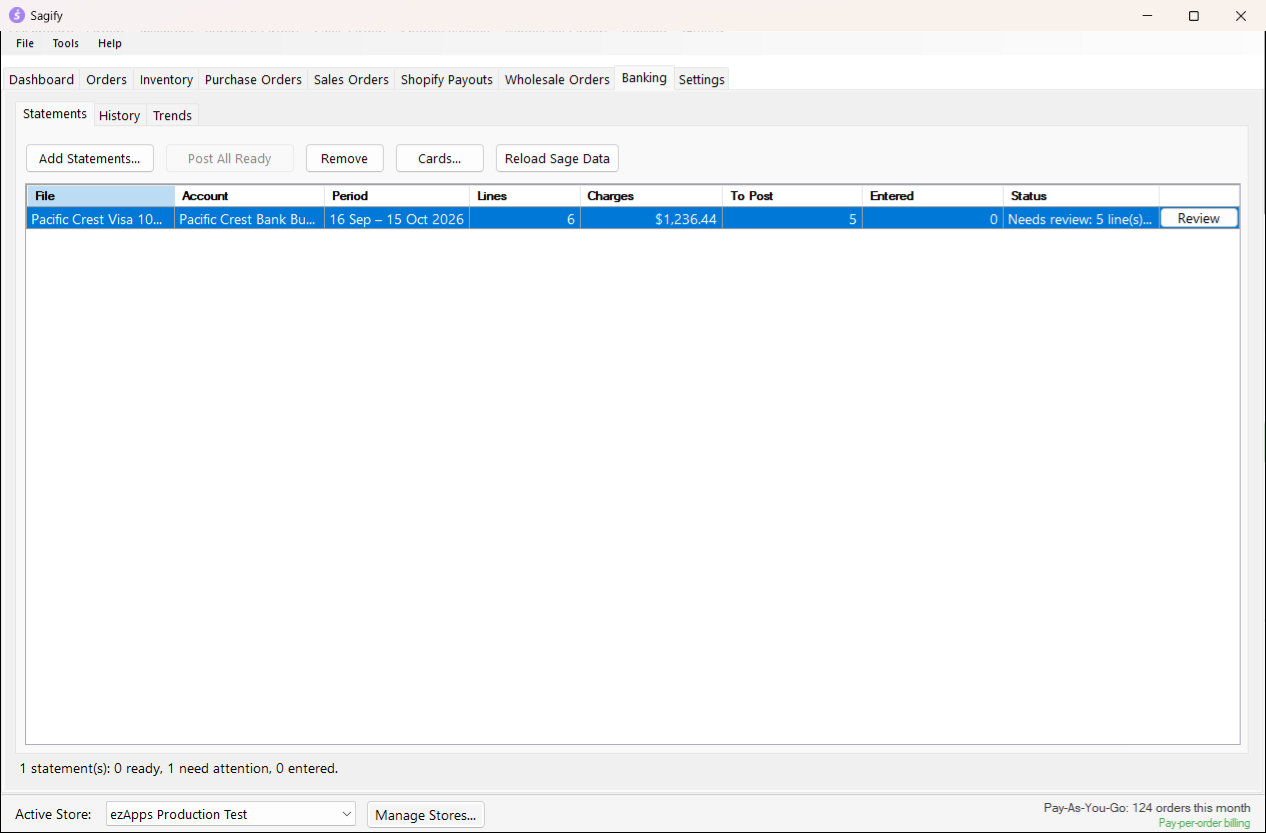
- Drop the statement PDF on the Banking tab. Sagify reads every line and checks the arithmetic before anything else: previous balance, payments, credits, purchases, fees and interest must give the new balance to the cent, and every line must fall inside the statement period. A statement that does not tie is marked Needs review with the reason.
- Review the lines. For each charge, pick the vendor and the GL account. Choosing a vendor fills in its default expense account, and Sagify remembers your choice for that payee, so next month's statement arrives mostly coded. A payee that is not worth a vendor record can go to a miscellaneous vendor, with the merchant's name kept on the payment.
- Post. Each ticked line becomes one Sage 50 payment to its vendor, dated the charge date, from the card's account. Fees and interest go to the issuer vendor on their own accounts. Payments you made to the card issuer are listed but not posted, since they are already in your bank account's entries.
The full walkthrough with screenshots is in the Banking help guide.
How to Avoid Entering a Charge Twice
Duplicates are the usual way a card account stops reconciling. They happen when a charge is keyed from a receipt during the month and again from the statement.
By hand, the defence is discipline: one person, one source (the statement), and a reference convention you can search for.
Sagify checks three things before a charge is posted: its own record of what it has posted, Sage 50's Payments Journal (read again right before posting, so a payment entered by hand or on another computer is recognised), and a check after the import that Sage 50 actually wrote the record. Lines already in Sage 50, or that look like a payment entered under another reference, start unticked and say why. If the journal cannot be read, nothing is posted.
Which Method to Choose
| By hand | Sagify | |
|---|---|---|
| Setup | None | Set up the card once |
| Coding vendors and accounts | Every line, every month | Once per payee, then remembered |
| Statement tie-out | You tick it off | Checked to the cent before posting |
| Duplicate protection | Your own care | Checked against Sage 50 before posting |
| Cost | Your time | Per payment posted |
A statement with a dozen lines is fine by hand. Once it runs to several cards or a few pages a month, the coding and the tie-out are where the hours go, and that is the part worth automating.
Sagify US runs on Sage 50 US Edition (2026 or newer) on Windows 10 and 11. Each payment posted counts as one order on your plan; pay-as-you-go is $1.75 per order, and the monthly plans cost less per order. See pricing or book a demo and bring one of your own statements.
Frequently Asked Questions
Can Sage 50 import a credit card statement PDF?
Not on its own. Sage 50 does not read a statement PDF, so each charge is normally keyed in as a payment. A tool such as Sagify reads the PDF and posts each charge as a Sage 50 payment.
Should credit card charges be payments or journal entries in Sage 50?
Payments to a vendor from the card's liability account are the better choice for most companies. Each vendor's history then shows what you spent with them, and the card account can be reconciled against the statement. A single journal entry per statement is quicker to key but loses the vendor detail.
What account do I use for a credit card in Sage 50?
A liability account, one per card. Charges credit it, and your payment to the card issuer debits it. Its balance should equal the statement's closing balance once every line is entered.
Does Sagify need a Shopify store to post card statements?
No. The Banking tab works on your Sage 50 company file and does not use a Shopify store.
Is the statement stored anywhere?
The PDF is read by ezApps' AI service over an encrypted connection and is not stored there. The vendor and account you chose for each payee and the record of what was posted are kept on your own computer.
What happens to a refund or credit on the statement?
Sagify lists credits and payments to the issuer in the review window but does not post them. Enter a vendor credit in Sage 50 the way you normally would.
Ready to get started?
Schedule a demo to see how we can help streamline your workflow.
Read next
- Shopify Sage 50 integrationSagify posts Shopify orders, inventory, refunds and payouts into Sage 50 — US and Canadian editions.
- Sage + Shopify integrationsWhich Sagify fits your Sage: Sage 50 US, Sage 50 Canada or Sage Accounting.
- Sage 50 integration buyer's guideAn honest comparison of the Shopify to Sage 50 desktop connectors.
Related articles
How to Reduce Data Entry in Sage 50: 6 Practical Ways
Six ways to cut manual data entry in Sage 50 US, from features already in the program (memorized transactions, defaults) to automating card statements, customer POs, journal entries and online orders.
Hiring a Sage 50 Bookkeeper? Automate These Jobs First
Before you post the job: which parts of Sage 50 bookkeeping software can do (card statements, PO entry, journal entries) and which still need a person (reconciliation, discrepancies, judgment), and how to size the hours.
How to Enter Customer Purchase Orders into Sage 50 Faster
Customers email POs as PDFs, spreadsheets and CSVs. Here is how to enter them into Sage 50 US as sales orders by hand or automatically with Sagify, without entering the same PO twice.