How to Reduce Data Entry in Sage 50: 6 Practical Ways
Six ways to cut manual data entry in Sage 50 US, from features already in the program (memorized transactions, defaults) to automating card statements, customer POs, journal entries and online orders.
Most data entry in Sage 50 is copying: a number that already exists on a statement, a purchase order, a report or another system gets typed into a Sage 50 window. You reduce it in two steps. First use what Sage 50 already has (defaults, memorized transactions). Then automate the documents that arrive every week. This guide lists six ways, starting with the free ones.
In this guide:
- 1. Set vendor and customer defaults
- 2. Memorize and schedule repeating transactions
- 3. Post card statements from the PDF
- 4. Enter customer POs from the file
- 5. Turn reports into journal entries
- 6. Stop retyping online orders
- Where to start
- FAQ
1. Set Vendor and Customer Defaults
Every vendor in Sage 50 can carry a default expense account and terms, and every customer a default sales account, terms, tax code and ship method. Filled in, they turn each new bill or invoice from six decisions into two. Open Maintain → Vendors and Maintain → Customers/Prospects and fill in the defaults for the twenty names you use most. It is an hour's work that pays back on every transaction.
2. Memorize and Schedule Repeating Transactions
Rent, leases, insurance, subscriptions and loan payments are the same entry every month. Sage 50 lets you save a transaction as memorized and recall it, or create a recurring one that posts on a schedule. Anything you have typed three months running is a candidate.
3. Post Card Statements from the PDF
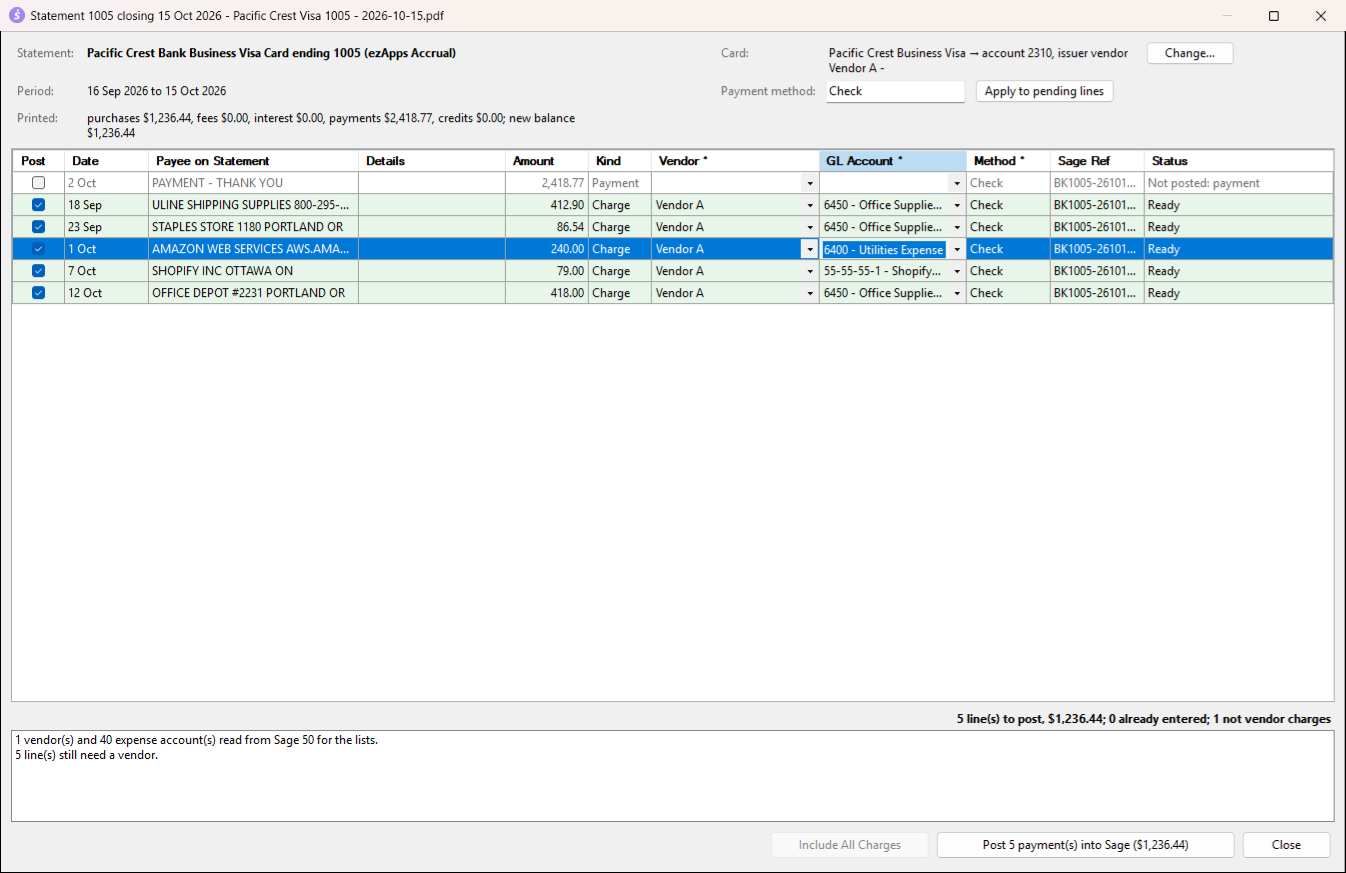
Credit card statements are long, repetitive and arrive every month, which makes them the best first thing to automate. Sagify, a Windows app that works on your Sage 50 company file, reads the statement PDF, checks that it ties to the printed balance, and posts one Sage 50 payment per charge from the card's account. You pick the vendor and account for a payee once and it is remembered.

Details and the manual alternatives: How to import credit card statements into Sage 50.
4. Enter Customer POs from the File
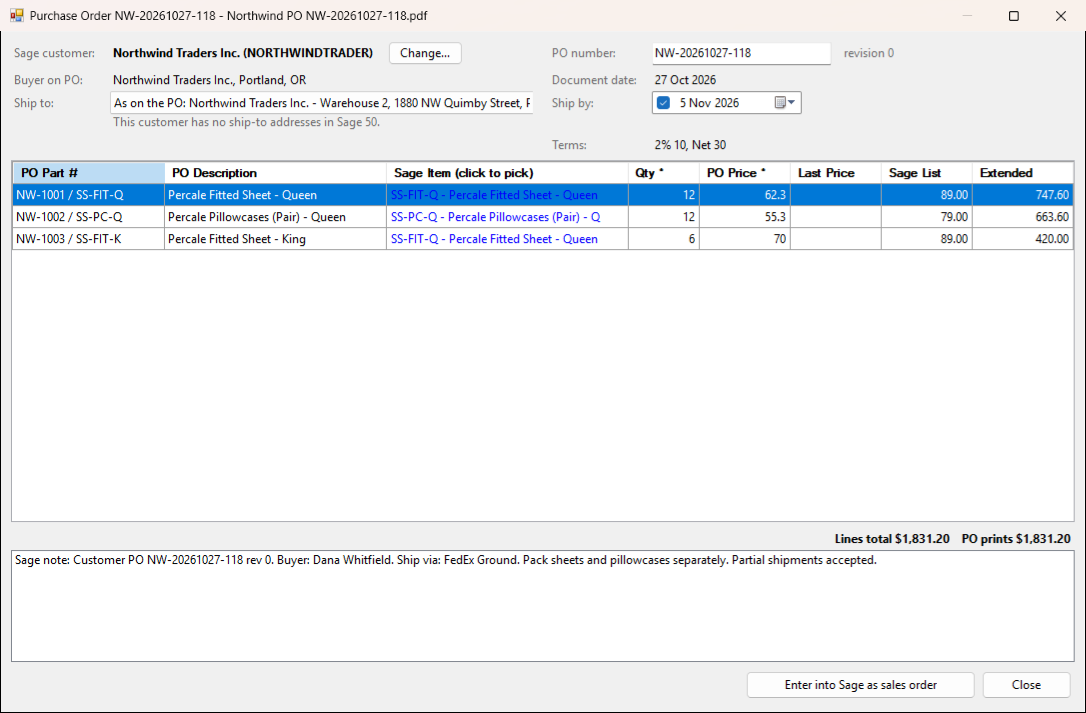
When customers email purchase orders as PDFs or spreadsheets, the slow part is translating their part numbers into your Item IDs. Sagify's Wholesale Orders tab reads the file, matches the buyer and each part number (asking once, then remembering), checks the lines against the PO's total, and enters a Sage 50 sales order or invoice. A history stops the same PO being entered twice.
Details: How to enter customer purchase orders into Sage 50 faster.
5. Turn Reports into Journal Entries
Some activity is better booked as one summary entry than as hundreds of documents: a marketplace settlement, a payment processor's monthly summary, a day of till sales. Sagify's journal entry window can read an Amazon transaction export, an eBay financial summary, or any PDF or CSV report, and propose the lines against your own chart of accounts. You review and change anything, and the entry only saves when debits equal credits. See the journal entries guide.
6. Stop Retyping Online Orders
If you sell online, the order already exists in your store; typing it into Sage 50 is pure duplication. Sagify imports Shopify orders as Sage 50 sales orders or invoices with the right customer, tax and accounts, records refunds as credit memos, and applies payouts as receipts. For other stores and systems we build fixed-price connectors. See what connects to Sage 50.
Where to Start
List what you typed into Sage 50 last month and count the lines by source. The document with the most lines that arrives on a schedule is the one to fix first. For most companies without an online store that is the credit card statements; for a wholesaler it is customer POs.
Steps 1 and 2 cost nothing but time. Steps 3 to 6 use Sagify US, which runs on Sage 50 US Edition (2026 or newer) on Windows 10 and 11 and is priced per document posted: pay-as-you-go is $1.75, less on a monthly plan. Book a demo and bring a real statement or PO.
Frequently Asked Questions
Can Sage 50 be automated?
Partly on its own, and further with add-on software. Sage 50 has memorized and recurring transactions and defaults on vendors and customers. Desktop add-ons such as Sagify work on the company file to post documents Sage 50 cannot read itself, like card statement PDFs and customer purchase orders.
What is the fastest way to enter transactions in Sage 50?
For repeating transactions, memorize or schedule them. For long documents such as card statements, post them from the file instead of typing, with a tool that reads the PDF and codes each line from what you chose last time.
Does automating data entry replace a bookkeeper?
No. It replaces the typing. Reconciling accounts, investigating differences, adjusting entries and explaining the numbers still need a person, who then has more hours for that work.
Is it safe to post transactions into Sage 50 automatically?
Take a backup first, start with one small document, and use a reference you can search for. The main risk is duplicates. Sagify checks Sage 50's journals before posting and skips what is already there.
Do these tools work without an online store?
Yes. Card statements, customer POs, purchase orders and journal entries from reports all work on the Sage 50 company file alone. Only the order import needs a store.
Ready to get started?
Schedule a demo to see how we can help streamline your workflow.
Read next
- Shopify Sage 50 integrationSagify posts Shopify orders, inventory, refunds and payouts into Sage 50 — US and Canadian editions.
- Sage + Shopify integrationsWhich Sagify fits your Sage: Sage 50 US, Sage 50 Canada or Sage Accounting.
- Sage 50 integration buyer's guideAn honest comparison of the Shopify to Sage 50 desktop connectors.
Related articles
Hiring a Sage 50 Bookkeeper? Automate These Jobs First
Before you post the job: which parts of Sage 50 bookkeeping software can do (card statements, PO entry, journal entries) and which still need a person (reconciliation, discrepancies, judgment), and how to size the hours.
How to Import Credit Card Statements into Sage 50
Two ways to get a credit card statement into Sage 50 US: key each charge as a payment, or post the statement PDF with Sagify. Steps, trade-offs and how to avoid duplicates.
How to Enter Customer Purchase Orders into Sage 50 Faster
Customers email POs as PDFs, spreadsheets and CSVs. Here is how to enter them into Sage 50 US as sales orders by hand or automatically with Sagify, without entering the same PO twice.