General journal entries: point of sale, online orders and marketplace reports
Post a day of Shopify POS or online sales as one journal entry from the Dashboard, and turn an Amazon or eBay settlement report into a journal entry with the Tools menu.
Not every sale needs its own Sage 50 document. Sagify US can post a day of Shopify point-of-sale or online sales as a single general journal entry, and it can read an Amazon or eBay settlement report and turn it into a journal entry for you to review and save.
A day of sales as one journal entry
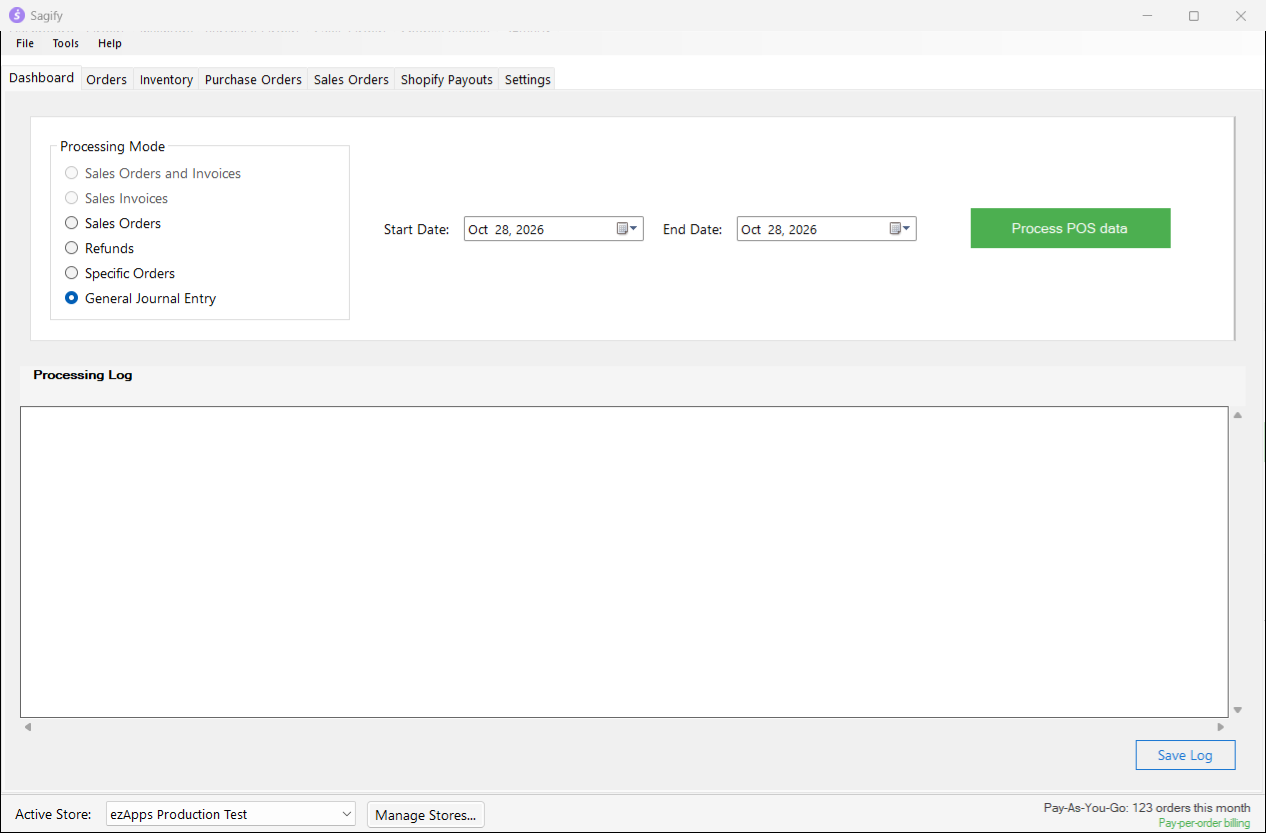
The General Journal Entry processing mode on the Dashboard posts your Shopify POS and online orders as journal entries instead of invoices: one entry per register per day for POS, one per day for online orders, one per day for refunds.
Set up the accounts
Go to Settings → Payments → General Journal Entry.
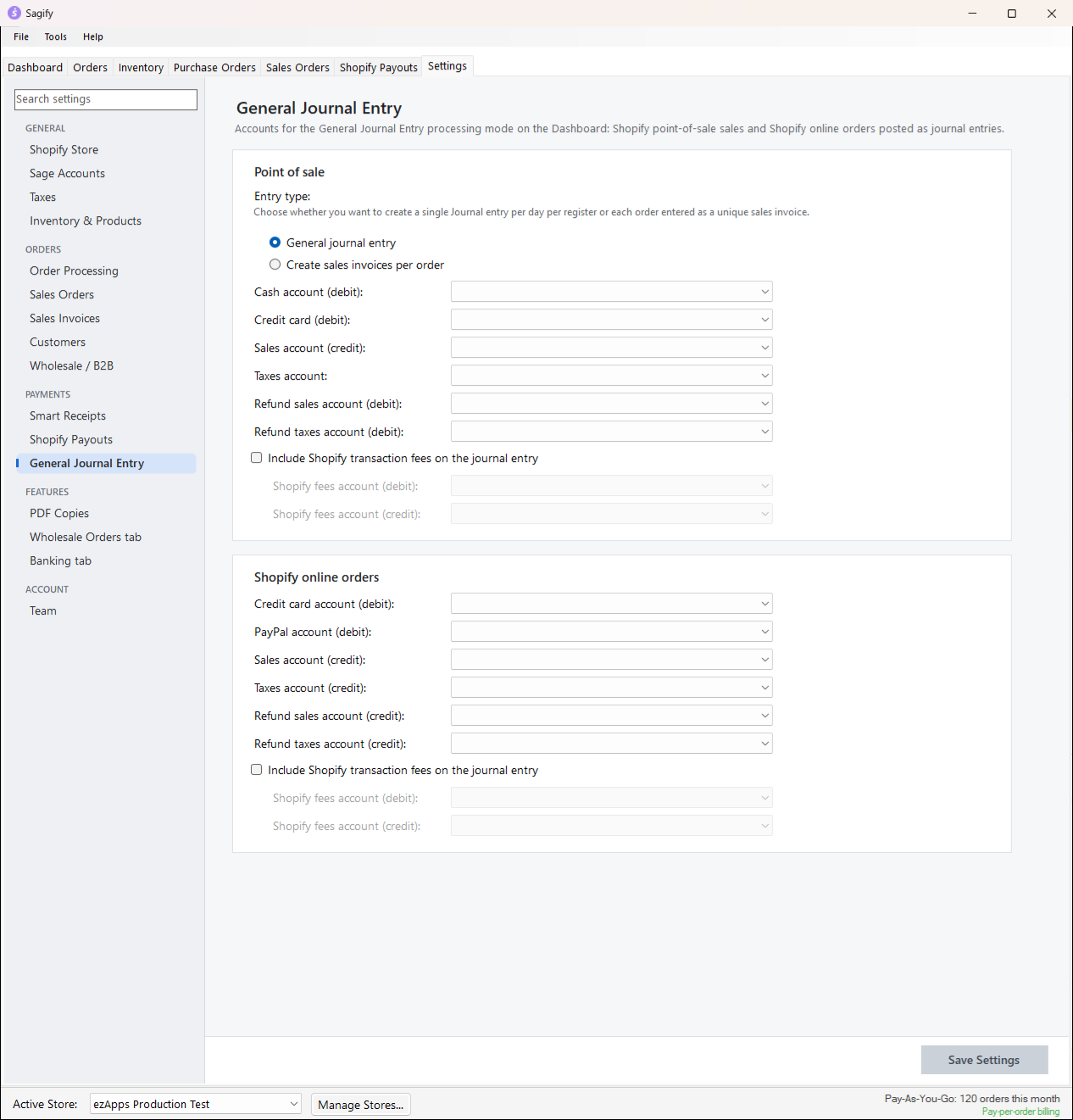
- Point of sale: Entry type decides whether POS sales become one journal entry per register per day or one sales invoice per order. Then the accounts: cash and credit card (debit), sales and taxes (credit), refund sales and refund taxes (debit), and optionally Shopify's transaction fees on their own debit and credit accounts.
- Shopify online orders: the same set for online orders, with a PayPal account next to the credit card account.
Click Save Settings. The accounts are checked when the run starts, not when you save: a missing one stops the run with the list of what to configure.
Run it
- On the Dashboard, choose General Journal Entry under Processing Mode and set the Start Date and End Date.
- Click Process POS data. Sagify confirms you have a backup, reads the orders of the range, and posts the entries.
- The result tells you how many entries were created for POS and online orders, and how many were skipped because they already existed. An entry Sagify cannot balance is opened in the journal entry window for you to correct by hand.
The entries carry a reference you can search for in Sage 50: MM/dd/yy Register {name} for POS, MM/dd/yy SHOPIFY ONLINE for online orders, MM/dd/yy SHOPIFY REFUNDS for refunds.
Note
Shopify Payments payouts can be posted as journal entries too, with their own accounts: one entry per payout with the bank deposit, the fees, the sales and the tax. See Shopify payouts.
A marketplace report as a journal entry
Tools → Create General Journal Entry opens a journal entry window with a twist: it can read a settlement report and propose the lines.
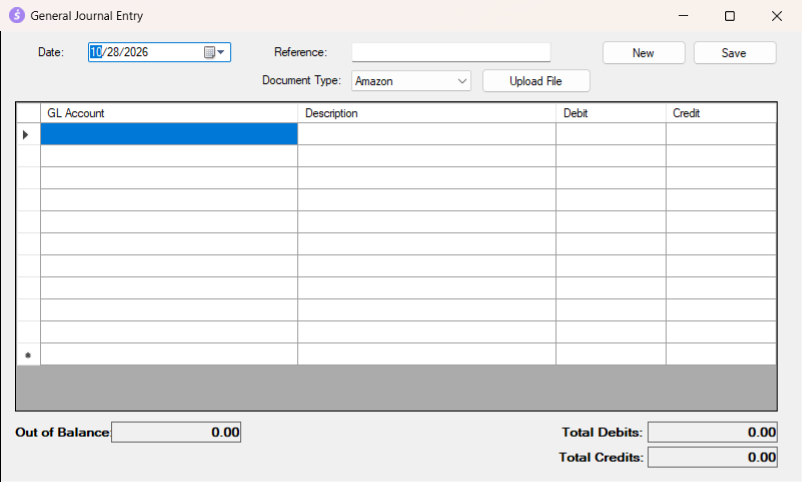
- Set the Date and a Reference.
- Choose the Document Type: Amazon (a transaction CSV export), eBay (the financial summary PDF) or Generic (any PDF or CSV).
- Click Upload File and pick the report. Sagify sends it, with your chart of accounts, to ezApps' AI service, which reads the totals (sales, fees, refunds, taxes, the deposit) and maps each one to an account. A progress window shows the steps.
- Review the lines: the GL Account, Description, Debit and Credit of each one can be changed, lines can be added, and the totals and the Out of Balance figure update as you type. If the service had to add a balancing line, the message says so; check it against the report.
- Click Save. The entry is written to Sage 50's general journal. New clears the window for another one.
An entry only saves when it balances. The window works without a file too: type the lines yourself and save.
Tip
The report is read by ezApps' AI service over an encrypted connection and nothing is stored there; the only thing that leaves your computer for good is the usage count. The same service reads vendor invoices, purchase orders and card statements for the other tools.