Ways to bring Shopify orders into Sage 50
Compare the ways Sagify US records your sales: the Orders tab, a date-range run from the Dashboard, sales orders or invoices, Shopify payouts and purchase orders that arrive as files.
Sagify US reads your sales from Shopify and enters them into the Sage 50 company that is open on your computer. There is more than one way to do it, and most stores combine two: one way to post the orders themselves, and the Shopify Payouts tab to record the money. Whichever way you use, Sagify remembers what it has already posted.
The ways at a glance
| Method | Where in Sagify | What you get in Sage 50 | Best for |
|---|---|---|---|
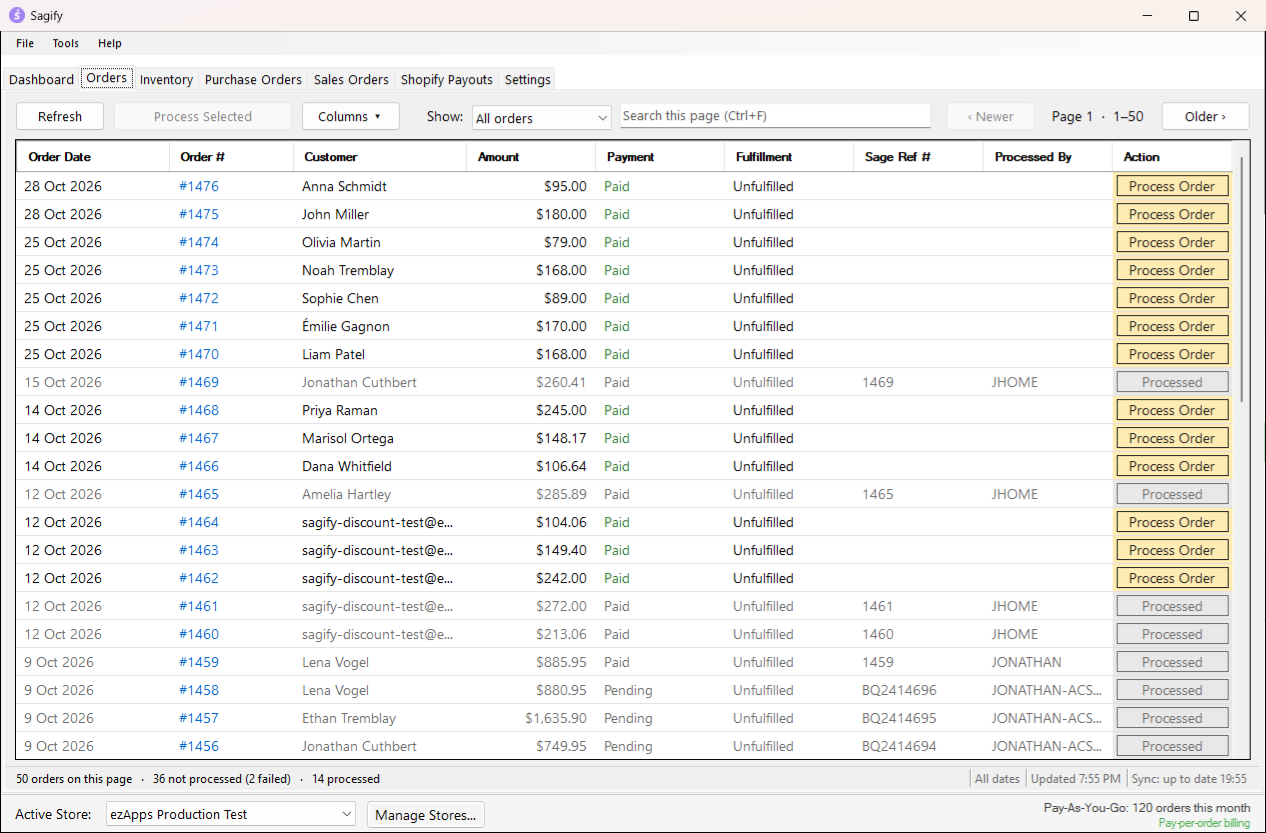
| Orders tab | Orders tab | One sales order or sales invoice per Shopify order, for the matching Sage 50 customer | Day-to-day work: pick the orders, post them, see their Sage 50 reference |
| Date range | Dashboard tab | The same documents, for every unprocessed order between two dates (or for a list of order numbers) | Catching up a week or a month in one run |
| Shopify payouts | Shopify Payouts tab | One journal entry per payout, or receipts against the orders' invoices, with Shopify's fees | Matching each bank deposit from Shopify to the cent |
| Wholesale Orders | Wholesale Orders tab (optional) | A sales order or invoice entered from a customer's purchase order file (PDF, Excel or CSV) | Wholesale customers who send POs instead of ordering online |
| Tools menu | Tools → Create Sales Invoice | Sales invoices typed in or imported from a CSV template | Orders that exist nowhere else |
Before you start
- Open the company in Sage 50 before you start Sagify. Sagify posts to the company that is open.
- Connect your store. Click Manage Stores... at the bottom of the window to add a Shopify store, and pick it in the Active Store list. Every setting is kept per store.
- Save your settings. The six default accounts on Settings → Sage Accounts, the tax handling on Settings → Taxes, and the customer and document options on Settings → Sales Orders, Sales Invoices and Customers. See Settings explained.
- Make a backup. Before every run Sagify asks whether you have backed up the Sage 50 company file (Backup Warning). Nothing Sagify posts can be undone by Sagify; a backup is your way back.
Sales orders or invoices?
By default a Shopify order becomes a Sage 50 sales invoice, which posts to your ledger right away. Stores that pick, pack and ship from Sage 50 prefer sales orders: turn on Create sales orders under Settings → Sales Orders and choose which orders become sales orders (all of them, unpaid ones, unfulfilled ones, or orders with a tag). Sales orders are converted to invoices later, from Sagify's Sales Orders tab or in Sage 50, when the order ships.
Smart Receipts (Settings → Payments → Smart Receipts) go one step further for paid orders: the invoice gets a receipt for the amount Shopify collected as it is created, so paid orders never sit open in Sage 50.
The details are in Sales orders and invoices.
The Dashboard: a date range in one run
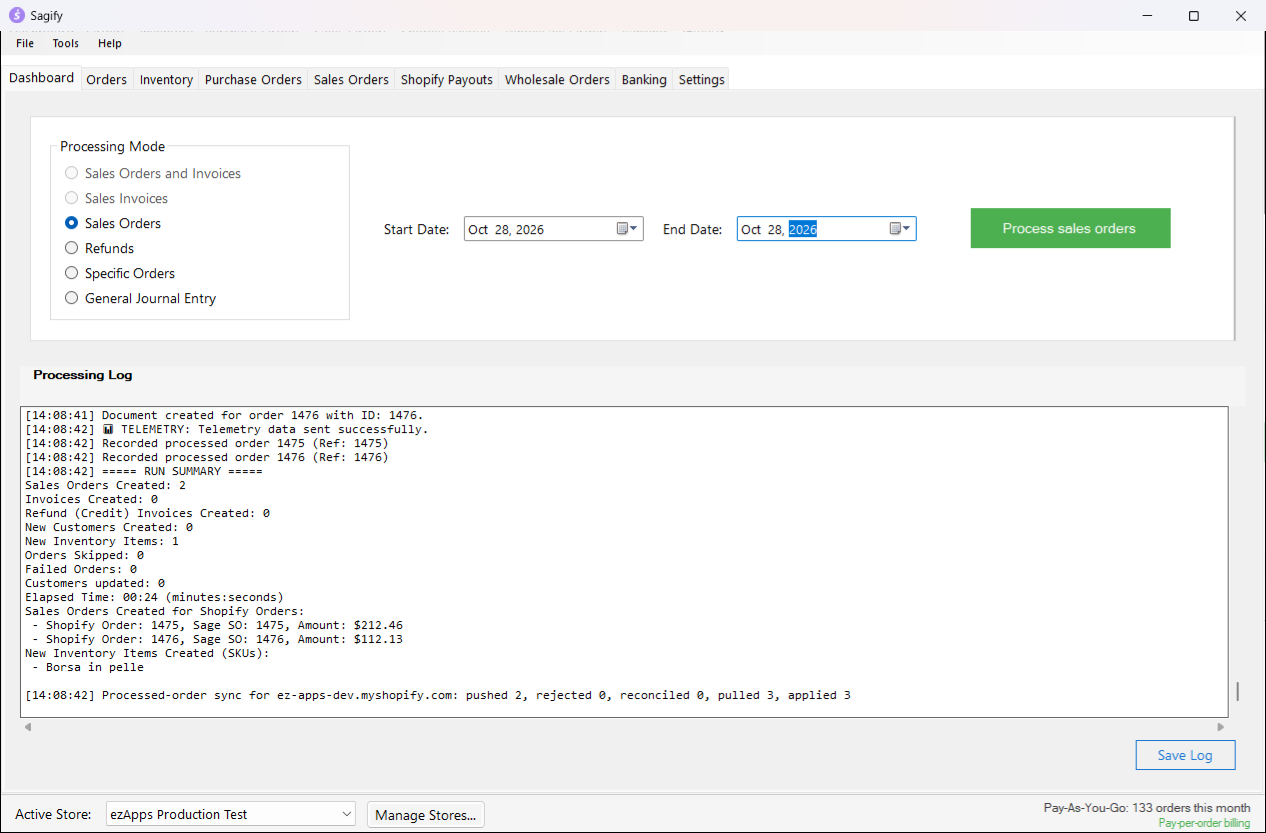
The Dashboard tab posts every unprocessed order between Start Date and End Date (by the date the order was placed in Shopify). Choose a Processing Mode first:
- Sales Orders and Invoices: each order becomes a sales order or an invoice according to your Sales Orders settings.
- Sales Invoices or Sales Orders: only the orders that belong to that document type; the others are skipped.
- Refunds: creates credit memos for the orders refunded in the range. See Refunds and credit memos.
- Specific Orders: type order numbers, one per line, instead of dates.
- General Journal Entry: posts point-of-sale and online sales as journal entries instead of documents. See General journal entries.
Click the green button (Begin processing, or Process sales orders, Process sales invoices, Process refunds, depending on the mode). The Processing Log below shows every step, and Save Log writes it to a file for ezApps support. At the end, a Process Summary window counts the sales orders, invoices, receipts, new customers and items, skipped orders and failed orders.
Tip
The same orders can be posted from the Orders tab one by one or from the Dashboard as a range. Every run skips the orders that are already posted, so you can use both freely.
How Sagify avoids posting an order twice
Every order Sagify posts is recorded with its Sage 50 reference. On the Orders tab a posted order shows its Sage Ref #, the Processed By computer and a greyed Processed button, and every run skips it. Before posting, Sagify also looks in Sage 50 for a document with the order's reference, so an order entered on a computer that has not synced yet is not duplicated either.
When several computers use Sagify with the same ezapps.io account, the processed status is shared between them (Sync: up to date in the Orders tab's status bar). An order posted on one computer shows as processed on the others within a minute or two.
To post an order again, for example after deleting its document in Sage 50, right-click it on the Orders tab and choose Mark as Not Processed.... Sagify warns you that the order can then be posted again on every computer.
Which guide next?
- New to Sagify: Settings explained, then Import orders from the Orders tab.
- Picking and shipping from Sage 50: Sales orders and invoices.
- One Sage 50 customer per shopper, or one for the whole store: Customers.
- Reconciling bank deposits: Shopify payouts.
- Something looks wrong: Troubleshooting.