Get started with Sagify US
Install Sagify US, sign in with your ezapps.io account, let it connect to your Sage 50 company, connect your Shopify store and find your way around the main window.
Sagify US is a Windows program that runs next to Sage 50 US Edition. It reads your orders, customers, products and payouts from Shopify and enters them into the Sage 50 company that is open on your computer: sales orders or sales invoices, customers, inventory items, receipts and credit memos. This guide takes you from the download to your first look at the main window.
1. Install Sagify US
- Sign in to your account at ezapps.io and download the Sagify US installer from your portal page. If you do not have an account yet, start the free trial on the Sagify US page: 7 days and up to 50 orders, no credit card needed.
- Run the installer on the computer where Sage 50 is installed. Sagify talks to Sage 50 through the Sage 50 SDK, which is part of your Sage 50 installation, so it has to run on a computer that has Sage 50.
- Open Sage 50 and open the company file you want to post to. Sagify always works with the company that is open in Sage 50.
- Start Sagify from the Start menu.
Note
Sage 50 needs to be open with the right company before Sagify starts. Sagify connects to that company once, when it starts; to switch to another company, close Sagify, open the other company in Sage 50 and start Sagify again.
2. Sign in
The Sagify Login window asks for the email and password of your ezapps.io account. Tick Remember Me and Sagify fills them in next time. Sign Up creates an account and starts the trial from here, and Forgot your password? opens the reset page on ezapps.io.
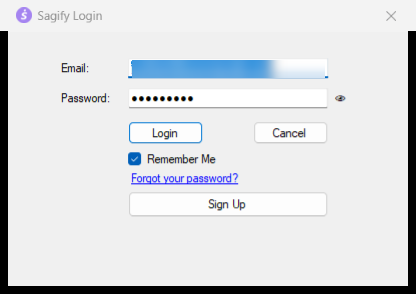
After you sign in, Sagify checks for a newer version (it offers to install it, with the release notes), asks you to accept the terms of service the first time, and connects to Sage 50.
The first connection to Sage 50
The first time Sagify connects, Sage 50 itself may ask whether to allow a third-party application to access the company. Choose to allow it, and Sagify continues.
Sagify then checks the rights of the Sage 50 user you are logged in as. Two things matter:
- SDK Data Access (in Sage 50: Maintain → Users → Set Up Security → Selected Access → Company) must be Full Access, or Sage 50 refuses every read and write Sagify makes.
- For each area Sagify writes to (customers, sales orders, sales invoices, credit memos, receipts, inventory items and adjustments, vendors, purchase orders, purchase invoices, payments, general journal) the user needs at least Add rights.
If something is missing, the Sage 50 user rights window lists the rows to fix and where to set them. You can continue anyway if the missing rights belong to features you do not use. See Troubleshooting for the details.
3. Connect your Shopify store
Sagify keeps a list of Shopify stores, each with its own settings. Click Manage Stores... at the bottom of the main window, then Add Store.
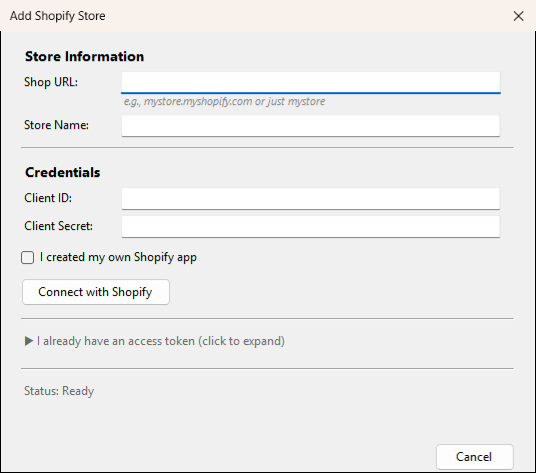
- Enter the Shop URL (for example
my-store.myshopify.com, or justmy-store) and a Store Name of your choice. The name is what you see in Sagify. - Click Connect with Shopify. Your browser opens the Shopify authorization page; approve the access and come back to Sagify. The connection is made through ezapps.io, so Sagify never needs you to create a Shopify app yourself.
- If you prefer to use your own Shopify app, tick I created my own Shopify app and enter its client ID and secret, or expand I already have an access token and paste the token.
The new store becomes the Active Store. With more than one store, pick the one you are working on in the Active Store list at the bottom of the window; every tab and every setting then applies to that store. See Stores, team members and your account.
4. Find your way around
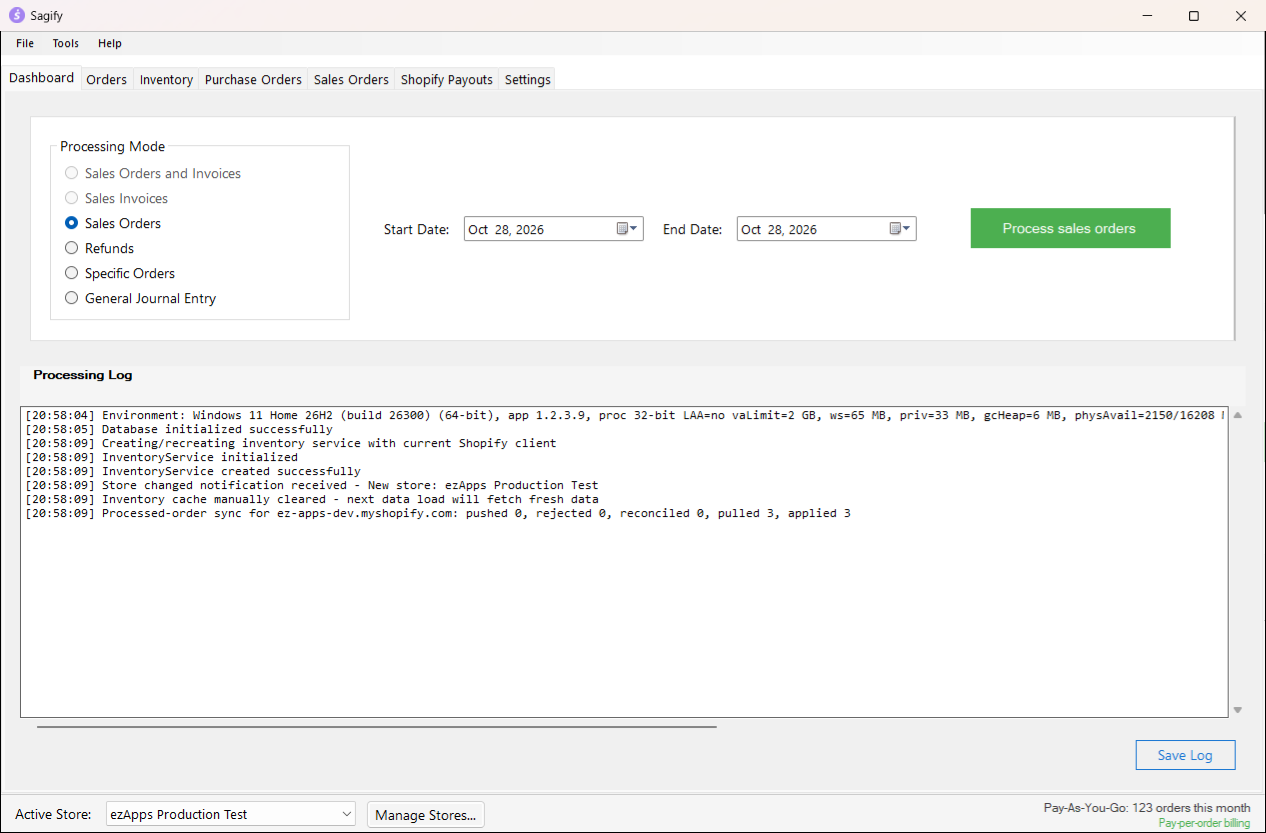
The tabs along the top:
| Tab | What it is for |
|---|---|
| Dashboard | Process every unprocessed order between two dates, or a list of order numbers, and read the processing log. See Ways to bring Shopify orders into Sage 50. |
| Orders | Your Shopify orders, newest first, with their Sage 50 status. Pick the ones to post. See Import orders from the Orders tab. |
| Inventory | Compare quantities between Sage 50 and Shopify and sync them either way. See Inventory. |
| Purchase Orders | Create Sage 50 purchase orders and turn them into purchase invoices. See Purchase orders. |
| Sales Orders | The open sales orders in Sage 50: convert them to invoices or create them in Shopify. See Sales orders and invoices. |
| Shopify Payouts | Record each Shopify Payments payout in Sage 50. See Shopify payouts. |
| Wholesale Orders, Banking | Optional tabs, switched on in Settings. See Wholesale Orders and Banking. |
| Settings | Everything about how orders land in Sage 50, per store. See Settings explained. |
The menus: File holds Account (your plan and usage, and sign out) and Exit. Tools holds Create Sales Invoice and Create General Journal Entry, two ways to enter documents that do not come from Shopify orders. Help opens this knowledge center, the support form and Export Support Bundle..., which packs your logs for ezApps support.
The bar at the bottom shows the Active Store, the Manage Stores... button and your usage for the month (trial orders left, or orders used on your plan).
5. Check the settings before your first order
Open the Settings tab. Sagify reads the chart of accounts, customers, items, tax codes and sales reps from the Sage 50 company the first time you open it, so give it a few seconds. Then go through these pages and click Save Settings:
- Sage Accounts: the six default accounts (A/R, sales, inventory, COGS, cash and A/P) and where shipping posts. All six are required.
- Taxes: how the tax Shopify charged reaches Sage 50 (a Sage 50 tax code on the document, or tax posted as line items on a liability account).
- Sales Orders and Sales Invoices: whether orders become sales orders or invoices, how they are numbered, and which customer invoices are created under.
- Customers: how Shopify customers are matched to Sage 50 customers, and how new ones are created.
Settings explained walks through every page. When you are done, post a first order from the Orders tab and look at it in Sage 50: Import orders from the Orders tab.
Settings on more than one computer
Settings are saved per store on your computer, and a copy is kept with your ezapps.io account after every save. When Sagify starts on another computer signed in to the same account, it compares the two. If they differ, it asks what to do:
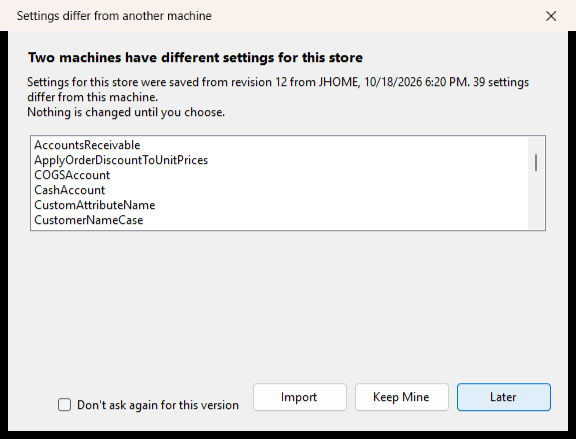
- Import takes the other computer's settings (restart Sagify afterwards so every screen picks them up).
- Keep Mine keeps this computer's settings and makes them the copy on the account.
- Later leaves everything as it is and asks again next time.
The same list is kept for processed orders, so two computers never post the same order twice. See Ways to bring Shopify orders into Sage 50.