Purchase orders and vendor invoices
Create and edit Sage 50 purchase orders from Sagify, turn them into purchase invoices when goods arrive, and let the AI read a vendor invoice from a PDF, CSV or text.
The Purchase Orders tab lists the purchase orders in your Sage 50 company, lets you create new ones for your vendors, edit them, and turn them into purchase invoices when the goods arrive. Receiving through Sagify updates Sage 50's inventory, and Sagify then offers to push the new quantities to Shopify.
The list
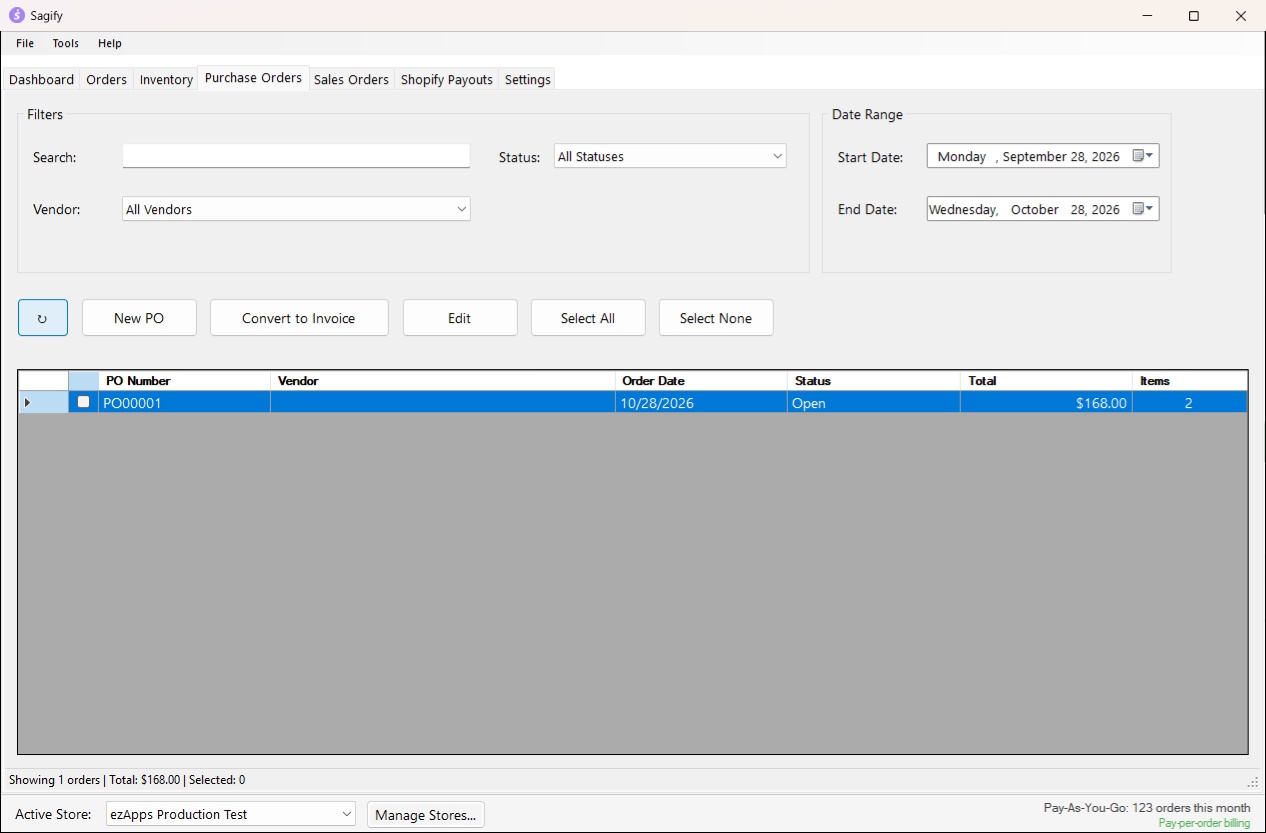
Sagify reads the purchase orders of the last six months from Sage 50 when you first open the tab (↻ reads them again). Each row shows the PO Number, Vendor, Order Date, Status, Total and the number of Items.
- Search matches the PO number or the vendor name; Vendor and Status narrow the list; Start Date and End Date default to the last month.
- Status is worked out from Sage 50: Closed when Sage 50 marks the order closed or its Good-thru date has passed, Pending when the order date is in the future, otherwise Open.
- Tick the rows you want to act on, or use Select All and Select None. The status bar counts the orders shown, their total and your selection.
Note
Purchase orders created from Sagify get a Good-thru date 30 days after the order date, so they show as Closed after a month and can no longer be converted from this tab.
Create a purchase order
Before the first one, make sure Settings → Sage Accounts has an A/P account and an Inventory account; Sagify refuses to open the window without them.
Click New PO.
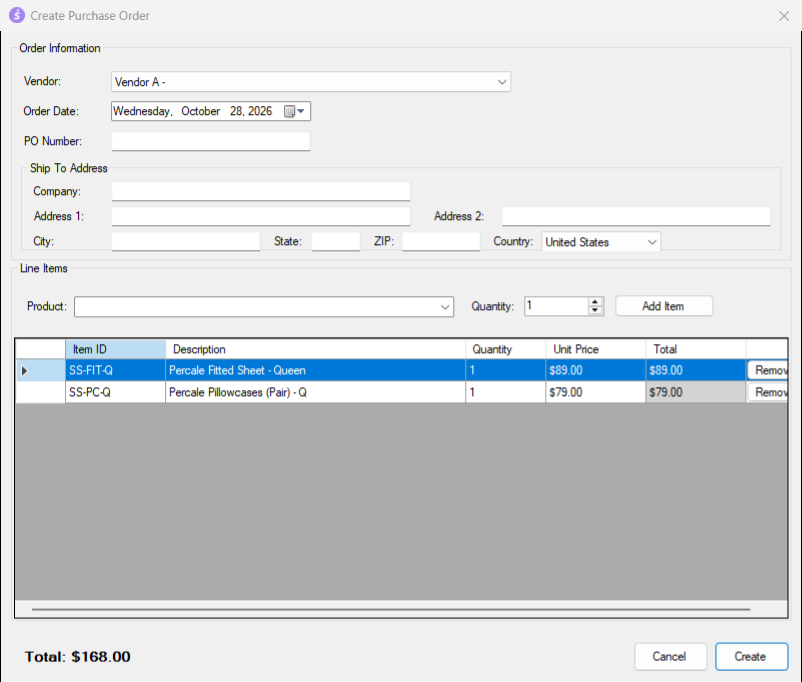
- Order Information: pick the Vendor (your active Sage 50 vendors), the Order Date, and a PO Number. Leave the number blank and Sagify numbers it
POplus five digits, one higher than your last. - Ship To Address is pre-filled with your company name; the address lines are optional.
- Line Items: choose a Product (type to search the active Sage 50 items), a Quantity, and click Add Item. The unit price is the item's last cost (or its first price level); you can change it in the grid. Remove takes a line off.
- Click Create. Sagify writes a Sage 50 purchase order with the vendor, the lines at their unit price, the A/P account and the inventory account from Settings, and confirms the number and total.
The Sage 50 user needs the Purchase Orders right (Vendors & Purchases → Tasks). Nothing moves in inventory yet; that happens when the order is invoiced.
Edit a purchase order
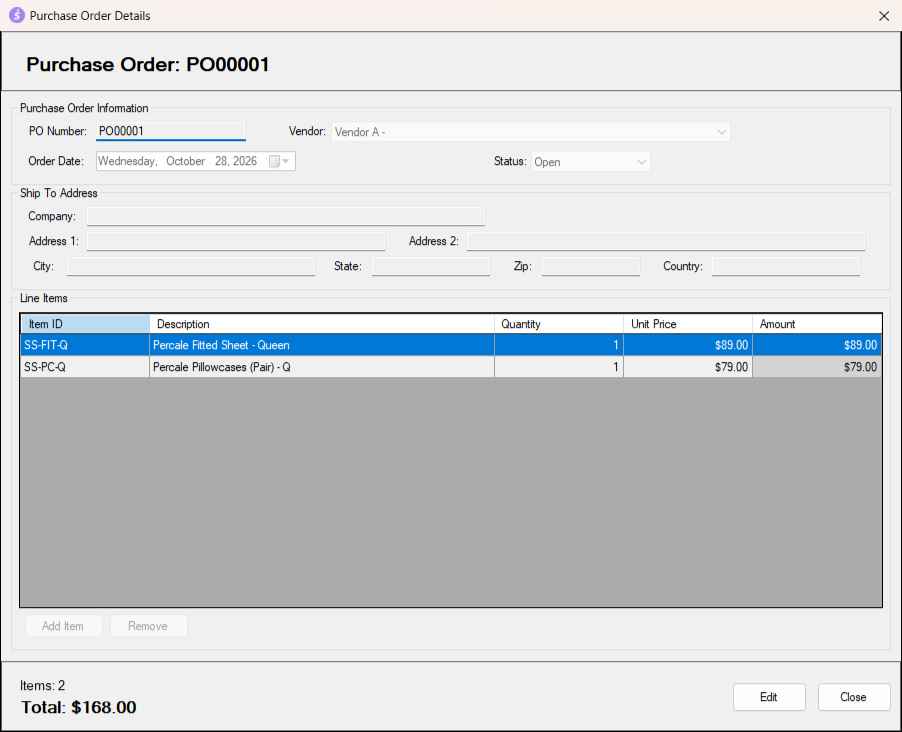
Select a row and click Edit, or double-click it. The Purchase Order Details window shows the header and the lines; Edit makes the quantity and unit price editable, Add Item opens a picker with your items and their last cost, Remove takes a line off, and Save writes the changes back to Sage 50. An order must keep at least one line.
Receive the goods: Convert to Invoice
When the vendor's goods arrive, tick the open purchase order(s) and click Convert to Invoice. After you confirm, Sagify creates one Sage 50 purchase invoice per order, applied to the purchase order:
- The invoice number is the PO number (with
-001,-002... added if that number already exists), dated today, on the order's A/P account. - Every line is received in full at the order's price, so Sage 50's inventory goes up by the ordered quantities.
- An order that already has an invoice in the last year is refused, so a double click cannot receive the same goods twice.
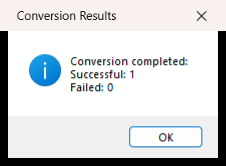
The result window counts the successes and lists any failures with Sage 50's reason. The Sage 50 user needs the Purchases/Receive Inventory right.
Push the new quantities to Shopify
If some of the received items exist in Shopify, Sagify asks Sync Inventory to Shopify? and tells you how many of the items are in your store. Answer Yes and it runs a Sage 50 → Shopify sync for those items right away, so the new stock is on sale. Answer No and you can sync later from the Inventory tab.
Find the documents in Sage 50
- The purchase order: Tasks → Purchase Orders, then List.
- The purchase invoice: Tasks → Purchases/Receive Inventory, then List. The invoice shows the purchase order it was applied to.