PDF copies of sales orders and invoices
Save, open or print a PDF of every sales order and invoice Sagify creates, design the layouts (picking lists, packing slips, lines grouped by Sage 50 Item Type), add a second copy, and create PDFs for orders already in Sage 50.
Sagify US can create a PDF of every sales order and sales invoice it creates in Sage 50, laid out like Sage's stock Sales Order and Invoice forms, saved to a folder you choose and, if you like, opened or printed as it is created. The lines can be grouped by Sage 50 Item Type for the warehouse, a second copy in another layout can be saved next to the first, and any sales order already in Sage 50 can be turned into a PDF from the Sales Orders tab.
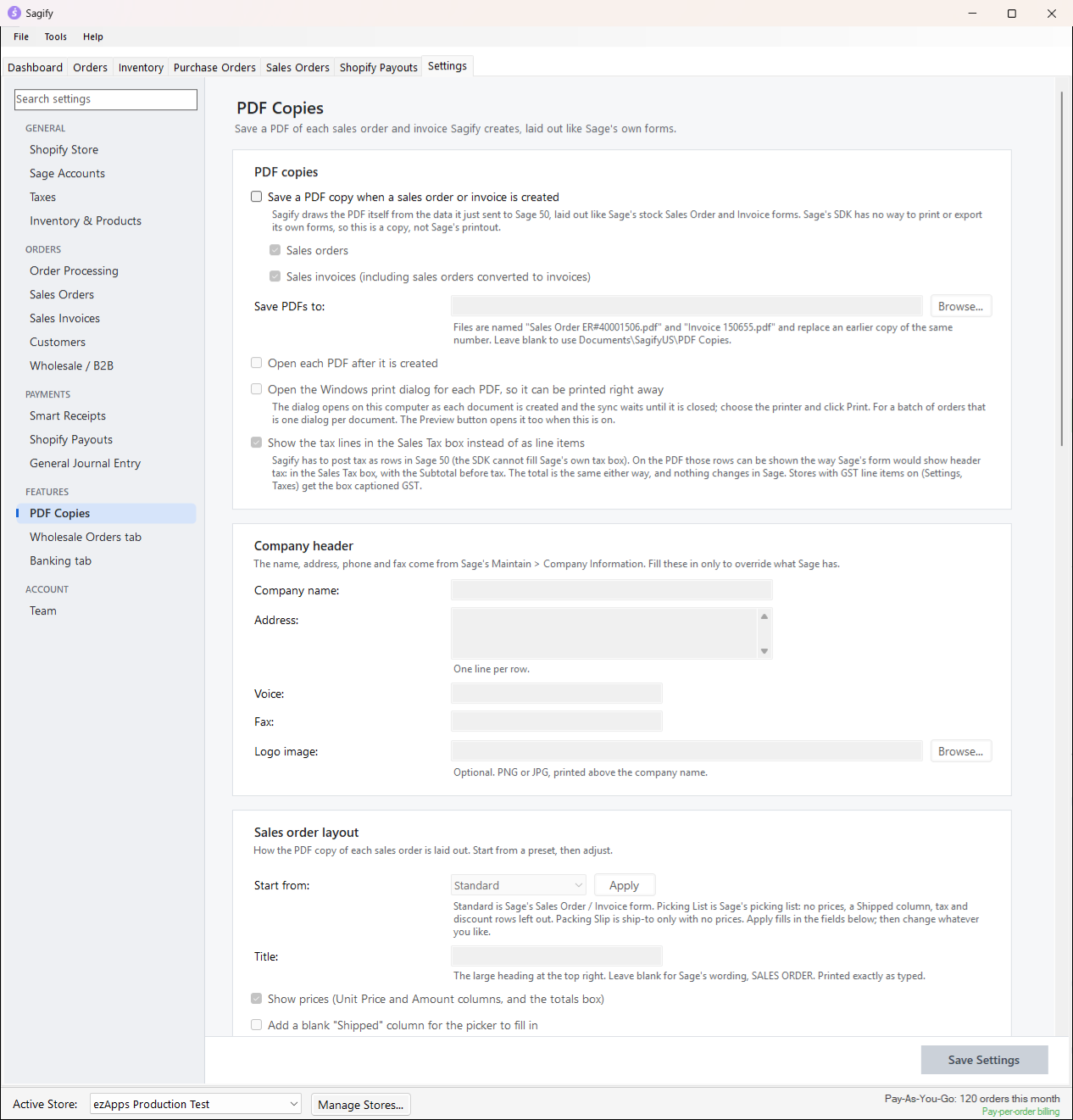
Everything is under Settings → PDF Copies. Change what you need and click Save Settings. The switches and layouts belong to the store's settings, so they follow the store to every computer signed in to it; only the output folder and the logo file have to exist on each computer.
What gets a copy:
- every sales order and invoice created from the Orders tab or a date-range run from the Dashboard,
- every invoice Sagify creates by converting a sales order (the Sales Orders tab, or Create in Shopify with convert first),
- any sales order already in Sage 50, on demand, with Create PDF on the Sales Orders tab (see below).
Credit memos (refunds) never get a copy. A PDF problem is written to the log and never stops the Sage 50 import.
Turn PDF copies on
| Setting | What it does |
|---|---|
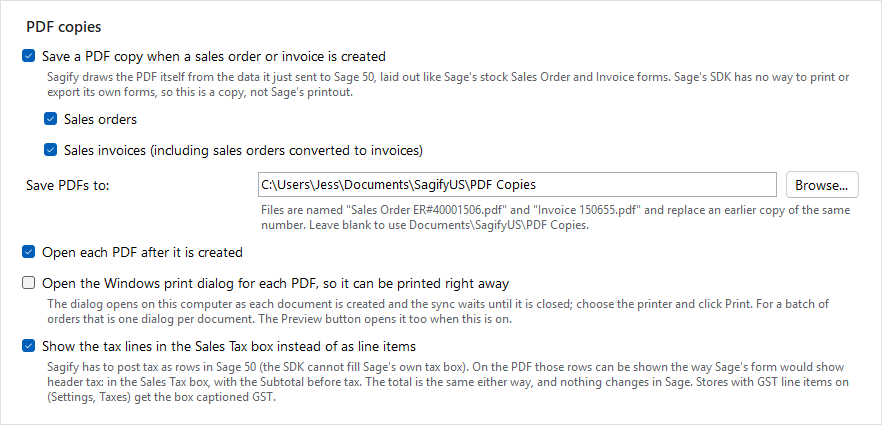
| Save a PDF copy when a sales order or invoice is created | The master switch. Off, nothing on this page is used (except Create PDF on the Sales Orders tab, which works either way). |
| Sales orders / Sales invoices | Which document types get a copy. Sales invoices includes the invoices Sagify creates by converting a sales order. |
| Save PDFs to | The folder the PDFs land in. Leave it blank for Documents\SagifyUS\PDF Copies. Files are named Sales Order 1470.pdf and Invoice 1470.pdf (the Sage 50 reference number), and a new copy of the same number replaces the earlier one. |
| Open each PDF after it is created | Opens every PDF in your PDF viewer as it is written. Handy when orders arrive one at a time; noisy for a batch. |
| Open the Windows print dialog for each PDF | Shows the standard Windows print dialog as each document is created, so it can be printed right away on the printer you pick. The sync waits until the dialog is closed, one dialog per document. The document is sent to the printer directly, with no PDF viewer involved. |
| Show the tax lines in the Sales Tax box instead of as line items | Sagify posts tax as rows in Sage 50. On the PDF those rows can be shown the way Sage's form shows header tax: in the Sales Tax box, with the Subtotal before tax. The total is the same either way and nothing changes in Sage 50. Stores with GST line items on get the box captioned GST. |
Tip
Pick a folder that exists on every computer that runs Sagify, or leave the folder blank. The folder setting travels with the store's settings, and a folder that does not exist on a computer means no PDF is written there (the log says so).
What a copy looks like
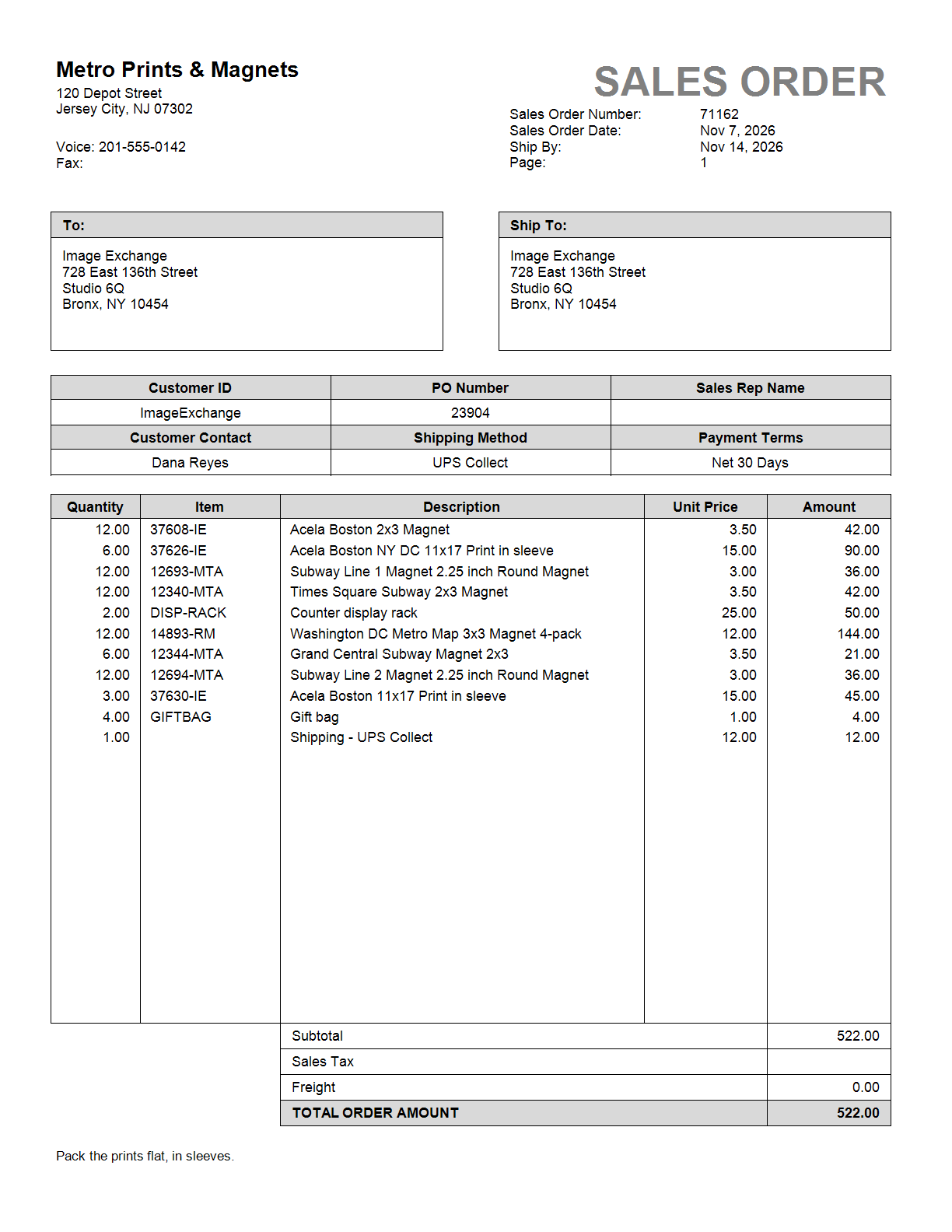
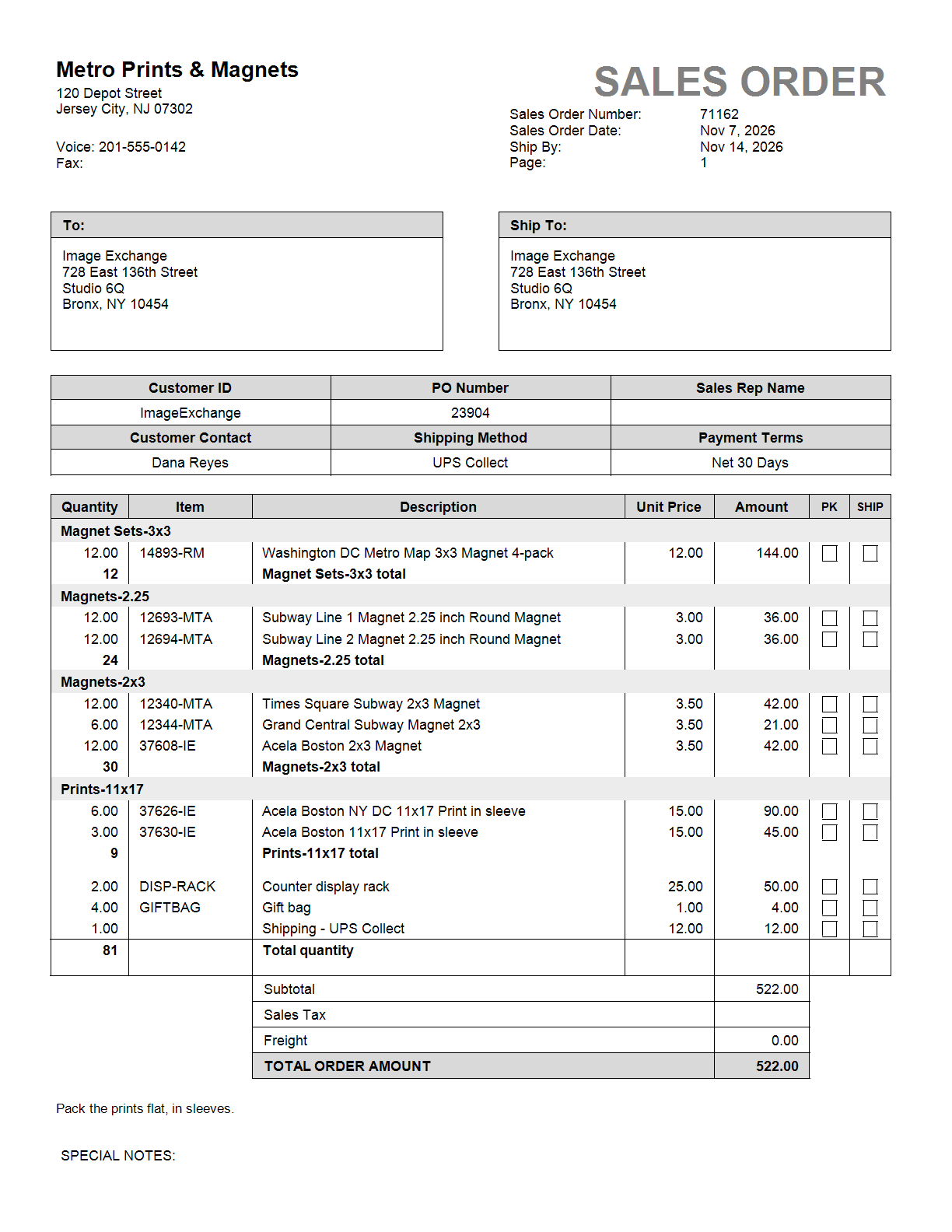
The company block (name, address, voice and fax) comes from Sage 50; the title, number, date and Ship By (or Due Date on an invoice) sit top right, then the To and Ship To boxes, the Customer ID / PO Number / Sales Rep / Contact / Shipping Method / Terms strip, the lines with the same signs Sage prints (discounts negative), the Subtotal / Sales Tax / Freight / Total box, and the Sage note under the lines. Like Sage's form it always runs to the foot of the page; a long order continues on a second page, numbered top right.
Company header
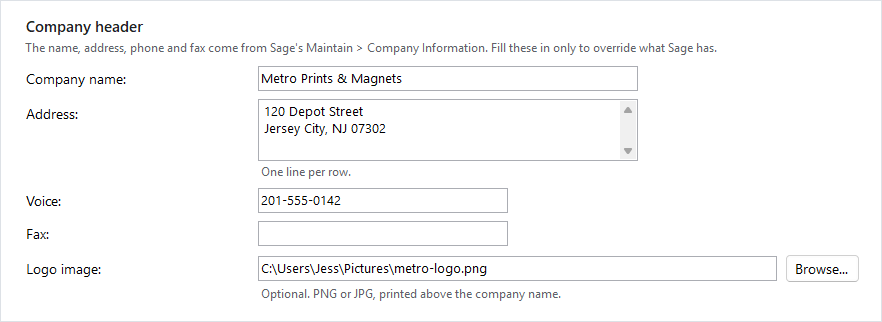
The name, address, phone and fax come from Sage 50's Maintain → Company Information, read the first time a PDF is created and kept for the session. Fill a field in only to print something else:
- Company name, Voice and Fax replace Sage's values when they are not blank.
- Address: one line per row, printed as typed. Fill it in when Sage's address is not how you want it on the form.
- Logo image: a PNG or JPG printed above the company name, about an inch tall. The path is read on the computer that creates the PDF.
Layouts
Each document type has a layout: a set of switches over Sage's form rather than a free-form template. There is one for the sales order copy, one for the invoice copy, and one for the second copy. Start from a preset and click Apply to fill in the fields, then change whatever you like; nothing refers back to the preset afterwards.
| Preset | What it sets |
|---|---|
| Standard | Sage's stock Sales Order / Invoice form: prices and the totals box, bill-to box, customer strip, every row. |
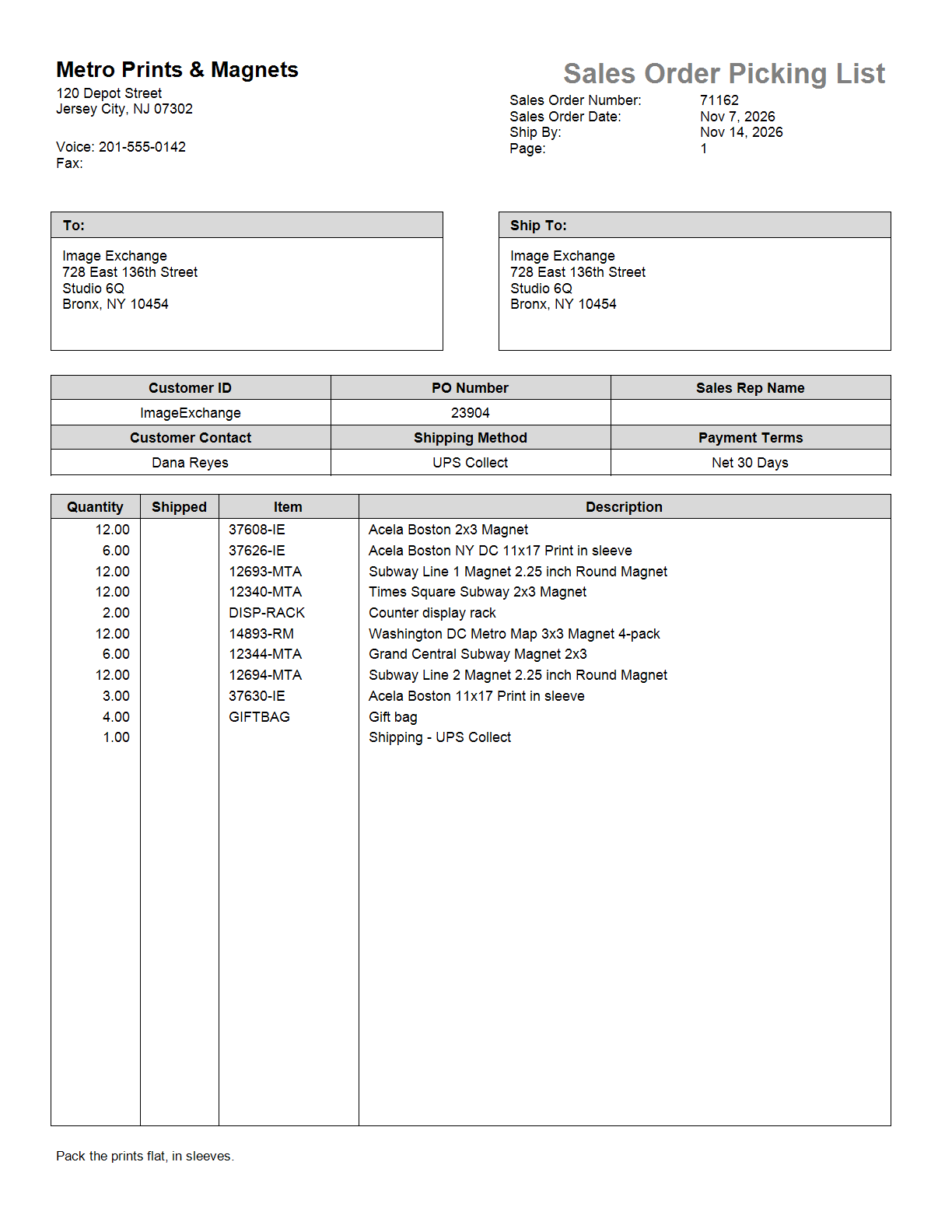
| Picking List | Sage's Sales Order Picking List: title Sales Order Picking List, no prices, a blank Shipped column for the picker, tax and discount rows left out. |
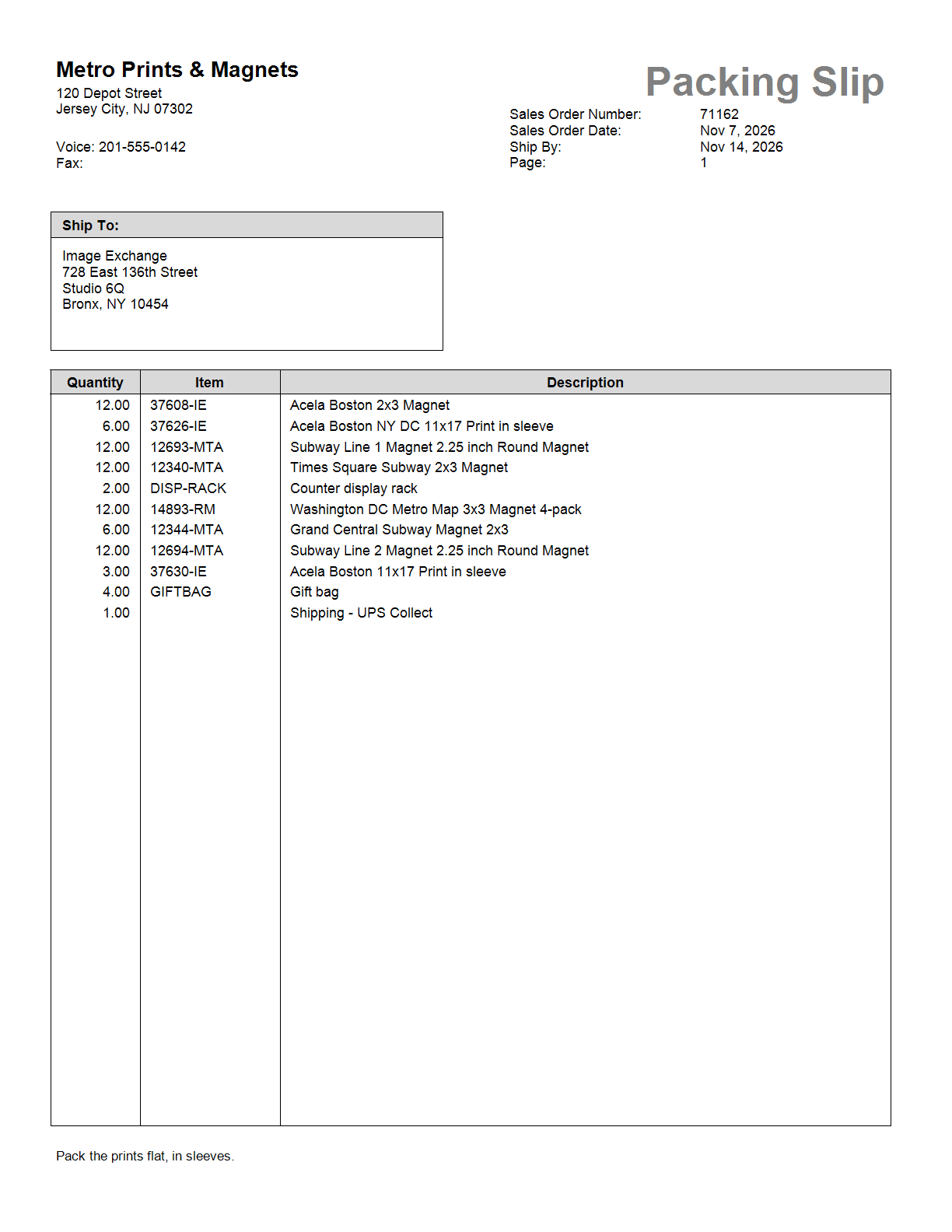
| Packing Slip | A slip for the box: title Packing Slip, no prices, ship-to only (no bill-to box, no customer strip), tax and discount rows left out. |
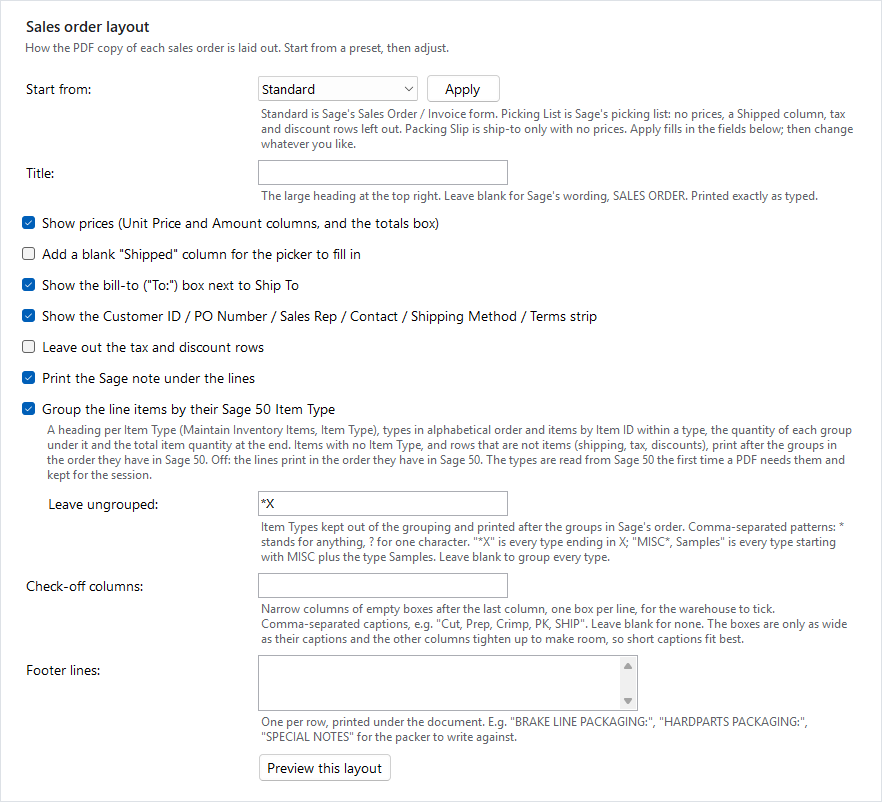
| Switch | What it does | Use it for |
|---|---|---|
| Title | The large heading at the top right, printed exactly as typed. Blank keeps Sage's wording, SALES ORDER or INVOICE. | Order Confirmation, Pro Forma Invoice, GST Invoice. |
| Show prices | The Unit Price and Amount columns and the Subtotal / Tax / Freight / Total box. | Off for anything that goes to the warehouse or into the box. |
| Add a blank "Shipped" column | An empty column after Quantity for the picker to write in. | Picking lists. |
| Show the bill-to ("To:") box | Off leaves only Ship To, which then takes the left box. | Off for packing slips. |
| Show the Customer ID / PO Number / Sales Rep / Contact / Shipping Method / Terms strip | The two-row strip under the address boxes. | Off for packing slips. |
| Leave out the tax and discount rows | Hides Sagify's tax rows and discount rows (negative amounts). Presentation only: the totals box, when shown, still reflects every row in Sage 50. | Price-less copies, where "Order Discount" with no amount is just noise. |
| Print the Sage note under the lines | The note on the Sage 50 document, under the lines. | Off when the note holds internal remarks. |
| Group the line items by their Sage 50 Item Type | A heading per Item Type, the lines sorted inside it, and quantity totals. See Group the lines by Item Type. | Stores that pick by product type. |
| Leave ungrouped | Item Types kept out of the grouping. | Types that do not belong in the walking order. |
| Check-off columns | Comma-separated captions (Cut, Prep, Crimp, PK, SHIP) that become narrow columns of empty boxes after the last column, one box per line, for the warehouse to tick. The boxes are only as wide as their captions and the other columns tighten up to make room, so short captions fit best. Up to eight boxes without prices, four with; a caption that still does not fit is named under the field and left off the PDF. |
Pick, pack and ship stages. |
| Footer lines | Lines printed under the document, one per row, with room to write against: BRAKE LINE PACKAGING:, SPECIAL NOTES. |
Packing instructions. |
Preview this layout renders a sample document of that type with the values on the page, saved or not, and opens it, so you can check the look without creating anything in Sage 50. When the print dialog switch is on, the preview opens that too.
Group the lines by Item Type
Tick Group the line items by their Sage 50 Item Type on a layout and its lines print the way a picker walks the shelves:
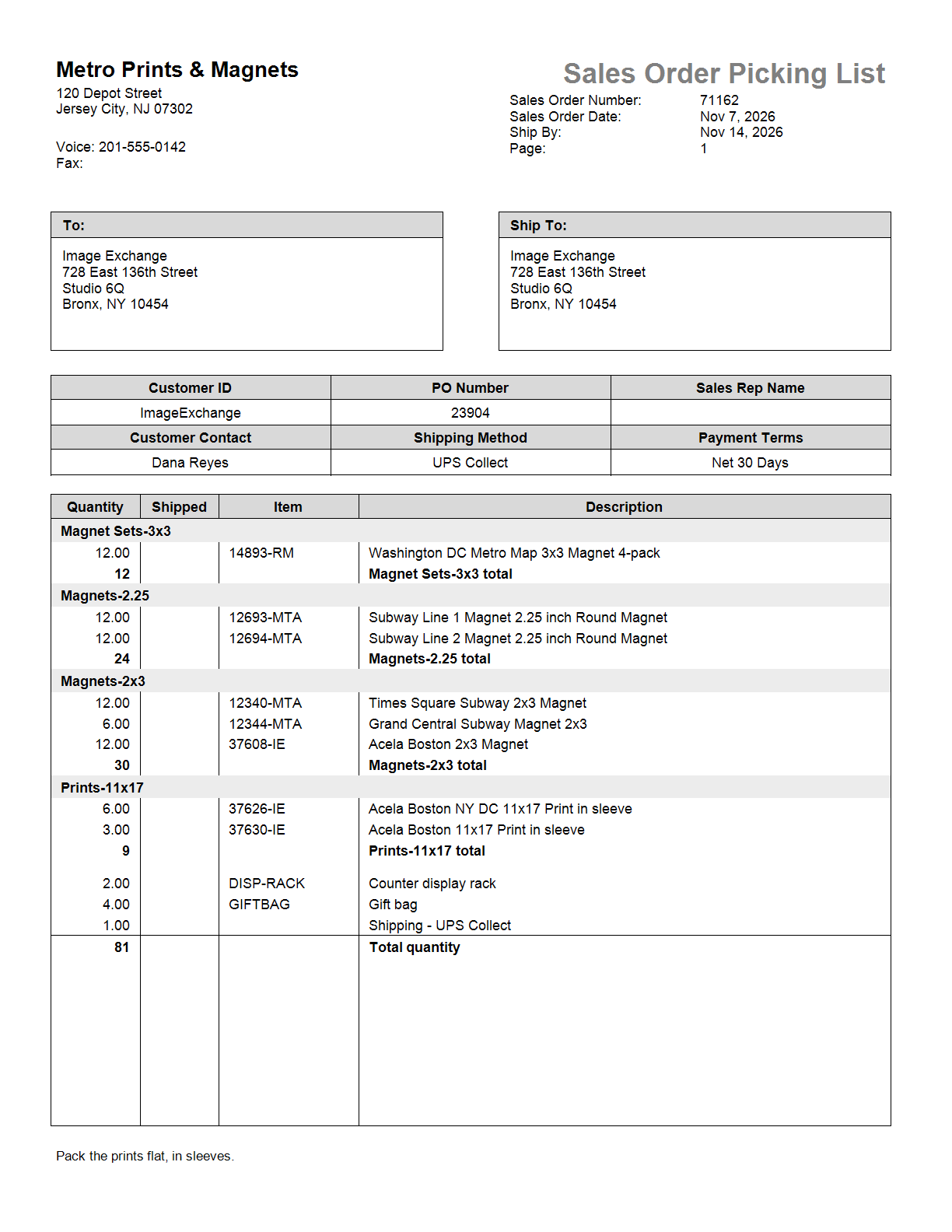
- One shaded heading per Item Type, the types in alphabetical order.
- Inside a type, the items by Item ID.
- Under each group, its quantity in bold, and at the end a Total quantity row that counts every item on the order.
- After the groups, in the order they have in Sage 50: items whose type matches a Leave ungrouped pattern, items with no Item Type, and rows that are not items (shipping, tax, discounts).
Off (the default), the lines print in the order they have in Sage 50, as they always did.
The Item Type is the field of that name on the item in Sage 50 (Maintain → Inventory Items, General tab); whatever you type there is the heading. Sagify reads the types from Sage 50 the first time a PDF needs them and keeps them for the session; an item it has not seen yet (one added in Sage 50 since) makes it read them again. Only layouts that group ever read them.
Leave ungrouped takes comma-separated patterns, matched against the whole Item Type, upper or lower case: * stands for any run of characters and ? for one.
| Pattern | Keeps out of the grouping |
|---|---|
*X (the default) |
Every type ending in X: DisplaysX, MiscX. |
MISC* |
Every type starting with MISC. |
*X, Samples |
Types ending in X, and the type Samples. |
Prints-1?x17 |
Prints-11x17, Prints-12x17. |
| (blank) | Nothing: every typed item is grouped. |
Grouping works with any other switch: the Standard form keeps its prices and totals box, check-off columns get a box on every line, and the second copy can group while the main copy does not.
Note
If the types cannot be read from Sage 50 (for example the Sage 50 user Sagify signs in as has no right to the inventory list), the PDF prints its lines ungrouped and the log says why. Items with a blank Item Type always print after the groups: give them a type in Sage 50 to bring them into the grouping.
Second copy
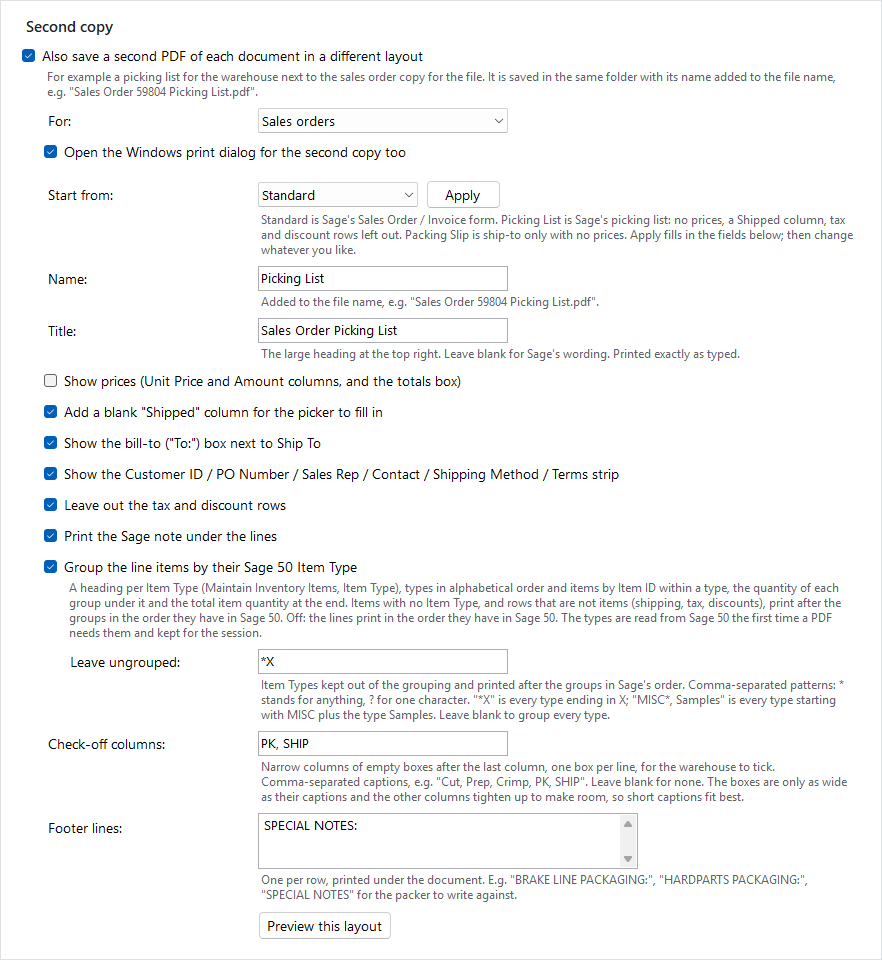
Tick Also save a second PDF of each document in a different layout to write a second file next to the first, in its own layout, for example the sales order for the file and a picking list for the warehouse:
- For: sales orders, invoices, or both.
- Open the Windows print dialog for the second copy too: its own print switch, so the warehouse copy can print while the file copy does not.
- Name: added to the file name,
Sales Order 1470 Picking List.pdf. Blank givesCopy. - The rest of the card is a layout like the others.
The second copy is saved in the same folder as the first, and opens with it when Open each PDF after it is created is on.
Create a PDF for a sales order already in Sage 50
The sync writes a sales order's copy when the order is created. For an order entered in Sage 50 by hand, or one you want to print again, use the Sales Orders tab:
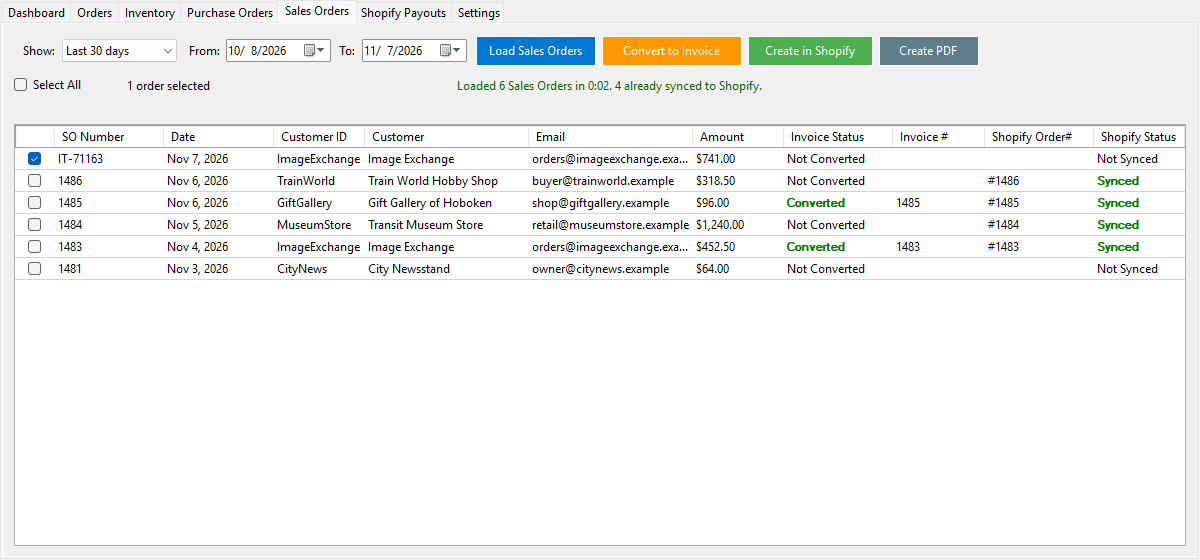
- Click Load Sales Orders if the list is not up to date, and tick the orders (or Select All).
- Click Create PDF. Sagify reads each order's lines from Sage 50 and writes its PDF copy in the sales order layout, plus the second copy when that is on for sales orders.
- One order's PDF opens; for several orders the folder opens instead. With Open each PDF after it is created on, every file opens. The print dialog switches apply as they do for the sync.
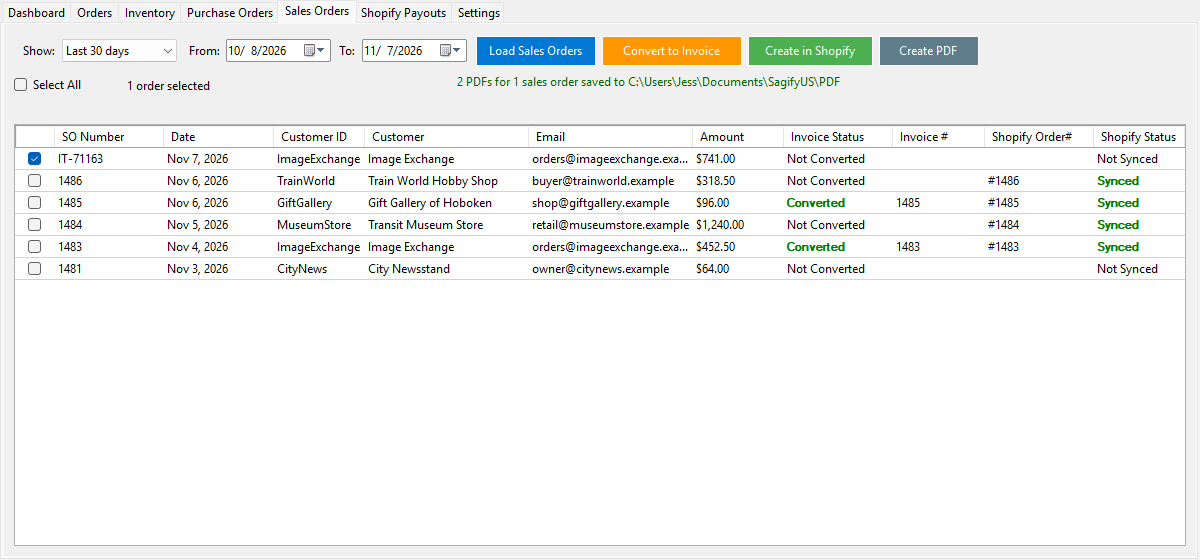
This works whether or not Save a PDF copy when a sales order or invoice is created is on, and for closed (invoiced) sales orders too: nothing is posted to Sage 50.
Tips and troubleshooting
- A copy of the same number replaces the earlier one. Rename a PDF you want to keep before creating the order's copy again.
- No PDF appeared. The sync never stops for a PDF problem: look in the log (Help → Open Log) for PDF copy ... was not created and the reason, usually a folder that does not exist on this computer or a file open in a viewer.
- The totals box is on a page of its own. On a long order the lines fill the first page and the totals, note and footer lines move together to the next page, as on Sage's form.
- The tax is a line, not in the Sales Tax box. With the box option on, Sagify recognises its tax rows by the tax GL accounts in Settings → Taxes (or by their wording when the tax account is also a sales account). A row posted to a plain sales account stays a line.
- The lines are not grouped. Check that the layout being written has grouping on (the second copy has its own switch), that the items carry an Item Type in Sage 50, and that the log does not say the types could not be read.
- The logo does not print. The logo path is read on the computer that creates the PDF; copy the image there or use a shared path.