Banking: card statements to Sage 50 payments
Set up a credit card, drop its statement PDF on the Banking tab, give each line a vendor, account and payment method, and post one Sage 50 payment per line.
The Banking tab turns a credit card statement into Sage 50 vendor payments: drop the statement PDF, give each charge a vendor and an account (Sagify remembers them for next time), and post one Sage 50 Payment per charge from the card's account. The statement never leaves your computer; only the number of payments posted reaches ezApps, where each one counts as an order on your plan.
Turn it on
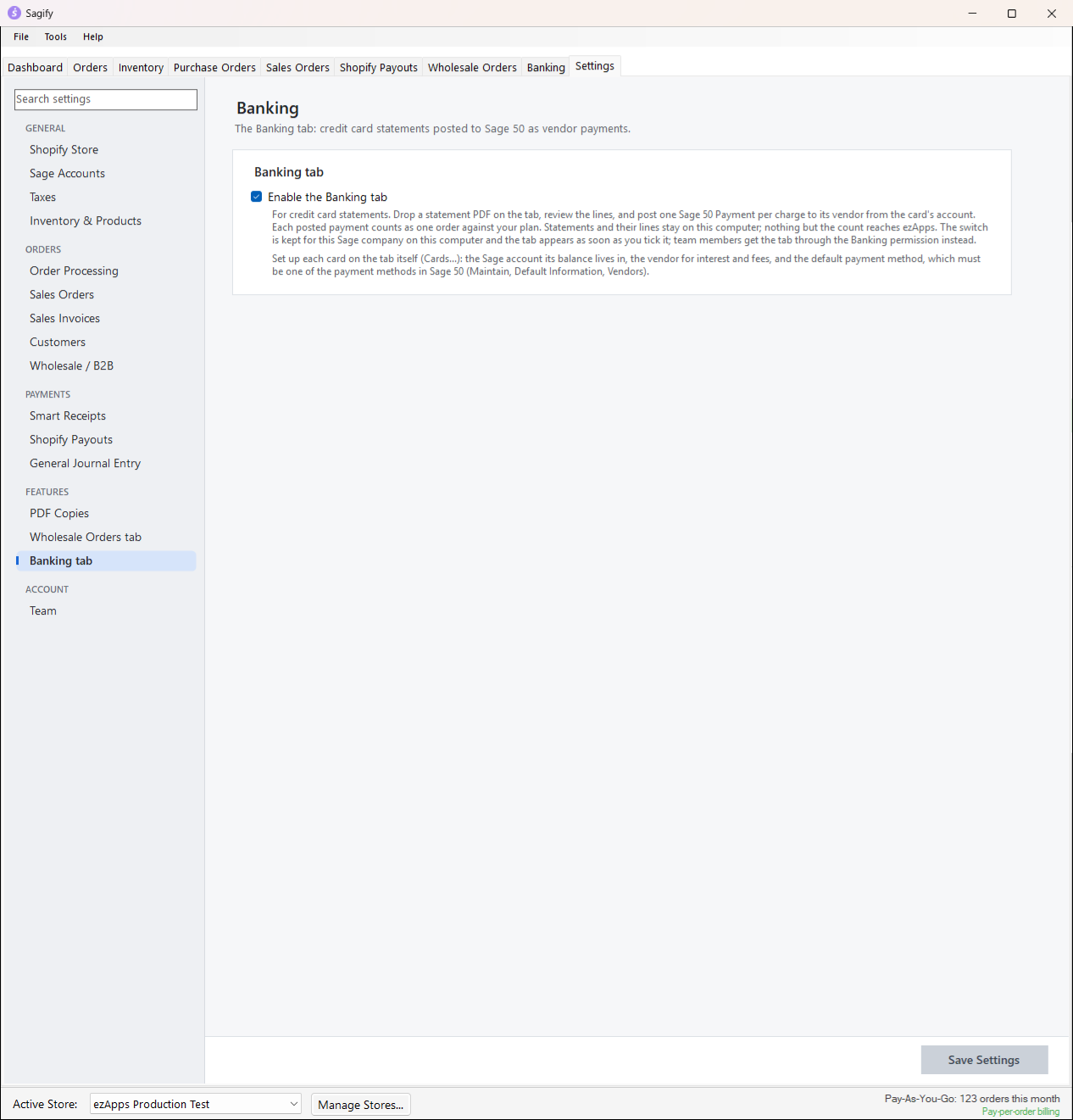
Go to Settings → Features → Banking tab and tick Enable the Banking tab. The switch is saved at once (no Save Settings) and applies to this Sage 50 company on this computer; it is not part of the store's settings. A team member gets the tab through the Banking permission instead.
Set up the card
On the Banking tab, click Cards..., then Add....
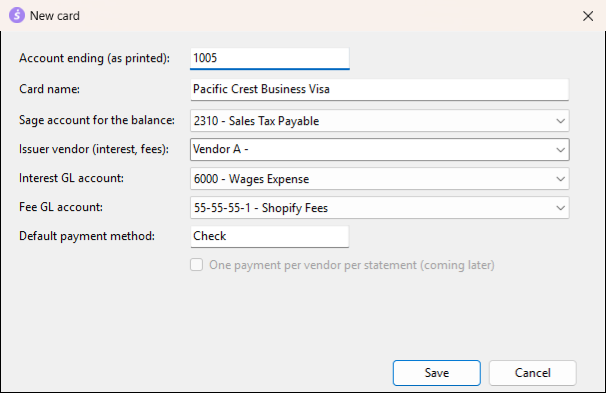
- Account ending (as printed): the last digits of the card number as the statement prints them. This is how a statement finds its card.
- Sage account for the balance: the card's liability account (or the bank account, for a debit card).
- Issuer vendor: the Sage 50 vendor that interest and fees are paid to.
- Interest GL account and Fee GL account: where interest and fees post.
- Default payment method: one of the payment methods in Sage 50 (Maintain → Default Information → Vendors),
Checkby default.
Post a statement
- Drop the statement PDF on the Statements page, or click Add Statements.... The AI service reads it, and Sagify checks that everything adds up: previous balance, payments, credits, purchases, fees and interest must give the new balance to the cent, the lines of each kind must match the summary, and every line must fall inside the statement period. A statement that does not tie is marked Needs review with the reason rather than posted.
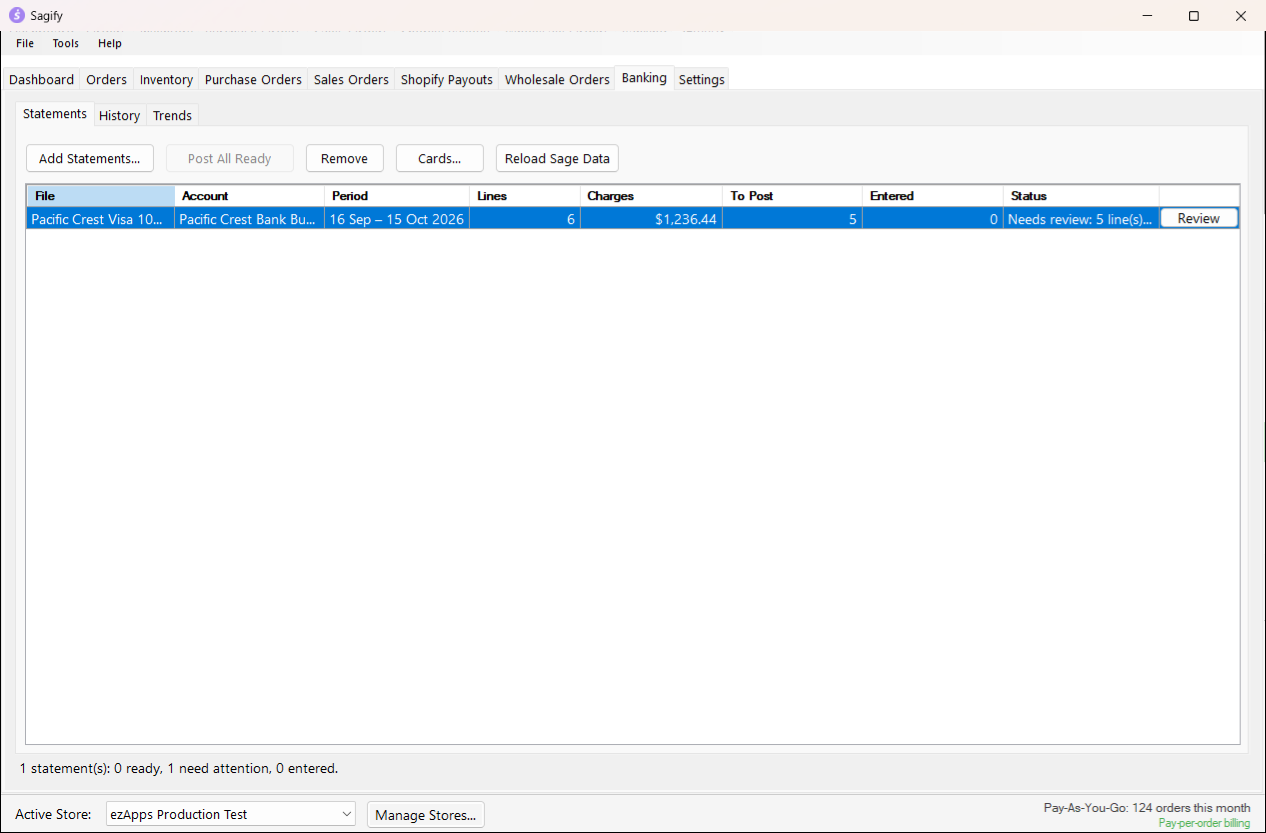
- Click Review. The review window lists every line with its date, payee, amount and kind. For each charge, pick the Vendor and the GL Account (choosing a vendor fills in its default expense account) and the Method; Apply to pending lines sets the method for all of them. Payments to the card issuer and credits are listed but not posted. Lines already in Sage 50, or that look like a payment already entered under another reference, start unticked and say so.
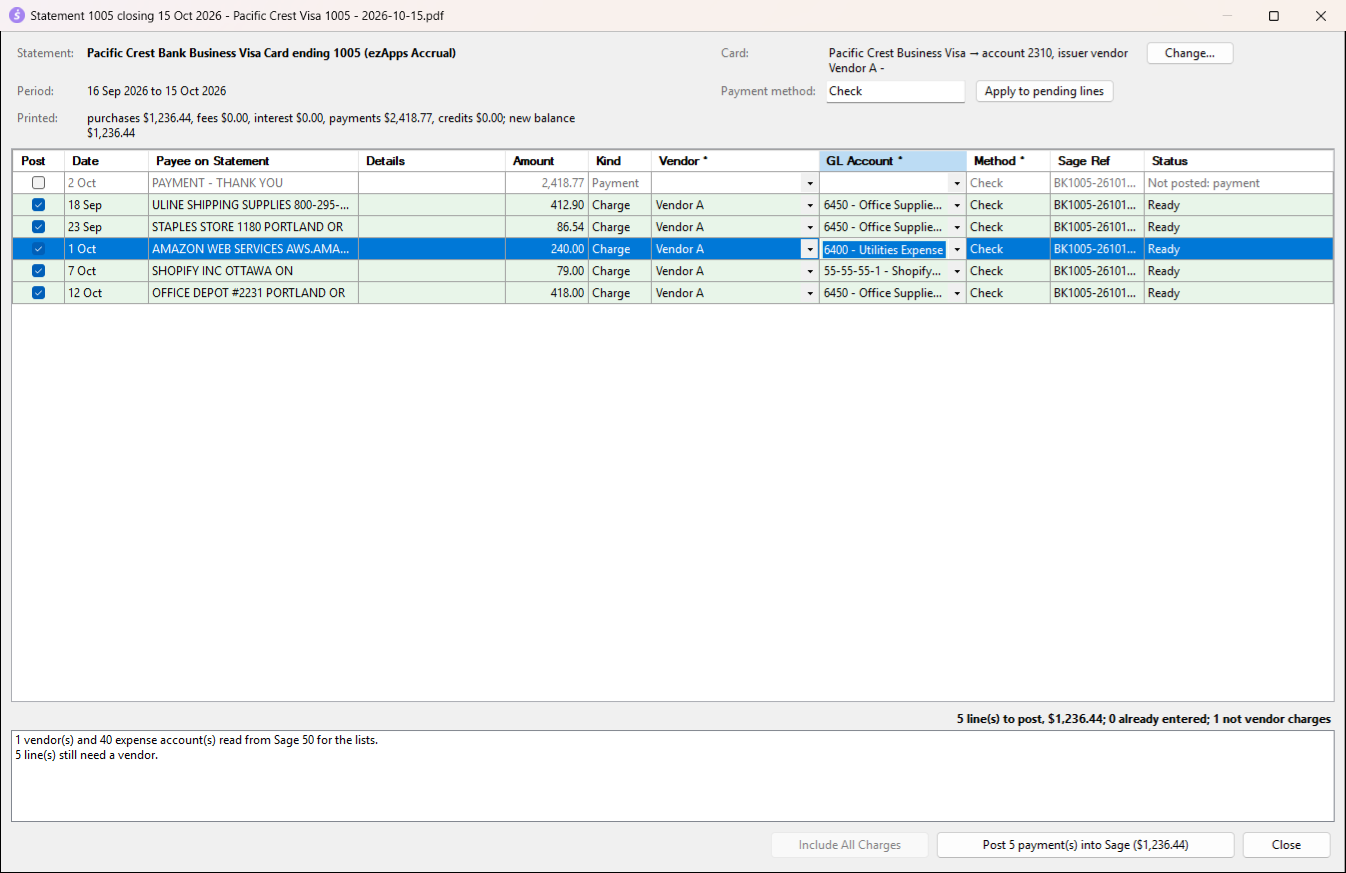
- Click Post N payment(s) into Sage. Each ticked line becomes a Sage 50 payment to its vendor, dated the charge date, from the card's account, with the payee as memo and one expense row on the chosen account, under a reference built from the card ending and the statement date (
BK1005-260713-01). Fees and interest go to the issuer vendor and the card's fee and interest accounts.
Post All Ready posts every statement that needs nothing more, after a confirmation.
Never twice
Three checks keep a charge from being posted twice: the local ledger of what this computer posted, Sage 50's Payments Journal, which is read again just before posting (so a payment entered on another computer, or by hand, is recognised), and Sagify's written-record check after each import. If the journal cannot be read, nothing is posted.
History and Trends
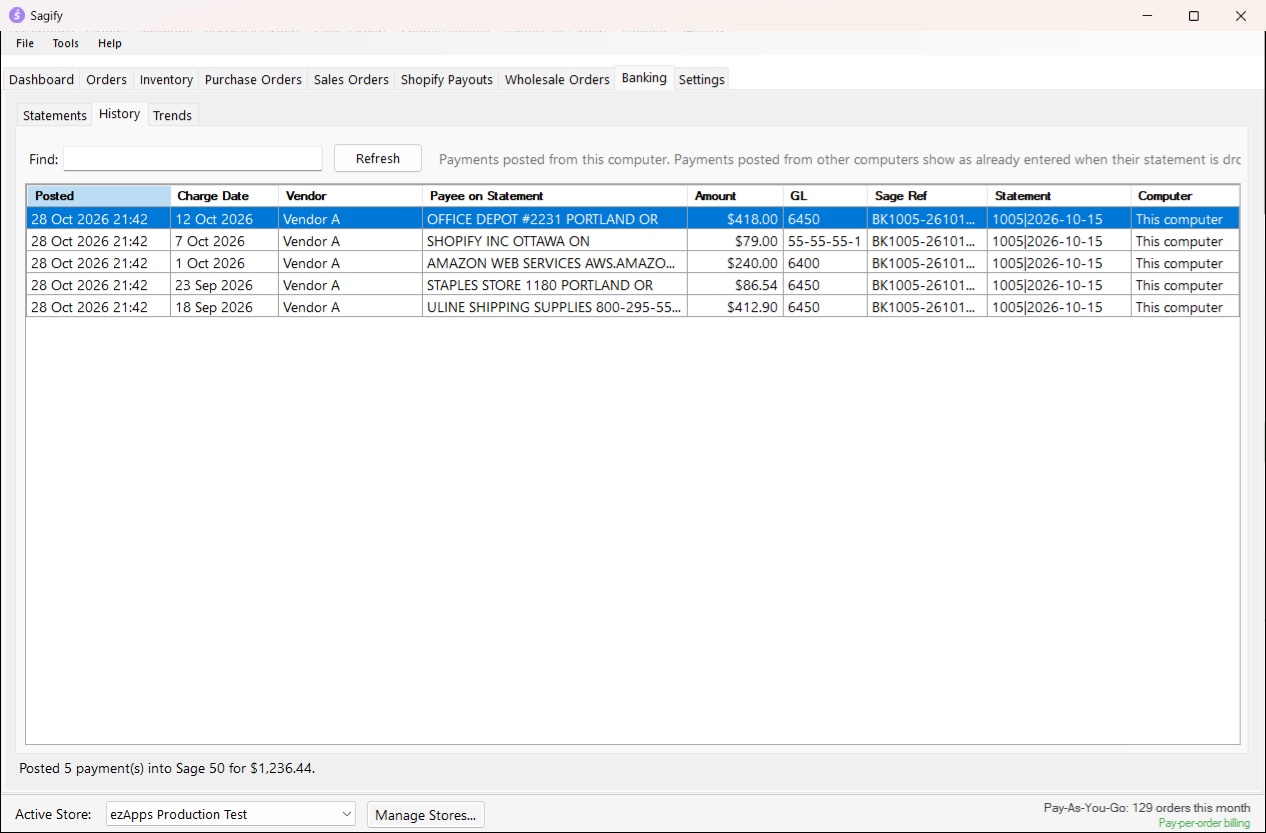
History lists the payments posted from this computer (date, vendor, payee, amount, account, Sage reference, statement) with a right-click menu to copy the reference or open the statement file.