Sales orders and invoices
Choose whether orders become Sage 50 sales orders or sales invoices, set Ship By dates, convert sales orders when they ship and keep a PDF copy of each document.
A Shopify order can become either of two Sage 50 documents. A sales invoice posts to your ledger at once: revenue, tax, accounts receivable, inventory. A sales order is a promise: nothing posts until it is converted to an invoice, which is what stores that pick, pack and ship from Sage 50 want. Sagify US creates whichever you choose, order by order, and helps with the conversion.
Choose which orders become sales orders
Go to Settings → Sales Orders.
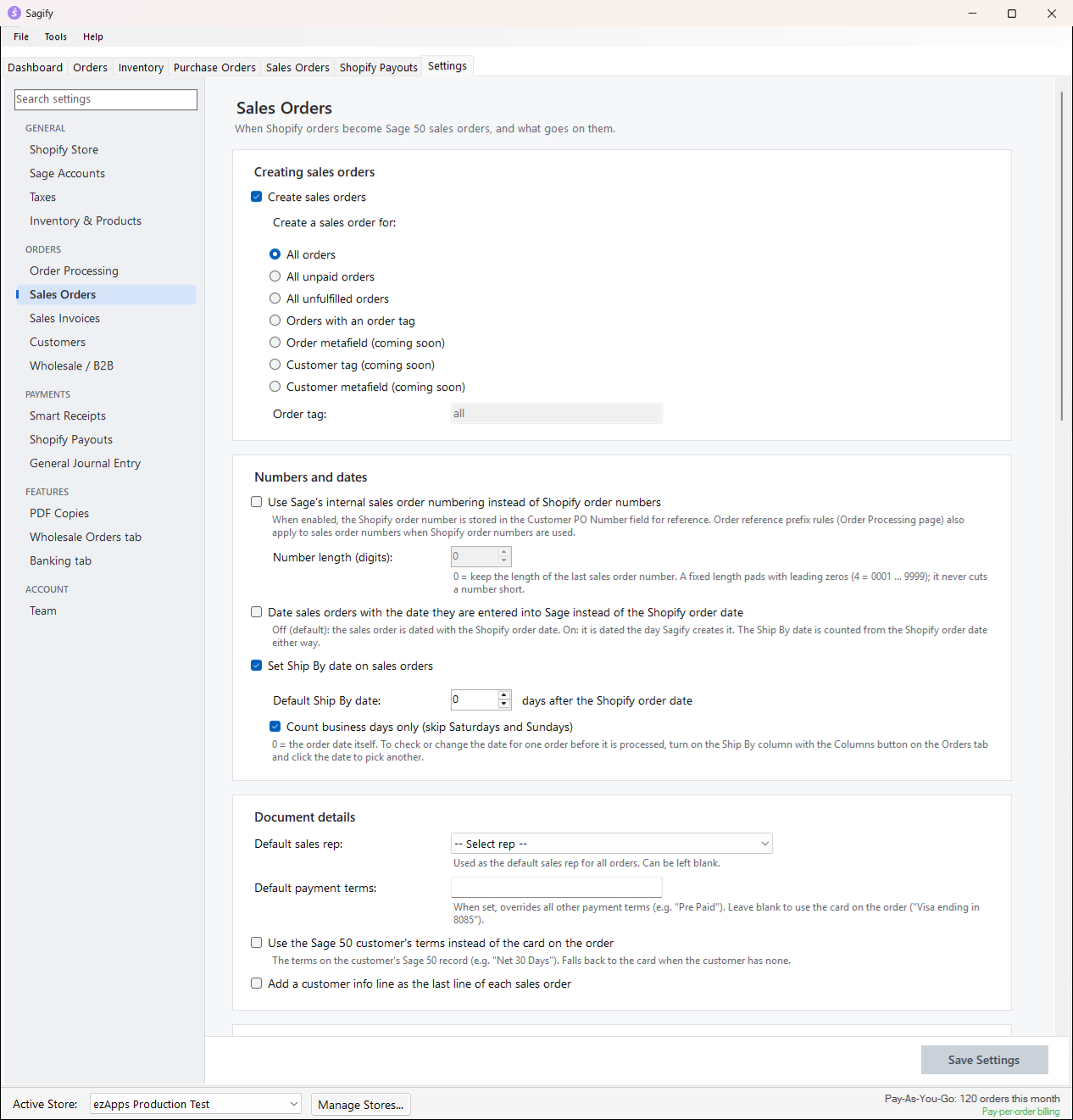
Tick Create sales orders and choose the orders it applies to:
| Choice | Sales orders for... | Invoices for... |
|---|---|---|
| All orders | every order | nothing (the Dashboard is locked to Process sales orders) |
| All unpaid orders | orders not paid yet | paid orders |
| All unfulfilled orders | orders not shipped yet | shipped orders |
| Orders with an order tag | orders carrying the tag you enter | every other order |
With Create sales orders off, every order becomes an invoice.
The rest of the page shapes the sales orders: Sage's own numbering instead of the Shopify order number, the entry date instead of the order date, the Ship By date (see below), a default sales rep and payment terms, a customer info line, customer routing by tag or discount code, GL account overrides, Shopify fees and jobs. Settings explained lists them all. Settings → Sales Invoices holds the same kind of options for invoices.
Note
On the Dashboard, the Sales Orders and Sales Invoices processing modes post only the orders that belong to that document type and skip the rest; Sales Orders and Invoices posts both. The Orders tab always routes each order by these settings.
Ship By dates
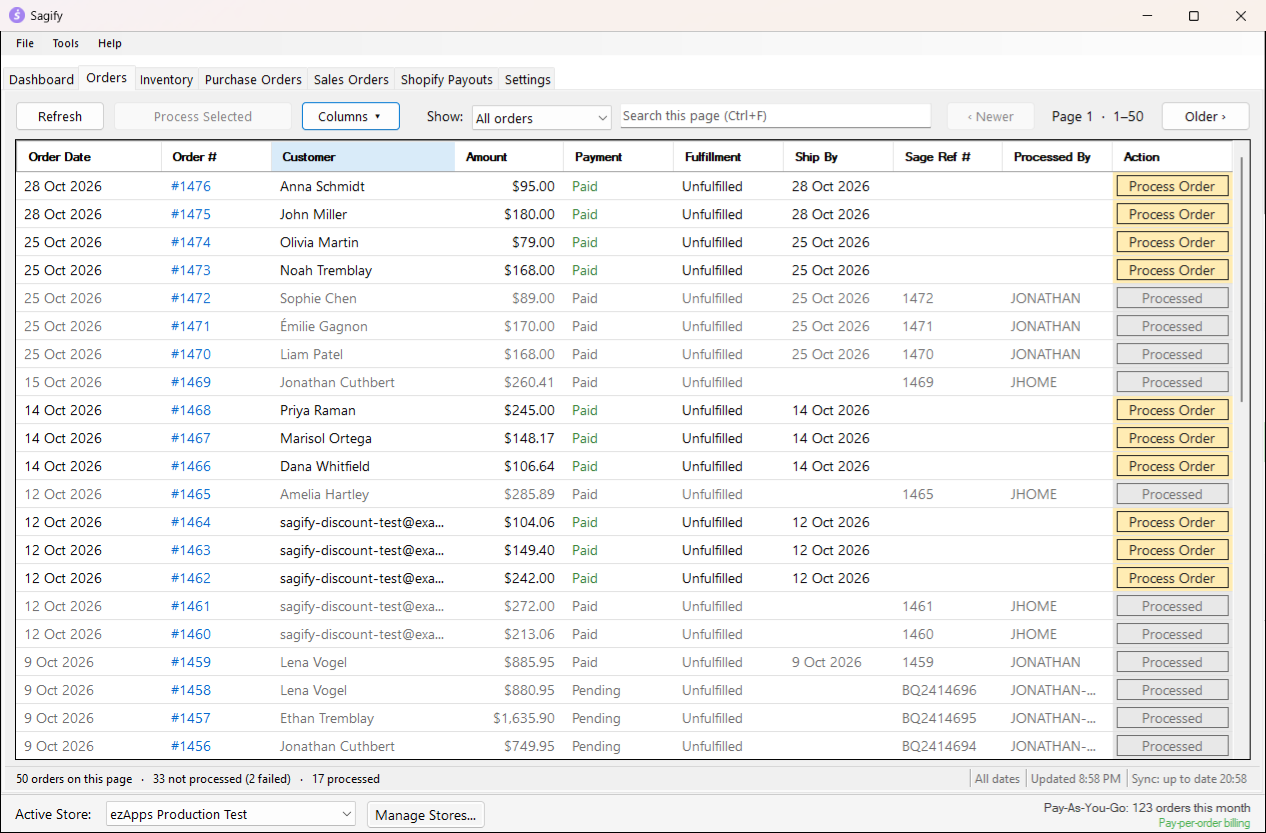
With Set Ship By date on sales orders on, every sales order carries a Ship By date: the Shopify order date plus the number of days you set (0 keeps the order date; Count business days only skips weekends). To check or change the date of one order before it is posted, click Columns ▾ on the Orders tab and tick Ship By: the column shows the default for each unprocessed order, and clicking a date opens a calendar. A changed date is shown in bold; right-click it, or press Delete, to go back to the default. Processed orders show the date their sales order was created with.
The Sales Orders tab
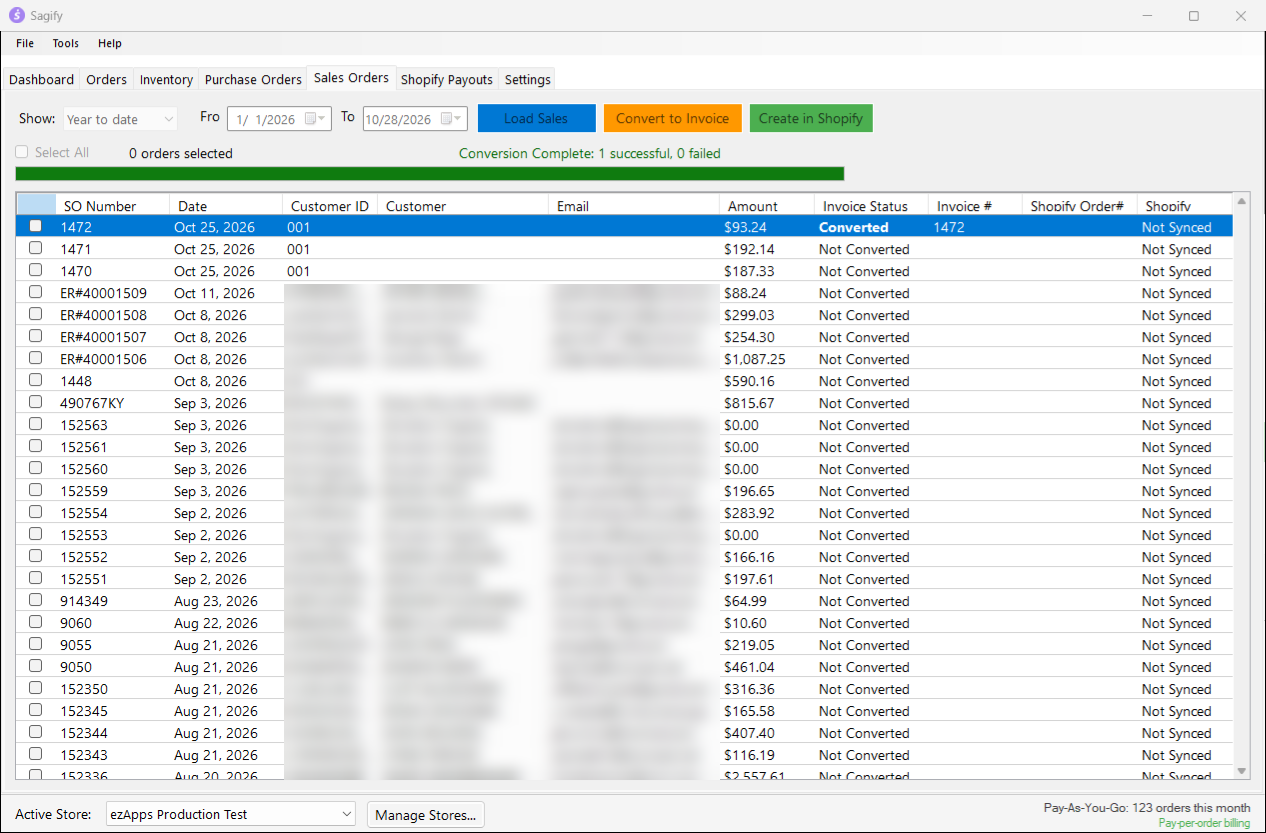
The Sales Orders tab lists the open sales orders in your Sage 50 company, whoever created them, for the period under Show (last 30, 60 or 90 days, year to date, all dates, or your own dates). Click Load Sales Orders to read them again from Sage 50.
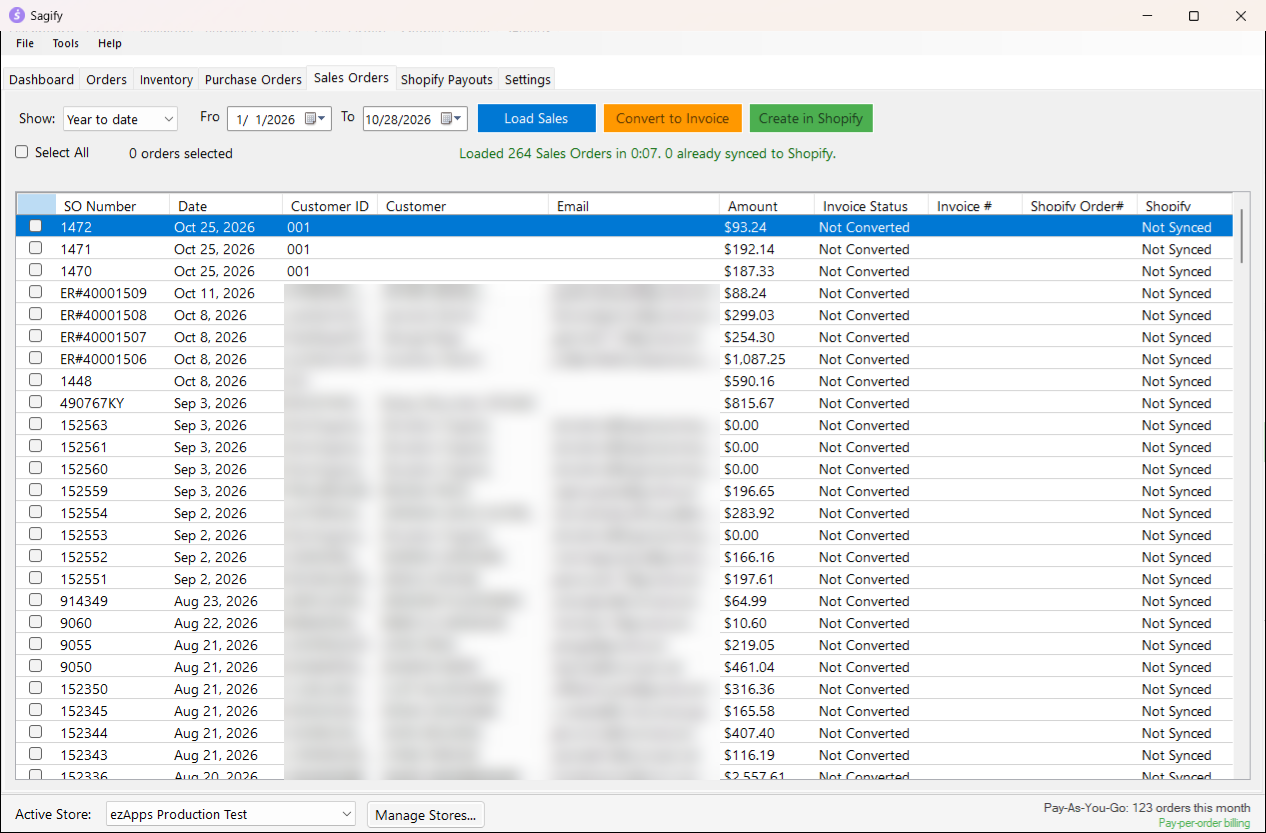
Each row shows the SO number, date, customer, amount, the Invoice Status (Not Converted, Converted with the Invoice #, Error, or Closed in Sage), and whether the order exists in Shopify (Shopify Order#, Shopify Status).
Convert sales orders to invoices
When an order ships:
- Tick the sales orders (or Select All) and click Convert to Invoice.
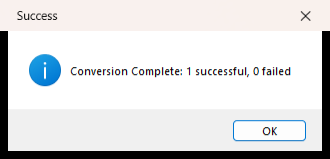
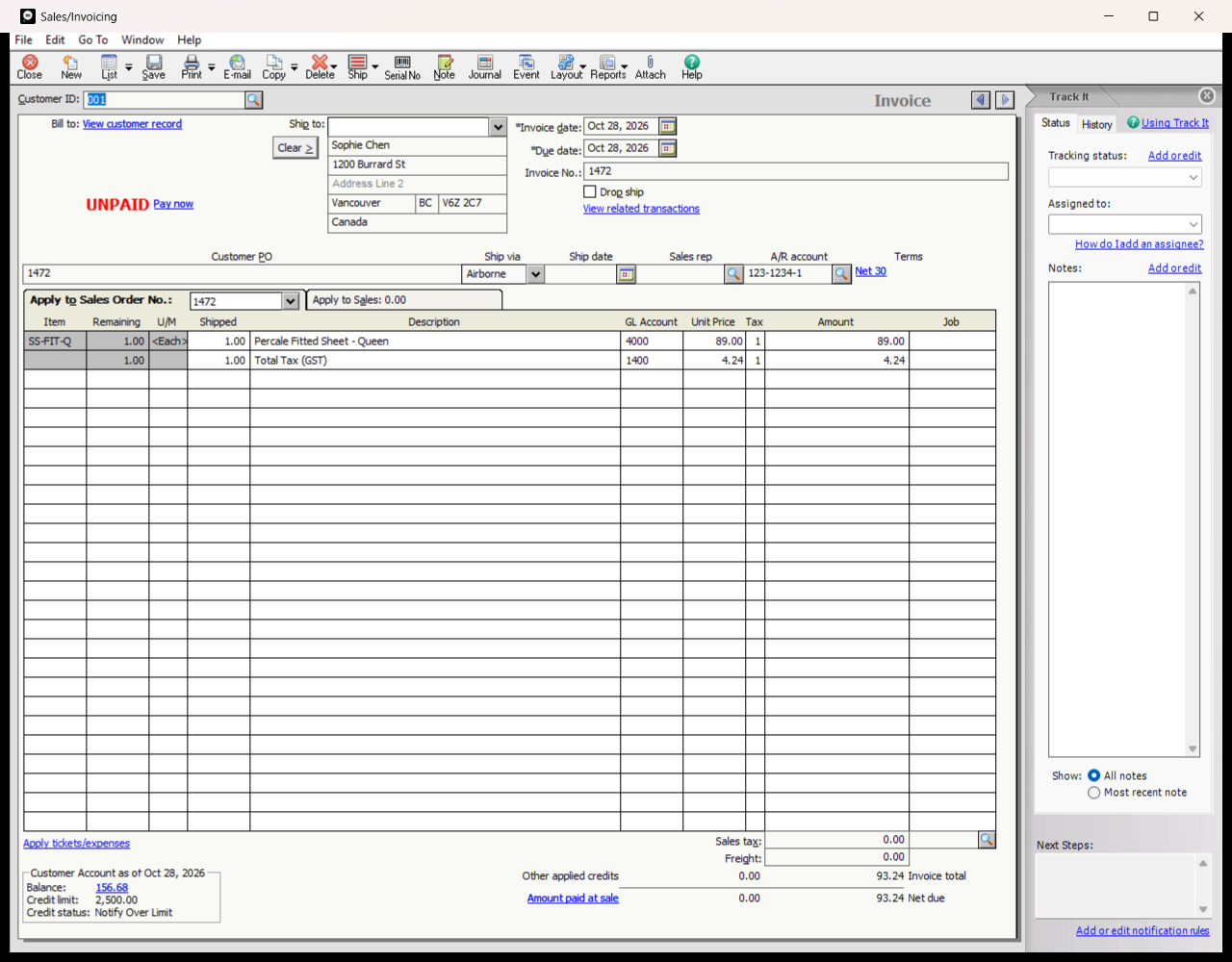
- Confirm. Sagify creates one Sage 50 invoice per sales order, applied to it, so the sales order closes.
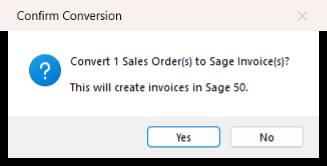
The invoice keeps the sales order's number (or takes Sage's next number when Sage's internal invoice numbering is on), is dated the day it is converted, and copies the customer, Customer PO, terms, Ship Via, notes, sales rep, Ship By date and ship-to address. The row then shows Converted and the Invoice #, and the Orders tab records the order as invoiced.
No receipt is applied by the conversion. To have the payment Shopify collected applied too, turn on Enable Smart Receipts for sales orders under Settings → Payments → Smart Receipts: a paid order's sales order is then converted and receipted at the moment it is posted. See Shopify payouts and receipts.
You can also convert a sales order in Sage 50 itself (open it, then Convert to Invoice). Sagify finds that invoice later, for example when a payout is applied in receipts-only mode.
Create a Sage 50 sales order in Shopify
Create in Shopify does the reverse: it creates a Shopify order from a Sage 50 sales order, for orders taken by phone or entered in Sage 50 by hand. The Create Shopify Order window asks whether to create a regular order (optionally marked as paid) or a draft order with an invoice emailed to the customer, which fulfillment location to use, whether to deduct inventory, and whether to convert the sales order to a Sage invoice at the same time. The customer must exist in Shopify with the same email, and every SKU must exist in Shopify. The created order is tagged sagify_{SO number} and noted "Imported from Sage 50".
PDF copies
Sage 50's SDK cannot print its own forms, so Sagify can draw a PDF copy of every sales order and invoice it creates, laid out like Sage's stock forms. Turn it on under Settings → Features → PDF Copies:
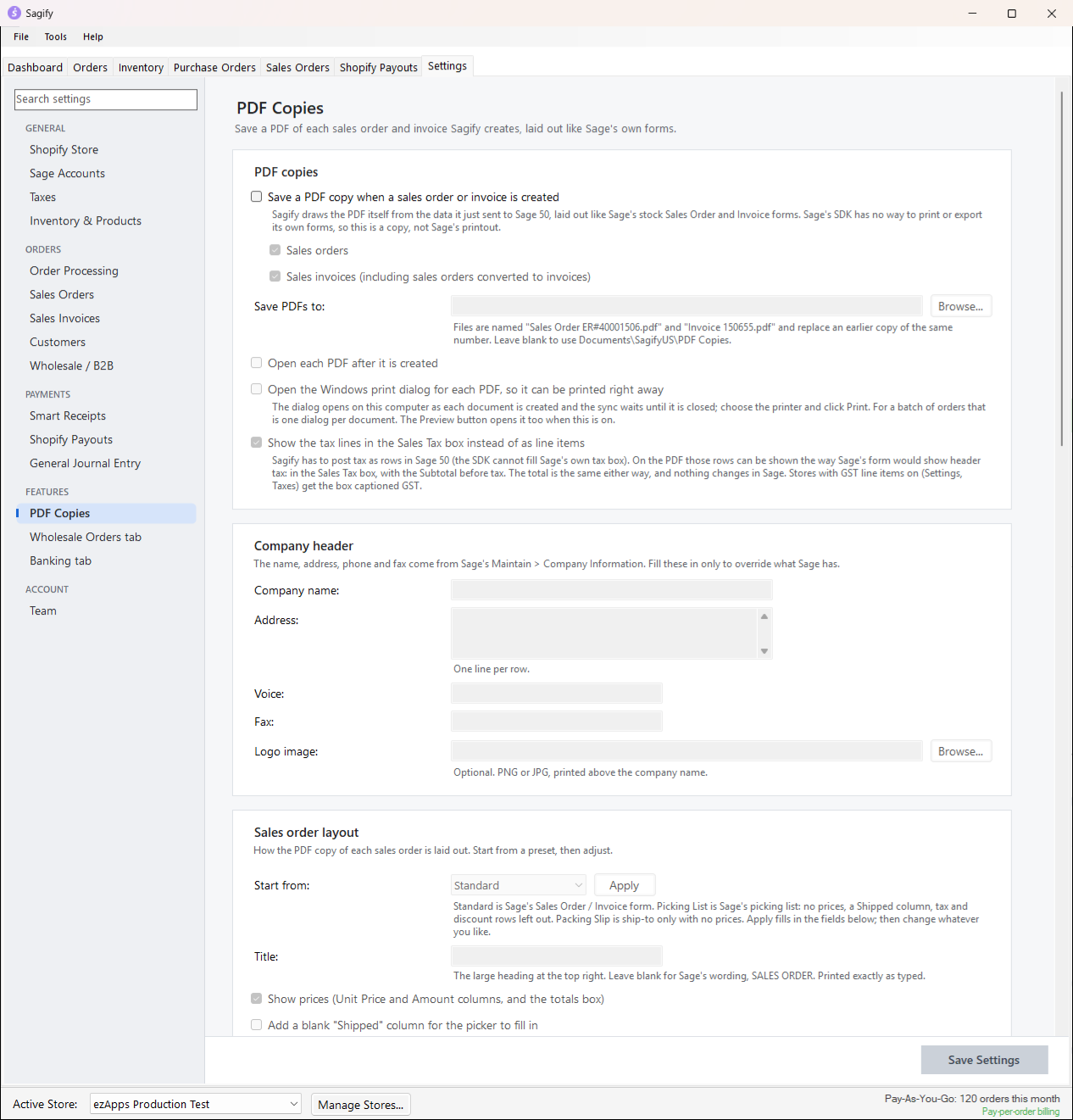
- Tick Save a PDF copy when a sales order or invoice is created, choose sales orders, invoices or both, and the folder (Documents\SagifyUS\PDF Copies by default). Files are named
Sales Order 1470.pdfandInvoice 1470.pdf. - Open each PDF after it is created and Open the Windows print dialog for each PDF are for stores that print the document as the order comes in.
- The company header is read from Sage 50's company information; fill in the fields only to override it, and add a logo if you like.
- Each document type has a layout: start from Standard, Picking List (no prices, a blank Shipped column, no tax or discount rows) or Packing Slip (ship-to only), then adjust the title, the prices, the bill-to box, the customer strip, check-off columns for the warehouse and footer lines. Preview this layout renders a sample.
- Second copy saves a second PDF of each document in another layout, for example a picking list next to the sales order, with its name added to the file name (
Sales Order 1470 Picking List.pdf).
Sales orders only get their copy at creation time; invoices converted from sales orders get one too. Credit memos never do.