Stores, team members and your account
Manage several Shopify stores from one install, invite team members with their own permissions, and keep an eye on your plan and usage.
One Sagify US account can run several Shopify stores, on several computers, for several people. This guide covers the three: stores, team members and the account itself.
Several Shopify stores
Sagify keeps a list of stores. Everything you see and every setting applies to the Active Store chosen at the bottom of the main window; switching stores reloads the settings, the tabs and the processed-order list for that store.
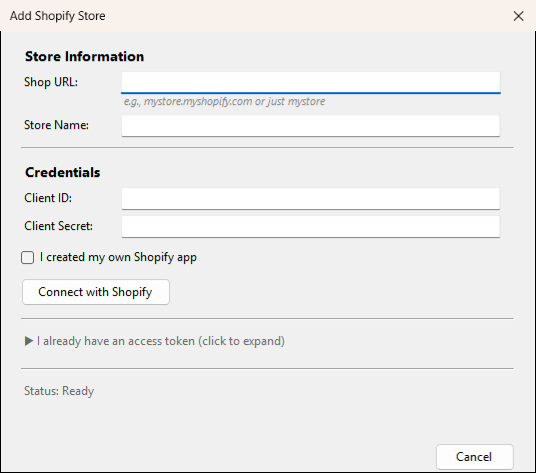
Manage Stores... opens the store list: Add Store connects a new store (see Get started), Edit changes its name, URL or access token, Remove deletes it from this computer, and Set as Active switches to it.
What is per store and what is not:
| Per store | Per computer | Per Sage 50 company |
|---|---|---|
| Every setting on the Settings tab (kept in a file per store, and backed up to your account) | The list of stores and the active store; the Orders tab's columns and filters; your sign-in | The Banking switch, cards and ledger; the Wholesale Orders history and the remembered customer and item matches |
Team members and permissions
The company login (the account that signed up) can invite other people to sign in to Sagify with their own email and password. Open Settings → Account → Team.
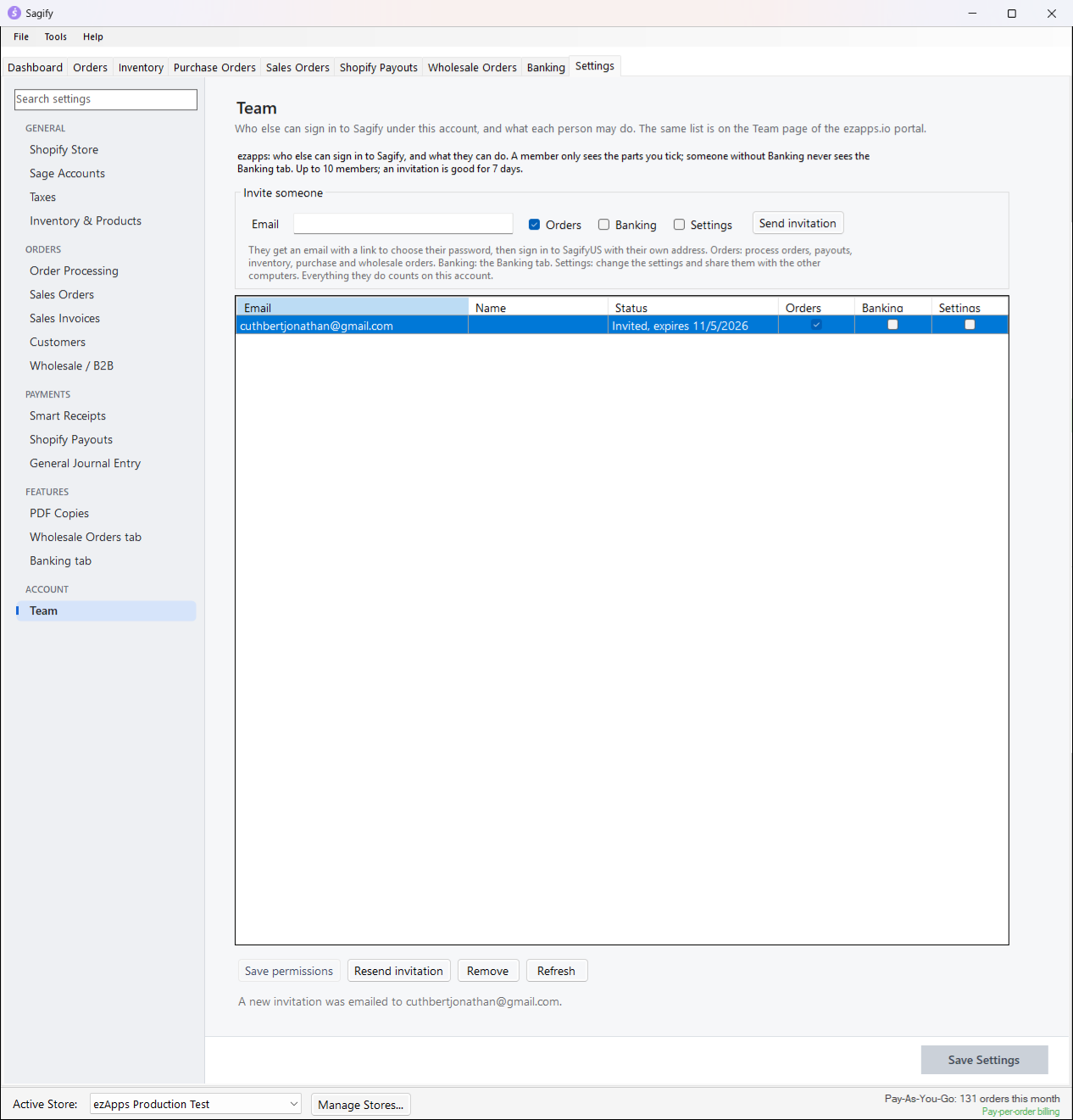
- Under Invite someone, enter the person's email and tick what they may do:
- Orders: process orders, payouts, inventory, purchase orders and wholesale orders.
- Banking: the Banking tab.
- Settings: change the settings and share them with the other computers.
- Click Send invitation. They get an email with a link to choose a password; the invitation is good for a few days, and Resend invitation sends a new one.
- They sign in to Sagify with their own address. The window title then reads Sagify - {company} ({email}), and they only see the parts you ticked: without Orders the Dashboard, Orders, Inventory, Purchase Orders, Sales Orders and Shopify Payouts tabs are gone, without Settings the Settings tab and Manage Stores are gone, and the Banking tab appears only with Banking. Nobody but the company login sees the Team page, the plan or the terms.
Tick or untick permissions in the list and click Save permissions; they apply to the member's next action. Remove takes a member off the team: their next action in Sagify is refused and they are signed out. The same list is on the Team page of your portal.
Everything a member does counts on the company's plan, and before processing orders, entering wholesale orders or posting payments Sagify checks the member's permissions with the server again, so a change takes effect at once.
Your account, plan and usage
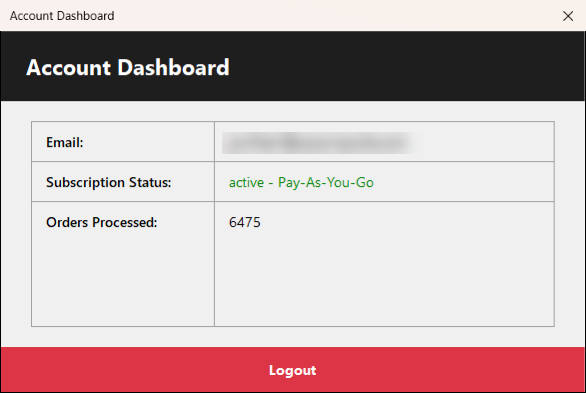
The bar at the bottom of the main window shows your usage: the orders used during the trial (50 orders over 7 days), or the orders used this month on your plan, with a warning when the allowance runs low and the per-order price beyond it. File → Account opens the Account Dashboard with your email, subscription status and plan, and the orders processed, plus a Logout button.
Before a run that would exceed the trial or the monthly allowance, Sagify tells you and asks whether to continue. When the trial ends, SagifyUS Subscription Plans shows the plans (monthly or yearly), and Subscribe Now opens the checkout in your browser; sign in to Sagify again once it is done. Plans, invoices and the team are also managed on your portal page.
Updates
After you sign in, Sagify checks for a newer version and shows Update Available with the release notes. Click Yes to download and install it; Sagify restarts when the installer is done. The newest version is always on your portal page too.