Settings explained
What every setting does, page by page: Sage accounts, taxes, inventory, order processing, sales orders, invoices, customers, payments, PDF copies and the optional tabs.
The Settings tab holds everything about how Shopify sales land in Sage 50, for the store shown in Active Store at the bottom of the window. Pages are grouped on the left; type a word in Search settings to jump to any option. Change what you need, then click Save Settings at the bottom right (it lights up as soon as something changes). Sagify checks the required accounts before it saves, and after every save it keeps a copy of the settings with your ezapps.io account for your other computers.
Tip
The account, customer, item, tax code and sales rep lists are read from the Sage 50 company the first time you open the tab. If a list is empty, wait a few seconds and look again.
General
Shopify Store
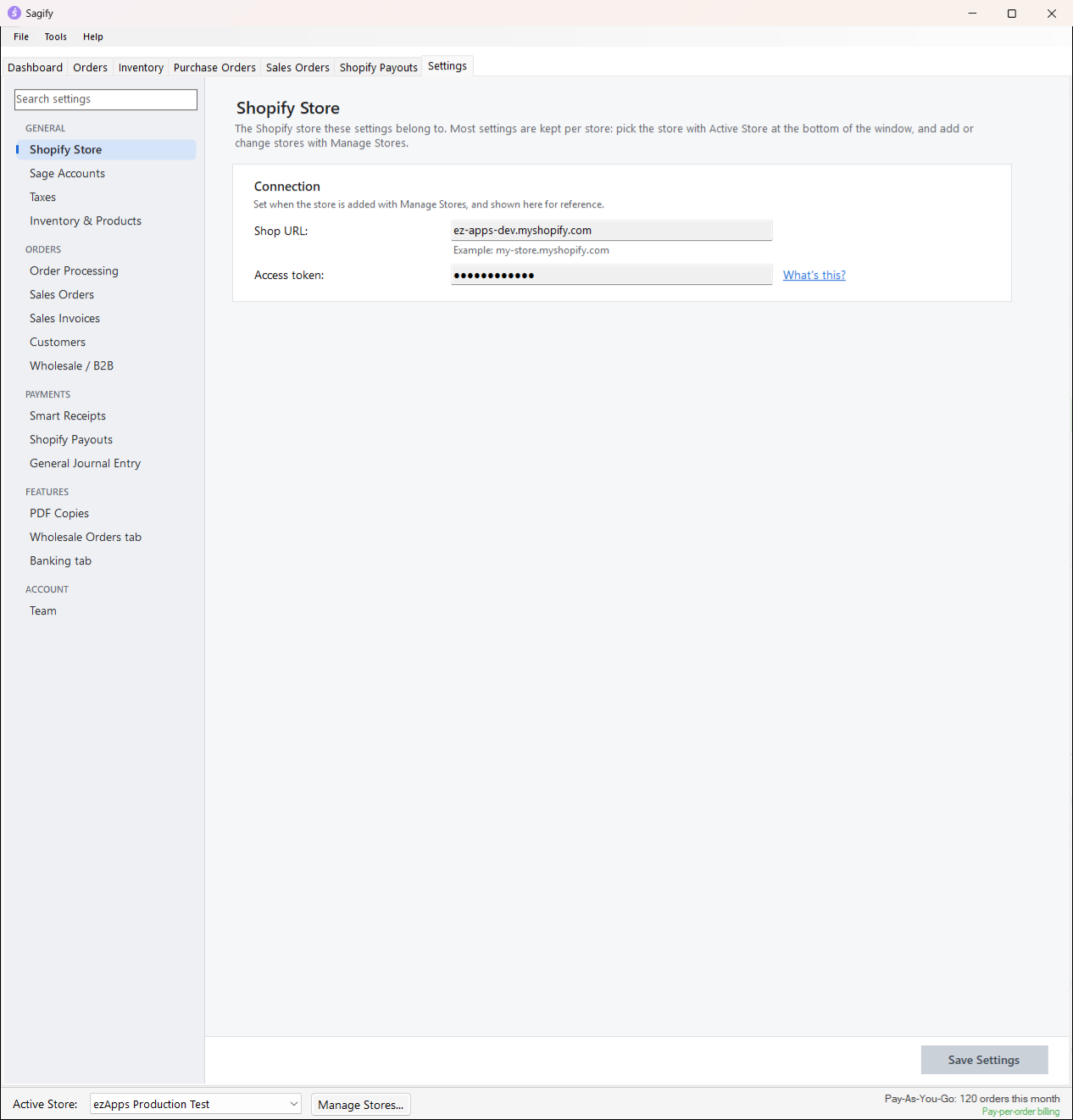
The store these settings belong to: its shop URL and (masked) access token, set when the store was added with Manage Stores.... Nothing to change here.
Sage Accounts
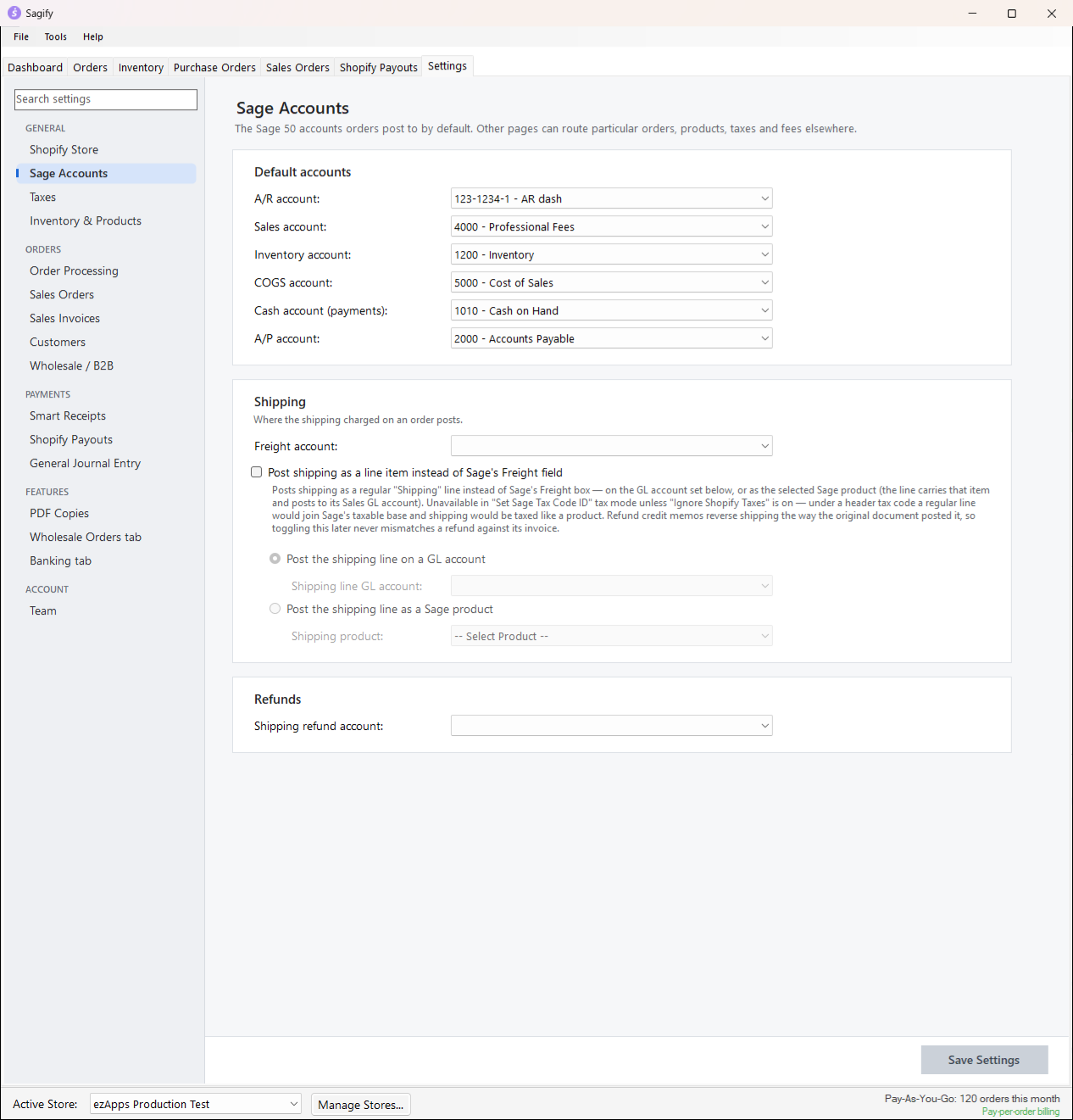
- Default accounts: the A/R, Sales, Inventory, COGS, Cash (payments) and A/P accounts. All six are required. Sales is the revenue account for lines that have no better home (other pages route particular products, tags and fees elsewhere), Cash is where receipts are deposited, Inventory and COGS are the accounts new items are created with, and A/P is used by purchase orders.
- Shipping: the Freight account receives the shipping charged on an order, through Sage's Freight field. Tick Post shipping as a line item instead of Sage's Freight field to post it as a regular "Shipping" line instead, on a GL account or as a Sage product of your choice. Refund credit memos always reverse shipping the way the original document posted it.
- Refunds: the Shipping refund account receives refunded shipping and other refund adjustments.
Taxes
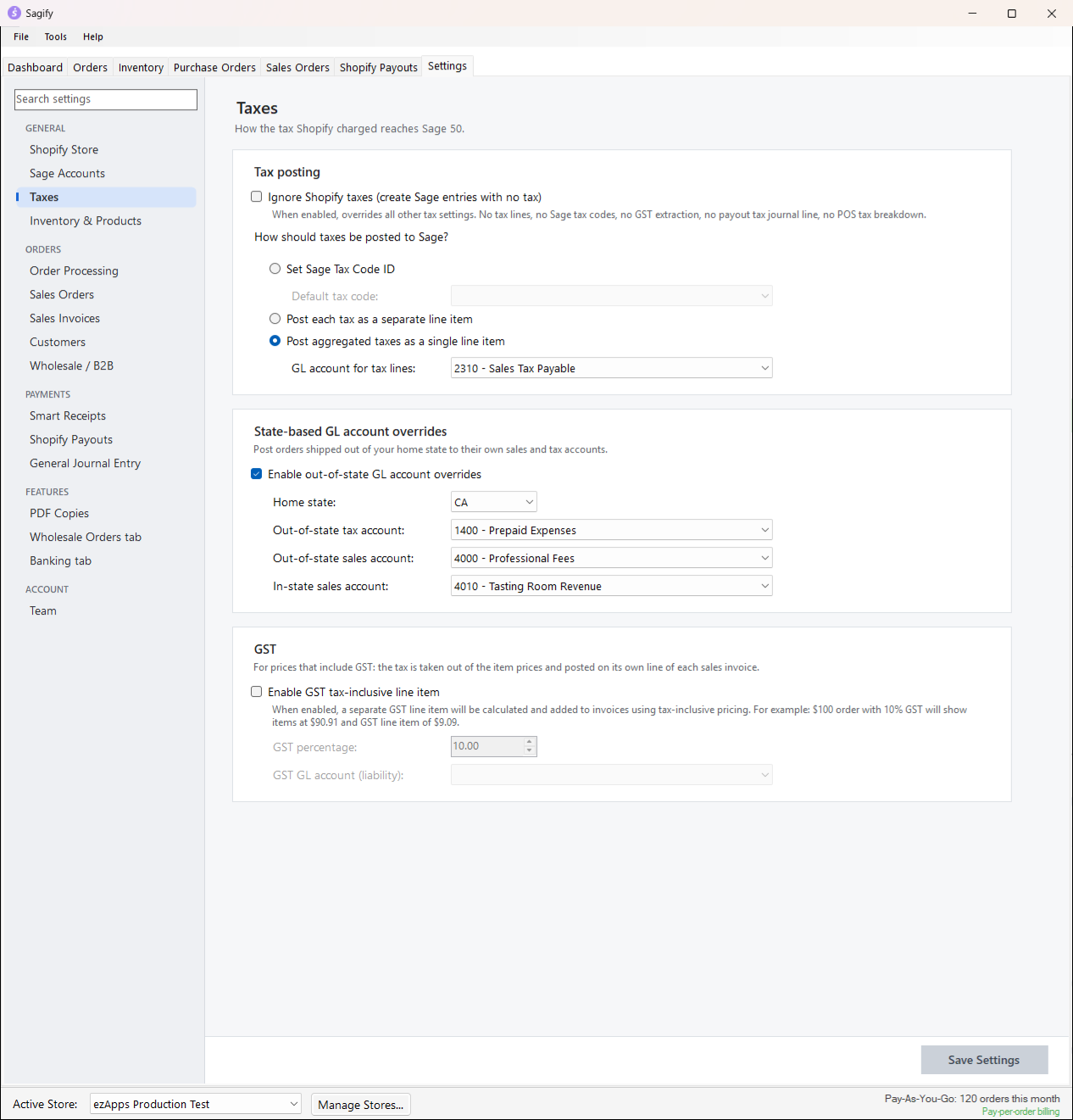
- Ignore Shopify taxes creates every document without tax. It overrides everything else on the page.
- How should taxes be posted to Sage?
- Set Sage Tax Code ID: the document carries the Default tax code you choose and Sage 50 works out the tax itself from the lines.
- Post each tax as a separate line item: one line per tax Shopify charged (state, county, city...), on the GL account for tax lines.
- Post aggregated taxes as a single line item: one "Total Tax" line for the whole order, on the same account.
- State-based GL account overrides: with your Home state set, orders shipped out of state can post their sales and tax to their own accounts (Out-of-state sales account, Out-of-state tax account), and in-state orders to an In-state sales account.
- GST: for stores that sell with tax-inclusive prices, Sagify can take a GST percentage out of each item price and post it on its own line to a liability account.
Inventory & Products
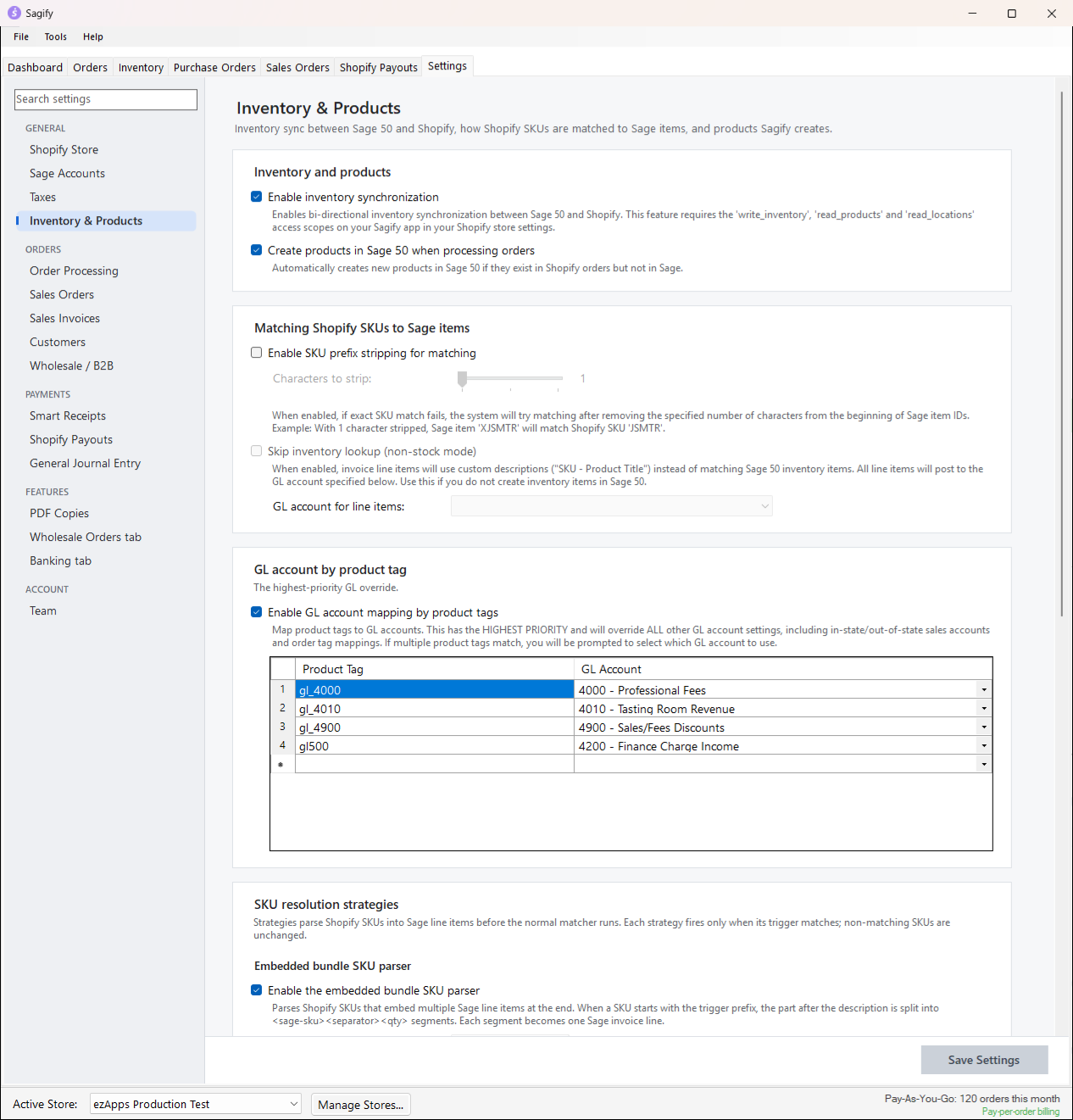
- Enable inventory synchronization switches on the Inventory tab. It needs the
write_inventory,read_productsandread_locationsscopes on your Shopify app. - Create products in Sage 50 when processing orders: when an order holds a SKU that is not in Sage 50, Sagify offers to create the item (see Import orders from the Orders tab). Off, such orders are skipped.
- Matching Shopify SKUs to Sage items: a Shopify SKU matches a Sage 50 item whose Item ID is the same (then by UPC/SKU, then by product title). SKU prefix stripping also tries the Sage item ID without its first 1 to 3 characters. Skip inventory lookup (non-stock mode) is for stores that keep no items in Sage 50: every line posts as "SKU - Title" on the GL account you choose.
- GL account by product tag: the highest-priority revenue routing. A product tagged
gl_4010can post to account 4010 whatever the other rules say. - SKU resolution strategies: the embedded bundle parser, for SKUs that spell out several Sage items and quantities (for example
PKG|Kit.ITEM-A#2.ITEM-B#1). - New Sage 50 items → Shopify: which item classes are offered for creation in Shopify, the price level, the tag and the fields carried over. See Inventory.
Orders
Order Processing
Rules that apply to every order, whether it becomes a sales order or an invoice.
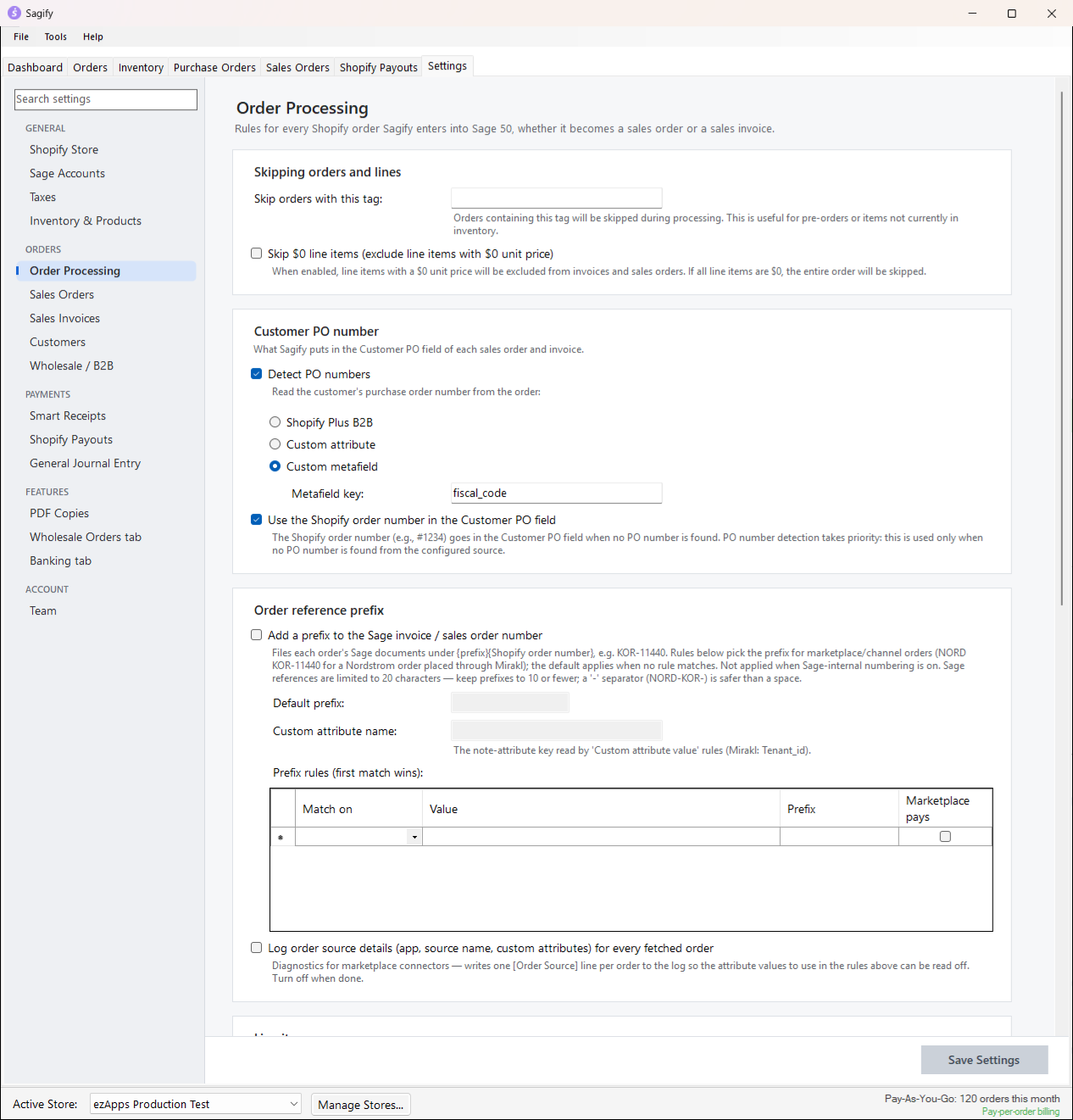
- Skipping orders and lines: orders with a given tag are never posted (pre-orders, for example); Skip $0 line items leaves free lines off the document.
- Customer PO number: what goes in the document's Customer PO field. Detect PO numbers reads the customer's PO from Shopify Plus B2B, a custom attribute or a metafield; otherwise the Shopify order number goes there when Use the Shopify order number in the Customer PO field is on.
- Order reference prefix: file each order's Sage 50 document under a prefix plus the order number (
KOR-11440), with rules that pick the prefix from a note attribute, an order tag, the source name or the app name (marketplace connectors). Sage references are limited to 20 characters. - Line items: sort lines by SKU, add separator rows between different products, and expand bundles from the Simple Bundles & Kits app.
- Discounts: with Post line item discounts as a separate line item, products post at their regular price and the discounts are gathered on one "Product Discounts" line (on a discounts account, or the customer's sales account). The Order discount GL account section decides where a whole-order discount goes (the sales account, a custom account, or a Sage product used as the line item); Apply the order discount to the unit prices folds it into the prices instead, the way Shopify shows them.
- Shipping: a Default Ship Via that overrides the customer's default in Sage 50, and the Ship-to recipient name format (company first, person first, or "Company - Person").
Sales Orders
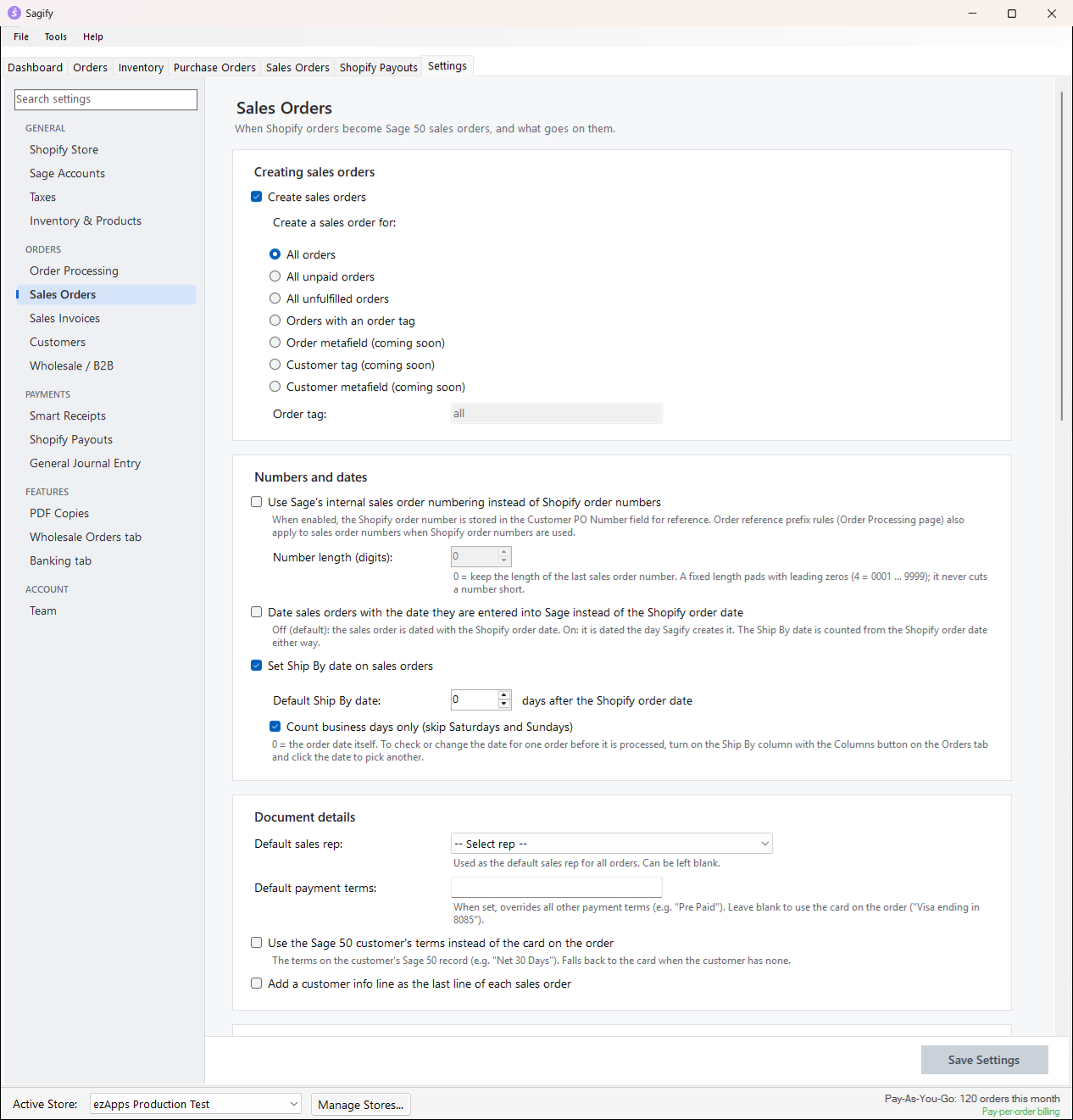
- Creating sales orders: tick Create sales orders and choose which orders become sales orders: All orders, All unpaid orders, All unfulfilled orders or Orders with an order tag. The rest become invoices. See Sales orders and invoices.
- Numbers and dates: use Sage's own sales order numbers instead of Shopify order numbers (the order number then goes in the statement note), date sales orders the day they are entered instead of the order date, and Set Ship By date on sales orders with a default of N days after the order date, business days only if you like.
- Document details: a default sales rep, default payment terms (or the Sage 50 customer's terms rather than the card on the order), and an optional customer info line (
Customer email: {email}) as the last line of each sales order. - Customer routing: send sales orders with a given order tag, or placed with a given discount code, to a particular Sage 50 customer. See Customers.
- GL accounts: post each line to its Sage item's own sales account, override the account for tips, and route lines by title.
- Shopify fees and Jobs: include Shopify's processing fee as a line on sales orders, and assign Sage 50 jobs by order tag.
Sales Invoices
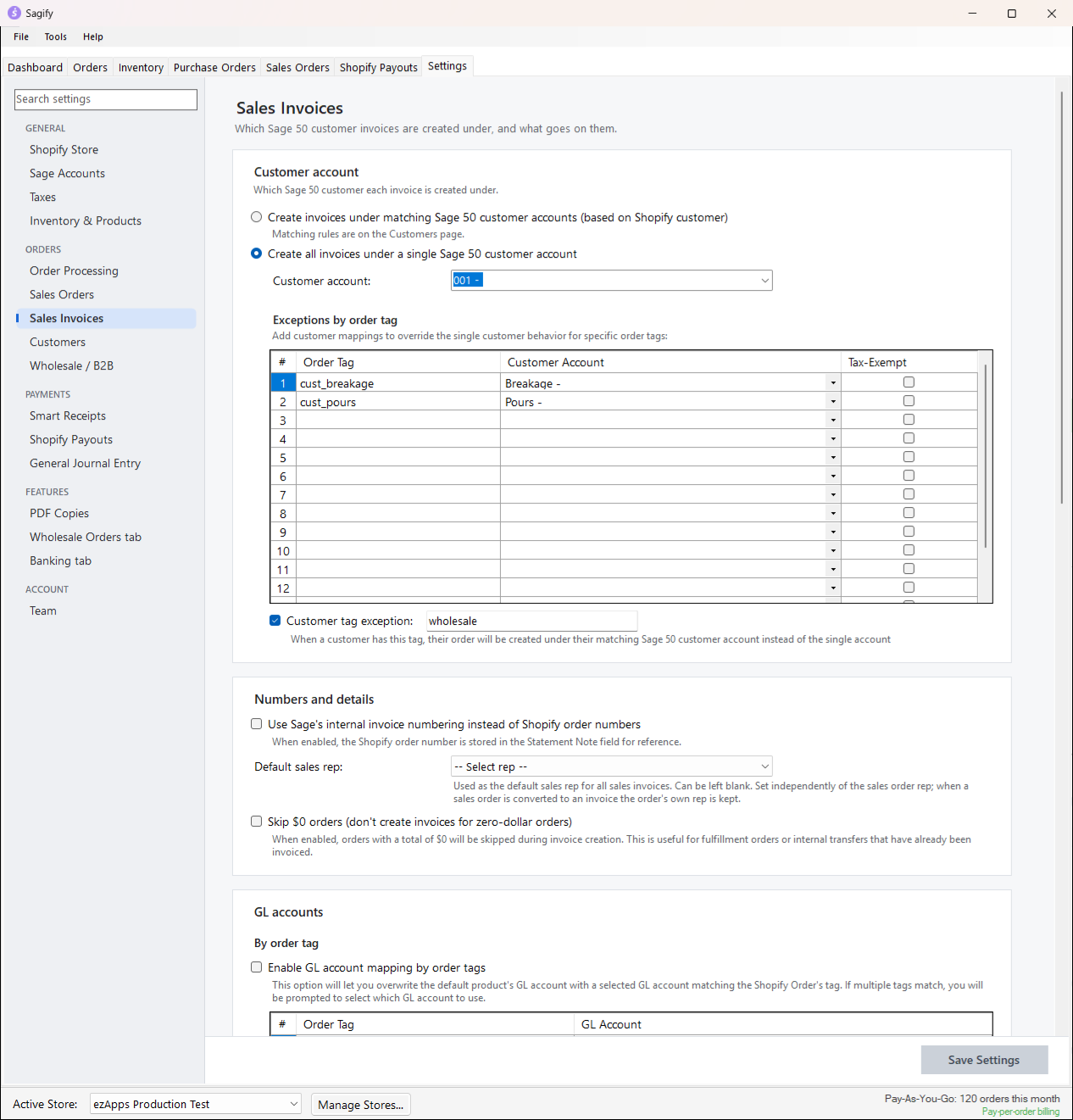
- Customer account: Create invoices under matching Sage 50 customer accounts, or Create all invoices under a single Sage 50 customer account (an "Online Sales" customer, for example) with exceptions by order tag and a customer tag that breaks out of the single account. See Customers.
- Numbers and details: Sage's own invoice numbers instead of Shopify order numbers (the order number then goes in the statement note), a default sales rep for invoices, and Skip $0 orders.
- GL accounts, Shopify fees and Jobs: the same routing options as for sales orders, kept separately so invoices and sales orders can differ.
Customers
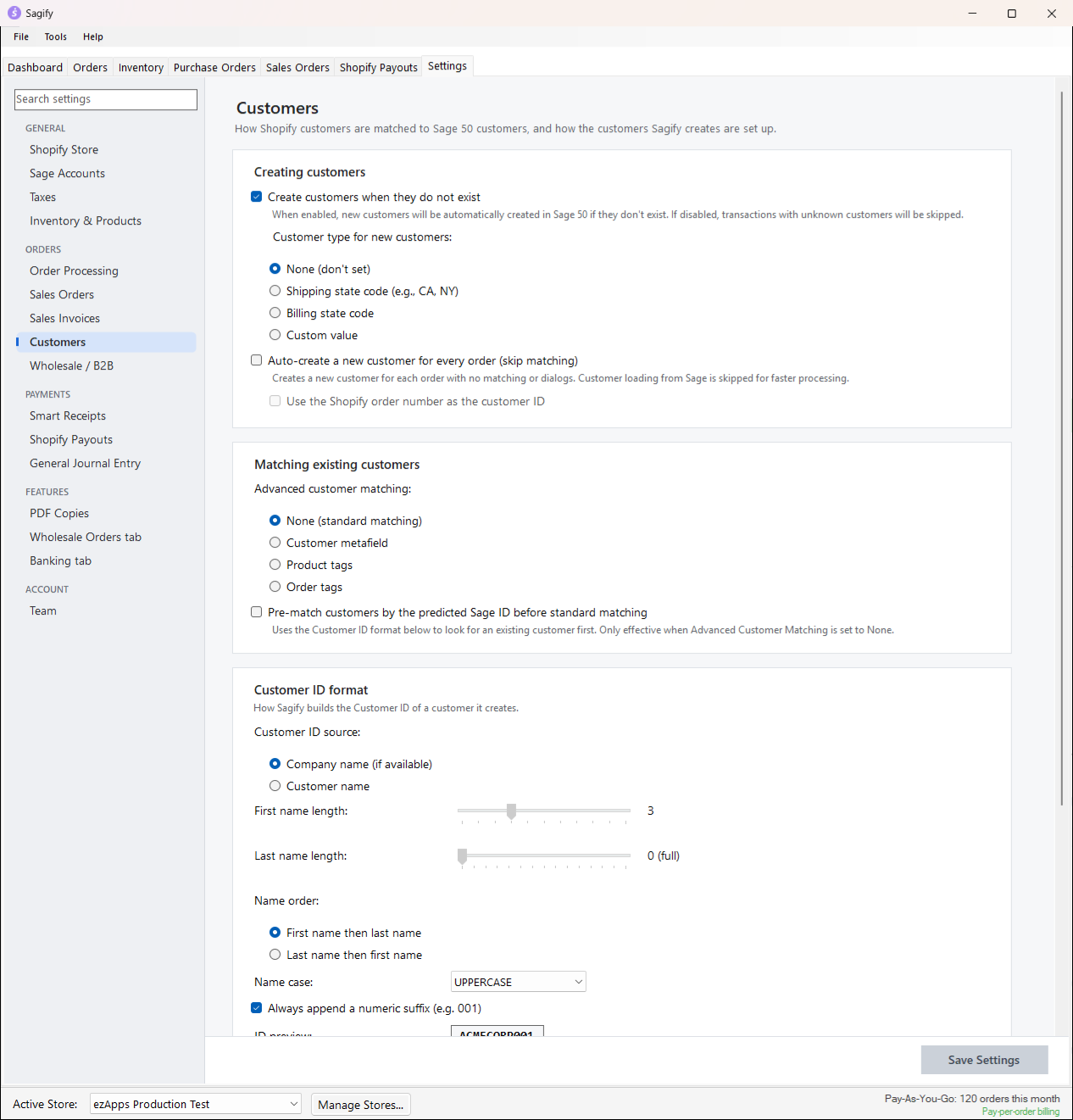
- Creating customers: whether Sagify may create customers that do not exist, the Customer type new customers get (none, the shipping or billing state code, or a fixed value), and Auto-create a new customer for every order for stores that want no matching at all.
- Matching existing customers: standard matching (email, phone, email domain, company name, address) or an Advanced customer matching source: a customer metafield that holds the Sage 50 customer ID, product tags or order tags.
- Customer ID format: how the ID of a new customer is built from the company or the person's name (lengths, order, case, numeric suffix), with a live ID preview.
- Customer ID prefix by order tag: a prefix for customers whose first order carries a given tag.
The whole page is explained in Customers.
Wholesale / B2B
Treat wholesale orders (Shopify B2B company orders, or orders with a tag) as their own segment: always matched to their own Sage 50 customer even in single-customer mode, posted to a Wholesale sales GL account, optionally with a Sage 50 job. A break-off sub-segment (a second tag) can have its own account and job, and even route individual lines by product type, tag, SKU or title.
Payments
Smart Receipts
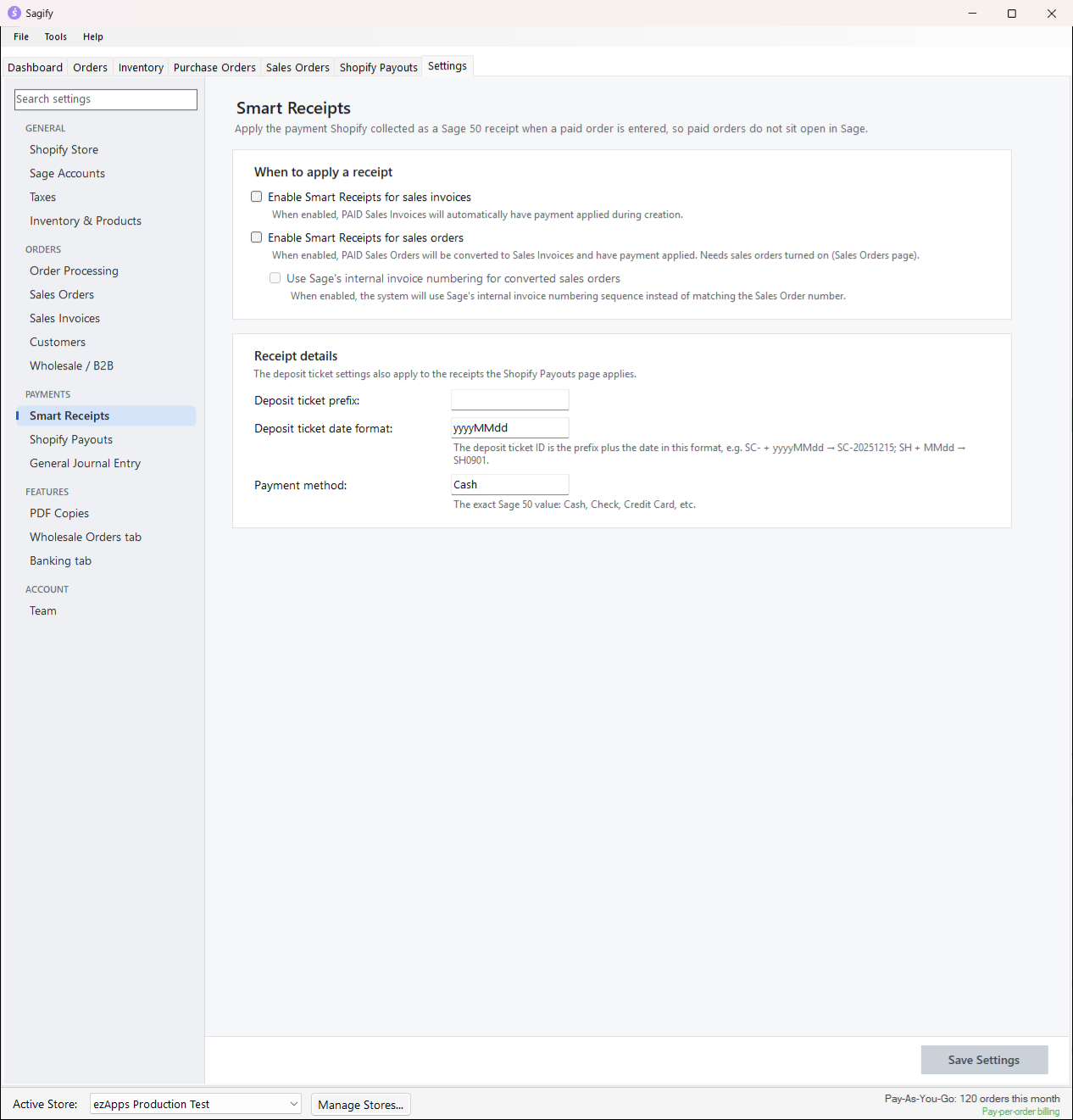
- Enable Smart Receipts for sales invoices: a paid order's invoice gets a receipt for the amount Shopify collected as it is created, deposited to the cash account.
- Enable Smart Receipts for sales orders: a paid order's sales order is converted to an invoice at once and receipted the same way (optionally with Sage's own invoice numbering).
- Receipt details: the deposit ticket prefix and date format (
SH+MMddgivesSH0901) and the Sage 50 Payment method (Cash, Check, Credit Card...). These also apply to the receipts the Shopify Payouts tab writes.
Shopify Payouts
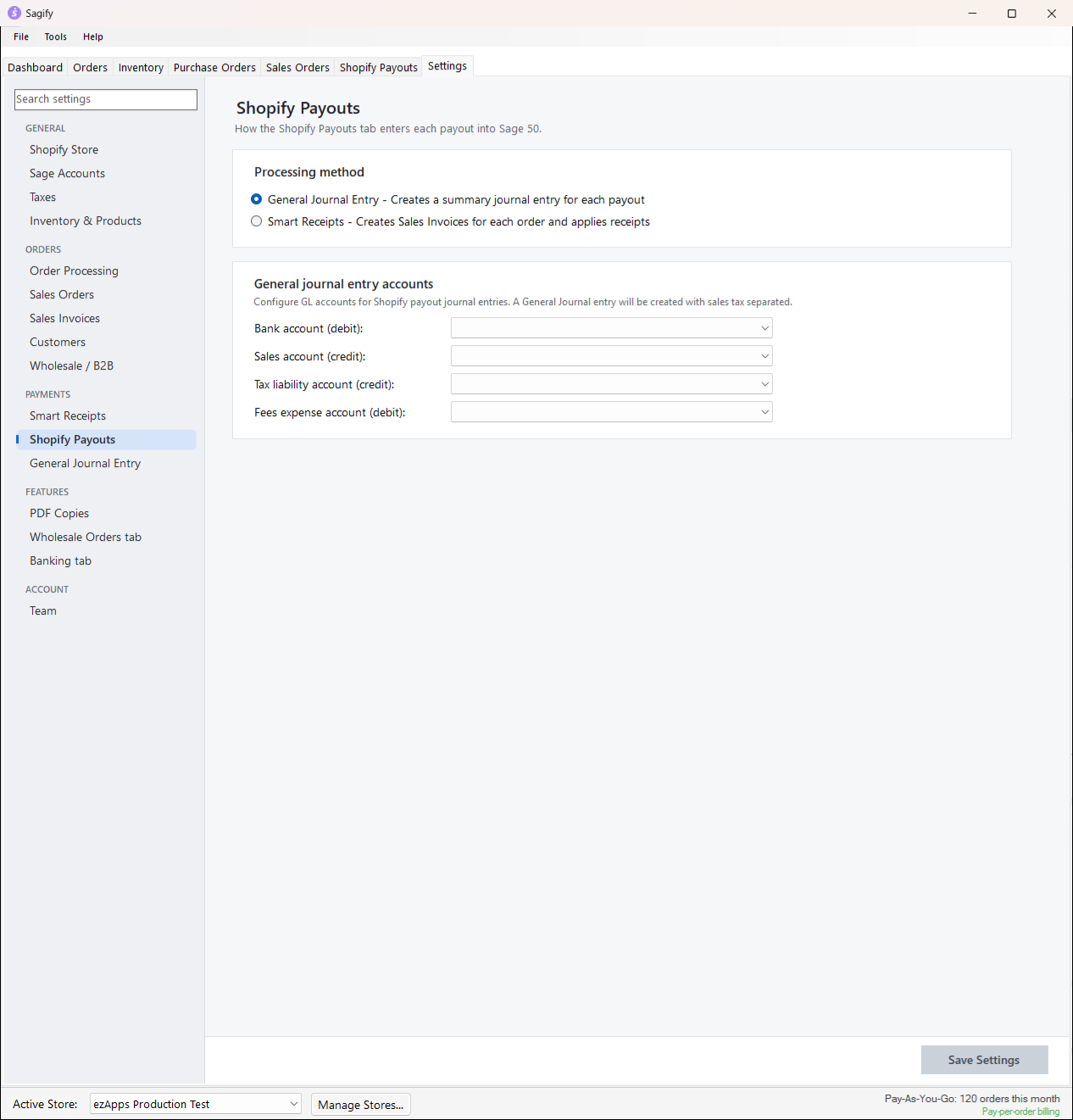
- Processing method: General Journal Entry (one summary journal entry per payout: bank, fees, sales and tax accounts) or Smart Receipts (an invoice and a receipt per order in the payout, or receipts only against invoices you entered yourself).
- Smart Receipts options: Receipts only, Choose which orders to apply payment to, the receipt reference (order number or the payout's bank reference) and the same-day deposit ticket suffix.
- Smart Receipts fee handling: ignore the fees, add them to each invoice, create one fee invoice per payout, or apply them to revenue on each receipt.
See Shopify payouts.
General Journal Entry
The accounts for the Dashboard's General Journal Entry mode: point-of-sale sales (one journal entry per register per day, or one invoice per order) and online orders, each with cash or card, sales, tax and refund accounts and an optional Shopify fee line. See General journal entries.
Features
PDF Copies
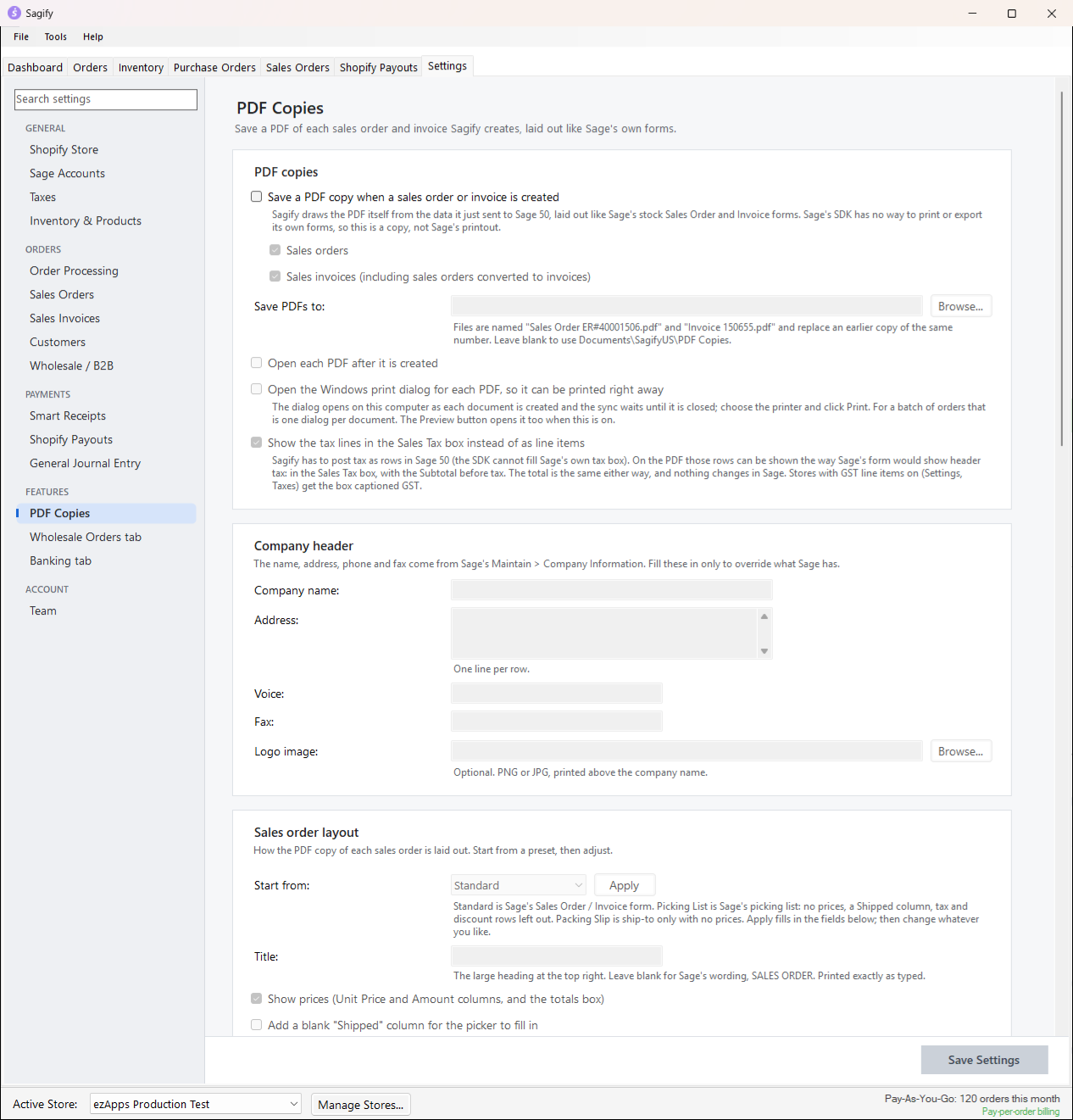
Sage 50's SDK cannot print its forms, so Sagify draws a PDF copy of each sales order and invoice it creates, laid out like Sage's own forms. Choose the folder, whether to open or print each PDF as it is created, the company header and logo, and a layout per document type (title, prices on or off, a blank Shipped column, bill-to box, customer strip, tax and discount rows, check-off columns and footer lines; presets Standard, Picking List and Packing Slip). A second copy in another layout, a picking list for the warehouse for example, can be saved next to the first. See Sales orders and invoices.
Wholesale Orders tab
Switch on the Wholesale Orders tab, choose whether each purchase order becomes a sales order or an invoice, and the reference prefix (PO- plus the PO number). See Wholesale Orders.
Banking tab
Switch on the Banking tab for this Sage 50 company on this computer. Unlike the other settings, this one is saved as soon as you tick it and is not part of the store's settings. See Banking.
Account
Team
Invite other people to sign in to Sagify under your account, each with their own permissions (Orders, Banking, Settings), and manage them. Only the company login sees this page. See Stores, team members and your account.
When Save Settings refuses
Sagify checks a few things before it saves and tells you what to fix: the six default accounts, a tax handling mode and its account or tax code, a default customer in single-customer mode, at least one discount code and a customer for discount-code routing, and the order reference prefix rules (no prefix longer than 10 characters, none ending in a digit, and never together with Sage's internal numbering). The message names the setting; fix it and save again.