Import orders from the Orders tab
Pick Shopify orders from the list, answer the first-time prompts for new customers and products, read the result and find the document in Sage 50.
The Orders tab lists your Shopify orders, newest first, and posts the ones you pick to Sage 50: one sales order or one sales invoice per order, depending on your settings. This guide follows three test orders from the list to Sage 50.
Before you start, save your settings (see Settings explained). In this example the store creates sales orders for every order (Settings → Sales Orders → Create sales orders → All orders) and bills them to a single Sage 50 customer (Settings → Sales Invoices → Create all invoices under a single Sage 50 customer account).
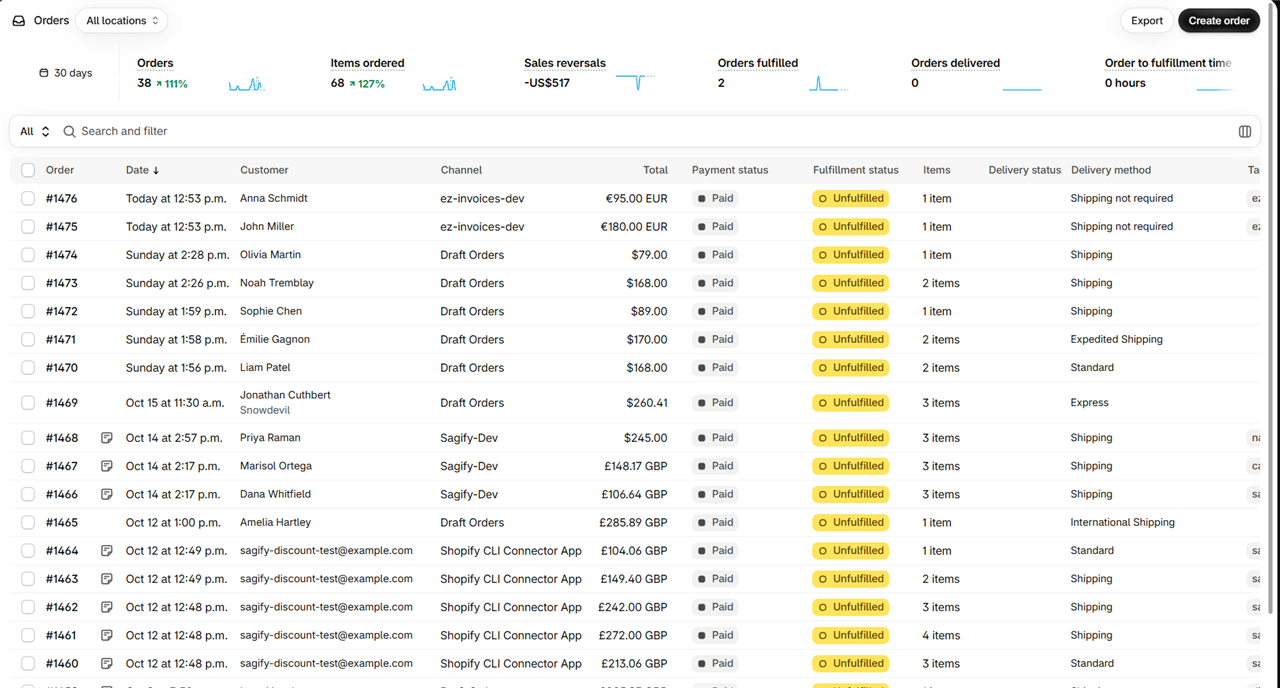
1. Open the Orders tab
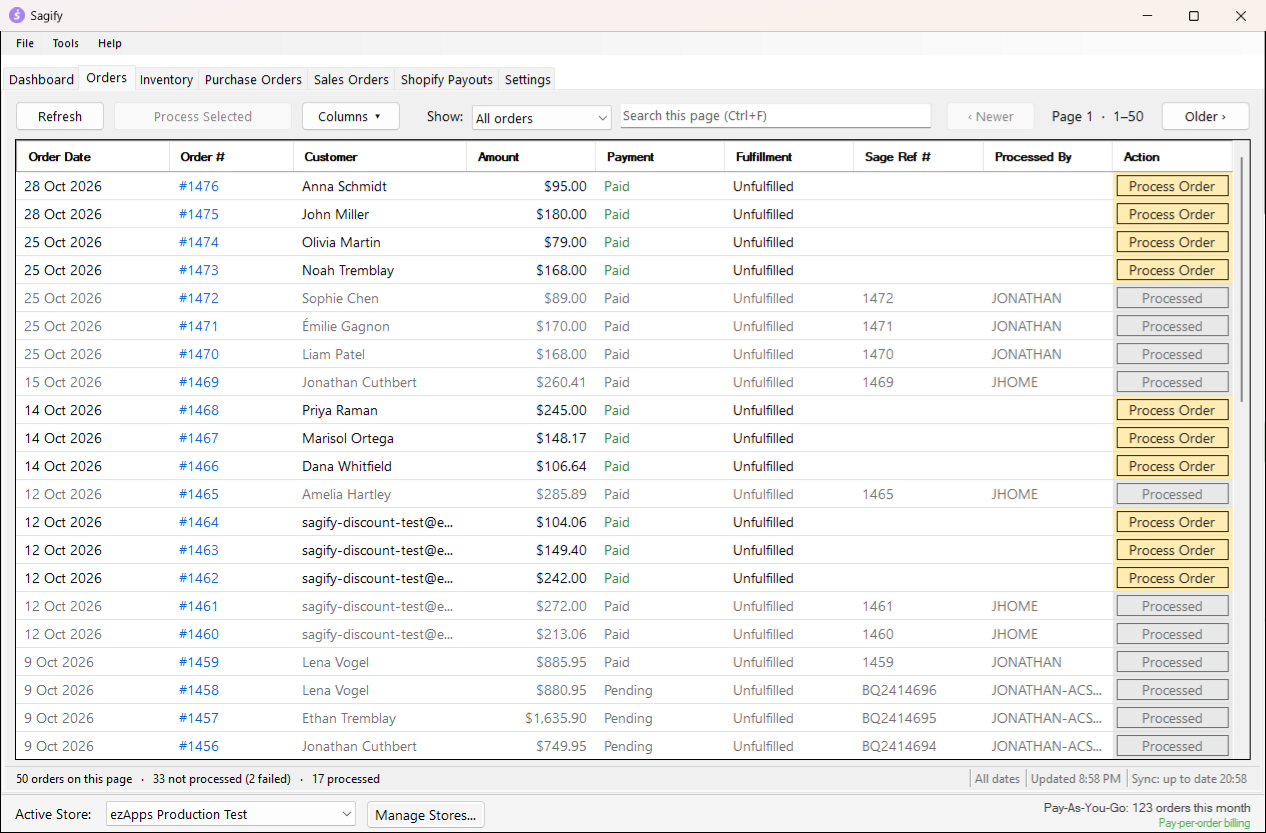
Click Orders. Sagify loads your latest Shopify orders, 50 per page, and checks with your other computers which ones are already posted.
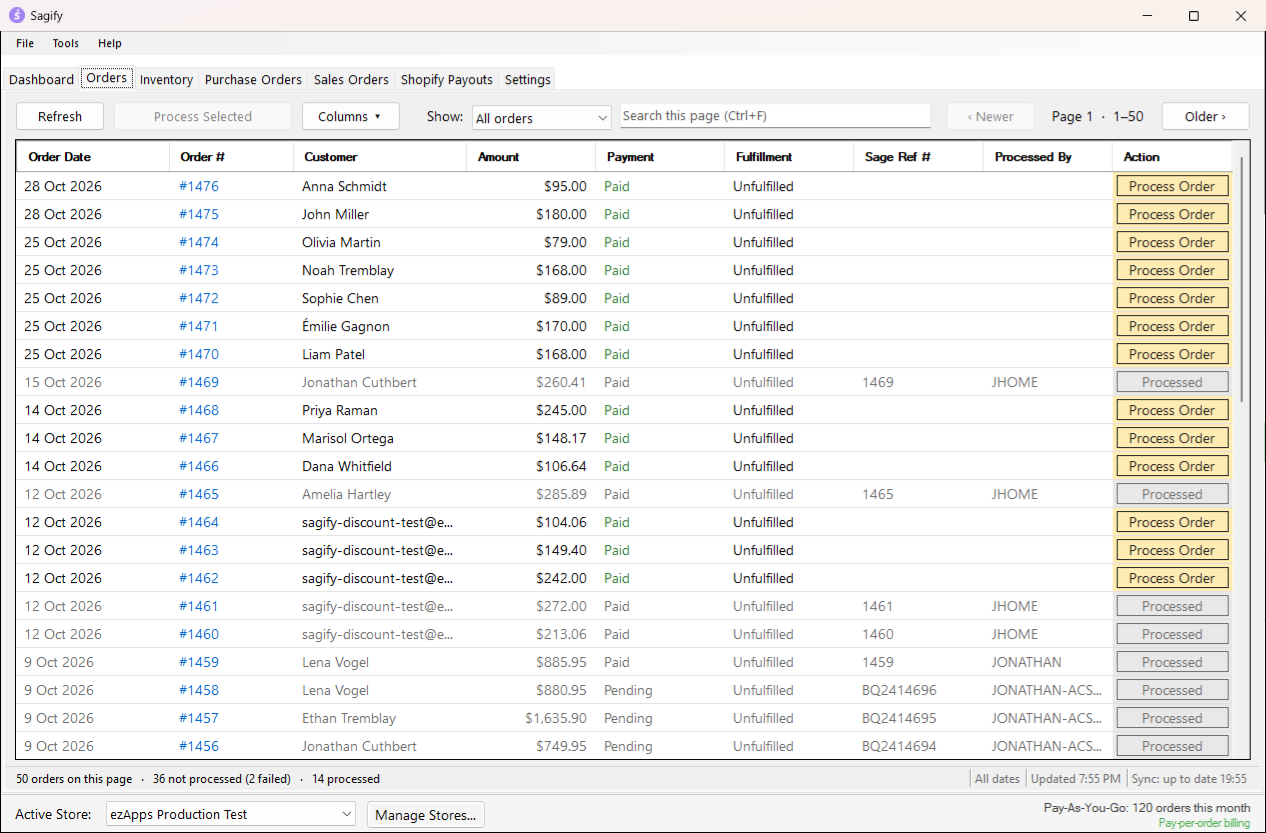
Each row shows the order date, the order number (a link to the order in Shopify admin), the customer, the amount, Shopify's Payment and Fulfillment status, the Sage Ref # once posted, the Processed By computer and an Action button:
- an amber Process Order for an order that is not in Sage 50 yet,
- a grey Processed once it is,
- a red Retry for an order whose import failed; the row is tinted and the reason is in the tooltip of its Sage Ref # cell.
To find orders, type in Search this page (Ctrl+F; it matches the order number, customer, email, Sage reference, status, gateway or amount), or choose Not processed, Processed or Failed under Show. Older › and ‹ Newer page through the list, Refresh (F5) loads new orders, Columns ▾ shows the Ship By column when sales orders carry a ship-by date, and clicking a column header sorts the page.
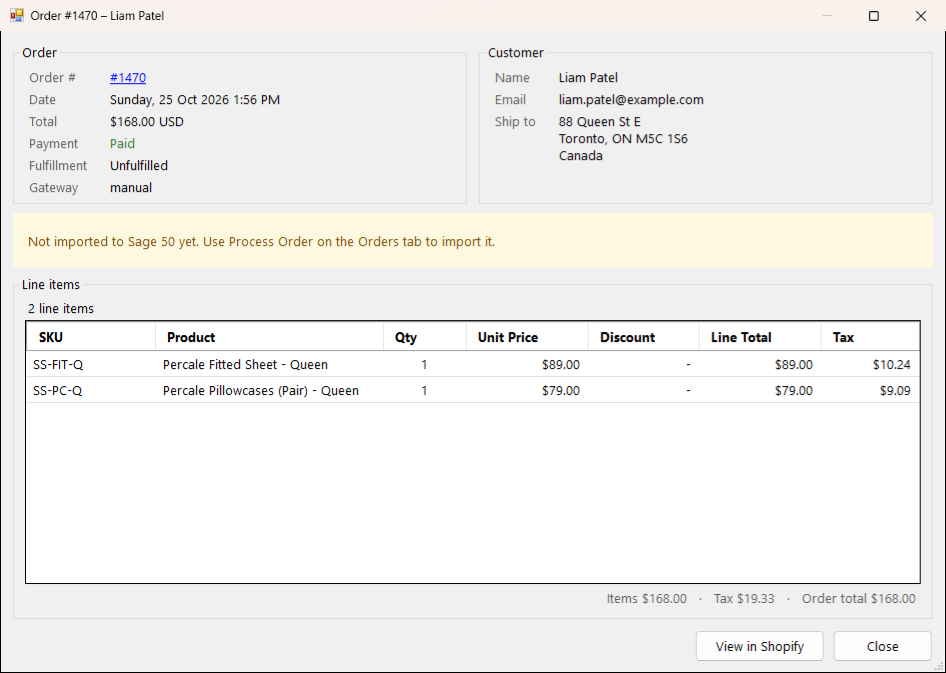
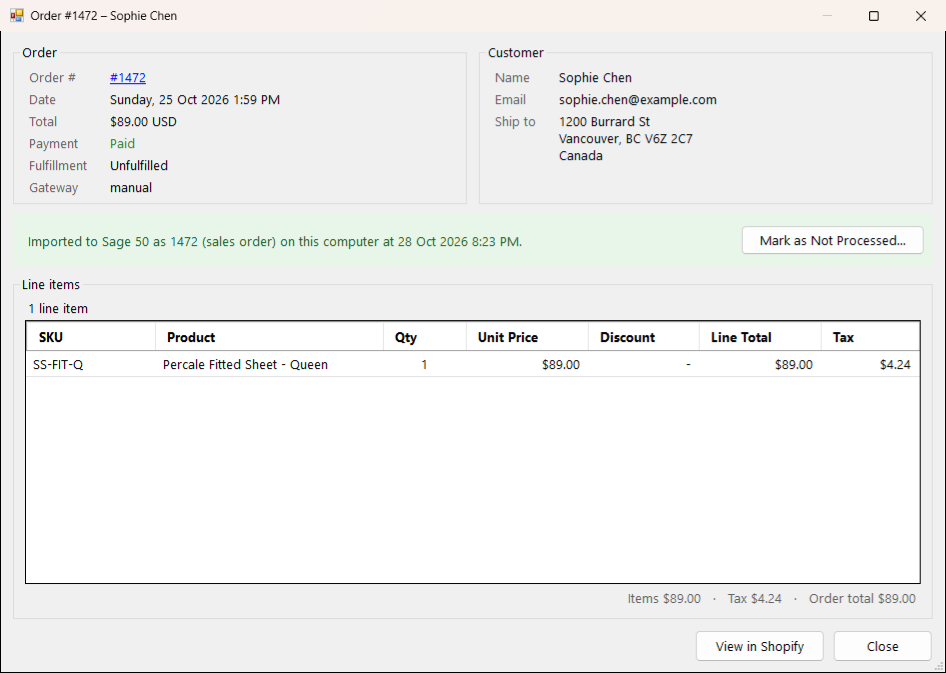
Double-click an order (or press Enter) to see its details: the customer and ship-to address, the line items with SKU, quantity, price, discount and tax, the totals, and a banner that says whether and how the order reached Sage 50.
2. Select the orders and process them
- Click an order. Hold Ctrl to add more orders, or Shift to select a range. Process Selected shows how many of the selected orders it would import.
- Click Process Selected.
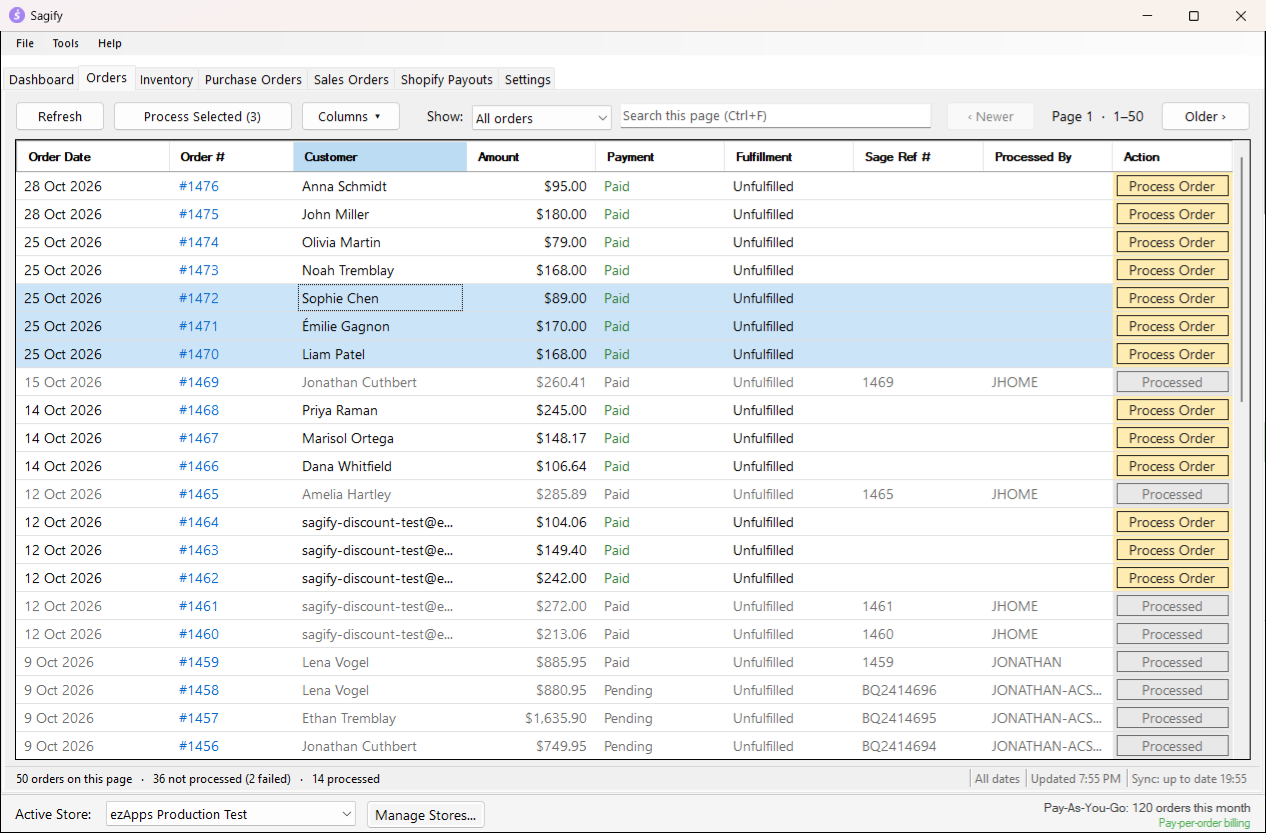
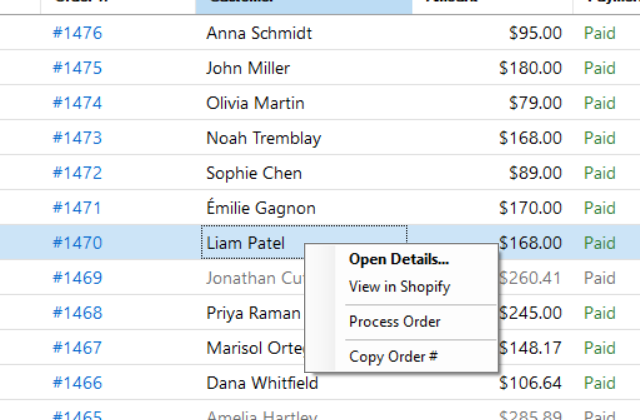
To post a single order, click Process Order on its row instead, or right-click the row.
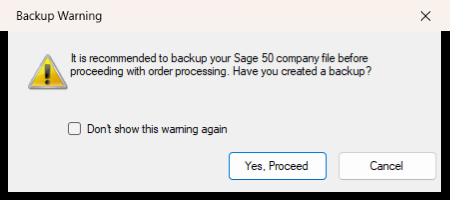
Sagify first asks whether you have backed up the Sage 50 company file (Backup Warning). Click Yes, Proceed. Then it loads the customers, items, invoices and sales orders from Sage 50 and posts the orders one after the other, with a progress bar at the top of the tab and a Cancel button.
3. Answer the first-time prompts
The first time Sagify meets a new product or a new customer, it asks what to do. The answer is kept in Sage 50 itself: the next order with the same SKU, or from the same customer, goes straight through.
A product that is not in Sage 50 yet
When an order holds a SKU that matches no Sage 50 item (by item ID, UPC/SKU or title), Inventory Item Selection opens. Every line must be matched before the order can go on.
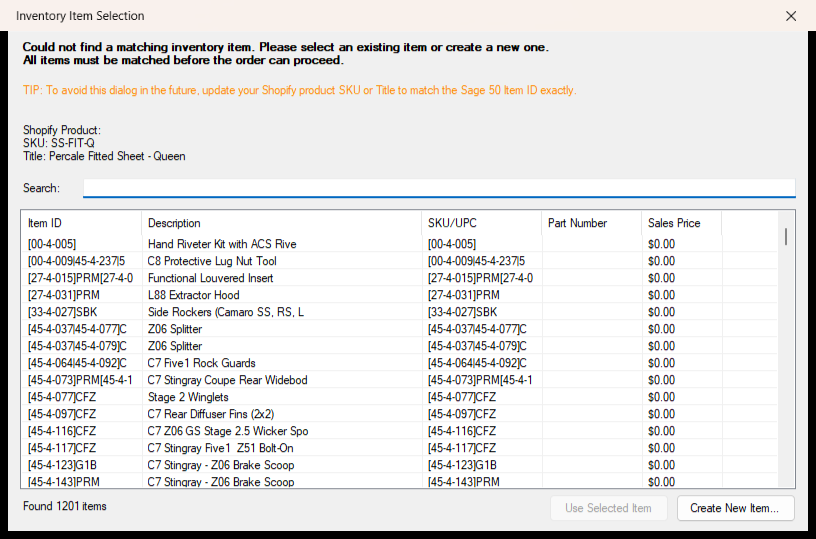
- Use Selected Item: use an existing Sage 50 item for this SKU. Type in Search to find it by item ID, description, UPC/SKU or part number.
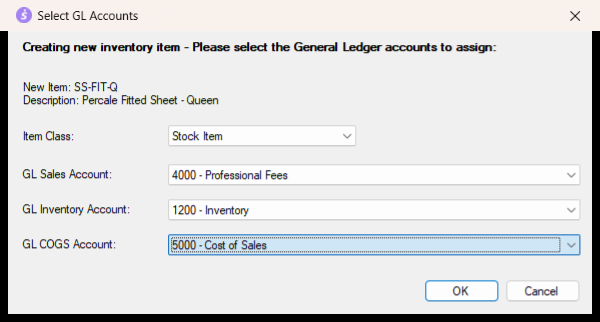
- Create New Item...: create the item in Sage 50 with the SKU as its item ID and the Shopify product name as its description. The Select GL Accounts window then asks for the Item Class (stock, non-stock, assembly or description only) and the sales, inventory and COGS accounts; an assembly item also asks for its bill of materials.
- Closing the window without choosing skips the whole order.
Tip
To avoid this window, give the Shopify SKU and the Sage 50 item ID the same value. Settings → Inventory & Products can also match after stripping a prefix from the item ID, and turning off Create products in Sage 50 when processing orders makes Sagify skip such orders instead of asking.
A customer that is not in Sage 50 yet
With invoices created under matching customer accounts (the default), Sagify looks for the Shopify customer in Sage 50 by email, phone, email domain, company name and address. When nothing matches, Customer Selection opens:
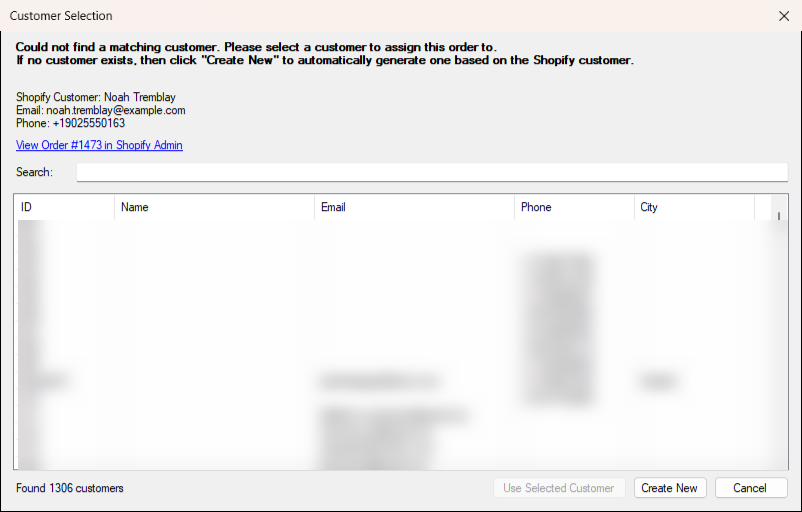
In single-customer mode, as in this example, every order goes to the chosen customer and nothing is asked.
Orders that are fully refunded
An order Shopify shows as fully refunded opens Fully Refunded Order: Skip it, Process Invoice anyway, or Process + Credit Memo to post the document and a credit memo that reverses it. See Refunds and credit memos.
4. Check the result in Sagify
When the run is over, the Process Summary counts what happened. Each posted order now shows its Sage Ref #, the computer that posted it and a grey Processed button, and the log on the Dashboard tab has every step.
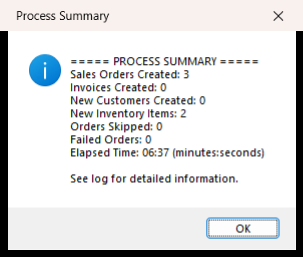
Open an order's details again and the banner says how it reached Sage 50:
If an order shows Failed, nothing was posted for it. The reason is in the row's tooltip and in the log; fix the cause and click Retry. See Troubleshooting.
5. Find the document in Sage 50
By default the Sage 50 document carries the Shopify order number as its number, so sales order 1470 is Shopify order #1470. In Sage 50:
- Sales orders: Lists → Customers & Sales → Sales Orders opens the list; double-click the order to open it.
- Invoices: Lists → Customers & Sales → Sales Invoices.
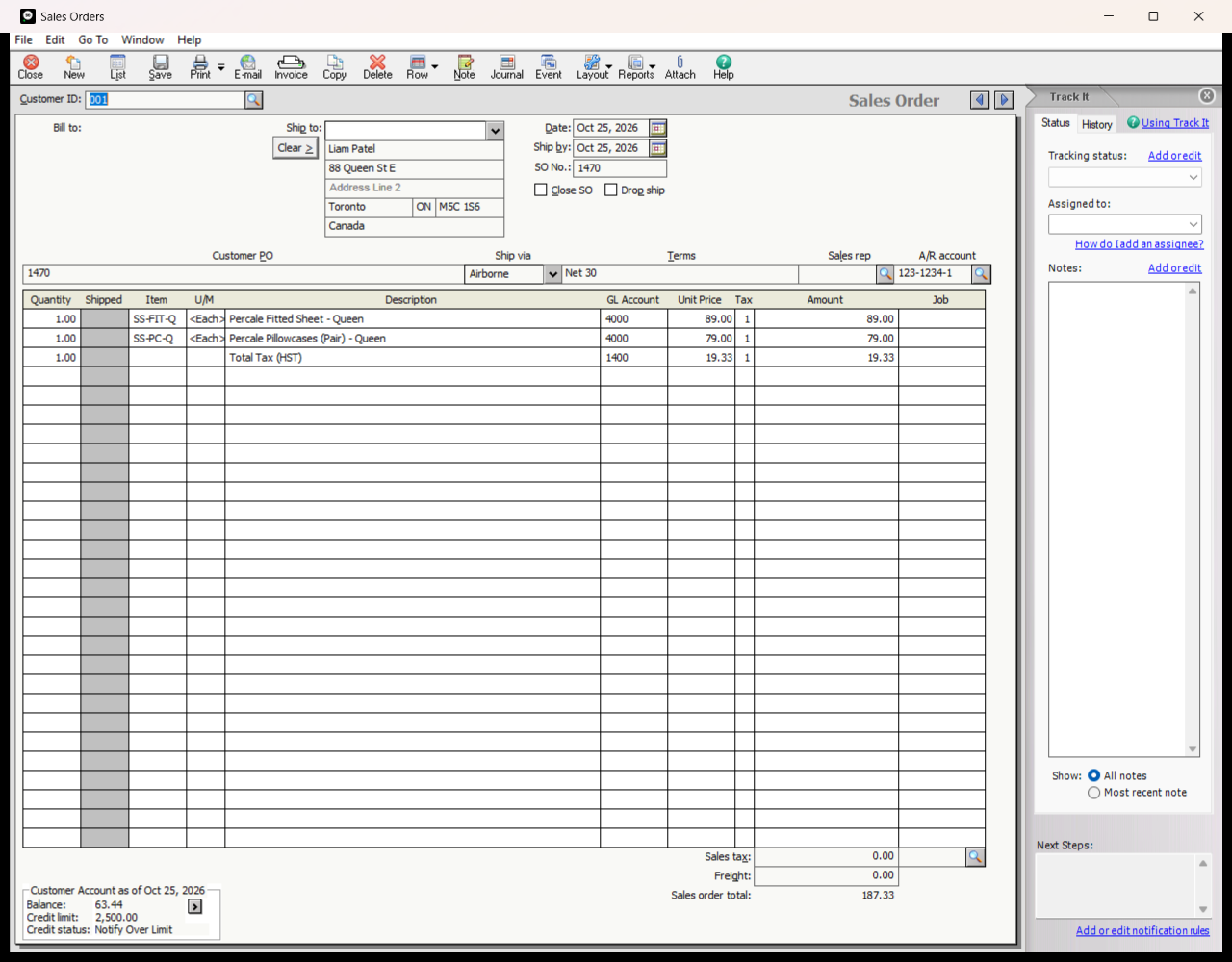
What to look for on a document Sagify created:
- Customer: the matched or created Sage 50 customer, or the single customer account, with the Shopify shipping address as the ship-to.
- Customer PO: the Shopify order number (or the customer's own PO number when PO detection is on), so you can always trace the document back to Shopify.
- Lines: one line per product, on the matched Sage 50 item, at the Shopify price. Discounts, taxes and Shopify fees appear as their own lines when your settings say so.
- Freight: the shipping charged in Shopify, in Sage's Freight field (or as a "Shipping" line).
- Ship Via and terms: the carrier of a fulfilled order, the card on the order (
Visa ending in 8085), or your defaults. - Total: the Shopify order total.
Post an order again
To post an order a second time, for example after deleting its document in Sage 50, right-click it and choose Mark as Not Processed.... Sagify reminds you that the order can then be posted again on this computer and on every other computer signed in to your account, and that a second document is created if the first one still exists in Sage 50.