Wholesale Orders: enter purchase orders that arrive as files
Drop a customer's PO (PDF, Excel or CSV) on the Wholesale Orders tab, review what Sagify read, enter it as a Sage 50 sales order or invoice, and look it up later in History.
Some wholesale customers do not order through your Shopify store: they email a purchase order as a PDF, an Excel sheet or a CSV file. The Wholesale Orders tab reads those files, matches the buyer to a Sage 50 customer and each part number to a Sage 50 item, and enters the order into Sage 50 as a sales order or a sales invoice. Every PO entered is kept in a History shared with your other computers, so the same PO is never entered twice.
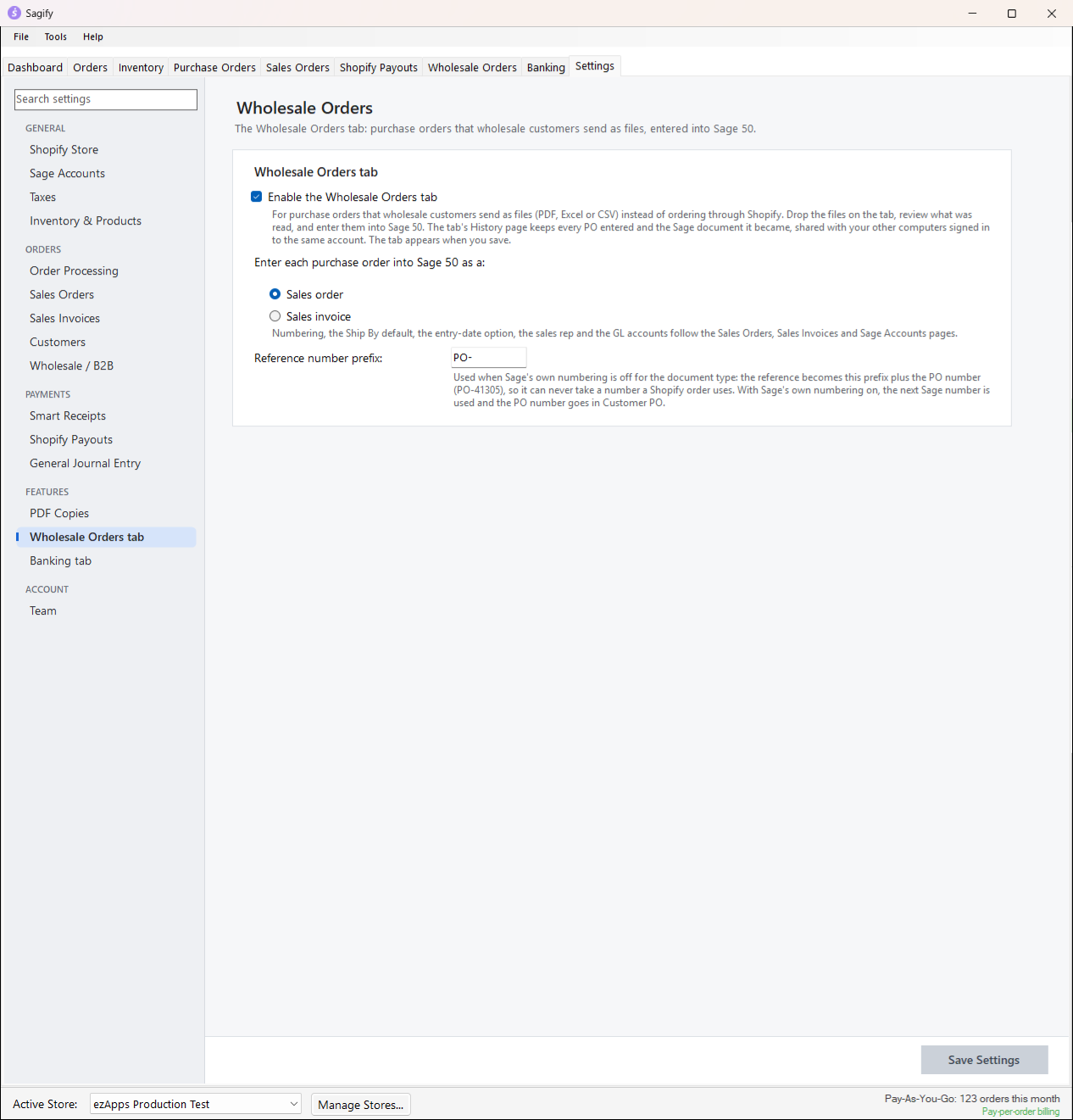
Turn it on
- Go to Settings → Features → Wholesale Orders tab.
- Tick Enable the Wholesale Orders tab.
- Choose whether each purchase order becomes a Sales order or a Sales invoice, and the Reference number prefix (
PO-by default). With Sage's own numbering off for that document type, the Sage 50 reference is the prefix plus the PO number (PO-41305), so it can never collide with a Shopify order number; with Sage's numbering on, the next Sage number is used and the PO number goes in the Customer PO field. - Click Save Settings. The tab appears next to Shopify Payouts.
The tab needs Sage 50 and the ezApps AI service (the files are read there); it works without a Shopify store, but sharing the History between computers needs one.
Enter a purchase order
Open Wholesale Orders → Enter Orders and drop the PO files on the tab, or click Add Files... (PDF, Excel and CSV; up to 10 MB each).
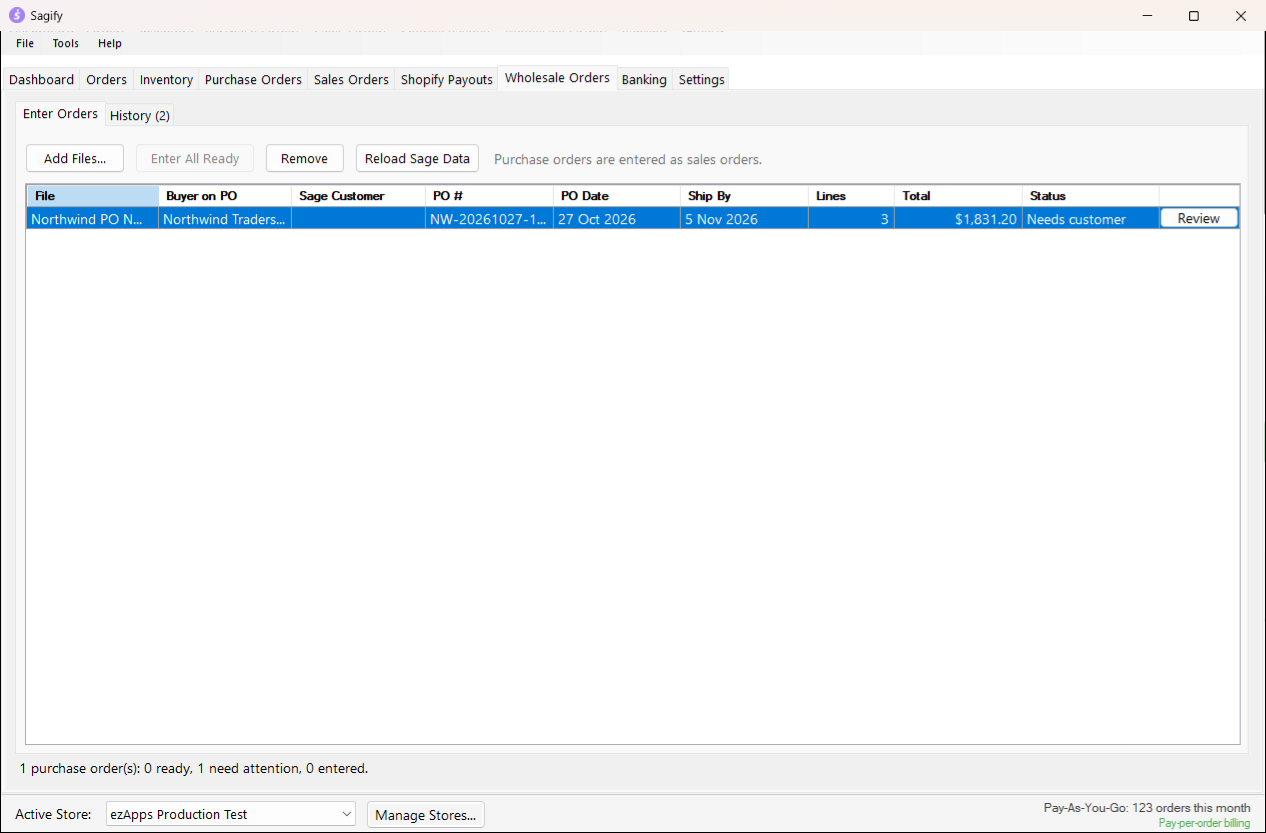
Each file becomes a row. A PDF is read in full by the AI service; a spreadsheet is read by Sagify itself, with the service only locating the columns, so long sheets are read exactly. Sagify tells the buyer from the seller by the labels on the PO and remembers how your own company name is printed. Every order is checked against the totals the PO prints: lines that do not add up, a missing PO number or a buyer that reads as yourself make it Needs review rather than silently corrected. Tax and freight printed on the PO are not added (Sage applies the customer's own tax code), and the notes say so.
The Status column tells you what each order still needs:
| Status | Meaning |
|---|---|
| Needs customer | The first PO from this buyer: pick the Sage 50 customer once |
| Needs item (N lines) | A part number Sagify could not match to a Sage 50 item |
| Needs review | A check failed (see the notes in the review window) |
| Ready | Everything is matched and checks out |
| Already entered as ... | This PO is in the History (same customer and PO number, or the same file) |
| Entered as sales order ... | Done |
Click Review (or double-click the row) to open the order exactly as it will be entered.
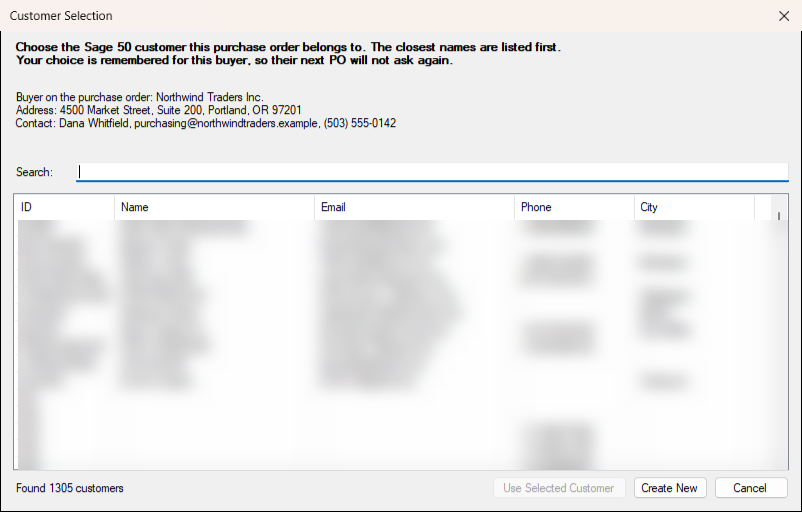
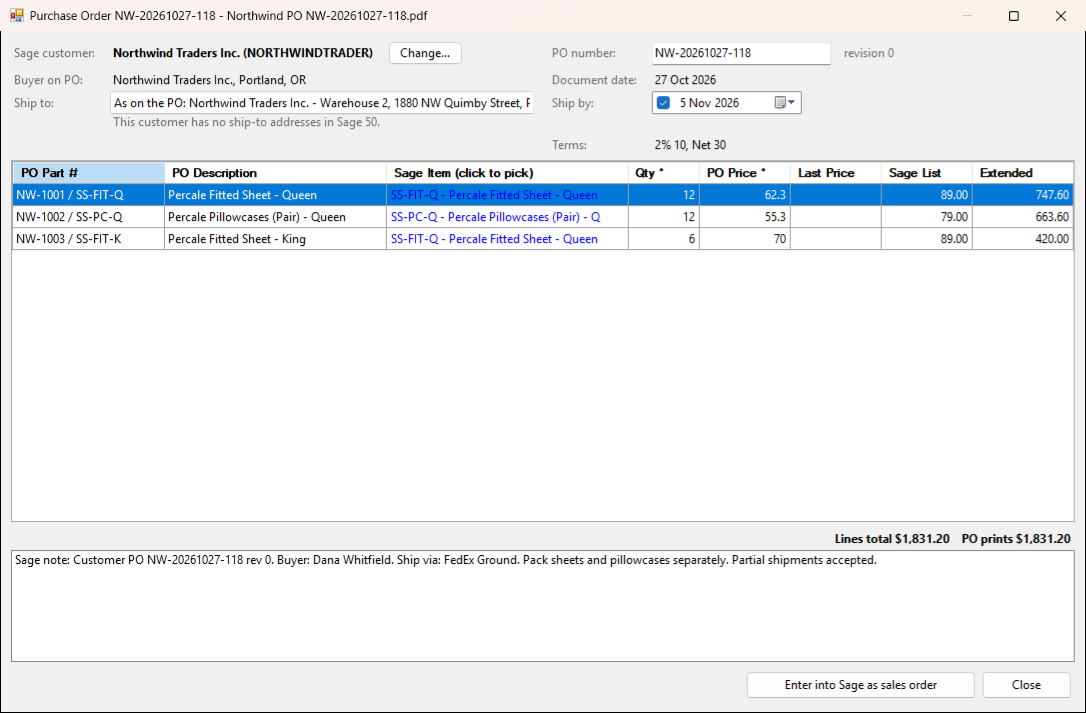
- Sage customer: for a new buyer, Customer Selection opens with the closest names first; pick one with Use Selected Customer, or Create New to create the customer from the PO's billing details. The choice is remembered for this buyer (and ship-to ZIP code), so their next PO arrives Ready.
- Ship to: the address on the PO (the default), or one of the customer's Sage 50 ship-to addresses, or its bill-to.
- Ship by: the earliest requested date on the PO, or your default rule (sales orders only); untick it to enter the order without one.
- Lines: a line matches by itself when the PO's vendor part number equals a Sage 50 item ID, UPC/SKU or part number, or when you matched that part number before for this customer. Otherwise Inventory Item Selection opens, and your choice is remembered per customer and part number. A buyer's own part number that happens to equal a Sage item is only Suggested; click Accept N Suggested Item(s) to confirm. Quantities and prices can be edited; a price shown in orange differs from the last price this customer paid.
- The totals line compares the lines with the total the PO prints, and the notes list every check, price difference and ship-to remark.
Click Enter into Sage as sales order (or ... as sales invoice). Sagify warns before entering a PO that is already in the History, one that did not pass every check, or one whose Sage 50 number is already taken (it offers -2, -3... rather than renumbering silently). The document gets the PO number as Customer PO, the PO date, the customer's terms, the Ship By date and a note with the buyer, ship via and the PO's notes. With PDF Copies on, it gets its PDF copy too. Each order counts as one order on your plan.
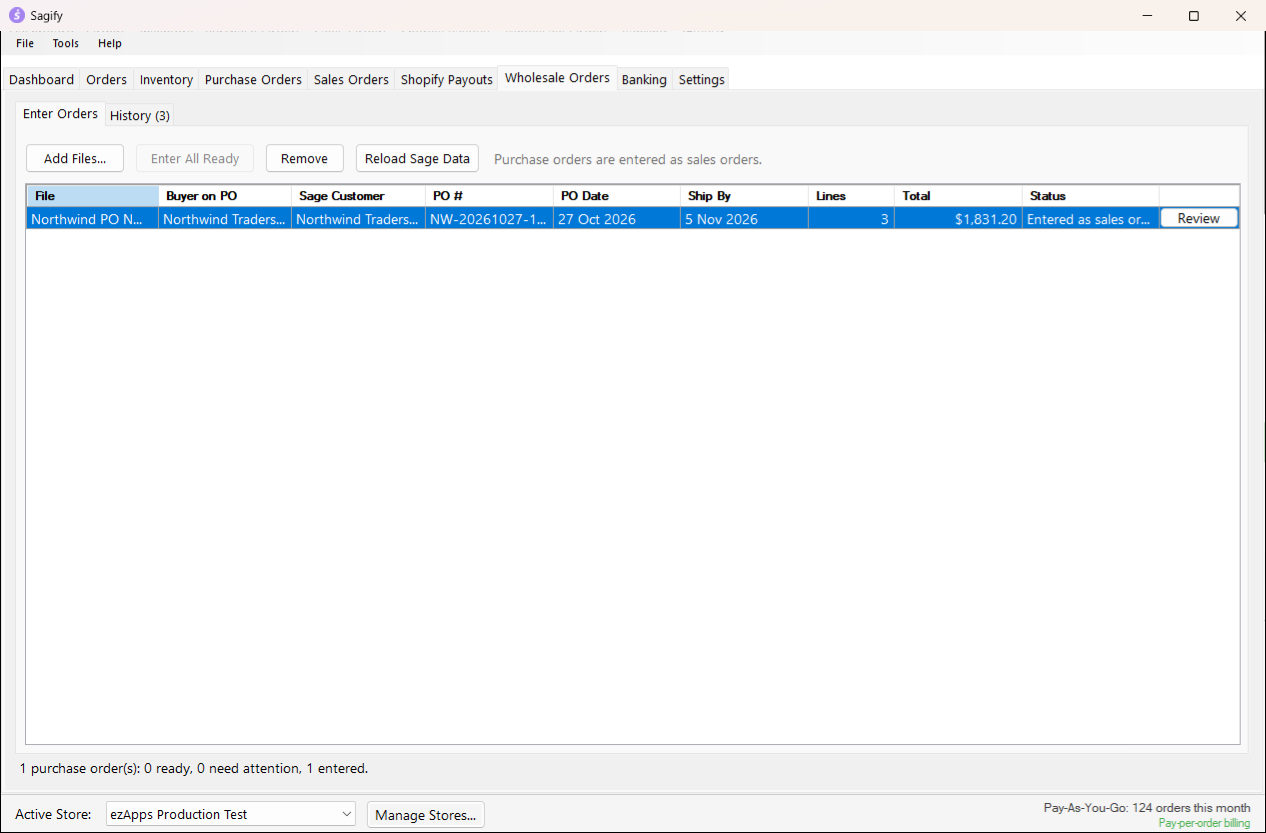
Enter All Ready enters every Ready order in one go, after a confirmation that lists them; anything that would need a question is skipped and listed.
History
Wholesale Orders → History lists every PO entered from the tab, newest first: when, the PO number and revision, the Sage customer, the document type and number, the total, the file and the computer that entered it. Find searches all of those; right-click a row to copy the Sage or PO number, open the file (when it is on this computer) or see the details.
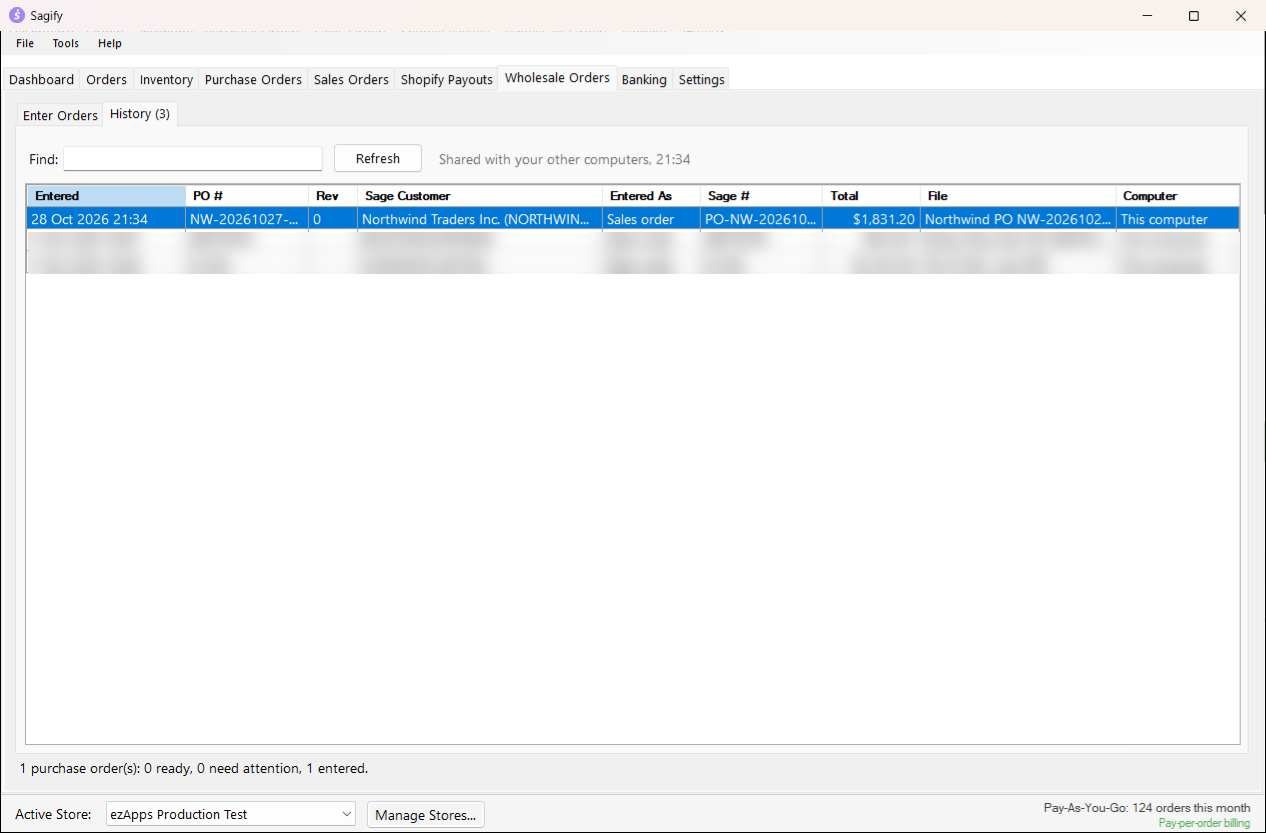
The History is shared between every computer signed in to the same ezapps.io account, per store and per Sage 50 company, so a PO entered on the front desk reads Already entered in the back office. The line under the list says when it was last shared, or why it is shown for this computer only.
Other ways to enter an order by hand
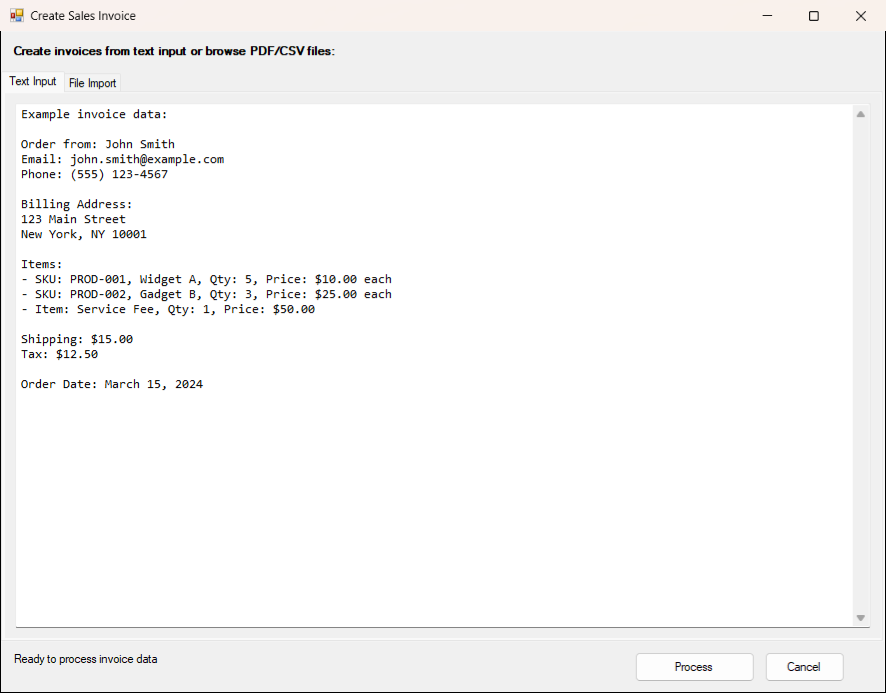
Tools → Create Sales Invoice creates a Sage 50 sales invoice from text you type or paste (read by the AI service), or from a CSV file in Sagify's template (one row per line item, with the order number, customer, item, quantity, price, dates, PO number, ship via and ship-to columns). An Invoice Preview shows the customer and lines, flags the SKUs that are not in Sage 50, and lets you edit before Create Invoice.