Customers: matching, creating and routing
Bill every order to one Sage 50 customer or match each order to its own, control how new customers and their IDs are created, and route orders by tag, discount code or B2B company.
Every Sage 50 sales order and invoice belongs to a customer. Sagify US can bill every Shopify order to one Sage 50 customer, or find (and create) a Sage 50 customer for each shopper. Both are set up in Settings, and a few rules can send particular orders elsewhere.
One customer or one per shopper?
Go to Settings → Sales Invoices → Customer account.
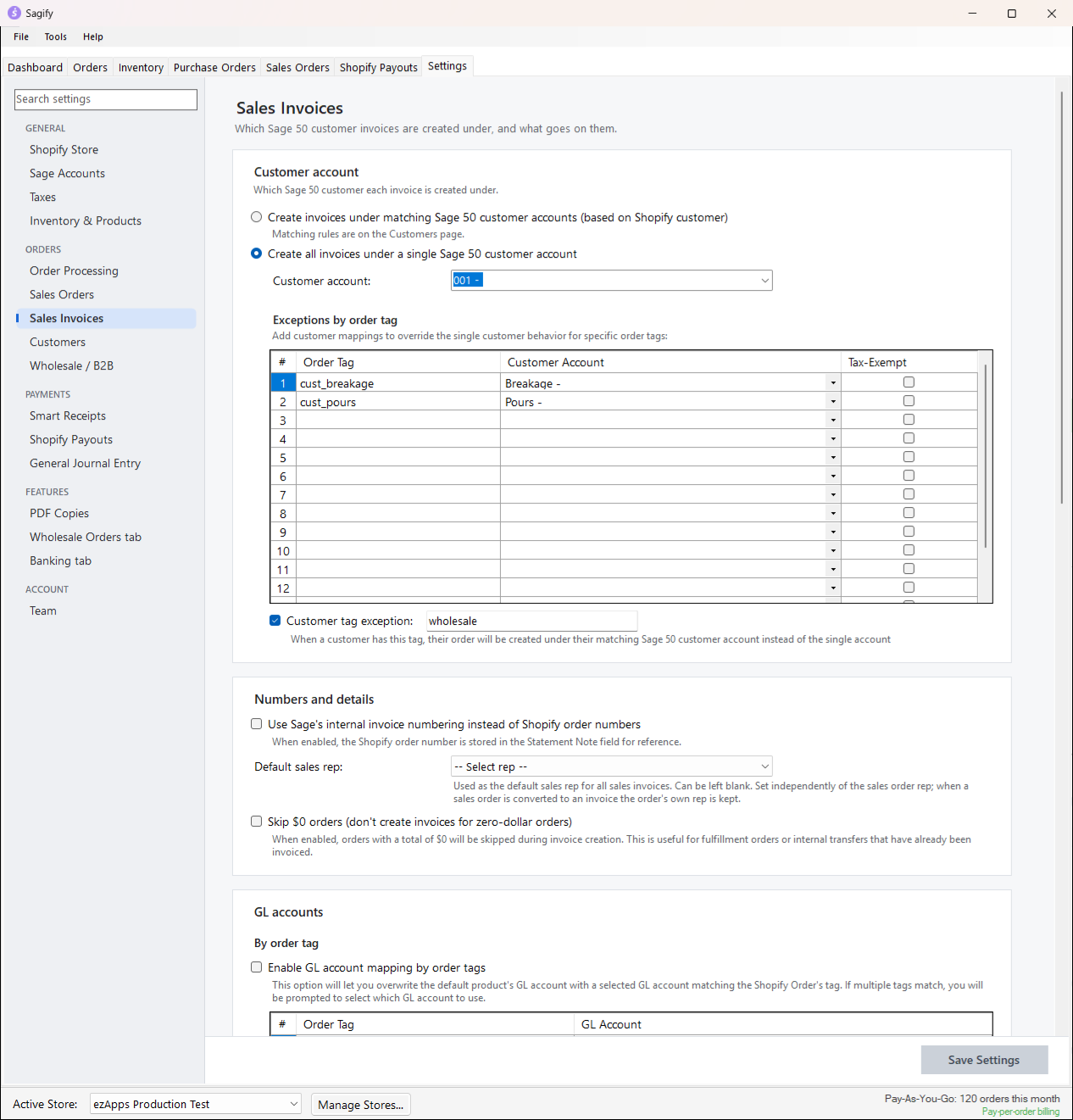
- Create invoices under matching Sage 50 customer accounts (based on Shopify customer): Sagify looks the shopper up in Sage 50 and creates a customer when none matches. Your Sage 50 customer list mirrors your shoppers, and statements and history work per customer. The matching rules are on the Customers page (below).
- Create all invoices under a single Sage 50 customer account: every document goes to the customer you pick, for example an "Online Sales" or "Shopify" customer. Simple, and it keeps the customer list short. Two kinds of exceptions still get their own customer:
- Exceptions by order tag: up to 15 rows of order tag → customer account, with a Tax-Exempt flag each, for orders that belong to a known account (a
cust_breakagetag to a Breakage customer, say). - Customer tag exception: a tag on the Shopify customer (
wholesale, say) that makes their orders go to their own matched Sage 50 customer.
- Exceptions by order tag: up to 15 rows of order tag → customer account, with a Tax-Exempt flag each, for orders that belong to a known account (a
Sales orders follow the same choice. With sales orders created for All orders, the single customer applies to them too; with sales orders created for a subset (unpaid, unfulfilled or tagged orders), those orders are always matched to their own customer, because they are usually the wholesale ones.
How a shopper is matched to a Sage 50 customer
With matching on, Sagify compares the Shopify customer with the Sage 50 customers it loaded at the start of the run, in this order:
- Advanced customer matching, if you chose one under Settings → Customers: a customer metafield that holds the Sage 50 customer ID, or product tags, or order tags.
- Optionally the predicted Sage ID (the ID Sagify would build from the name, see below), for stores whose customers were created by Sagify.
- The email address.
- The phone number.
- The email domain (two people at the same company), confirmed by the name or company.
- A close company name match.
- The address, confirmed by the name, or the ZIP code plus company.
When nothing matches, the Customer Selection window opens during the run:
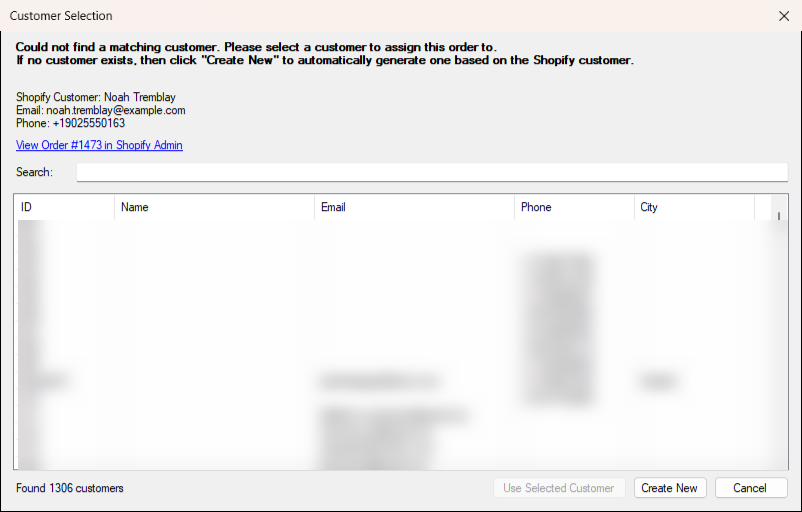
- Use Selected Customer: post the order to the customer you pick. Search filters the list by ID, name, email, phone or city as you type.
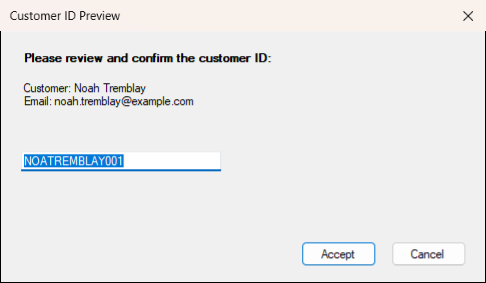
- Create New: create the customer in Sage 50 from the Shopify name, email, phone and addresses. Customer ID Preview then shows the ID Sagify built; edit it if you like and click Accept. If Sage 50 already has that ID, Sagify asks for another.
- Cancel: skip this order. It stays unprocessed.
At the end of a run, if matched customers have an empty email, phone or address in Sage 50 that Shopify can fill, Confirm Customer Updates lists them and lets you choose which values to copy over (Update Selected), or Skip All.
New customers
Settings → Customers decides how customers are created.
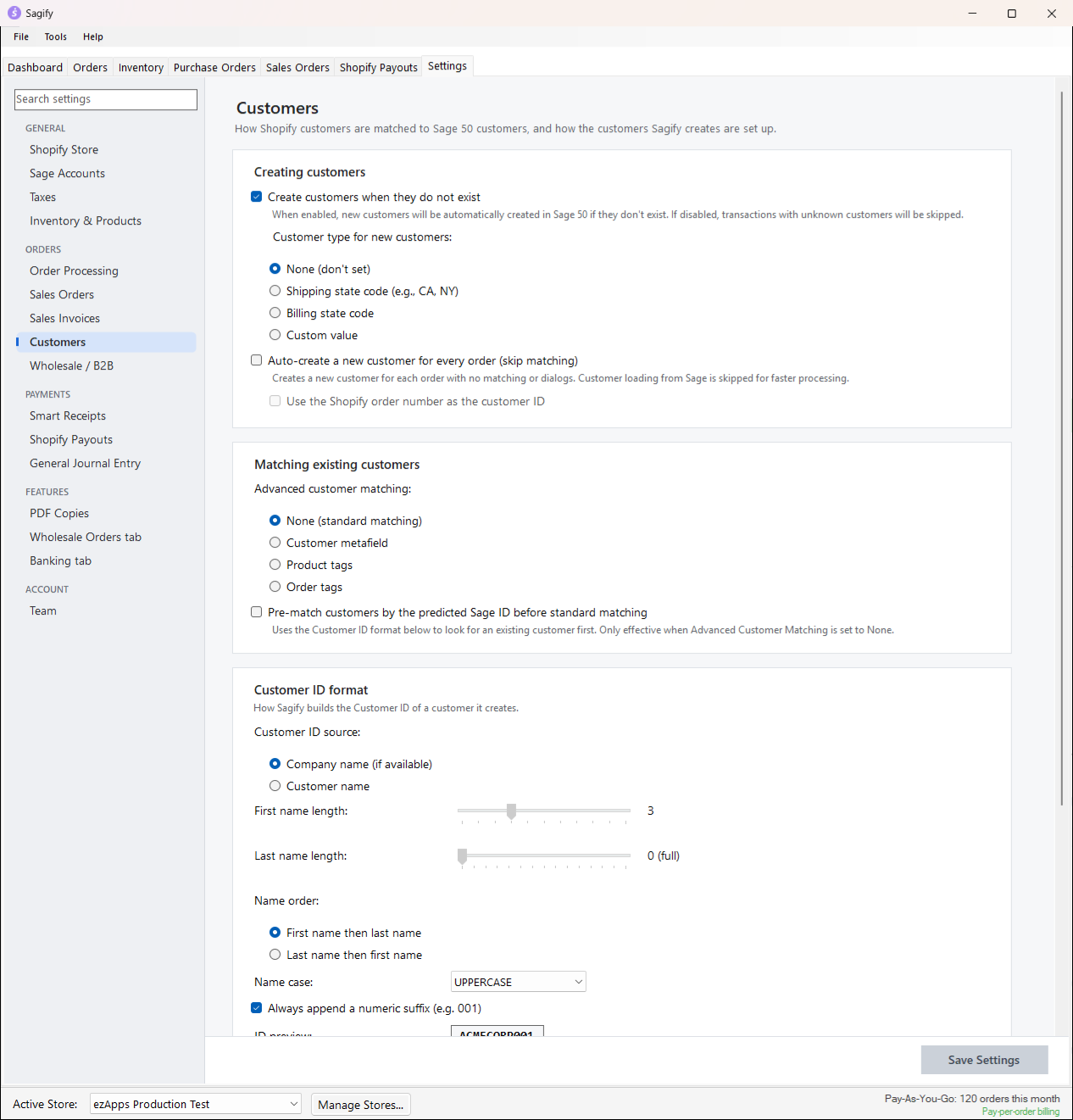
- Create customers when they do not exist: when off, an order from an unknown customer is skipped instead of asking.
- Customer type for new customers: none, the shipping or billing state code (handy for sales tax reports), or a fixed value.
- Auto-create a new customer for every order (skip matching): no matching, no prompts, one customer per order (optionally with the Shopify order number as its ID). For stores that never want to look at the list.
- Customer ID format: the ID is built from the company name (if there is one) or the customer name: how many letters of the first and last name, in which order, in which case, and whether a numeric suffix is always added. The ID preview shows the result for "John Smith" (
johsmith001, for example). Customer ID prefix by order tag adds a prefix to the ID when the customer's first order carries a tag.
A customer Sagify creates gets the name (or company), the billing and shipping addresses, email and phone from Shopify, terms of Net 30 with 2% 10 days, a credit limit of 5,000 and your default sales account. Open it in Sage 50 (Maintain → Customers/Prospects) to adjust anything.
Route orders by tag or discount code
Beyond the single-customer exceptions above, sales orders have their own routing under Settings → Sales Orders → Customer routing:
- By order tag: up to 15 rows of order tag → customer account, each optionally Tax Exempt.
- By discount code: for stores whose shoppers mark which account an order belongs to by the code they enter at checkout (a sponsorship code, say). Enter the codes, pick the customer that orders with one of the codes post to, and optionally the customer every other sales order posts to; leave that second account on -- Select Customer -- to keep normal matching for the rest.
A tag mapping wins over the discount code; both win over the single customer; wholesale orders (below) keep their own matched customer.
Wholesale and B2B orders
Settings → Wholesale / B2B treats wholesale orders as their own segment: any order placed for a Shopify B2B company, or carrying the tag you choose, is matched to its own Sage 50 customer (a B2B order by company name) even in single-customer mode, posts its revenue to a Wholesale sales GL account, and can carry a Sage 50 job. A break-off tag defines a sub-segment with its own account and job, down to individual lines by product type, tag, SKU or title.
The customer in Sage 50
Open a customer Sagify created (Maintain → Customers/Prospects in Sage 50) to see the ID built from the name, the contact details and the billing and shipping addresses copied from Shopify. Anything you change there is kept: Sagify only fills in fields that are empty, and asks first.