Shopify payouts and receipts
Record each Shopify Payments payout in Sage 50 as a journal entry or as receipts against the orders' invoices, with the fees, so the bank deposit reconciles to the cent.
If you use Shopify Payments, Shopify pays you in payouts: one bank deposit that covers many orders, minus Shopify's fees, refunds and adjustments. The Shopify Payouts tab records each payout in Sage 50 in one of two ways, so that the bank deposit reconciles to the cent:
| Method | What you get in Sage 50 | Best for |
|---|---|---|
| General Journal Entry | One journal entry per payout: the deposit to the bank account, the fees, the sales and the sales tax | Stores that do not post individual orders, or post them as journal entries |
| Smart Receipts | One receipt per order in the payout, applied to the order's invoice (created if it is missing), with the fees handled the way you choose | Stores that post every order as a sales order or invoice and want each one paid in Sage 50 |
Receipts applied at the moment an order is posted, outside payouts, are a third option: see Smart Receipts on orders at the end.
Set up payouts
Go to Settings → Payments → Shopify Payouts and choose the Processing method.
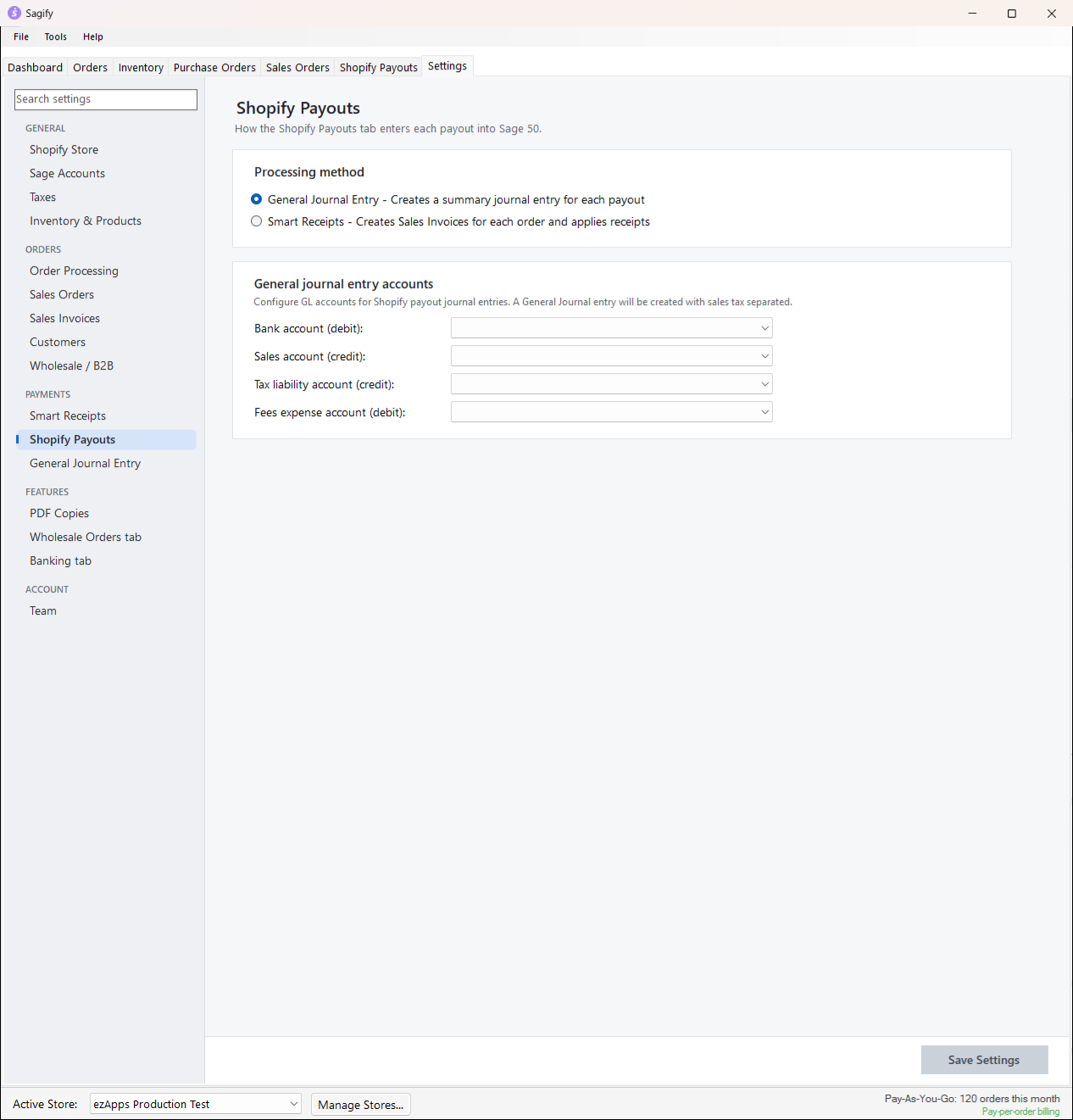
General Journal Entry
Pick the four accounts: the Bank account Shopify deposits into (debit), the Sales account (credit), the Tax liability account (credit) and the Fees expense account (debit). Each payout becomes a balanced entry referenced SHOPIFY-{date}, dated the payout date, with the net deposit on the bank account, the fees on the fees account, the sales net of refunds on the sales account and the tax on the tax account.
Smart Receipts
Each order in the payout gets a receipt for the amount Shopify charged, dated the payout date, with the payment method from Settings → Smart Receipts and deposited to the Cash account from Settings → Sage Accounts. The receipts of one payout share a deposit ticket (the payout's bank reference, or your deposit ticket prefix plus the date), so Sage 50 shows one deposit that matches the bank. An order whose invoice is not in Sage 50 yet gets its invoice first, with the same prompts as the Orders tab; a refund in the payout gets a credit memo and a negative receipt.
The Smart Receipts options:
- Receipts only: never create invoices or credit memos. For offices where someone converts Sagify's sales orders to invoices in Sage 50 when the order ships: the run finds each order's invoice by its number, by the sales order it was converted from, or by its Customer PO, and applies the receipt. Orders with no invoice yet are listed and keep the payout open; run it again once they are entered.
- Choose which orders to apply payment to: for stores that apply the money only once the order ships. The tab then shows an Orders column per payout ("4 ready · 2 waiting · 6 done"), a banner when orders are ready, and lets you tick the orders to pay now; the rest keep the payout open for a later run.
- Receipt check/reference no.: the Shopify order number on each receipt (default), or the payout's bank reference (the number on your bank statement) on every receipt of the payout.
- Add -1, -2 ... to the deposit ticket ID when two payouts share a date, so they stay two deposits in Sage 50.
Smart Receipts fee handling decides what happens to Shopify's fees: ignore them, add a "Shopify Processing Fees" line to each invoice, create one fee invoice per payout for a fee customer, or apply the fees to revenue on each receipt (the receipt applies the gross to the invoice and only the net reaches the bank).
Click Save Settings.
Process a payout
Open the Shopify Payouts tab. Sagify lists the payouts of the last 90 days (change From and To and click Load for others), with the date, the net amount, the Bank Reference Shopify gives the deposit, a View link to the details, an Open link to the payout in Shopify admin, and the Action button.
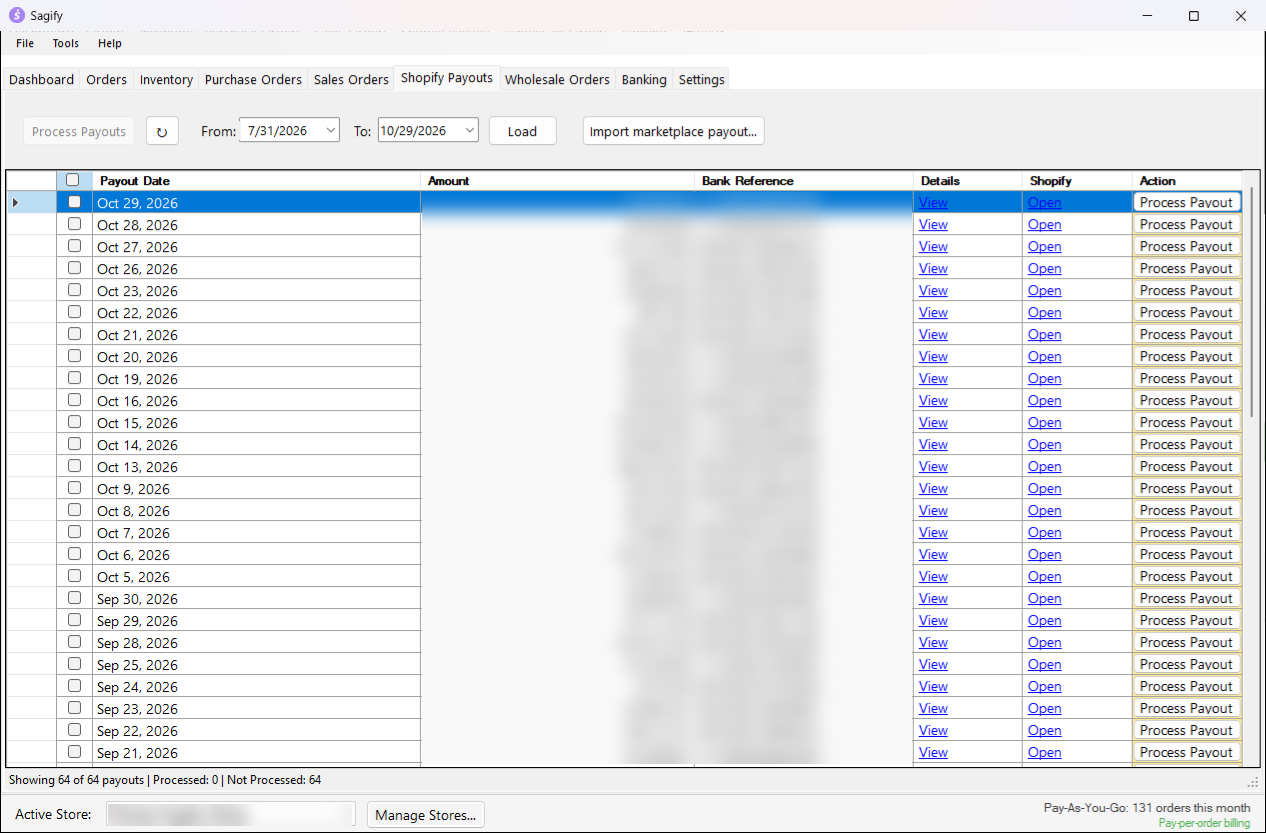
- Tick the payouts to record (the box in the header ticks them all) and click Process Payouts, or click Process Payout on one row.
- Sagify checks the accounts, reads the payout's transactions from Shopify and writes the entries. With Smart Receipts, the same first-time prompts as on the Orders tab can appear for orders whose invoice has to be created.
- The result tells you how many payouts were processed and how many invoices, credit memos and receipts were created. A payout with a problem is not marked processed, so you can fix the cause and run it again; receipts already applied are never applied twice.
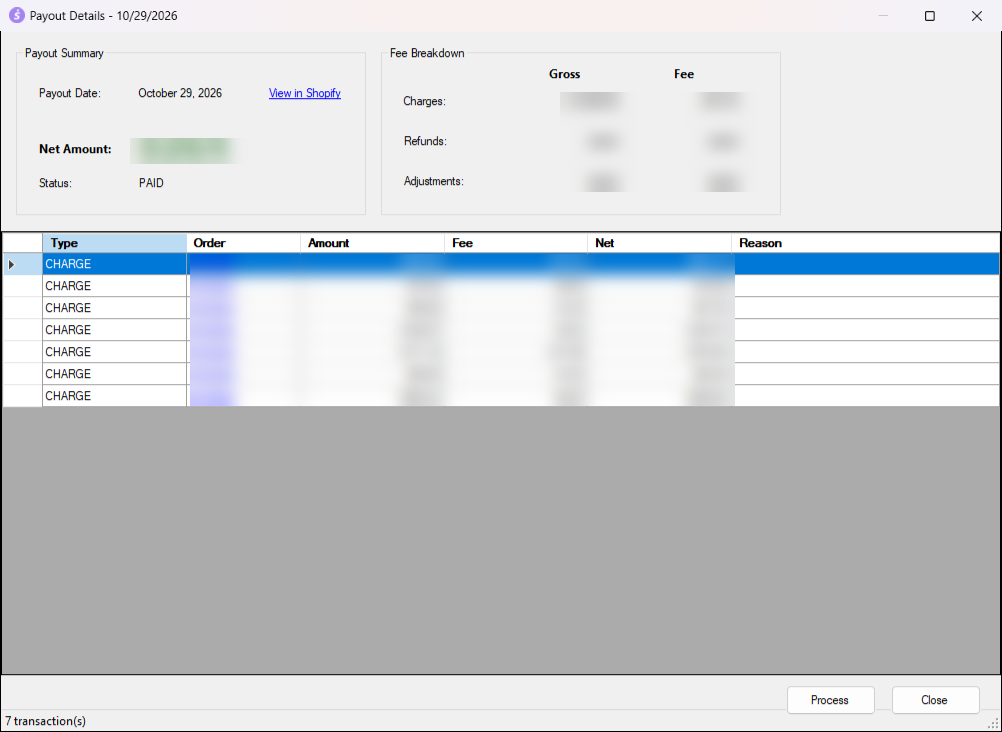
View opens Payout Details: the summary, the fee breakdown for charges, refunds and adjustments, and every transaction with its order, amount, fee and net. From there, Process records the payout and Unprocess lets a processed payout be recorded again (it does not delete anything in Sage 50; void the entries there first).
Note
Only payouts Shopify shows as paid should be recorded; a scheduled payout can still change. The status bar counts the processed and unprocessed payouts in the list.
Marketplace settlements (Mirakl)
Stores that sell through a Mirakl-connected marketplace (Nordstrom, for example) are paid per billing cycle by the marketplace operator, not through Shopify Payments. Import marketplace payout... takes the cycle's orders CSV or the operator's settlement statement PDF and books the cycle the way a Smart Receipts payout is booked: each order is found by the marketplace order ID the connector wrote on the Shopify order, the invoice is created if missing, and the receipt applies the gross to the invoice with the commission on a commission account and only the net on the bank account. A preview lists every row with its match and the money before anything is written, and the deposit date, reference and accounts are typed there. Re-importing a cycle is a no-op.
Smart Receipts on orders
For stores that do not reconcile payouts but still want paid orders closed in Sage 50, Settings → Payments → Smart Receipts applies a receipt the moment a paid order is posted:
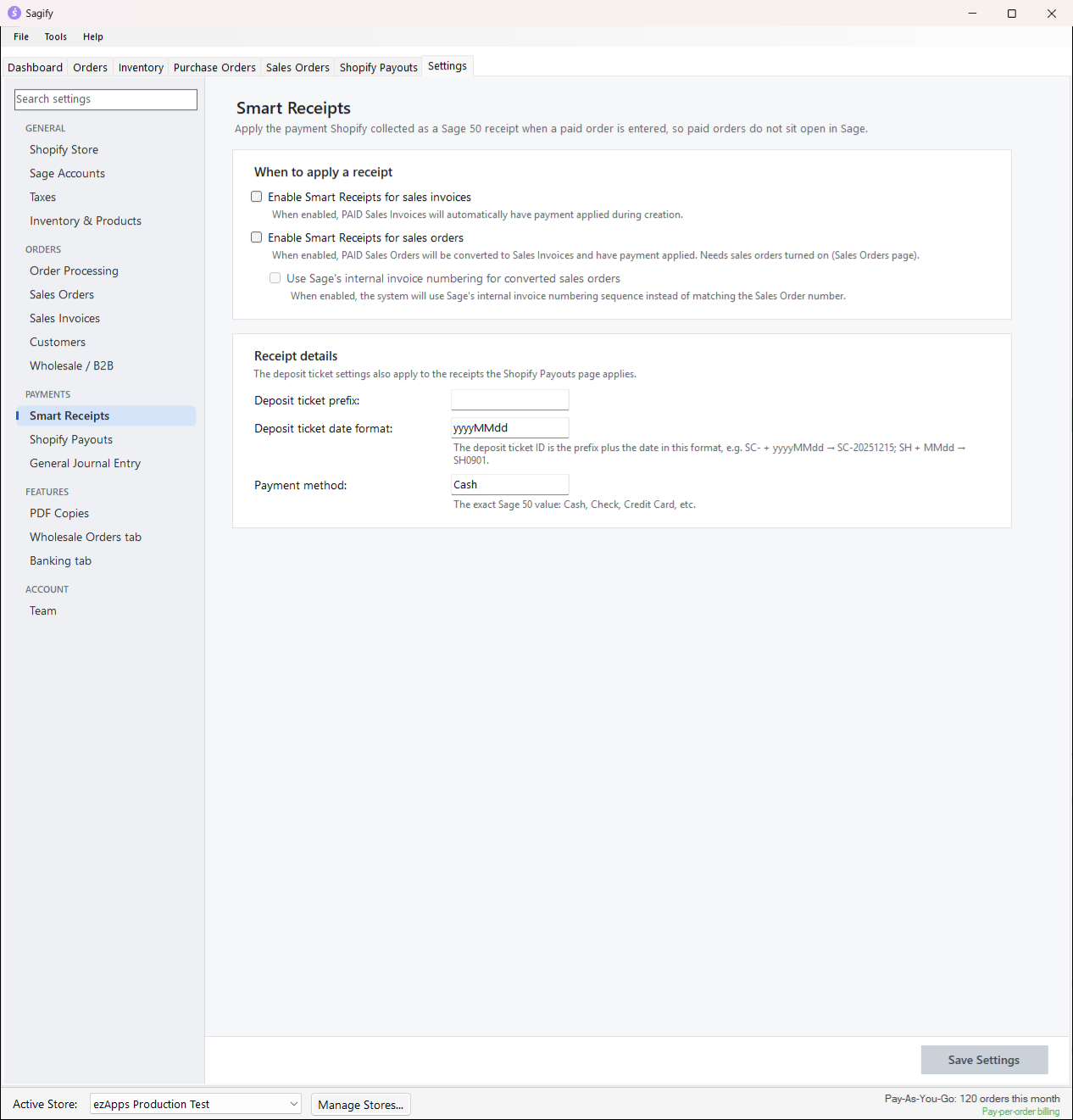
- Enable Smart Receipts for sales invoices: a paid order's invoice gets a receipt for the order total (less Shopify's fee when fees are included on invoices), dated the order date, referenced with the order number, deposited to the cash account.
- Enable Smart Receipts for sales orders: a paid order's sales order is converted to an invoice at once and receipted the same way.
- Receipt details: the deposit ticket prefix and date format and the Sage 50 payment method; these also apply to payout receipts.
Orders a marketplace settles later (the Marketplace pays flag on an order reference prefix rule) are left open for the settlement import.