Troubleshooting
What the prompts, warnings and errors you may see mean (Sage 50 rights, failed orders, settings that differ between computers, missing accounts) and how to fix them.
Most messages Sagify US shows are expected the first time something new comes along: a new product, a new customer, a second computer. This page explains the ones you may see and what to do about each.
Tip
Sagify writes everything it does to the Processing Log on the Dashboard tab, and the daily log files are kept on your computer. If you need help, use Help → Export Support Bundle... and send the file to ezApps support, or Save Log on the Dashboard for the current run.
Sage 50 user rights
Sagify can only do what the Sage 50 user you are logged in as may do. At startup it checks the rights and shows Sage 50 user rights when something is missing:
- SDK Data Access is not Full Access: Sage 50 refuses every read and write Sagify makes. In Sage 50, go to Maintain → Users → Set Up Security, select the user, Selected Access, and set Company → Tasks → SDK Data Access to Full Access.
- Missing rights Sagify writes with: the window lists the areas (customers, sales orders, invoices, credit memos, receipts, inventory items and adjustments, vendors, purchase orders, purchase invoices, payments, general journal) with the current level and the one needed (at least Add). Rows for features you do not use can be ignored: tick Don't warn again for this Sage 50 user unless the missing rights change and click Continue anyway.
Sage 50 does not report a missing right when it discards an import, so Sagify checks that every document it sent was written. If one was not, the order shows Failed with a message that names the right to grant, and nothing is marked processed.
Two more causes of "access denied" at startup: Options → Global → Sage Partners set to High in Sage 50, or a Deny given to Sage 50's one-time prompt about third-party access. Both are fixed in Sage 50.
Sagify cannot connect to Sage 50
Sage 50 must be open, with the company you want to post to, before Sagify starts. If you opened the company after starting Sagify, or switched companies, close Sagify and start it again. A busy Sage 50 ("Unable to complete request at this time") makes Sagify wait and retry; if a run fails with that message, run it again a minute later.
Orders show Failed
When an order cannot be posted, nothing is created in Sage 50 for it: the row is tinted on the Orders tab, the Sage Ref # cell reads Failed with the reason in its tooltip, and the Action button reads Retry. The reason is in the log as well. Fix the cause and click Retry; Sagify asks you to confirm.
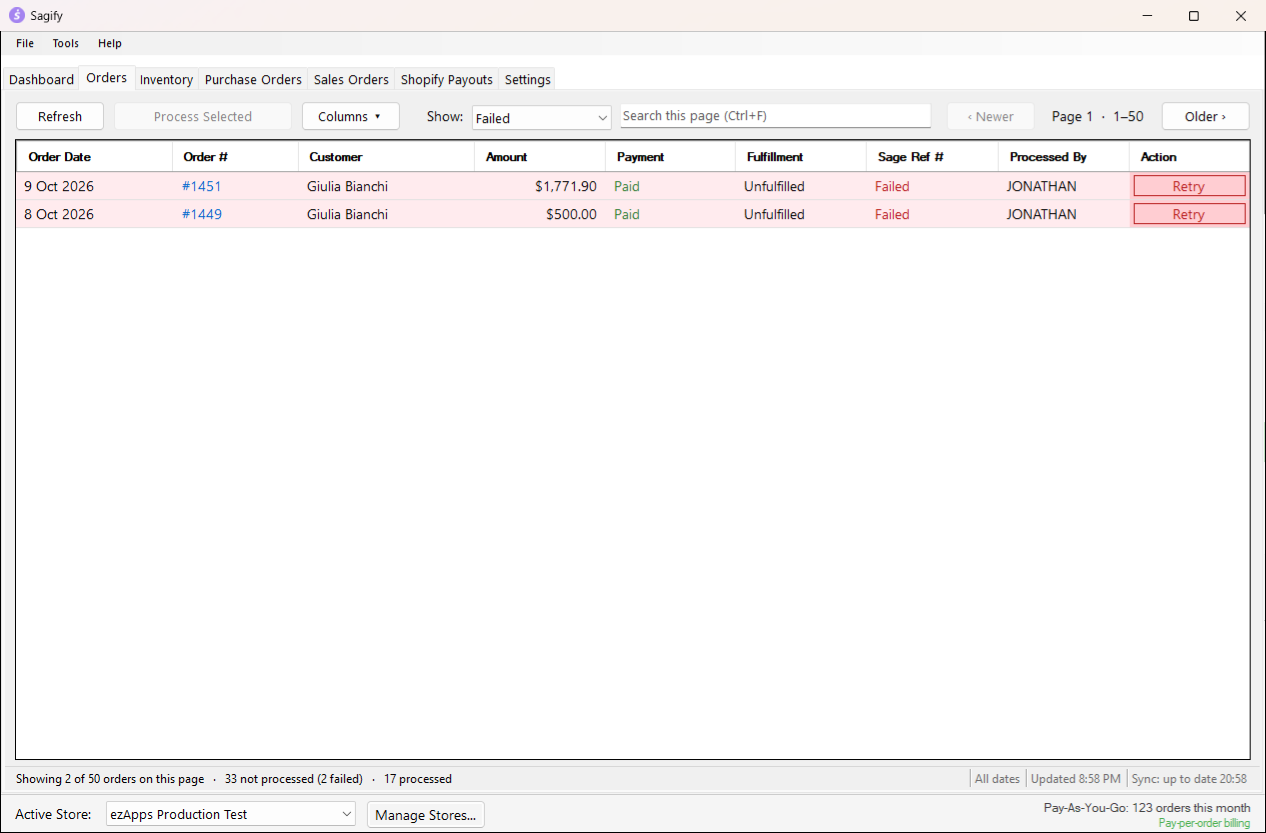
The usual reasons:
| Message | What to do |
|---|---|
| The following Sage 50 accounts must be configured... | Choose the missing accounts under Settings → Sage Accounts (or the Taxes page for the tax account) and save. |
| Customer ... does not exist and customer creation is disabled | Turn on Create customers when they do not exist under Settings → Customers, or create the customer in Sage 50. |
| Product with SKU ... does not exist and product creation is disabled | Turn on Create products in Sage 50 when processing orders under Settings → Inventory & Products, or create the item in Sage 50 with that SKU as its item ID. |
| Sage reference ... is N characters (limit 20) | Shorten the order reference prefix under Settings → Order Processing. |
| Field Name: ... from Sage 50 | Sage 50 refused a field value. The log shows the field; usually a missing account on a new item, a tax code, or an inactive customer. |
A customer or a product is not in Sage 50
These are not errors. Inventory Item Selection and Customer Selection ask you to pick an existing item or customer, or to create one. See Import orders from the Orders tab.
Already Processed
Selecting orders that were posted already and clicking Process Selected asks whether to continue with the unprocessed ones only. Clicking Process Order on a processed order tells you its Sage 50 reference and how to post it again (right-click → Mark as Not Processed...). An order imported on another computer since the list was loaded is skipped with a message; Refresh brings the list up to date.
Settings differ from another machine
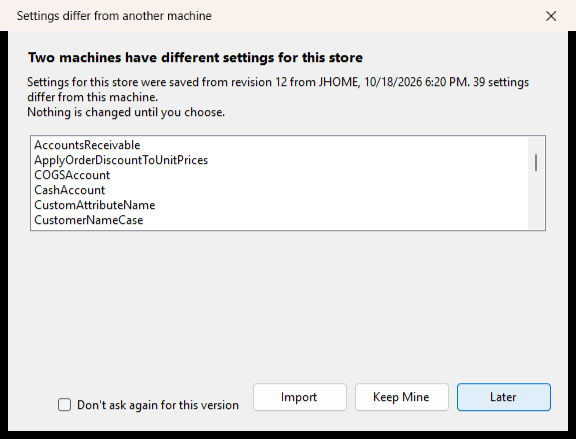
Sagify keeps a copy of each store's settings with your account and compares it with this computer's at startup, when you switch stores and after Manage Stores. The window lists the settings that differ. Import takes the account's copy (then restart Sagify), Keep Mine makes this computer's settings the account's copy, Later asks again next time. If the copy came from another Sage 50 company, the window warns that some accounts do not exist here; those are left as they are on this computer. This machine is using default settings means this computer has not been configured yet, and importing is usually right.
Save Settings refuses
Validation Error names what is missing: the six default accounts on the Sage Accounts page, a tax handling mode and its account or tax code, a default customer in single-customer mode, codes and a customer for discount-code routing, or a problem with the order reference prefix rules. Fix it and save again. If the account lists are empty, the tab opened before Sage 50 answered; wait a moment, open another page and come back.
The Orders tab shows an error instead of orders
The empty list says why: the store is not connected (reconnect it with Manage Stores...), Shopify returned an error (the text is shown; Refresh tries again), or the page is still loading. Sync unavailable: server not reachable in the status bar means the processed-order status could not be shared with your other computers for now; orders are still posted, and the status is sent when the connection is back.
A payout stays unprocessed
A payout is marked processed only when every order in it was handled. The result window lists the orders that need you: invoices not in Sage 50 yet (receipts-only mode), invoices partly paid by hand, orders held for a later run, or failures. Fix them and process the payout again; receipts already applied are never applied twice. See Shopify payouts.
An inventory row shows Error
Hover over the status for the reason, fix it and click Refresh. See Inventory.
Trial or plan limits
Trial Limit Reached, Usage Warning and Overage Billing Notice appear before a run that would go past your trial or your monthly allowance; they say how many orders are left and what the extra ones cost. File → Account shows your plan, and the plans window lets you subscribe or change plans.