Inventory: keep Sage 50 and Shopify in step
Compare quantities, sync Sage 50 to Shopify or Shopify to Sage 50, use views and filters, and create Shopify products from Sage 50 items that are not online yet.
The Inventory tab puts your Sage 50 items and your Shopify products side by side, matched by SKU, and lets you sync quantities in either direction: Sage 50's available quantity to Shopify, so the store never sells what you do not have, or Shopify's quantity to Sage 50 as an inventory adjustment. It also finds the Sage 50 items that are not in Shopify yet and creates them there.
Turn it on
- Go to Settings → Inventory & Products.
- Tick Enable inventory synchronization and click Save Settings.
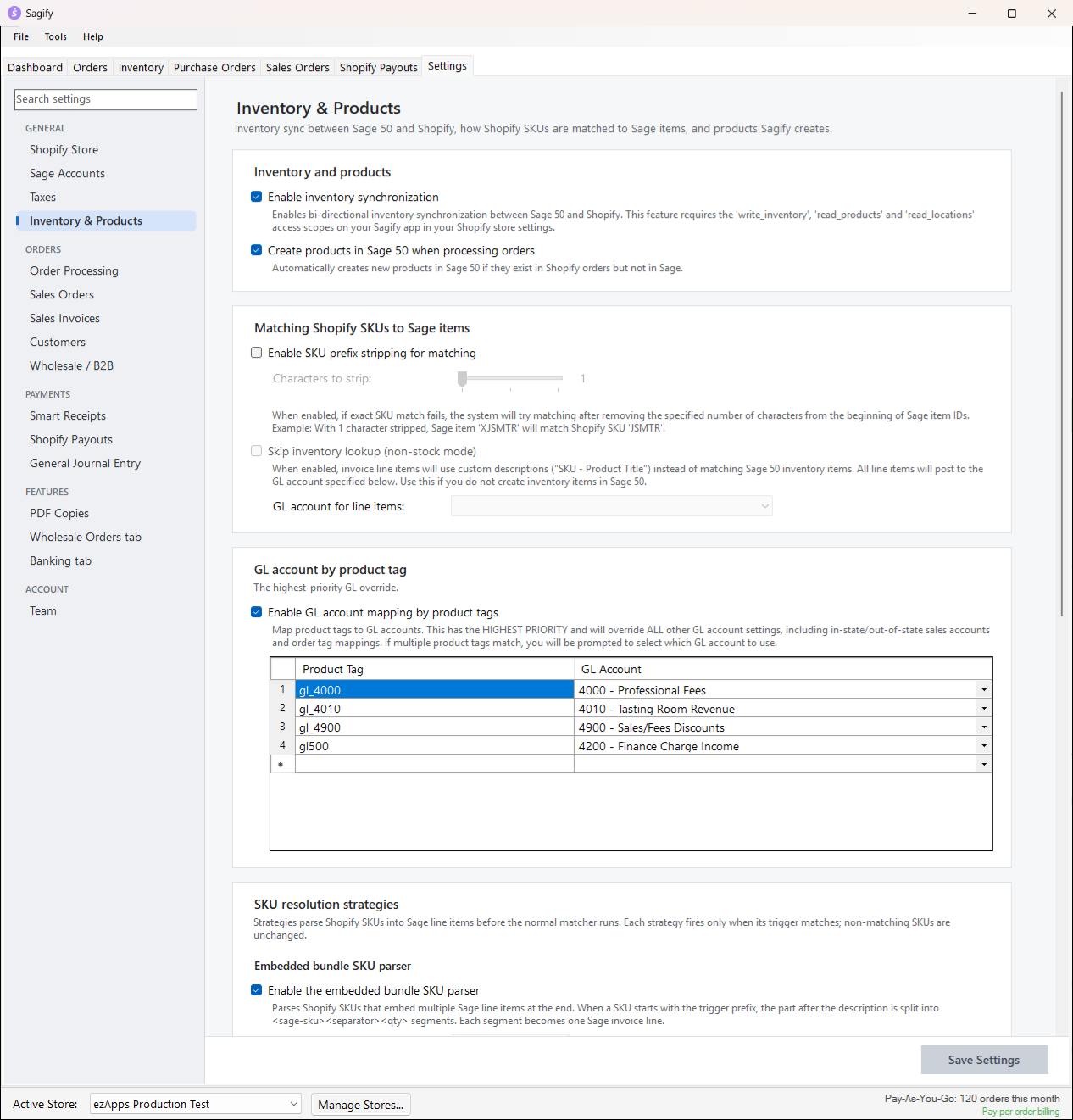
The Shopify app Sagify connects with needs the read_products, read_locations and write_inventory scopes (and write_products to create products). If Shopify asks you to approve new permissions, reconnect the store under Manage Stores....
How items are matched
A Shopify variant and a Sage 50 item are the same product when:
- the Shopify SKU equals the Sage 50 Item ID, or
- the Shopify barcode equals the Sage 50 UPC/SKU, or
- the Shopify product title equals the Sage 50 Item ID.
Comparisons ignore case. With Enable SKU prefix stripping for matching (Settings → Inventory & Products), Sagify also tries the Sage item ID without its first one to three characters, for part codes that carry a prefix Shopify's SKUs do not have.
How quantities are calculated
| Column | Meaning |
|---|---|
| Sage Available | Quantity on hand minus quantity on open sales orders, from Sage 50 |
| Sage On Hand, Sage On SO | The two numbers behind it (On SO is hidden by default) |
| Shopify Available, Shopify On Hand, Shopify Committed | Shopify's quantities, added up over every location |
| Difference | Sage Available minus Shopify Available |
| Sync Status | ✓ In sync, ▲ Sage higher, ▼ Shopify higher, Only in Sage, Only in Shopify, ⚠ Error |
- Sage 50 → Shopify sets the Shopify available quantity to the Sage 50 available quantity (whole units). Shopify keeps its committed quantity, so Sagify sets on hand = Sage available + committed at that location.
- Shopify → Sage 50 posts a Sage 50 inventory adjustment (reason "Shopify sync", dated today, at the item's last unit cost) that brings the item's on-hand quantity to Shopify's available quantity. It needs the Sage 50 right for inventory adjustments.
The Inventory tab
Open the Inventory tab. Sagify reads your Sage 50 items and your Shopify products (it can take a minute for a large catalog) and compares them.
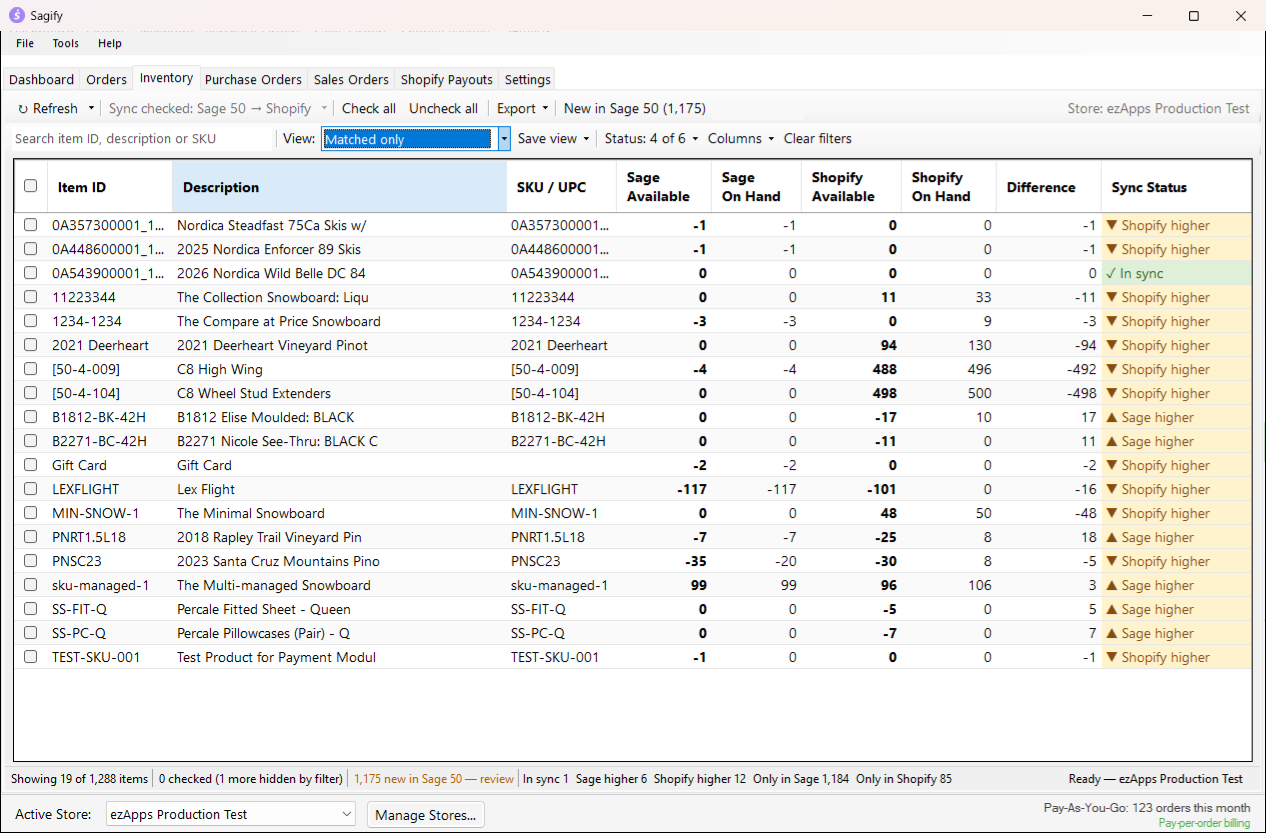
The toolbar
| Button | What it does |
|---|---|
| Refresh | Reads Sage 50 and Shopify again (F5). Its menu has Include inactive Sage 50 items. |
| Sync checked: Sage 50 → Shopify | Sends the Sage 50 available quantity of every checked row to Shopify. The arrow next to it offers the other direction, Shopify → Sage 50. |
| Check all / Uncheck all | Checks every row in the current view, or clears every check. |
| Export | The current view to CSV, or copies the checked or visible rows for Excel. |
| New in Sage 50 (N) | The Sage 50 items that are not in Shopify yet. See Create Shopify products from Sage 50 items. |
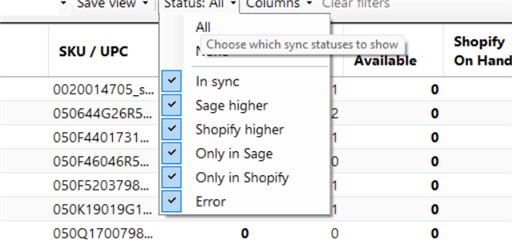
Finding rows: the search box matches every word against item ID, description and SKU (Ctrl+F, Esc clears). View offers All items, Matched only, Needs attention (differences and errors, largest first), Not in Shopify and Not in Sage, and Save view keeps your own combination of filters and sort for the store. Status shows or hides rows by sync status, Columns shows extra columns (Sage On SO, Shopify Committed, Unit Cost...), and clicking a column header sorts. The counts in the status bar are clickable filters.
Sync Sage 50 quantities to Shopify
- Choose View → Needs attention to list only the rows whose quantities differ.
- Tick the rows to sync, or click Check all.
- Click Sync checked: Sage 50 → Shopify.
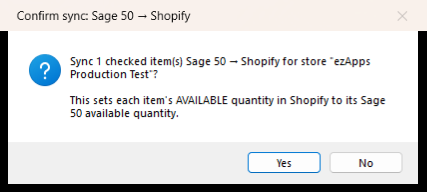
Sagify tells you how many rows it will sync and asks you to confirm. Rows that exist in only one system, rows in Error and rows hidden by the current filter are left out, and the confirmation says so.
- Before writing anything, Sagify looks at the open Shopify orders of the last 30 days that it has not posted to Sage 50. If any of the checked items are on them, the Open orders not yet in Sage 50 window lists the items with their order numbers and quantities. Shopify has already committed that stock but Sage 50 has not seen the sale, so a sync now would put those units back on sale. Choose Process orders first (post them from the Orders tab, then sync) or Sync anyway.
- If an item is stocked at more than one Shopify location, the Select Inventory Location window asks which location to update.
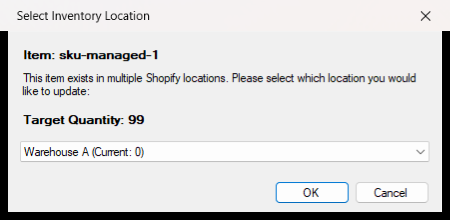
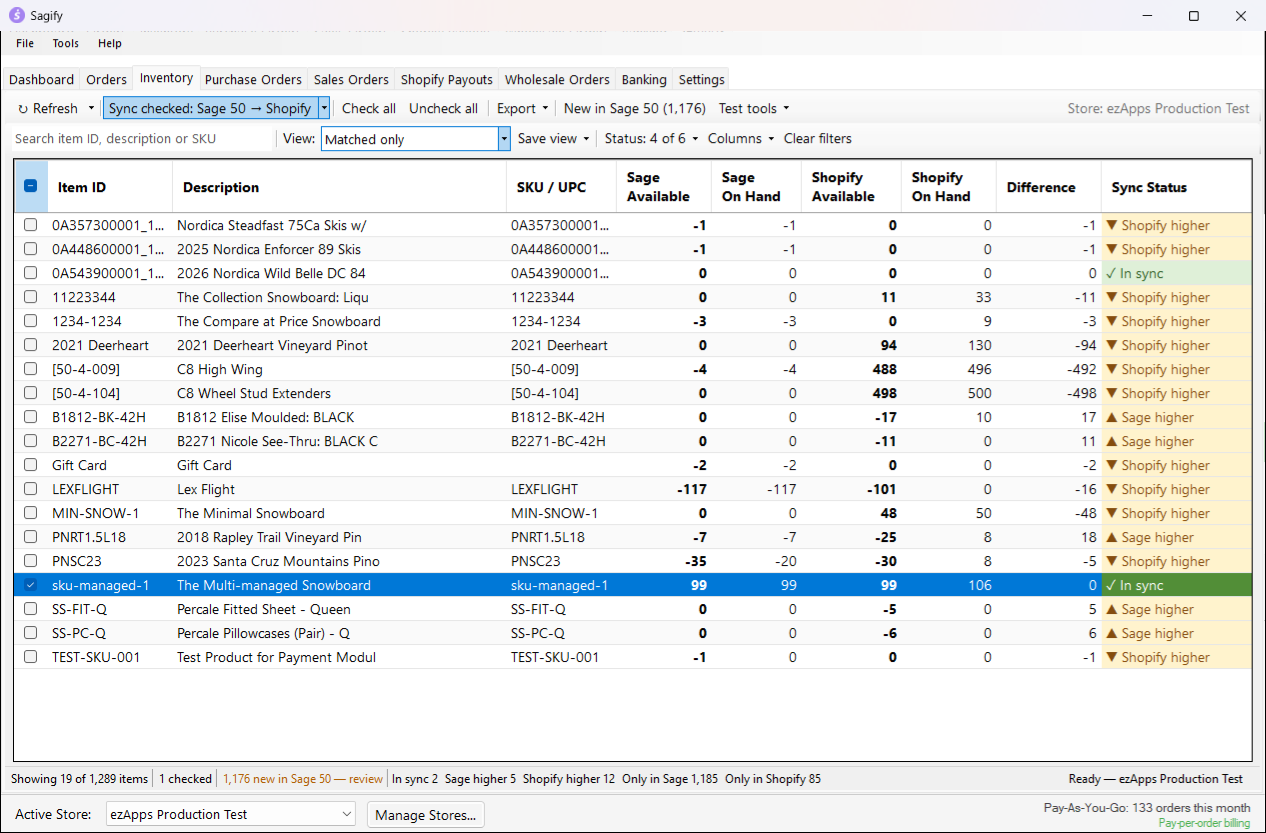
Shopify → Sage 50 works the same way from the arrow next to the sync button: it is never remembered as the default direction, because it writes to Sage 50.
Warning
A sync acts on the checked rows in the current view only, and only on rows that exist in both systems. A row that exists in one system would otherwise zero the other system's stock.
Create Shopify products from Sage 50 items
After every load, the tab counts the Sage 50 items that have no Shopify product and shows the count on the New in Sage 50 (N) button and as a link in the status bar. Click it to review them.
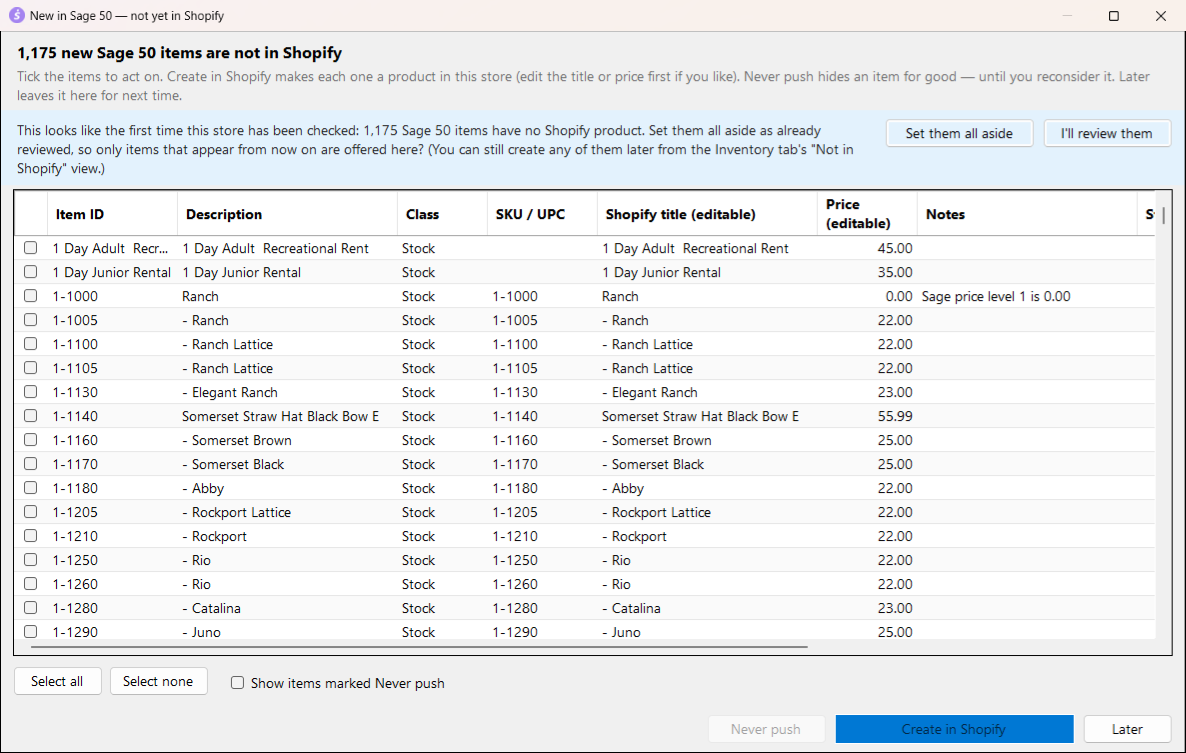
- Each row shows the item, its class, SKU, an editable Shopify title and Price (from the Sage price level chosen in Settings), and notes about anything that blocks it.
- Tick the items and click Create in Shopify (N). Each one becomes a Shopify product with one variant whose SKU is the Sage item ID, as a Draft unless Settings say Active, tagged
sagify-new, with the taxable, tracked and requires-shipping flags from the item class and, if you chose so, the sales description, product type, barcode, cost, vendor and weight. Quantities are not set at creation; the normal sync takes over once the product exists. - An item whose SKU already exists in Shopify is linked, never duplicated, and Sagify never updates a product it created.
- Never push sets an item aside for good (you can Reconsider it later); Later leaves it for next time. The first time a store with a large backlog is checked, Sagify offers to set the whole backlog aside so only new items are offered from then on.
A summary window lists each item's result with a link to open it in Shopify.
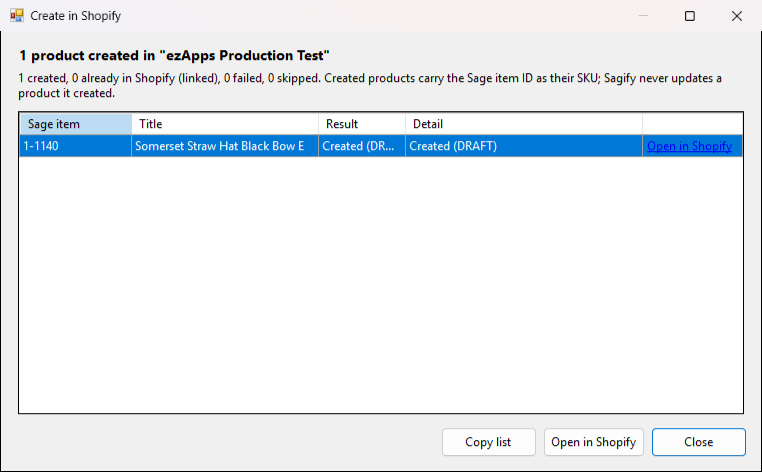
The same window opens from the right-click menu, Create N checked item(s) in Shopify..., for rows in Not in Shopify that you ticked yourself. The classes offered, the excluded item ID prefixes, the price level, the tag and the fields carried over are set under Settings → Inventory & Products → New Sage 50 items → Shopify.
When a row shows Error
Hover over the status to read the reason. The usual ones:
| Reason | What to do |
|---|---|
| The sync failed for this row | Check the log on the Dashboard tab, fix the cause and sync the row again. |
| Sage 50 refused the inventory adjustment | The Sage 50 user needs the Inventory Adjustments right (Shopify → Sage 50 only). |
| The Shopify variant does not track inventory, or is not stocked at any location | In Shopify, open the product and turn on Track quantity, or stock it at a location. |
Refresh re-evaluates every row.