How to Prepare Sage 50 Before Launching Shopify
Most Sage 50 businesses set up Shopify first and fix accounting later. Here's how to prepare Sage 50 the right way—before your first order comes in.
How to Prepare Sage 50 Before Launching Shopify
If you've been running your business on Sage 50 for years and are now launching on Shopify, you're not starting from scratch—you're evolving your operations.
But here's the problem most businesses run into:
They set up Shopify first… and only think about accounting later.
That's where things break.
I've worked with a lot of Sage 50 businesses moving into Shopify, and the difference between a smooth launch and a painful one usually comes down to one thing:
How well Sage 50 was prepared before the first Shopify order came in.
This guide walks you through exactly what to set up ahead of time so you don't spend your first month cleaning up accounting issues.
Who This Is For
This guide is for businesses that:
- Have been running on Sage 50 for years
- Are launching Shopify for the first time (or migrating from another platform)
- Have a small team handling accounting and order entry
- Want to avoid manual data entry and messy reconciliation
Whether you're B2C, B2B, or a mix of both—this applies.
What Goes Wrong If You Don't Prepare
Before we get into setup, here's what I see most often when businesses skip this step:
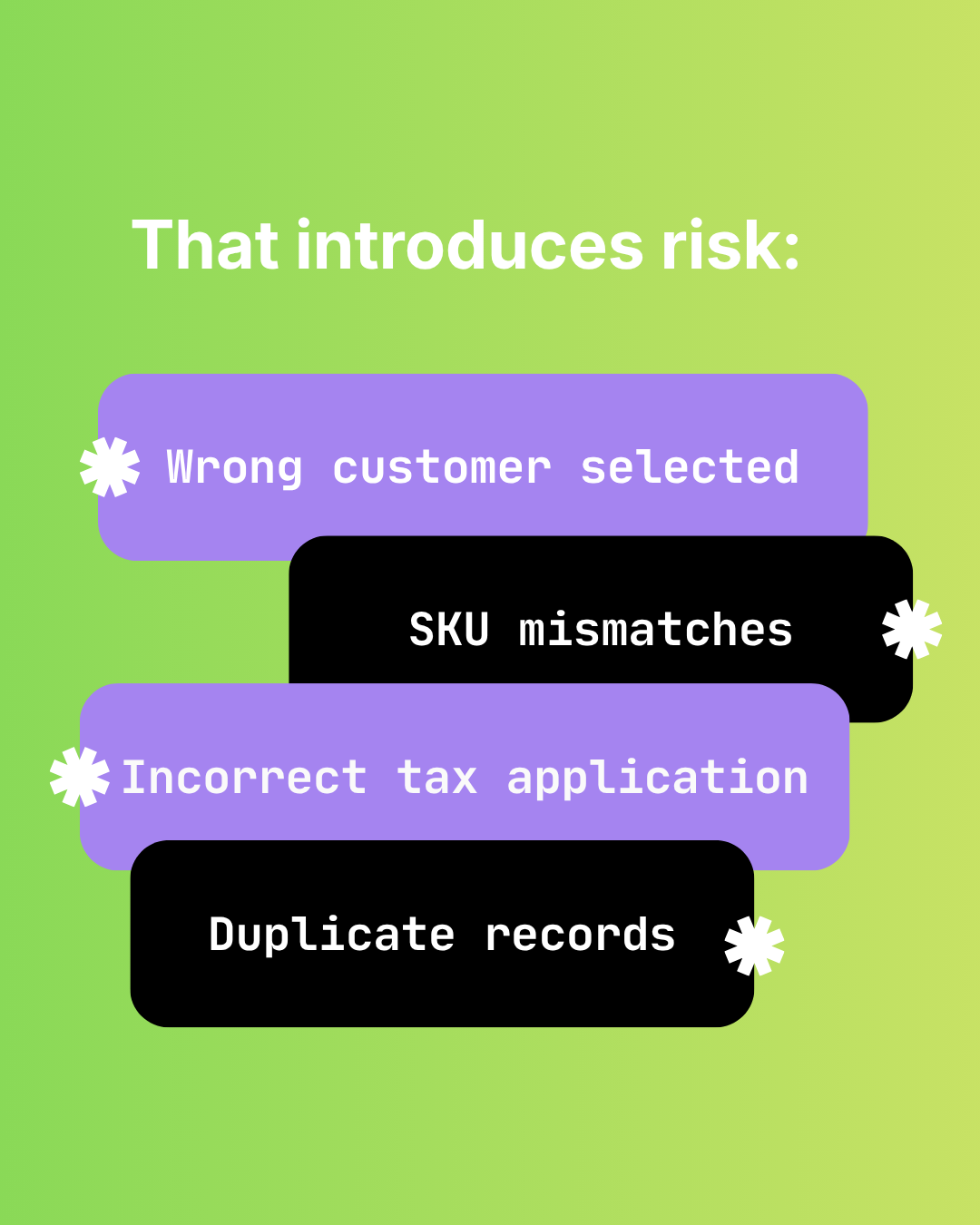
1. Inventory Doesn't Match
If your Shopify SKUs don't match Sage 50, you'll immediately run into confusion. (This is one of the most common Sage 50 + Shopify integration issues we see.)
Someone ends up asking:
"Which product is this supposed to be in Sage?"
And now you're manually fixing every order.
2. Shopify Payouts Don't Reconcile
Shopify doesn't pay you per order.

You might sell $100 on May 1st… but receive a $5,000 payout on May 5th that includes dozens of orders.

If your orders aren't properly recorded in Sage 50:
Reconciliation becomes a nightmare. (Here's a deeper look at why reconciliation breaks before you ever try to reconcile.)
3. Customer Data Gets Messy
Wrong structure = duplicate customers, inconsistent records, and poor reporting.
4. Tax Handling Drifts
If Shopify and Sage 50 aren't aligned, small tax differences start to compound over time.
5. You Create More Work Instead of Less
This is the big one.
Instead of eliminating manual entry, you just shift the work from:
- entering orders → fixing orders
(For a fuller breakdown, see the hidden costs of manual accounting entry.)
Step 1: Decide How Shopify Customers Should Be Represented
There are two main approaches (we cover this in more depth in How to match Shopify customers to Sage 50):
Option A: One "Online Sales" Customer
All retail Shopify orders go into a single customer in Sage 50.
Pros:
- Cleaner reconciliation
- Easier to manage payouts
- Simpler reporting at a high level
Cons:
- You lose detailed customer history inside Sage
👉 Shopify becomes your source of truth for customer data.
Option B: Individual Customers Per Order
Each Shopify customer gets their own record in Sage.
Best for:
- Wholesale / B2B customers
- Businesses that send statements or invoices
Recommended Hybrid Approach
- Retail (B2C) → One "Online Sales" account
- Wholesale (B2B) → Individual customer profiles
This gives you the best of both worlds.
Step 2: Clean Up Your Inventory (This Is Critical)
If you only take one thing from this guide, it's this:
Your SKUs must match between Shopify and Sage 50.
Everything depends on it. (Here's how to sync Sage 50 and Shopify inventory the right way.)
What to align:
- SKU (most important)
- Product identifiers
- Units
If SKUs don't match:
- Orders won't map correctly
- Inventory tracking breaks
- Manual intervention becomes required
You can work around this—but you'll pay for it later.
Step 3: Review Your Chart of Accounts
Most businesses already have this set up—but Shopify introduces new flows. (For revenue and product mapping specifically, see custom GL mapping in Sage 50 integrations.)
Make sure you have:
- Revenue accounts (by product/category if needed)
- Shipping income
- Discounts
- Returns/refunds
- Shopify clearing account
- Shopify fees expense account
Why this matters
Shopify payments don't land cleanly.
They include:
- multiple orders
- fees deducted
- timing differences
Without proper accounts:
You won't know where your money actually went.
Step 4: Understand Shopify Payouts Before Day 1
This is one of the biggest mindset shifts.
Shopify aggregates payments.
So instead of:
- 10 orders = 10 deposits
You get:
- 10 orders = 1 payout (minus fees)
What to prepare:
- A clearing account for Shopify
- A process to match:
- orders → payout → bank deposit
If you don't set this up early:
Month-end reconciliation becomes an uphill battle. (We've written a full month-end close checklist for Shopify + Sage 50 you can steal.)
Step 5: Align Tax Logic Between Shopify and Sage 50
Shopify generally calculates taxes correctly.
But your business might have:
- custom remittance rules
- jurisdiction-specific needs
- tax-exempt customers
Key principle:
Pick one system as the source of truth for tax—and stick with it.
Most businesses:
- default to Shopify tax calculation
- bring that into Sage 50
If this isn't aligned:
- you'll see small discrepancies
- those discrepancies compound over time
(More on this in Shopify tax errors and how they show up in Sage 50.)
Step 6: Decide Your Order Flow (Invoices vs Orders)
Before launching, decide how Shopify orders should appear in Sage 50.
Common setup:
- Retail orders → Sales Invoices
- Paid immediately
- No delay
- Wholesale orders → Sales Orders
- Net terms
- Fulfillment later
You'll need a way to distinguish them.
Example:
- Shopify order tag:
wholesale

This tells your system:
"Handle this order differently."
Step 7: Decide Your Inventory Source of Truth
You can use either:
- Shopify as source of truth
- Sage 50 as source of truth
Both work—but you must be consistent.
Consider:
- Shopify → better for multi-location inventory
- Sage 50 → better for purchasing workflows (PO → invoice)
The important part is:
Don't let both systems drift independently.
Step 8: Start Clean (Most of the Time)
If you're just launching Shopify:
- you won't have historical Shopify data anyway
If you're migrating platforms:
It's usually better to start fresh.
Your historical data already exists in Sage 50.
Trying to backfill everything often creates more problems than it solves.
Step 9: Shift Your Workflow Mindset
Before Shopify:
- manual entry
- spreadsheets
- copying data
After Shopify (when set up properly):
- open your integration tool
- sync new orders
- spot check a few entries
- move on with your day
That time gets reinvested into:
- reporting
- forecasting
- actually understanding your business
The Part Most Guides Get Wrong
There is no native Shopify Sage 50 integration.
So the real challenge isn't just "connecting systems."
It's:
Translating your business logic into your accounting system.
Examples:
- Wholesale customers must be separate accounts
- Retail customers grouped under one account
- Certain products hit specific GL accounts
- Some customers are tax-exempt
- Certain fees must be recorded differently
If this logic isn't defined upfront:
You don't eliminate manual work—you just move it.
Where Automation Comes In
Once your Shopify store is live and orders are flowing, that's when automation becomes powerful.
Instead of:
- entering orders one by one
You:
- sync them automatically
- generate matching entries in Sage 50
- reconcile payouts cleanly
This is exactly what Sagify was built to do—translate your business logic between Shopify and Sage 50 so orders, customers, taxes, and payouts land cleanly without the cleanup work.
If you're in the middle of setting up Shopify:
This is actually the best time to think about automation.
Because small decisions—like SKUs, tags, and account structure—make a big difference later.
Final Thoughts
Preparing Sage 50 before launching Shopify isn't about perfection.
It's about consistency.
- consistent SKUs
- consistent customer structure
- consistent accounting logic
Get that right early, and everything downstream becomes easier.
Skip it—and you'll spend your first few months fixing problems instead of growing your store.
Related reading
Ready to get started?
Schedule a demo to see how we can help streamline your workflow.
Related articles

Shopify Sage 50 Integration Apps for Desktop — An Honest 2026 Buyer's Guide
Comparing Sagify, Storehub, CartSpan, Commercient, and eBridge for Sage 50 desktop. Why most Shopify App Store Sage 50 integration listings actually target Sage Business Cloud — and how to pick a real Sage 50 Shopify connector app.

Why I built the #1 Shopify Sage 50 App
The story behind Sagify, a Shopify Sage 50 App built out of frustration with generic integrations that didn't understand either Shopify or Sage 50 ecosystems.
The Hidden Risks of Manual Shopify-to-Sage 50 Data Entry
Audit failure, tax errors, fraud risk, and key-person dependency. The real costs of manual Shopify to Sage 50 data entry beyond time.