Get started with Sagify for Sage Accounting
Install the app from the Shopify App Store, connect your Sage Business Cloud Accounting business, choose how orders sync and post your first invoice.
Sagify for Sage Accounting is an embedded Shopify app: it lives inside your Shopify admin and posts your store into Sage Business Cloud Accounting (Sage Accounting). Orders become sales invoices, refunds become credit notes, products and stock stay matched, and Shopify payouts reconcile against your invoices. This guide takes you from install to your first synced invoice.
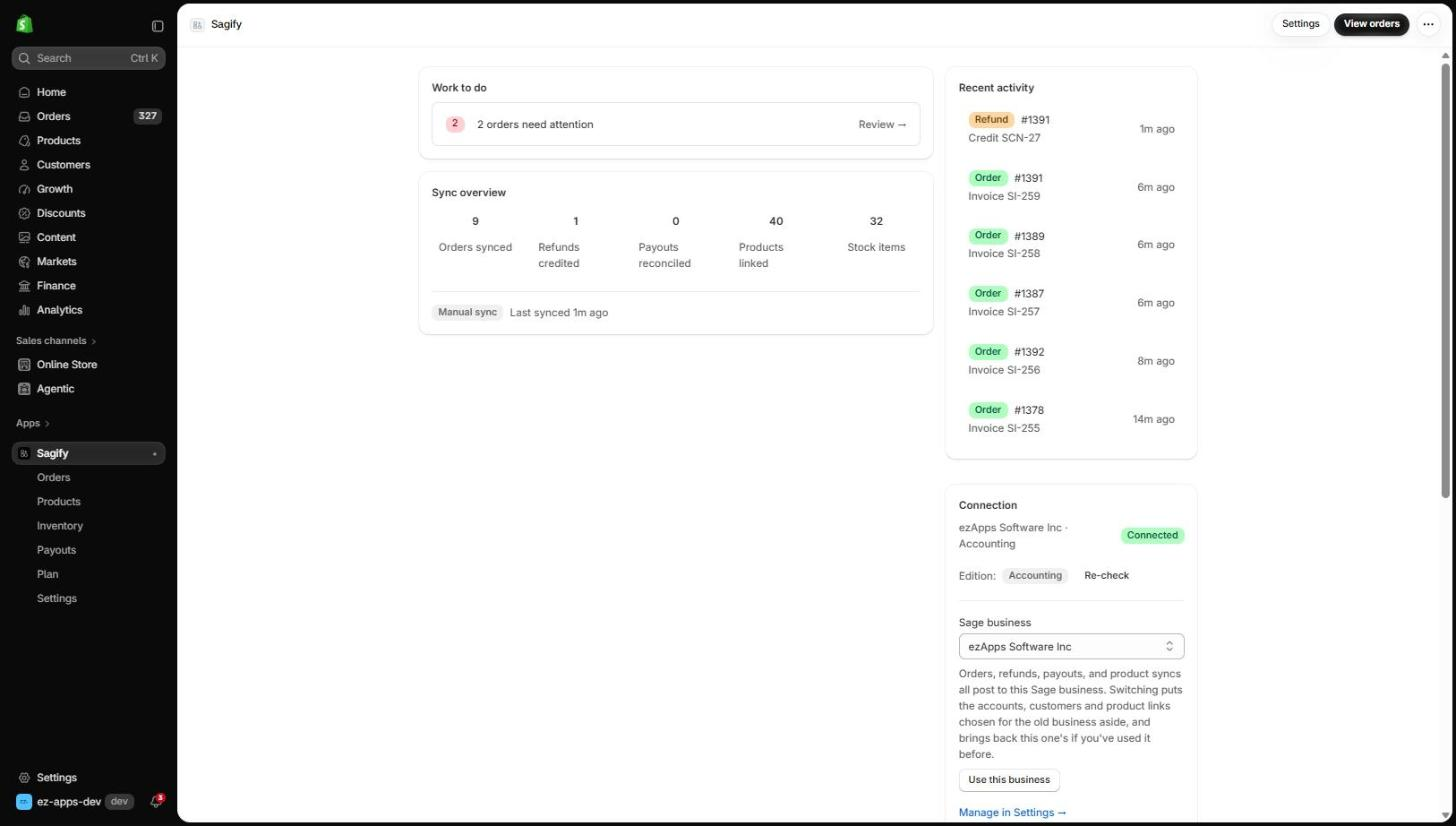
1. Install the app
Install Sagify from the Shopify App Store (or from the install link we send you). Shopify asks you to approve the access the app needs — orders, customers, products, inventory, locations and payouts. Nothing is installed on your computer; the app runs inside Shopify admin and you open it from Apps → Sagify.
The first time you open it, Home shows a setup guide with three steps: connect Sage, choose how syncing works, and sync your first order. You can leave at any point and come back; the guide picks up where you stopped.
2. Connect Sage Business Cloud Accounting
- Click Connect Sage. Your browser goes to Sage's sign-in page.
- Sign in with the Sage user that has access to the business you want to post to, and allow the connection.
- Sage sends you back to Sagify. Home now shows the connection, the business name and your Sage edition.
Sagify reads three things from the business it connected to:
- Business — if your Sage account holds more than one business, pick the right one under Sage business on Home (or Settings) and click Use this business. Every invoice, credit note, product and payout posts to that business only.
- Edition — Accounting Start, Standard or Plus. Start has no product catalog or stock, so Sagify posts invoices in a ledger-only form and hides the Products and Inventory pages. Stock reconciliation needs Plus. If the edition it detected is wrong, change it under Settings → Sage connection → Edition.
- Legislation — Ireland, the UK, Canada or the US. This decides how tax is matched: VAT rates for Ireland and the UK, provincial rates for Canada, and sales-tax rates (created on the fly) for the US.
Note
Sage tokens are stored encrypted and refreshed automatically while the app is in use. If Sagify ever shows Not connected, click Connect Sage again — nothing you set up is lost. See Troubleshooting.
3. Choose how syncing works
The second setup step asks three questions. All of them can be changed later in Settings.
- How should orders reach Sage? Manual — you pick orders on the Orders page and process them. Automatic — new paid orders, refunds and cancellations post themselves as they happen (paid plans).
- Who should orders be billed to in Sage? Match a customer per order (find or create the Sage contact from the Shopify customer), a single customer such as "Shopify Web Sales", or customers by region (one contact each for domestic, EU and overseas sales).
- Which system is the source of truth for products? Shopify pushes names, prices and SKUs to Sage; Sage keeps prices where you manage them.
Then open Settings and pick the Sage accounts Sagify should use for discounts, delivery and new products — see Settings explained. Orders that need an account you have not chosen wait for you instead of posting an incorrect total.
4. Sync your first order
- Open Orders. Sagify lists your Shopify orders, newest first.
- Click Process on a paid order.
- A few seconds later the row shows Synced and the Sage invoice number. Click the order to see the detail, or View invoice in Sage to open it in Sage.
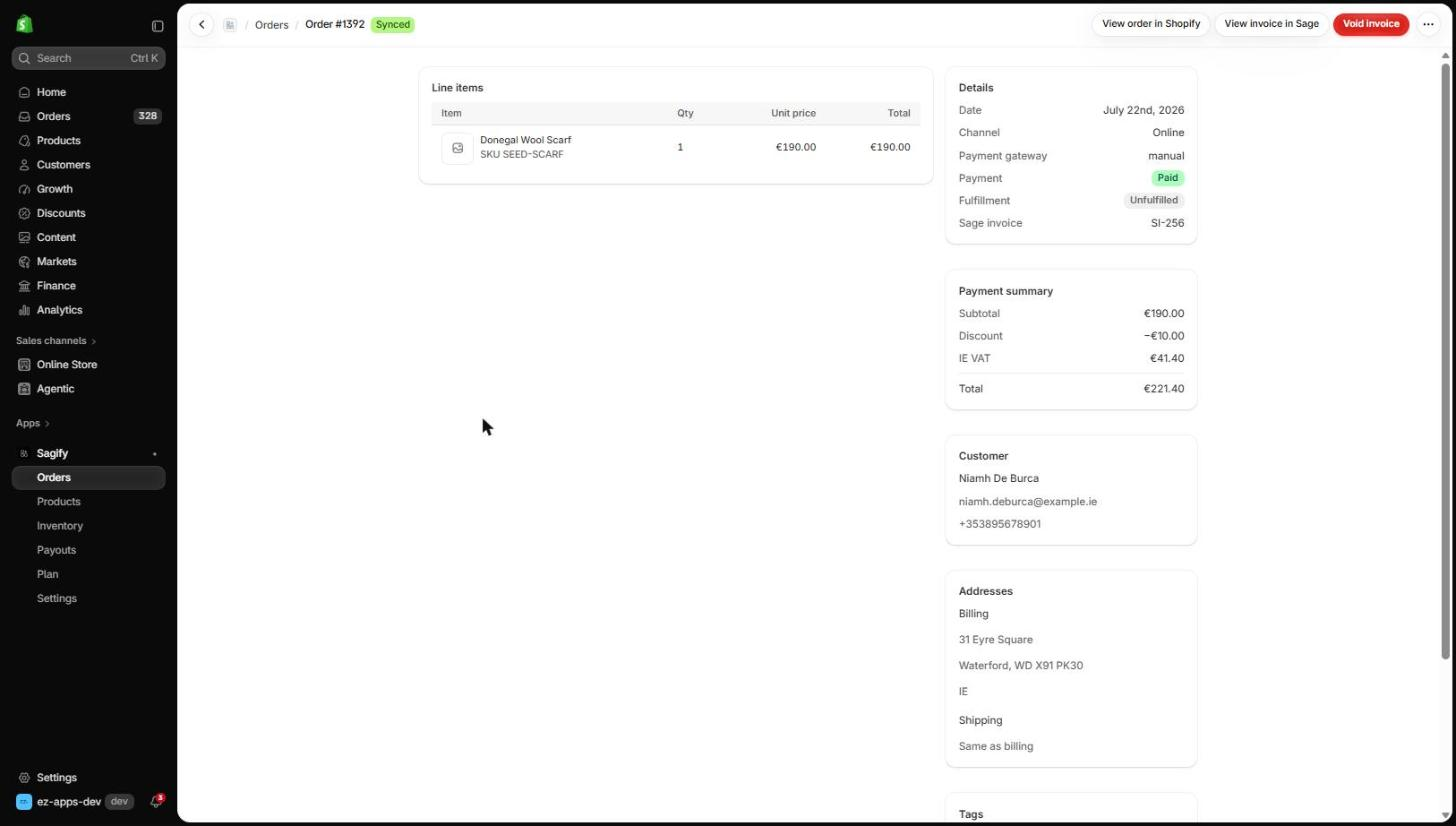
If the row shows Failed or Needs attention instead, the message next to it says what is missing — usually a customer, a tax rate or a product that is not in Sage yet. Click Fix issues to resolve it in one form. See Orders that need attention.
5. Pick a plan
Every store starts on the Free plan (30 documents a month, manual sync). Open Plan to compare plans and click Change plan to pick one; billing runs through Shopify. See Plans, usage and billing.
What to read next
- Settings explained — every option, in the order the page shows them.
- Sync Shopify orders to Sage invoices — bulk and date-range processing, what the invoice looks like, undo.
- Link and create products in Sage — do this before your first big batch so every line posts to its own Sage item.