Sync Shopify orders to Sage invoices
Post orders one at a time, in bulk or by date range from the Orders page, read the result, find the invoice in Sage and undo a sync.
The Orders page lists your Shopify orders and posts the ones you choose to Sage, one sales invoice per order. In Automatic mode new paid orders post on their own; everything on this page still works for older orders and for anything you want to re-check.
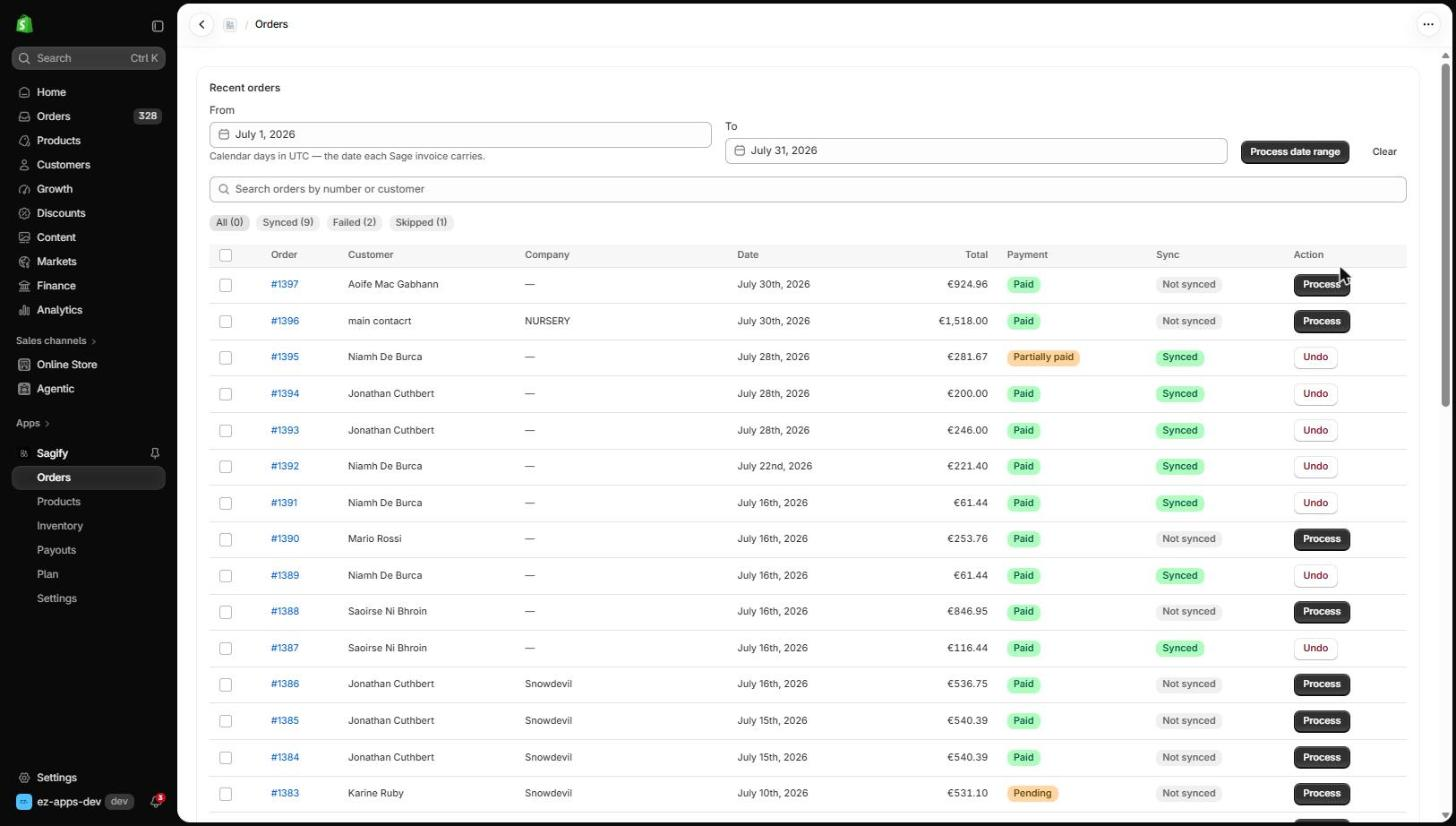
Find the orders you want
- From / To filter by order date. The days are calendar days in UTC — the date each Sage invoice carries.
- Search by order number or customer name.
- The chips under the search box filter by sync state: All, Synced, Failed, Skipped.
Each row shows the order, customer, company (for B2B orders), date, total, Shopify payment status and the Sync state, with an action button on the right: Process for an order that has not been posted, Fix issues when it needs a decision, Undo once it is synced.
Process one order
Click Process. Sagify checks everything it needs before it writes anything to Sage — the customer, the tax rate and every line's product and account — then creates the invoice. The row changes to Synced with the invoice number. Nothing is created in Sage for an order that cannot post completely, so a held order never leaves a half-finished invoice or an orphan contact behind.
Process several orders
Tick the orders and click Process N selected. Sagify posts them oldest first, 50 at a time, and shows the outcome when the batch is done: how many synced, how many need attention, how many were skipped.
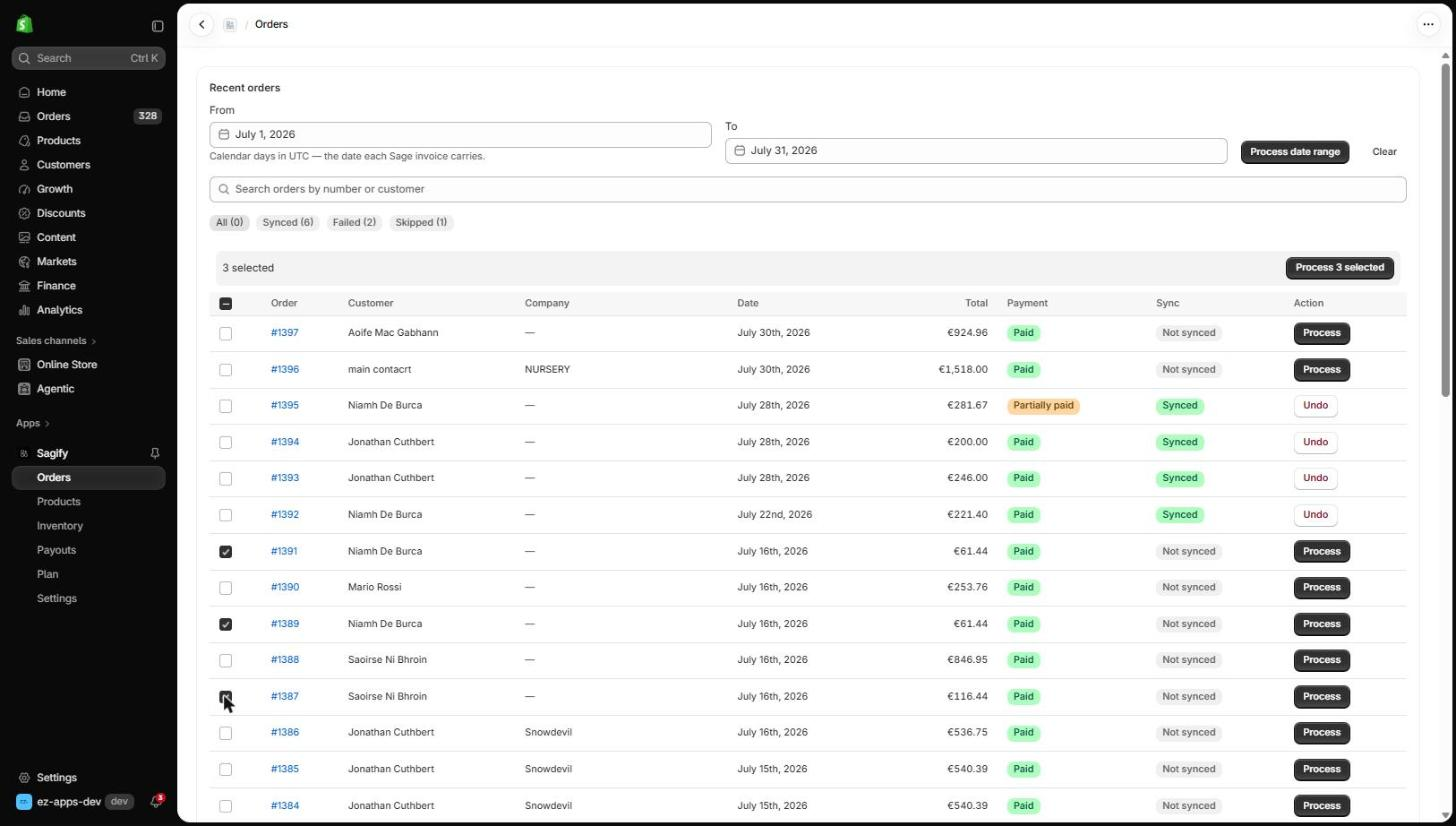
Process date range does the same for every unprocessed order between the From and To dates — the way to backfill history when you first install. A long range runs in chunks; a Continue banner carries on from where the last chunk stopped.
Tip
An order is never posted twice. If two people click Process at the same time, or a webhook arrives while you are processing, only one invoice is created.
Read the result
Click an order to open its detail page.
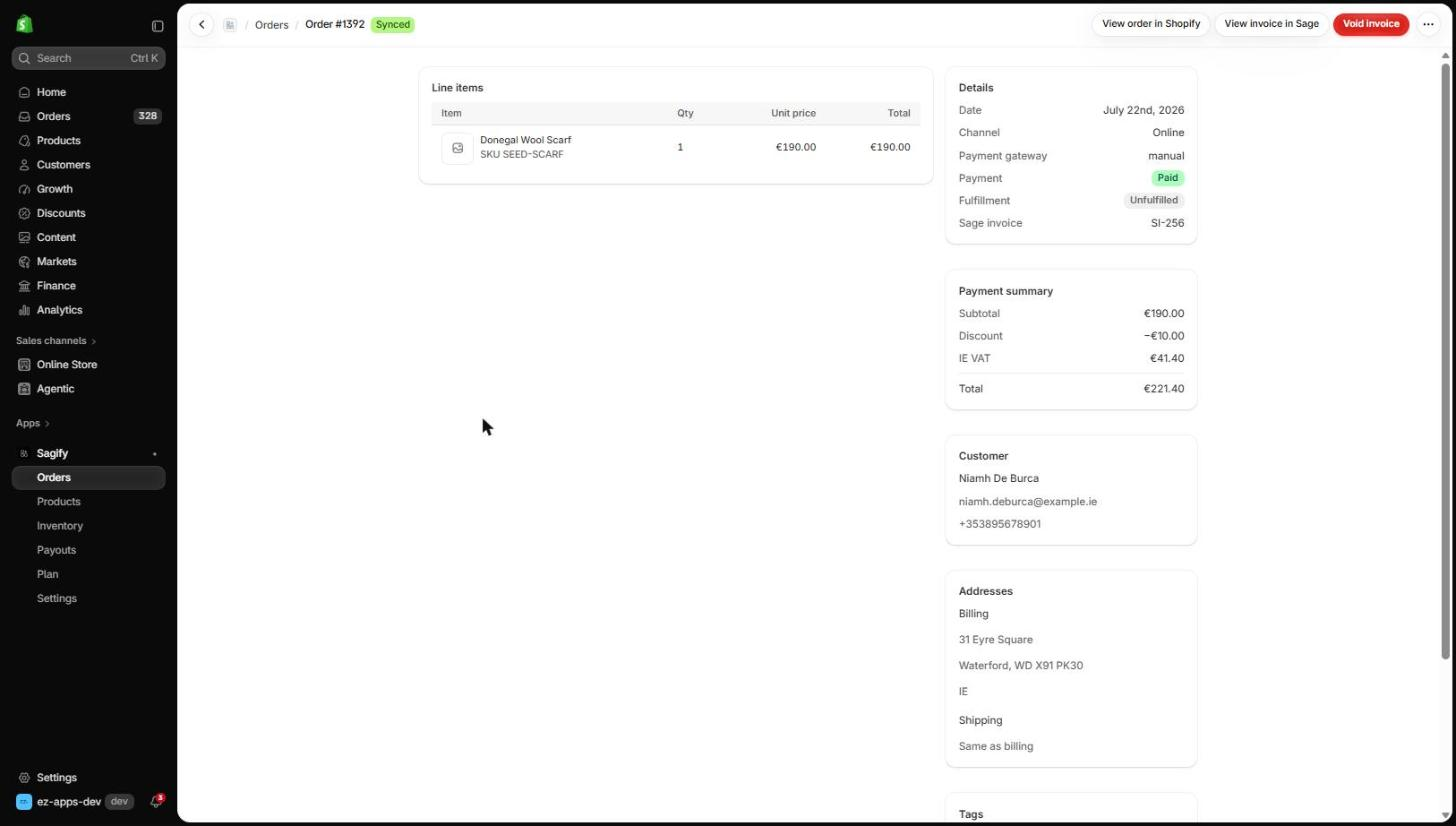
- Details shows the order date (which becomes the invoice date), the channel, the payment gateway, Shopify's payment and fulfillment status, and the Sage invoice number.
- View invoice in Sage opens the invoice in Sage Accounting. View order in Shopify opens the order.
- Payment summary is the figure Sagify reconciled the invoice to: subtotal, discounts, VAT or sales tax, total.
- Refunds & credits appears once the order has a refund — see Refunds and cancellations.
The invoice in Sage
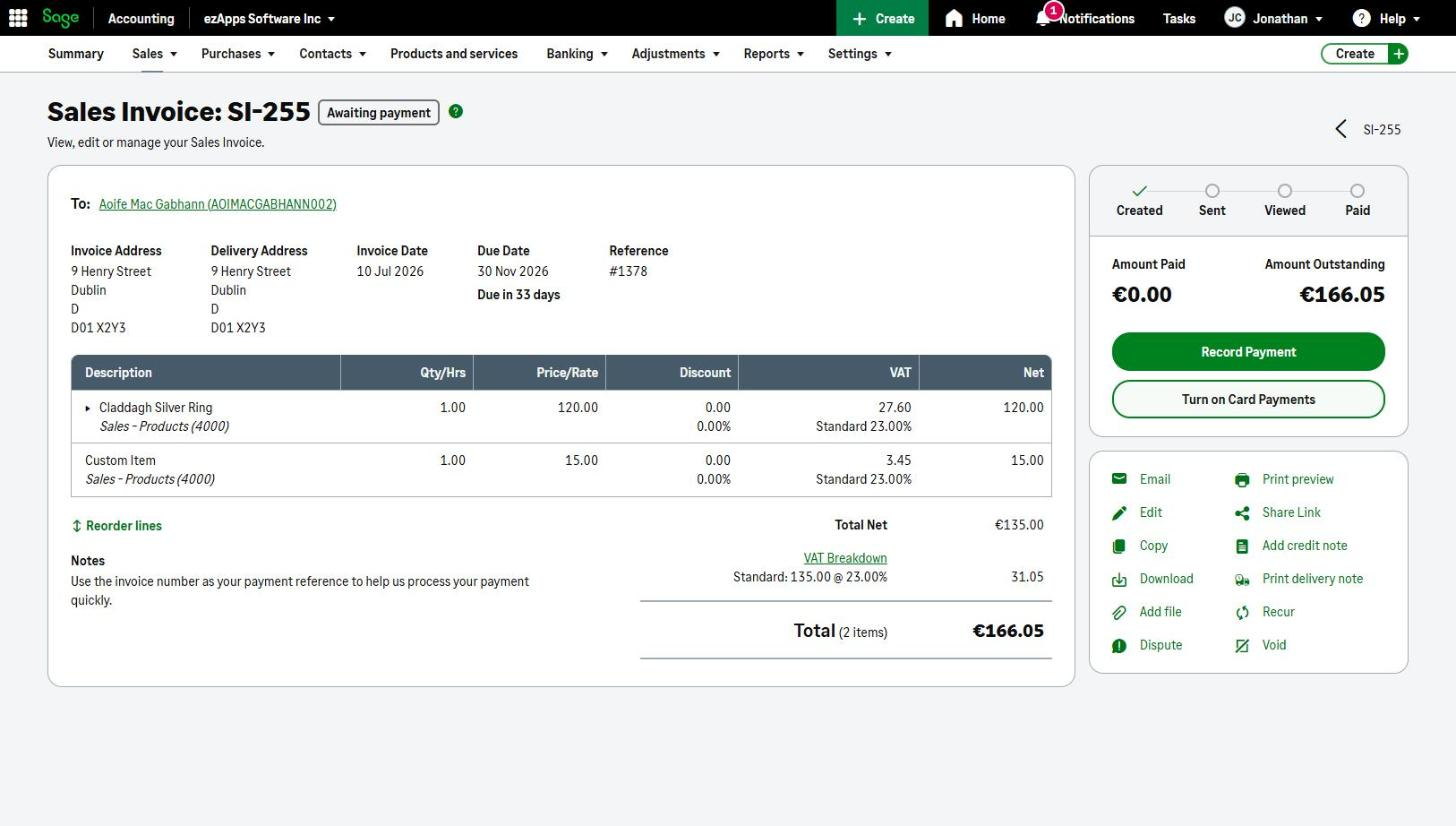
What to look for on an invoice Sagify posted:
- To — the Sage contact, matched or created from the Shopify customer (with the Shopify addresses when that setting is on).
- Reference — the Shopify order number, so you can always trace an invoice back.
- Lines — one per product, posting to that Sage item and its sales account, with the VAT rate and amount Shopify charged. A whole-order discount and, when needed, delivery post as their own lines to the accounts chosen in Settings.
- Total — the amount the customer paid in Shopify, to the cent.
- Awaiting payment — invoices post unpaid. Shopify payouts pay them (Pro plan), or record payments in Sage as you do today.
Undo a sync
Undo (or Void invoice on the detail page) voids the invoice in Sage and removes any receipts Sagify attached to it, then puts the order back to Not synced so you can process it again. An invoice paid by a Shopify payout that also paid other invoices cannot be voided — undo the payout first. An order with a synced credit note cannot be undone until the credit note is undone.
Warning
Undo voids the invoice in Sage. If you have edited the invoice in Sage since Sagify created it, those edits are lost with it.