Orders that need attention
Why an order waits instead of posting — a missing customer, tax rate, product or account — and how to resolve each one in a click.
Sagify never posts a wrong number and never drops an order. When something is missing, the order waits on the Orders page with a reason, and Home → Work to do counts it. Click Fix issues on the row (or open the order) and the detail page shows a form for exactly what is missing. Resolve it and click Resolve all & sync: the order posts right away, and the choice is remembered for the next order like it.
The reasons you will see
| Reason on the row | What it means | How to resolve |
|---|---|---|
| No matching customer | When no matching customer is found is set to Hold and no Sage contact matched the Shopify customer. | Pick an existing Sage customer or create one from the Shopify details. |
| No matching Sage tax rate | The order has tax but no Sage rate matches it — usually tax charged under another country's rules. | Pick the Sage rate to apply, or set an unmatched tax account in Settings so these orders post on their own. |
| Line not matched to a Sage product | A line's SKU is not linked to a Sage item yet (or has no SKU at all). | Create the Sage item, link an existing one, or post the line as a free-text line to a sales account. |
| Sage item no longer exists | A linked Sage item was deleted, or belongs to a different Sage business. | Relink or recreate it. |
| Not enough stock in Sage | The Sage stock item has less on hand than the order needs (stock items only). | Correct the Sage quantity (Inventory page or in Sage), then Retry. |
| Account no longer exists in Sage | A product's sales account, or an account chosen in Settings, is not in the connected business — typically after switching business. | Re-pick the account in Settings or on the product, then Retry. |
| Order held: no discount / delivery account | The order carries a whole-order discount, a delivery line or a shipping discount and Settings has no account for it. | Choose the account in Settings, then Retry. |
| Skipped | The order is unpaid (with Import paid orders only on) or carries an ignored tag. | Nothing to do — it syncs when paid; tagged orders are left out on purpose. |
A line with no SKU
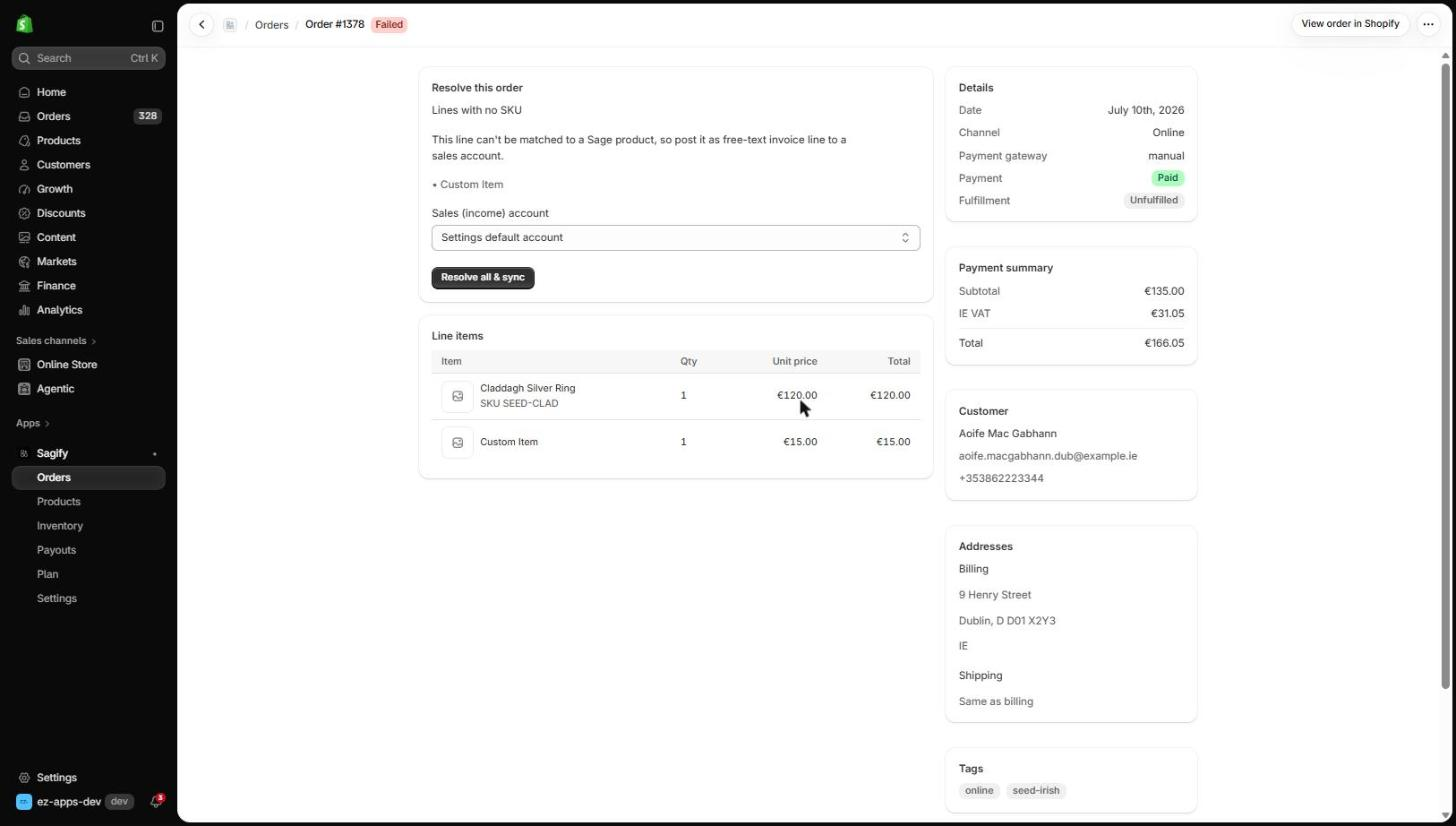
A custom item, a line added by a draft order or a product without a SKU cannot be matched to a Sage item. Choose the sales account the line should post to (the default from Settings is pre-filled) and click Resolve all & sync. The invoice shows the line with its description, quantity and VAT, posting to that account.
A product that is not in Sage yet
When the SKU exists in Shopify but not in Sage, the form offers two ways per product:
- Create a new Sage item — choose the item type (non-stock product or stock item), its tax rate and its sales and purchase accounts (pre-filled from Settings). The item is created in Sage and linked to the variant.
- Link to an existing Sage item — search your Sage items by name or code and pick one. If the SKU already exists in Sage as a different item type, Sagify asks you to link instead of creating a duplicate.
Either way the link is kept, so the next order with that SKU posts straight through. You can also do this ahead of time for your whole catalog on the Products page — see Link and create products in Sage.
Tax Sage can't match
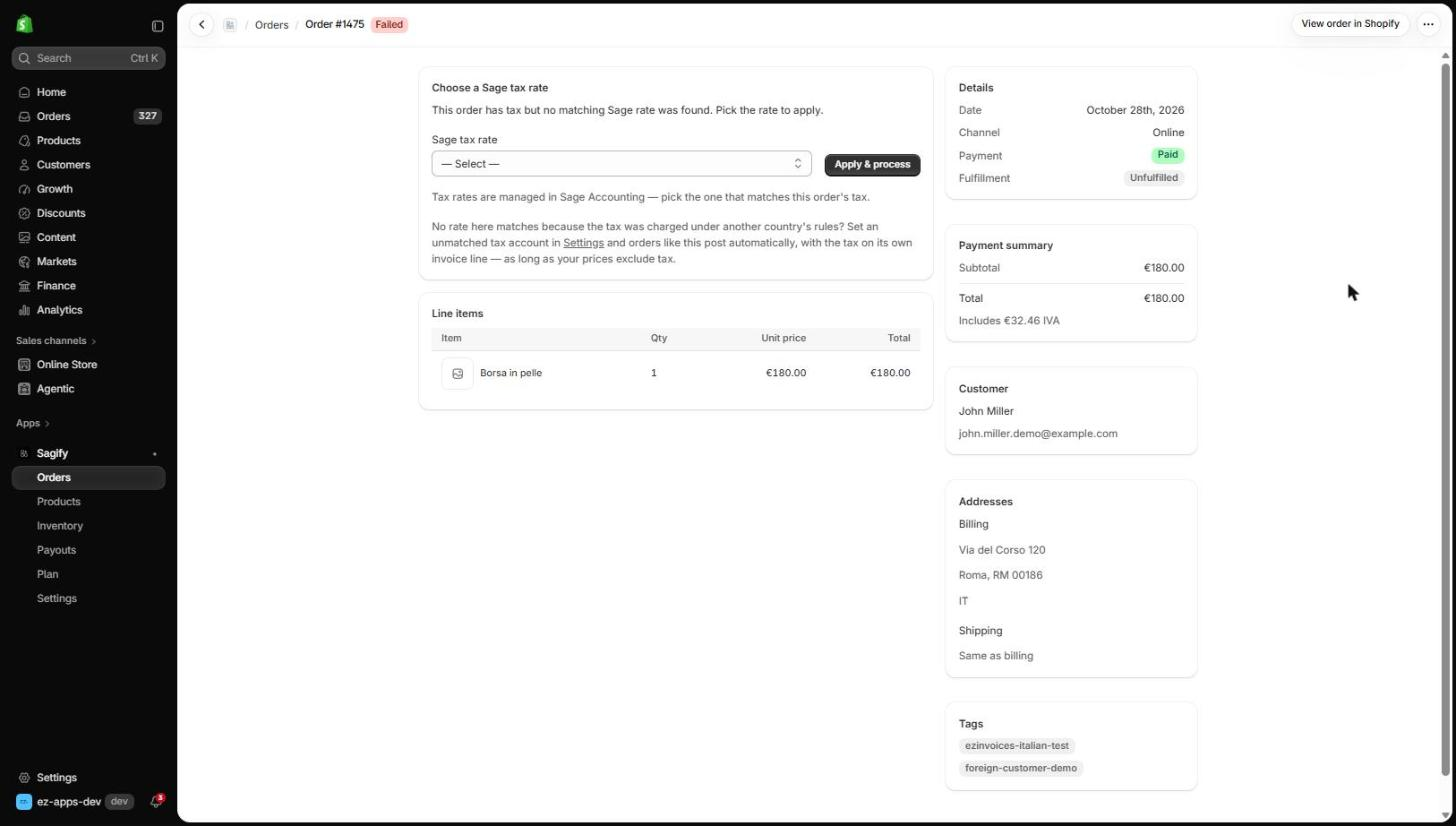
Sage's tax rates belong to the country your business is registered in. An order taxed under another country's rules has no rate to post against, so Sagify asks you to pick one. If this happens regularly — EU distance sales, say — set an unmatched tax account in Settings: every line then goes out zero-rated and the tax collected posts as its own line, so the invoice total still matches what the customer paid.
Automatic mode
In Automatic mode the same gates apply. An order that needs a decision waits on the Orders page instead of posting, and the daily notification email (Settings → Notifications) lists it. Fix it once and it posts; every later order like it goes straight through.