Settings explained
What every setting does: sync mode, customer matching, sales accounts by channel, payouts, refunds, discounts, delivery, unmatched tax, products and notifications.
Settings is one page, in sections, in the order below. Change anything, then click Save in the bar that appears at the top; Discard puts the saved values back. Every account list shows your Sage chart of accounts for the connected business.
Sage connection
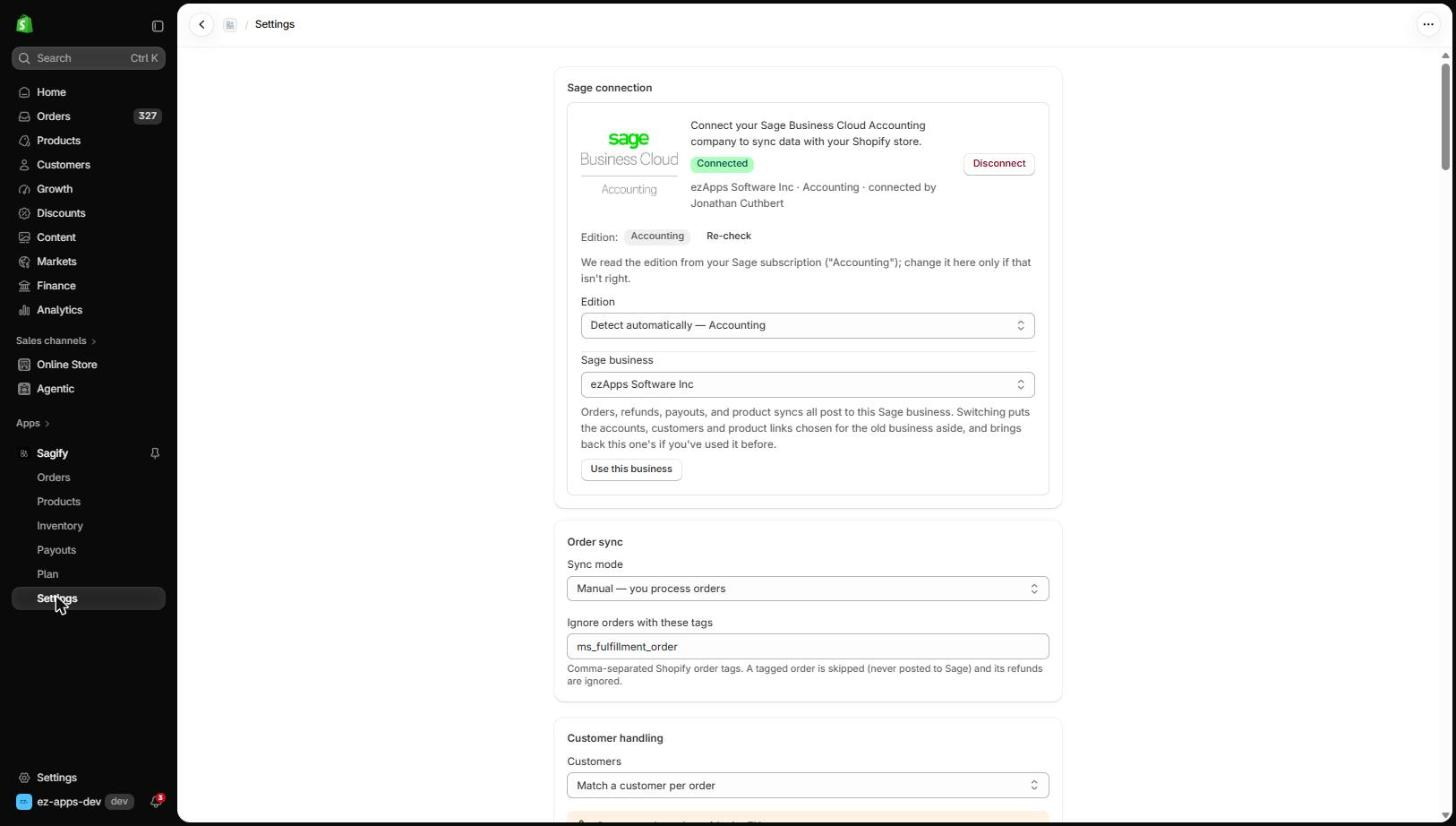
- Connected shows the business and the Sage user that connected it. Disconnect removes the stored tokens; reconnecting later keeps your settings.
- Edition is read from your Sage subscription. Override it only if the detected edition is wrong. Accounting Start has no product catalog or stock, so the Products section is disabled and every invoice line posts to one sales account (Sales account for order lines).
- Sage business lists the businesses your Sage user can see. Switching puts the accounts, customers and product links you chose for the old business aside and brings back the ones you used with the new business before.
Order sync
- Sync mode — Manual (you process orders) or Automatic (new paid orders, refunds and cancellations post as they happen). Automatic needs a paid plan; it turns on Shopify webhooks for orders, refunds and cancellations, and for products when product sync is on.
- Import paid orders only — on by default. Unpaid orders are skipped rather than posted; they sync once paid.
- Ignore orders with these tags — comma-separated Shopify order tags. A tagged order is skipped (never posted) and its refunds are ignored. Useful for apps that cancel and re-create orders, such as multi-address gifting apps.
Customer handling
- Customers — Match a customer per order finds the Sage contact by email (and creates one when nothing matches), Single customer bills every order to one contact such as "Shopify Web Sales", and Customers by region bills to one contact each for domestic, EU and overseas orders.
- When no matching customer is found — Create a new customer automatically or Hold. Hold parks the order on the Orders page so you can pick or create the right contact.
- Use the customer's address — put the Shopify billing and shipping addresses on the Sage contact.
- Customer ID format — how the reference of a new Sage contact is built from the name: letters taken from the first and last name, their order and case, plus a counter. The example under the fields updates as you change them (John Smith → JOHSMIT001).
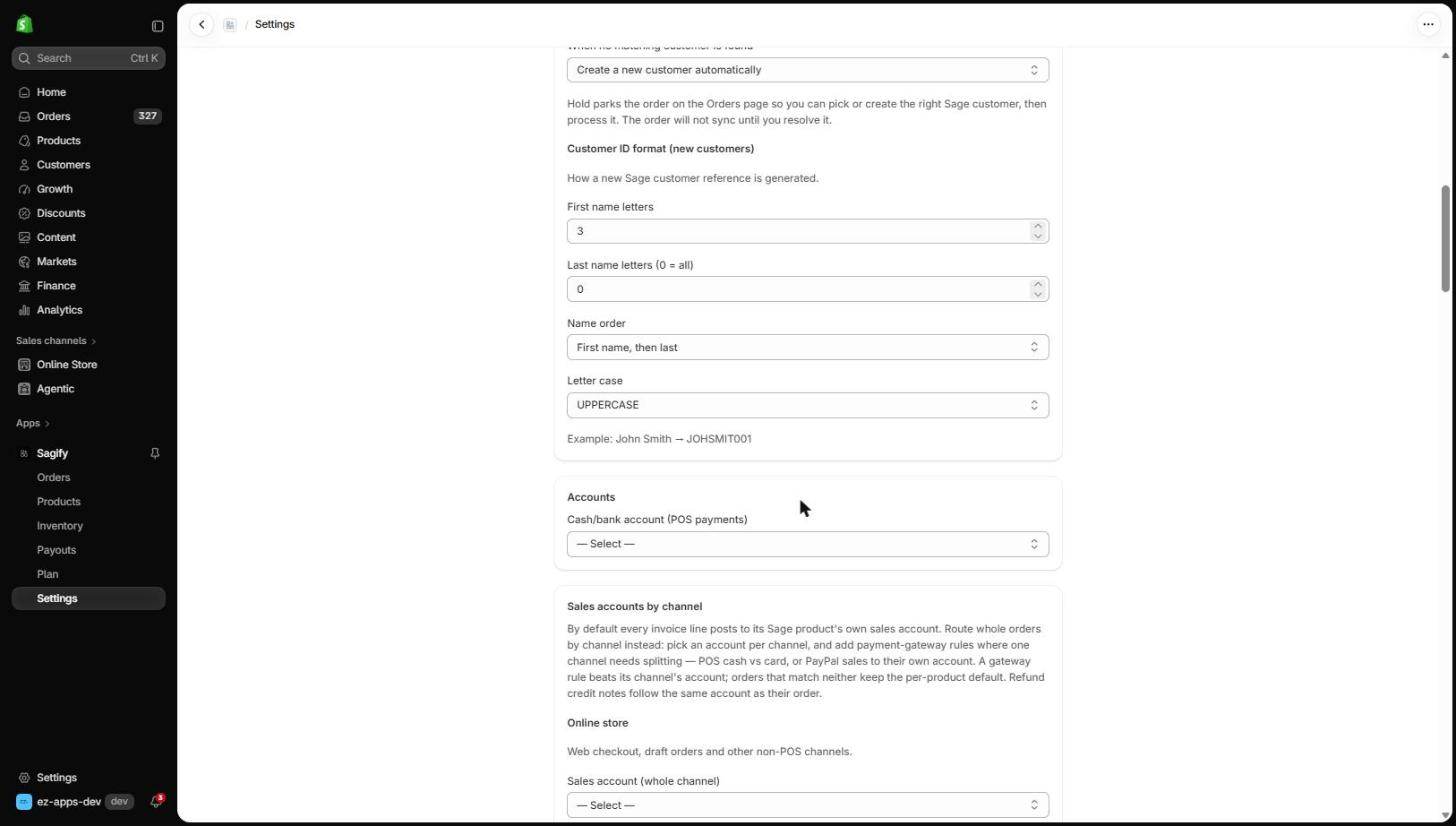
Accounts and sales accounts by channel
- Cash/bank account (POS payments) — where Shopify POS payments are recorded.
- Sales accounts by channel — by default every invoice line posts to its Sage product's own sales account. Here you can route whole orders by channel instead: one account for the Online store, one for Point of Sale, one for B2B company orders, with optional payment-gateway rules (for example POS cash to one account and POS card to another). A gateway rule beats its channel's account; orders that match nothing keep the per-product default. Refund credit notes follow the same account as their order.
Shopify Payouts
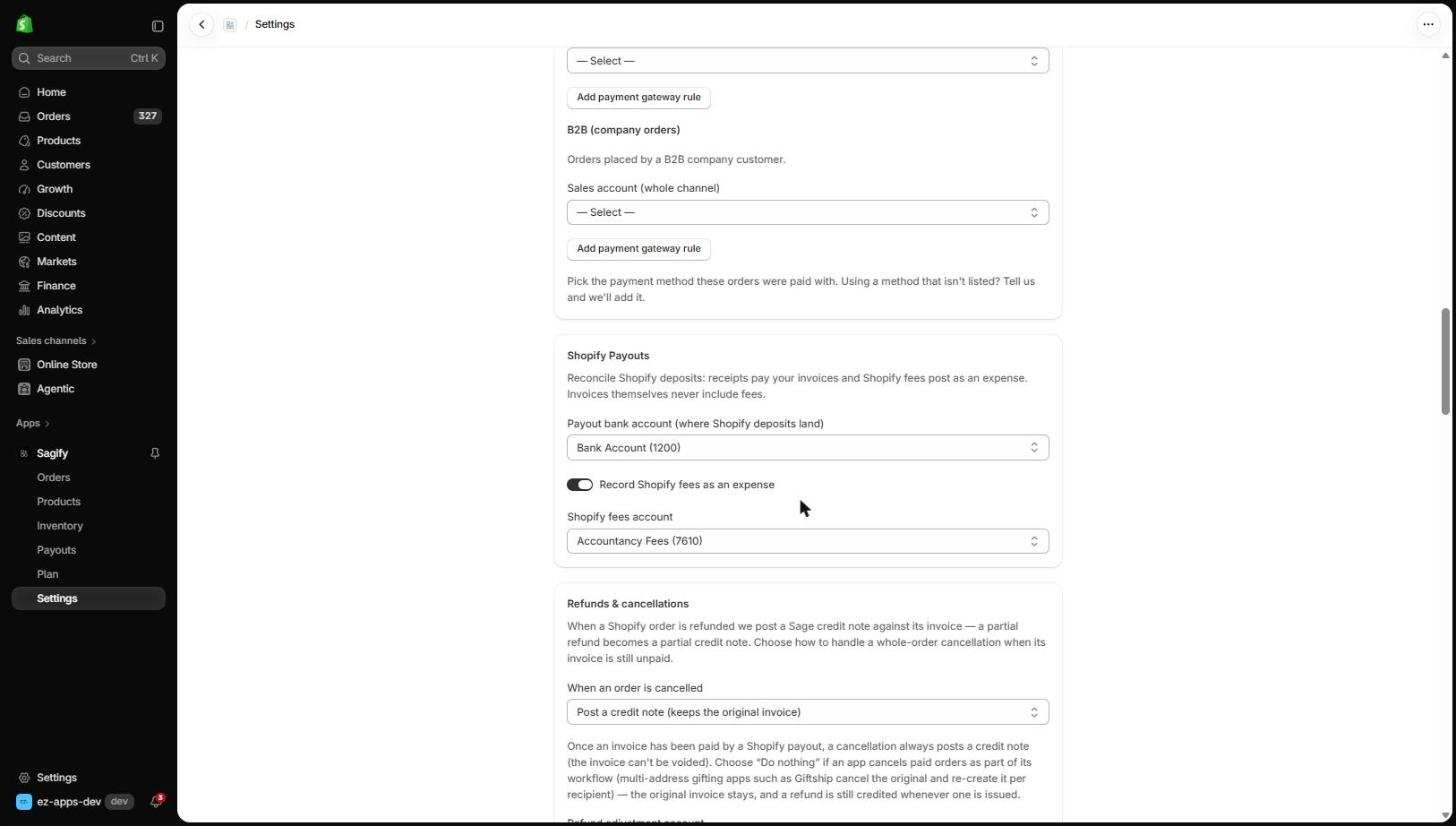
Payout reconciliation is on the Pro plan. Choose the payout bank account (where Shopify deposits land) and, if you want fees in Sage, turn on Record Shopify fees as an expense and pick the fees account. Invoices themselves never include fees. See Reconcile Shopify payouts.
Refunds and cancellations
- A Shopify refund always posts as a credit note against the order's invoice; a partial refund is a partial credit note.
- When an order is cancelled — Post a credit note (keeps the original invoice), Void the invoice (only possible while it is unpaid), or Do nothing. Once a payout has paid the invoice, a cancellation always posts a credit note.
- Refund adjustment account — where a refund's restocking fee or rounding discrepancy (a Shopify order adjustment) posts. Leave it unset and any refund carrying one is held for review.
Order discounts, delivery charges and shipping discounts
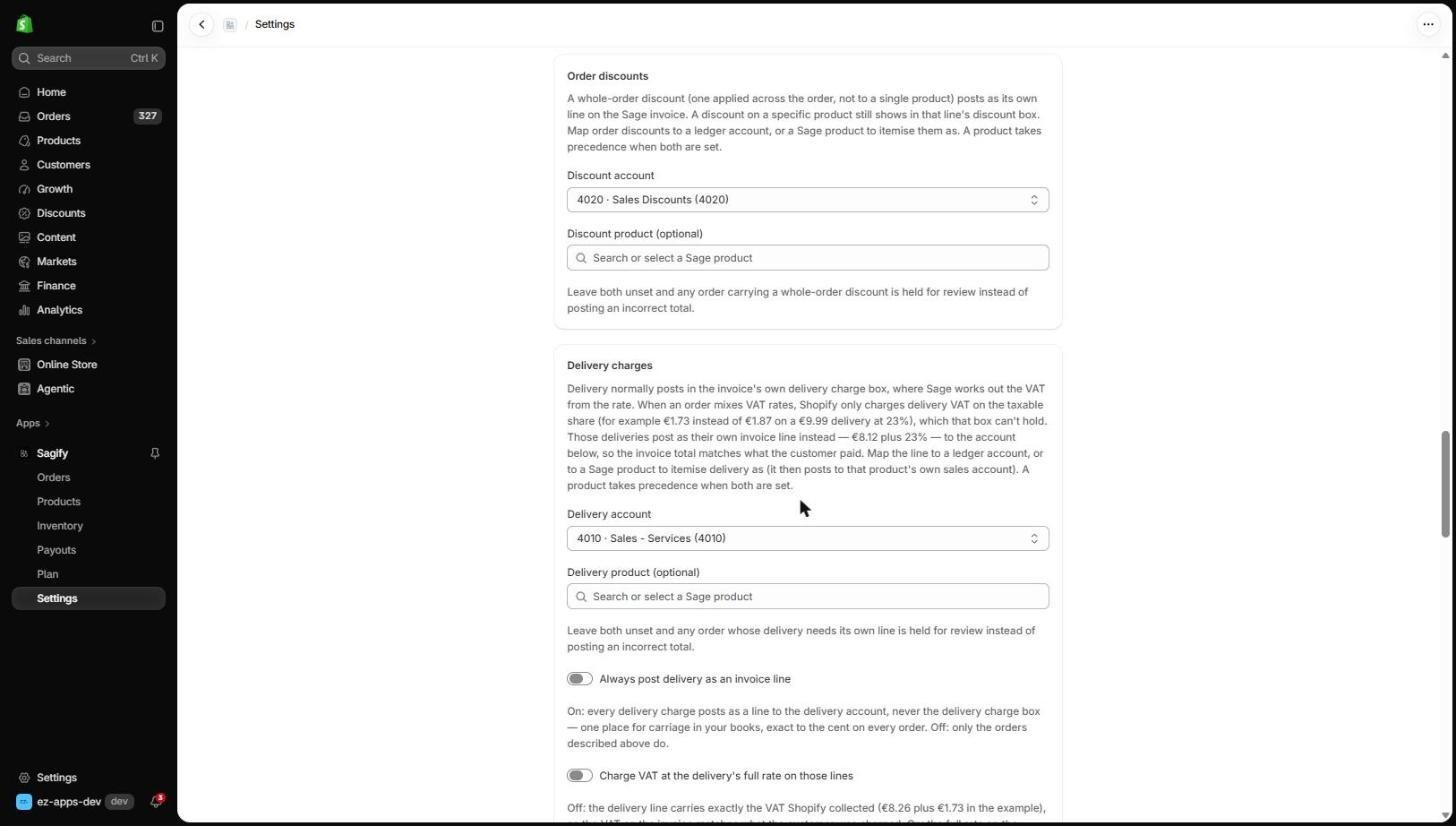
- Order discounts — a whole-order discount posts as its own line on the Sage invoice (a discount on one product stays in that line's discount box). Map it to a ledger account, or to a Sage product to itemise it. Leave both unset and any order carrying a whole-order discount is held.
- Delivery charges — delivery normally posts in the invoice's own delivery box, where Sage works out the VAT from the rate. When an order mixes VAT rates, Shopify only charges delivery VAT on the taxable share, which that box cannot hold, so those deliveries post as their own line to the account or product you choose here. Always post delivery as an invoice line sends every delivery charge to that account instead; Charge VAT at the delivery's full rate declares the full rate rather than exactly what Shopify collected.
- Shipping discounts — a free or reduced delivery promo gets its own account, so the invoice shows the delivery charge at its full rate and the promo as its own line against it.
Tax Sage can't match
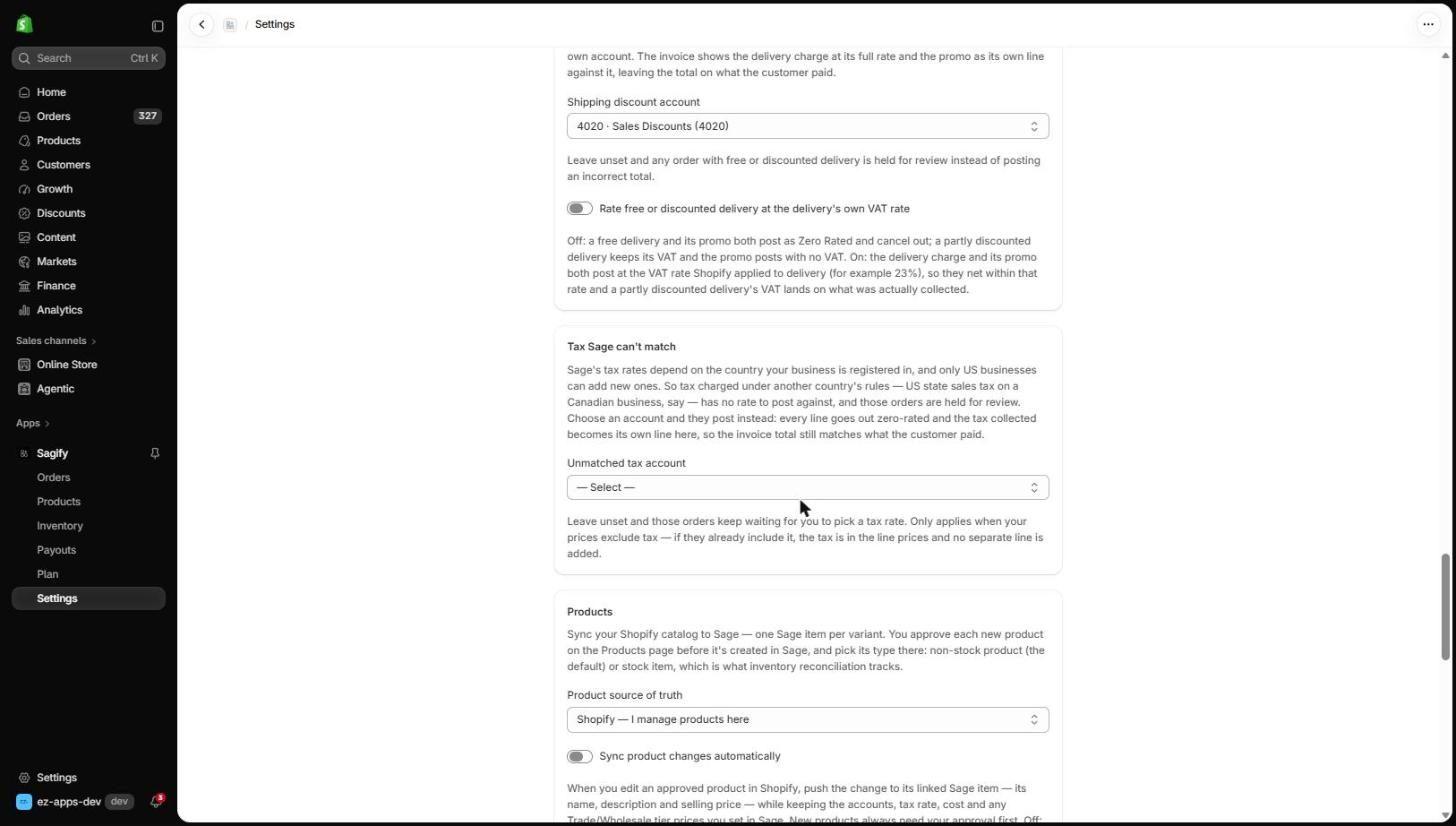
Sage's tax rates depend on the country your business is registered in, and only US businesses can add new ones. An order taxed under another country's rules — US state sales tax on a Canadian business, say — has no rate to post against and is held for review. Choose an unmatched tax account and those orders post instead: every line goes out zero-rated and the tax collected becomes its own line, so the invoice total still matches what the customer paid. Only applies when your prices exclude tax.
Products
- Product source of truth — Shopify pushes names, SKUs, barcodes and the selling price to the linked Sage items; Sage keeps prices where you manage them in Sage.
- Sync product changes automatically (Growth plan and up) — when you edit an approved product in Shopify, push the change to its linked Sage item. New products always need your approval first on the Products page.
- Link matching products automatically — link Shopify variants to Sage items with the same SKU or barcode as they are met. Also update product details when linking runs one update toward the source of truth when a link is made (name, item code, barcode, price and cost; the item's tax rate, accounts and trade prices are never touched).
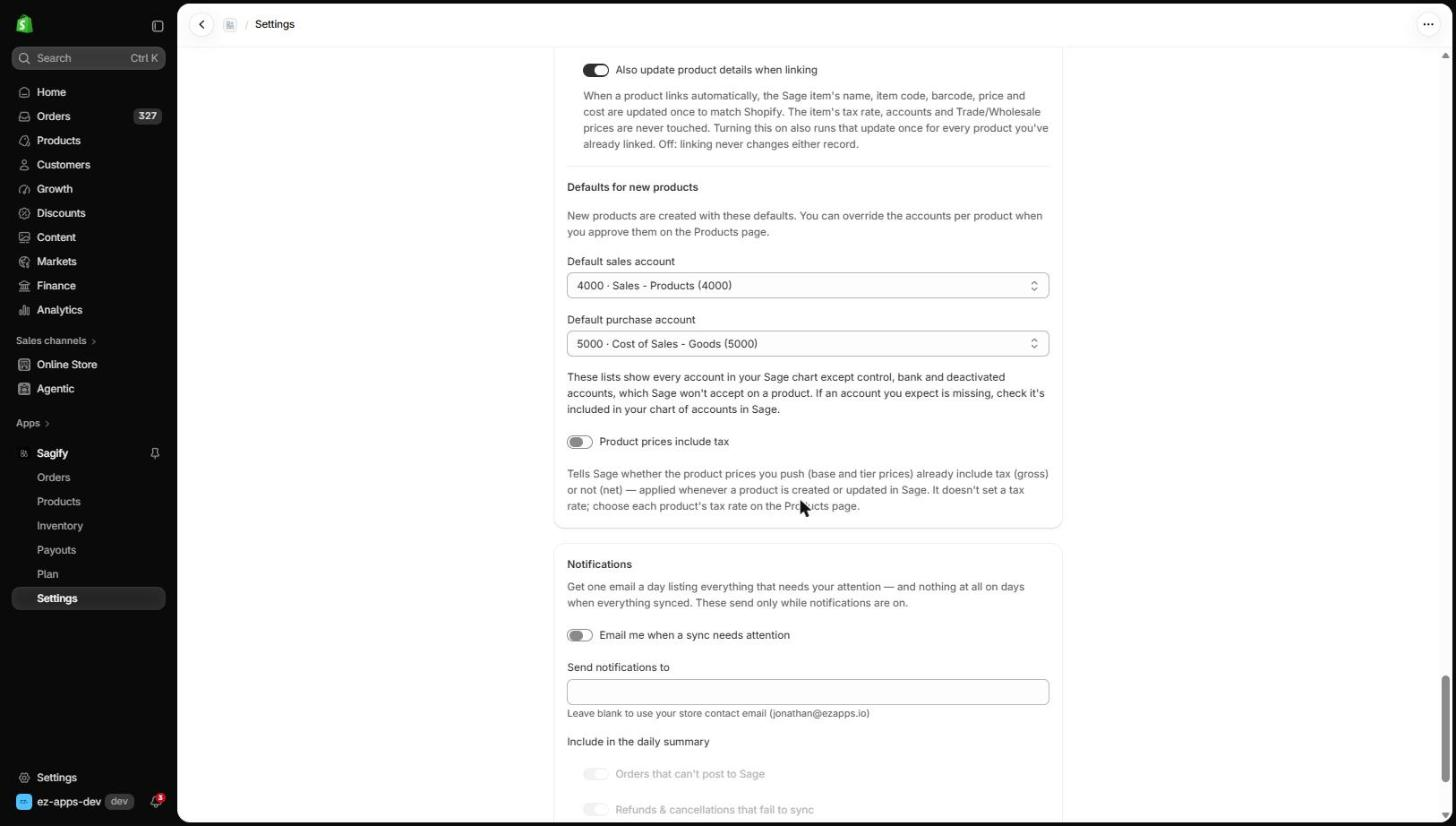
- Defaults for new products — the sales and purchase accounts a new Sage item is created with. You can override them per product when you approve it.
- Product prices include tax — tells Sage whether the prices you push are gross or net.
Notifications
Turn on Email me when a sync needs attention to get one email a day listing everything that needs you — orders that can't post, refunds that fail, payouts that need attention — and nothing at all on days when everything synced. Leave the address blank to use your store's contact email. Sage disconnected emails you straight away when the connection needs to be renewed.