Link and create products in Sage
Match Shopify variants to Sage items by SKU or barcode, create the missing ones, set per-product accounts, tax rates and prices, and keep prices in sync.
Invoices post to your Sage catalog: every order line is matched to a Sage item, and posts to that item and its sales account. The Products page is where you make those matches — in bulk when you install, and one at a time as new products appear. It needs Sage Accounting Standard or Plus (Accounting Start has no catalog; its invoices post as ledger-only lines).
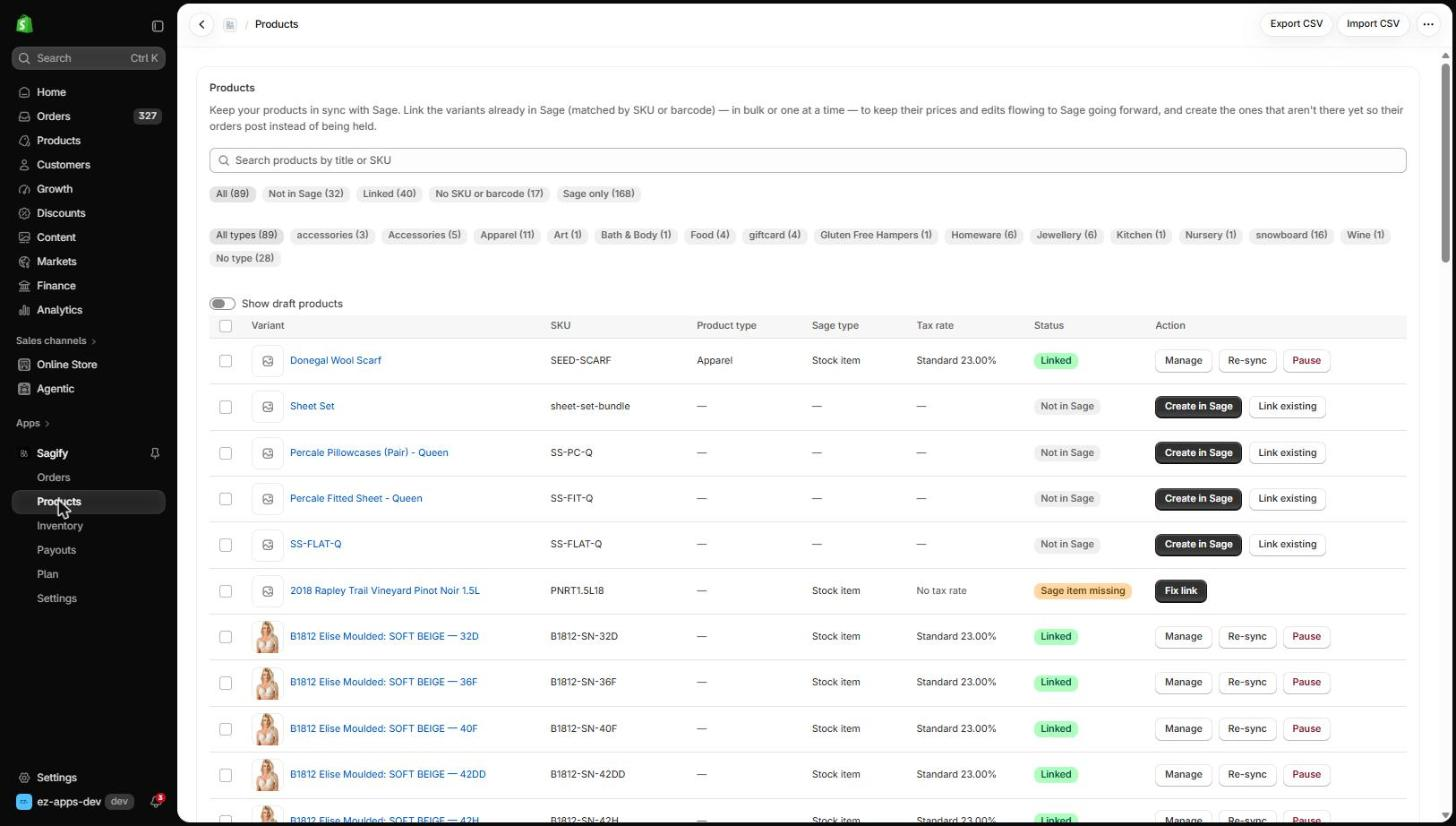
What the statuses mean
| Status | Meaning |
|---|---|
| Linked | The variant is matched to a Sage item. Its orders post to that item. |
| Not in Sage | The variant has a SKU or barcode, but no Sage item matches it. Create one or link an existing item. |
| No SKU or barcode | Nothing to match on. Give the variant a SKU in Shopify, or its order lines will be posted as free-text lines. |
| Sage item missing | The linked Sage item no longer exists — deleted in Sage, or in a different Sage business. Click Fix link. |
| Sage only | A Sage item with no Shopify variant. Listed so you can see your whole catalog; nothing to do unless you add the product to Shopify. |
Use the chips to filter by status or product type, Show draft products to include drafts, and the search box for a title or SKU.
Let Sagify link what already matches
With Settings → Products → Link matching products automatically on, variants whose SKU or barcode equals a Sage item code are linked as soon as Sagify meets them — on this page and when an order comes in. Linking never changes either record unless Also update product details when linking is on, in which case one update runs toward the source of truth (name, code, barcode, price and cost; never the item's tax rate, accounts or trade prices).
You can also tick several Not in Sage rows and link or create them in bulk from the bar that appears.
Create a product in Sage
Click Create in Sage on a row.
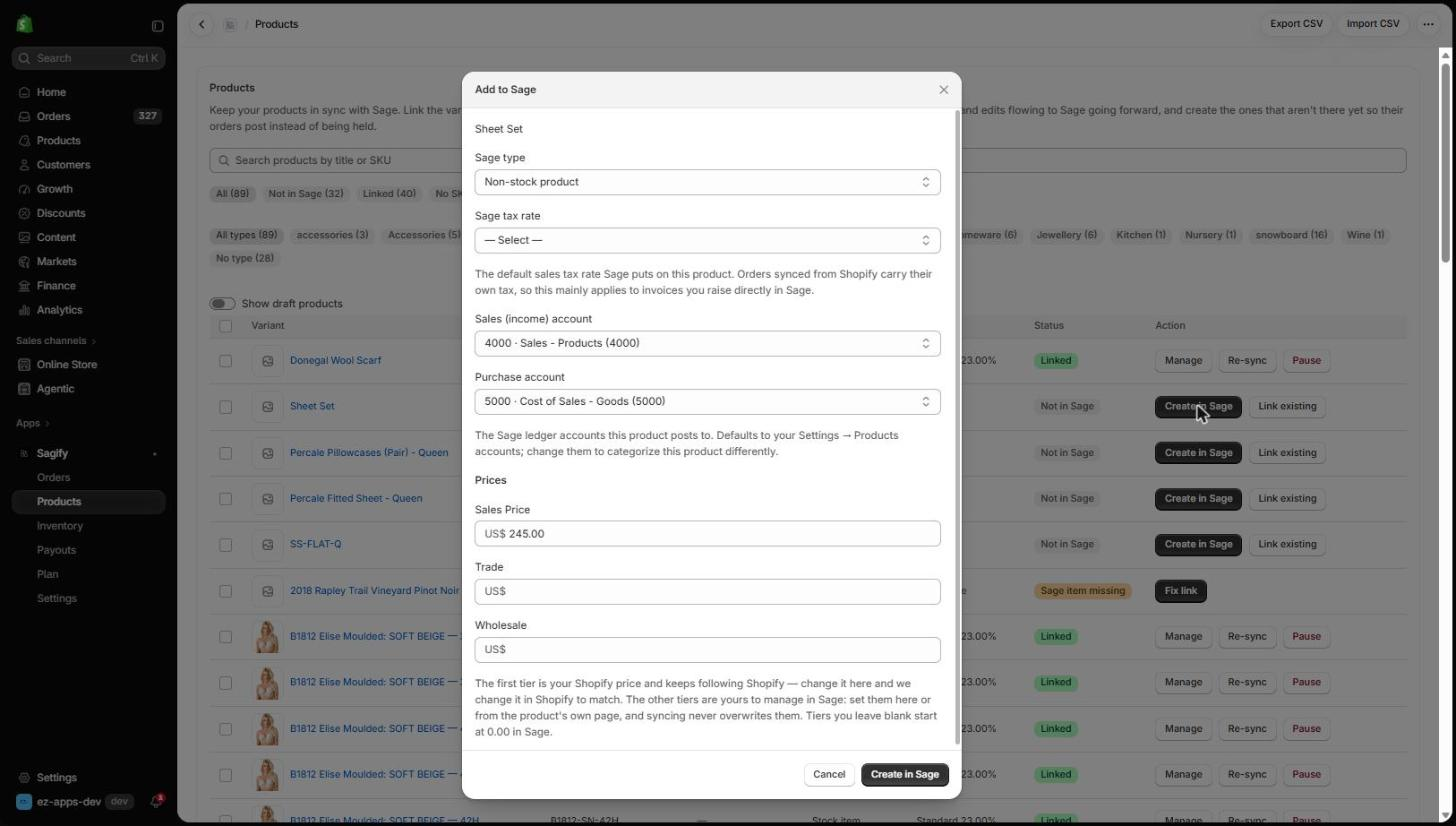
- Sage type — Non-stock product (the default) or Stock item. Stock items are what the Inventory page reconciles; they need Sage Accounting Plus.
- Sage tax rate — the default rate Sage puts on the item. Orders synced from Shopify carry their own tax, so this mainly applies to invoices you raise directly in Sage.
- Sales and purchase accounts — pre-filled from Settings; change them to categorise this product differently.
- Prices — the first tier is the Shopify price and keeps following Shopify when Shopify is the source of truth. Trade and wholesale tiers are yours to manage in Sage; syncing never overwrites them.
Click Create in Sage. The item is created, linked, and the row turns Linked.
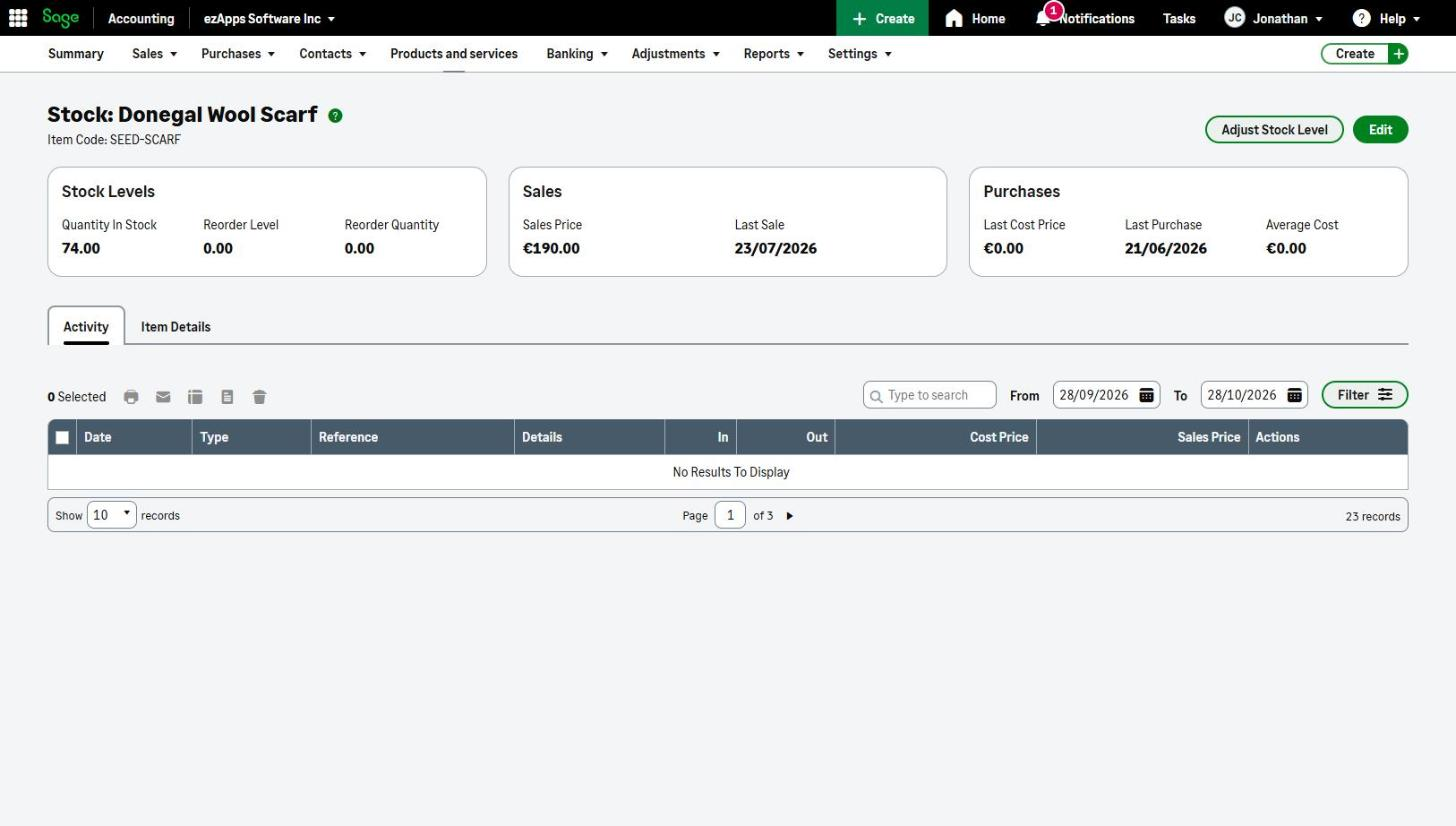
Link to an existing item
Click Link existing, search by name or code, pick the item and click Link. Use this when the Sage item exists under a different code than the Shopify SKU.
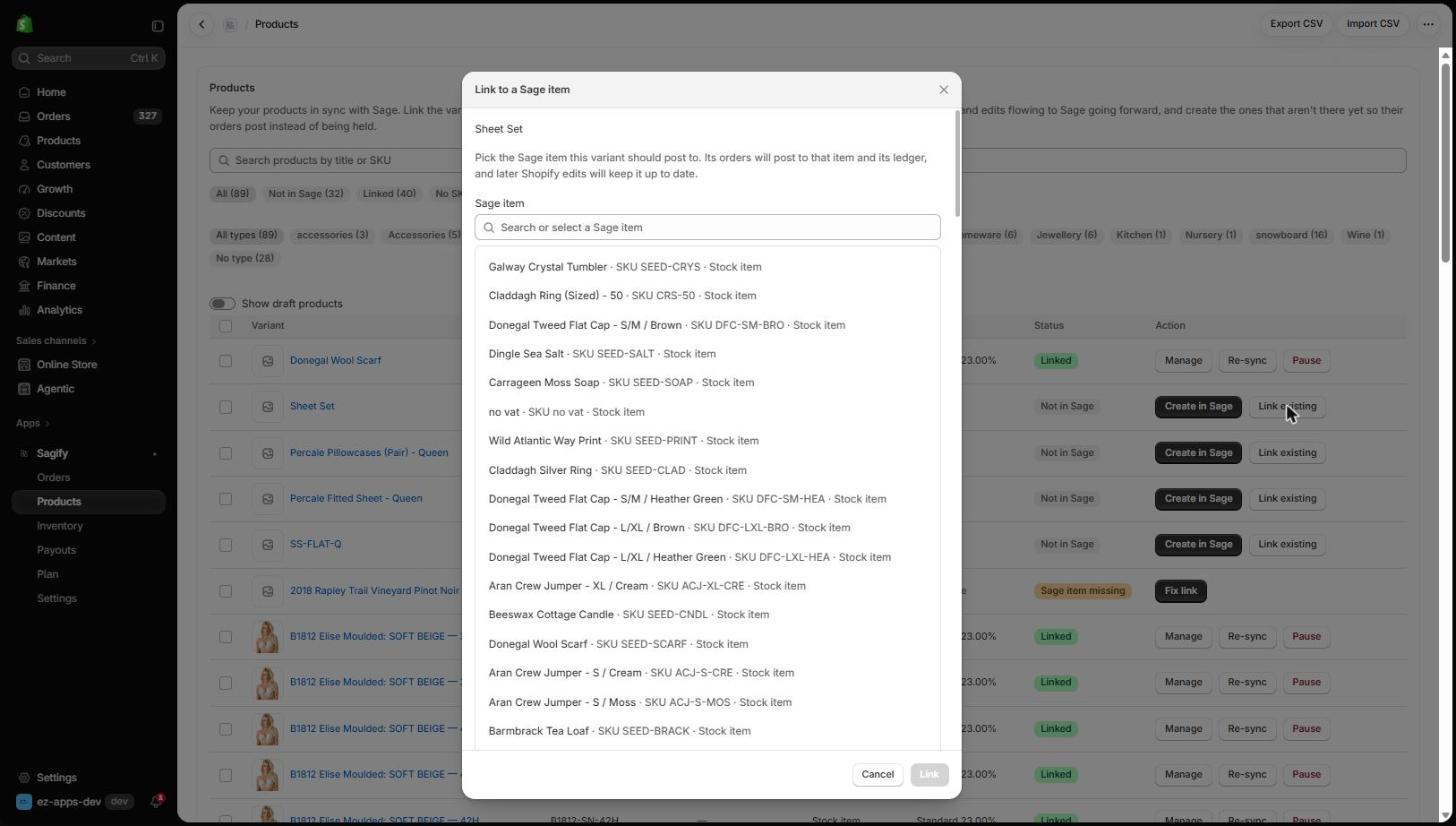
Manage a linked product
On a linked row:
- Manage opens the product's own page: its Sage tax rate, its sales price and trade tiers, and — for stock items — its stock on each Shopify location next to the Sage quantity.
- Re-sync pushes the current Shopify details to the Sage item (or pulls them, when Sage is the source of truth).
- Pause stops automatic updates for that one product while keeping the link. Its orders still post.
Per-product choices you make here — tax rate, accounts, tiers, pause — are kept on every later sync; a Shopify edit never reverts them.
Keep prices in sync
With Shopify as the source of truth and Sync product changes automatically on (Growth plan and up), editing an approved product in Shopify pushes its name, description and selling price to the linked Sage item within seconds. Cost stays as you set it in Sage, and so do the trade and wholesale tiers. New products never create themselves — they wait for your approval here.
Export and import a CSV
Export CSV downloads every variant with its link status and the Sage fields Sagify would use. Edit the type, tax rate, accounts and prices in a spreadsheet, then Import CSV to create and link products in bulk — the quickest route for a large catalog on day one. The import shows what it will do before it writes anything, and can be resumed if it is interrupted.