Post Shopify POS sales as a daily summary
Post each day's in-store takings as one invoice per payment type — cash paid into your till, card left to match your card deposits — with a line per VAT rate and returns netted in.
If you sell in a shop or café with Shopify POS, posting one Sage invoice for every coffee buries your books in tiny invoices. POS daily sales posts each day's in-store takings as one invoice per payment type instead: one for cash, one for card, each with a line per VAT rate, to a single retail customer. Returns made that day are netted in. Online orders are not affected; they keep syncing one invoice per order.
What gets posted
For every closed day (in your store's timezone), Sagify posts:
- a cash invoice, with a line per VAT rate (for example POS cash sales 16 Nov 2026 – Standard 23%), paid into your till account so it closes straight away;
- a card invoice, the same shape, posted to your card sales account and left open for you to match against your card deposits;
- a gift card / store credit invoice, only on days when someone paid that way.
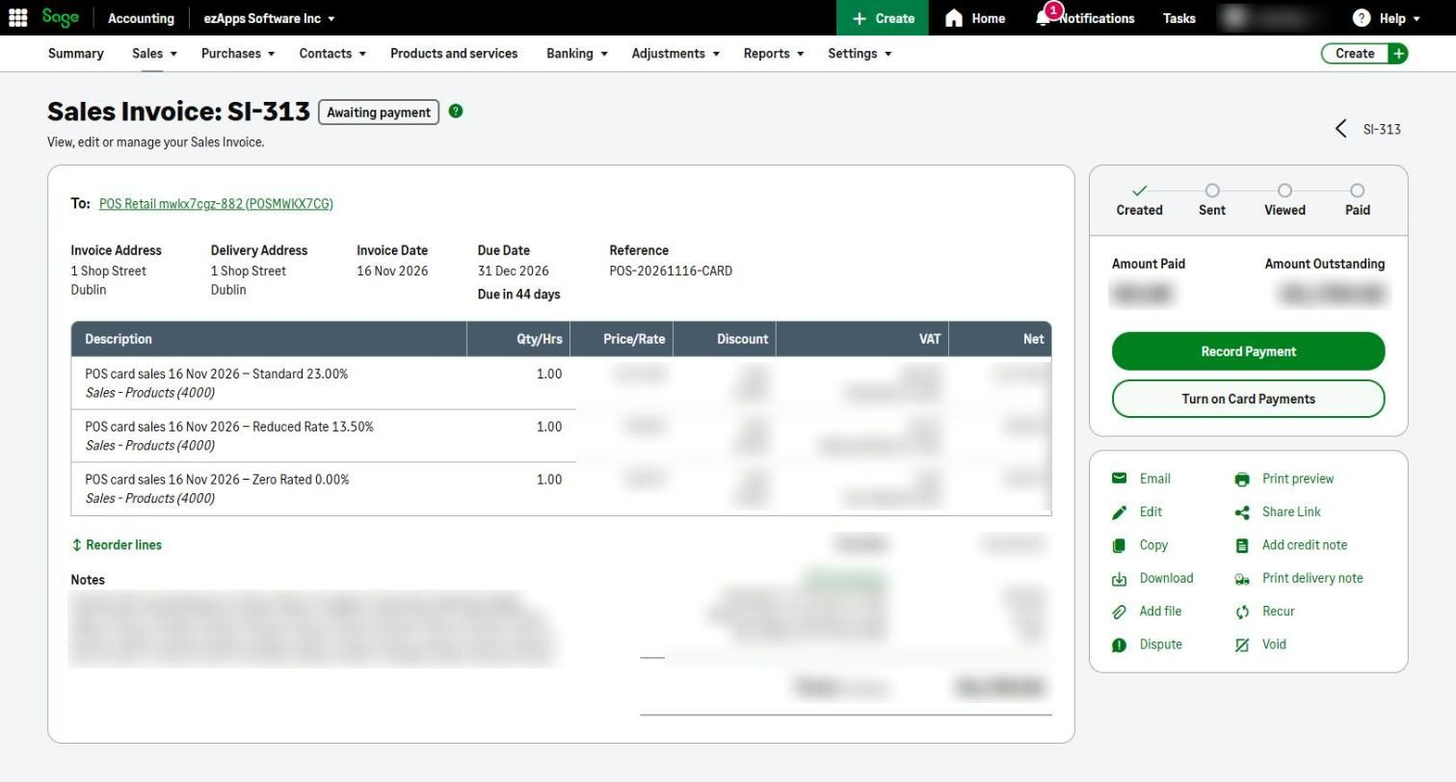
Each invoice lists the order numbers it covers in its notes, and its reference reads like POS-20261116-CARD, so you can find a day in Sage at a glance. If a day's returns for one payment type outweigh its sales, that payment type posts as a credit note instead.
"Card" means every payment that isn't cash: Shopify Payments, and also your own card terminal if you record it in Shopify POS as a custom payment method (for example Card Machine).
Set it up
Everything is in one place, Settings → Shopify POS daily sales:
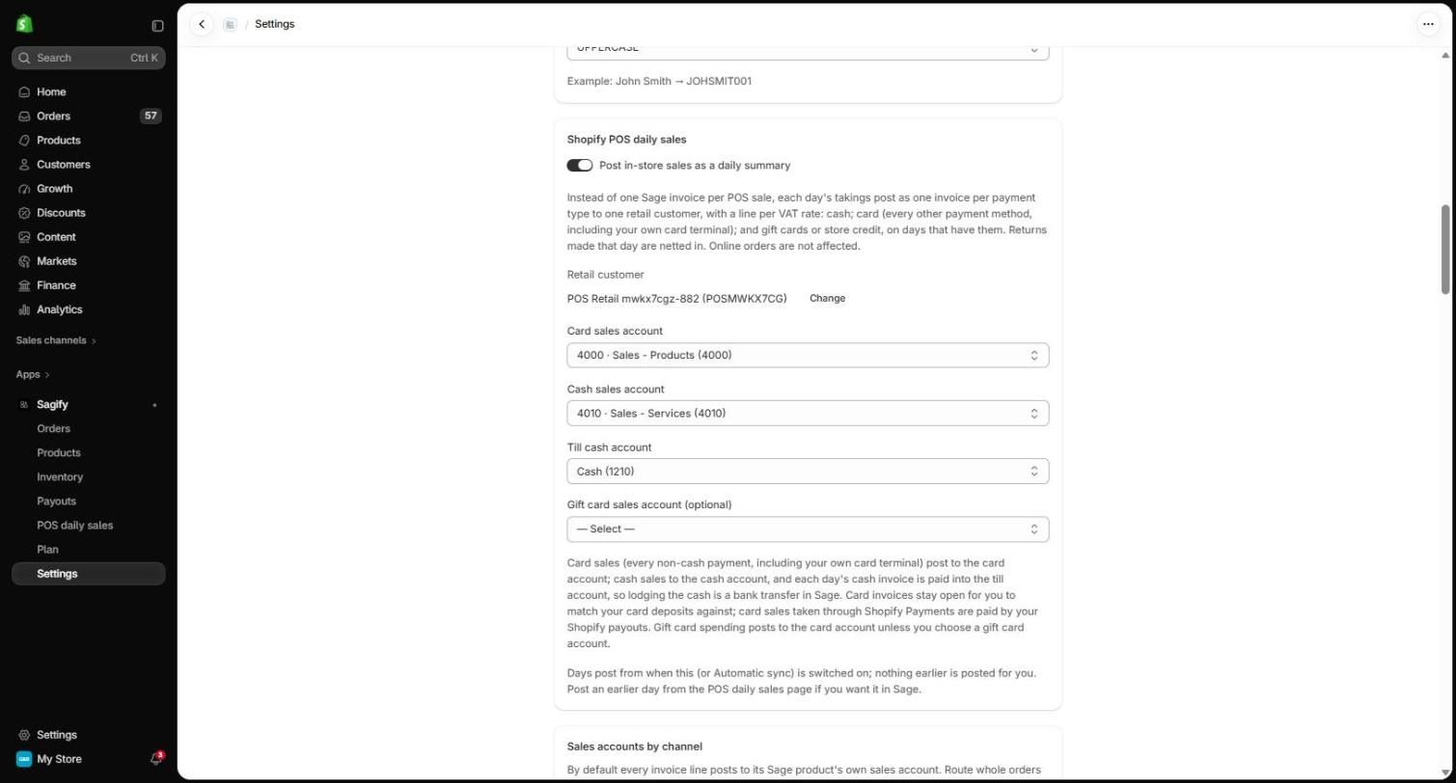
- Switch on Post in-store sales as a daily summary.
- Choose the Retail customer, the Sage customer every day's invoices post to (for example Shop Sales). Use a customer with an address in your own country: Sage sets VAT treatment from the customer's country.
- Choose the Card sales account and the Cash sales account: the Sage sales accounts each day's card and cash takings post to.
- Choose the Till cash account: the Sage bank account each day's cash takings are paid into. Lodging the cash is then a bank transfer in Sage.
- Optionally choose a Gift card sales account. Leave it empty and gift card spending posts to the card account.
Save. POS daily sales now appears in the app menu. (These accounts are the same setting as the Point of Sale row under Sales accounts by channel, which points back here while the summary is on.)
When days post
POS daily sales only ever posts forward. Nothing from before you switched it on is posted for you:
- With Sync mode set to Automatic, each day from the moment the summary (or Automatic) was switched on posts itself after 2am the next morning, once your customer and accounts are set up.
- With Manual sync, you post each day yourself from the POS daily sales page.
- Want an earlier day in Sage, from before you switched it on? Open it on the POS daily sales page and click Post.
Post a day
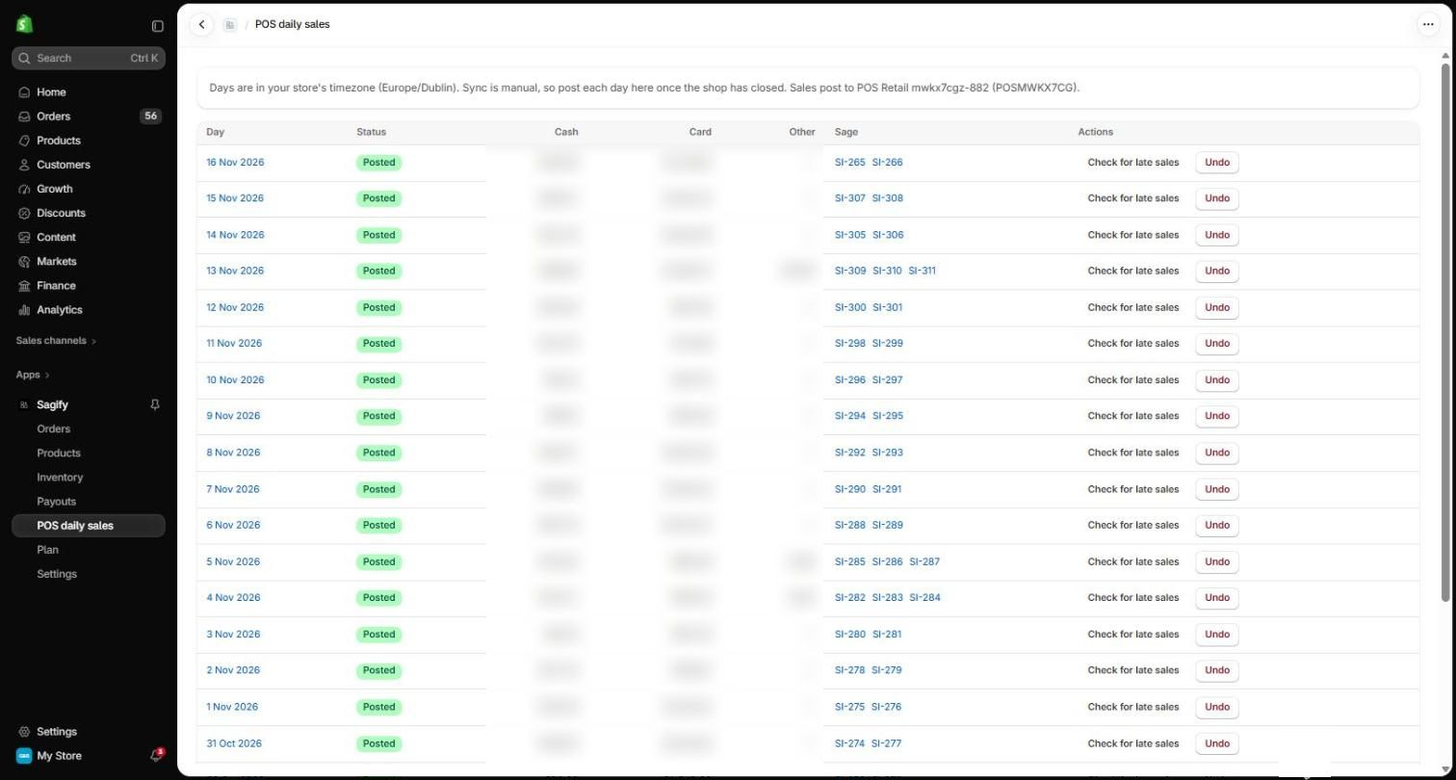
The POS daily sales page lists the last two months of days, newest first. Click a day to see exactly what will post before anything is written to Sage:
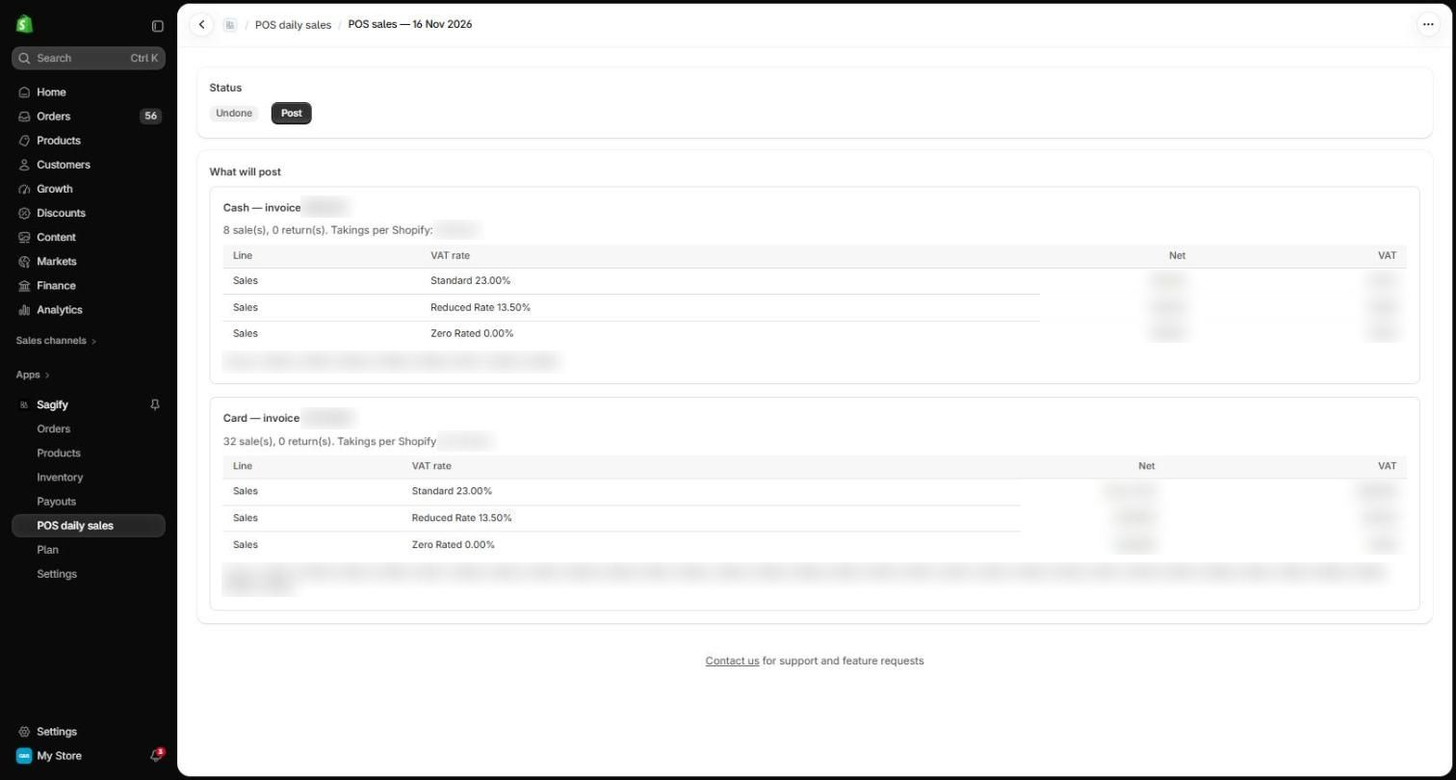
- the invoices that will post, with the net and VAT for each rate;
- the takings Shopify recorded for each payment type, with any difference flagged (tips and cash rounding are the usual reasons);
- a Left out list naming any sale that won't post and why: a test order, an unpaid sale, a tagged order, or a sale that already has its own invoice.
Click Post. The day page then shows each Sage document with its number (a link straight to it in Sage), its total next to the takings Shopify recorded, and the number of sales and returns in it. The cash invoice reads paid into till.
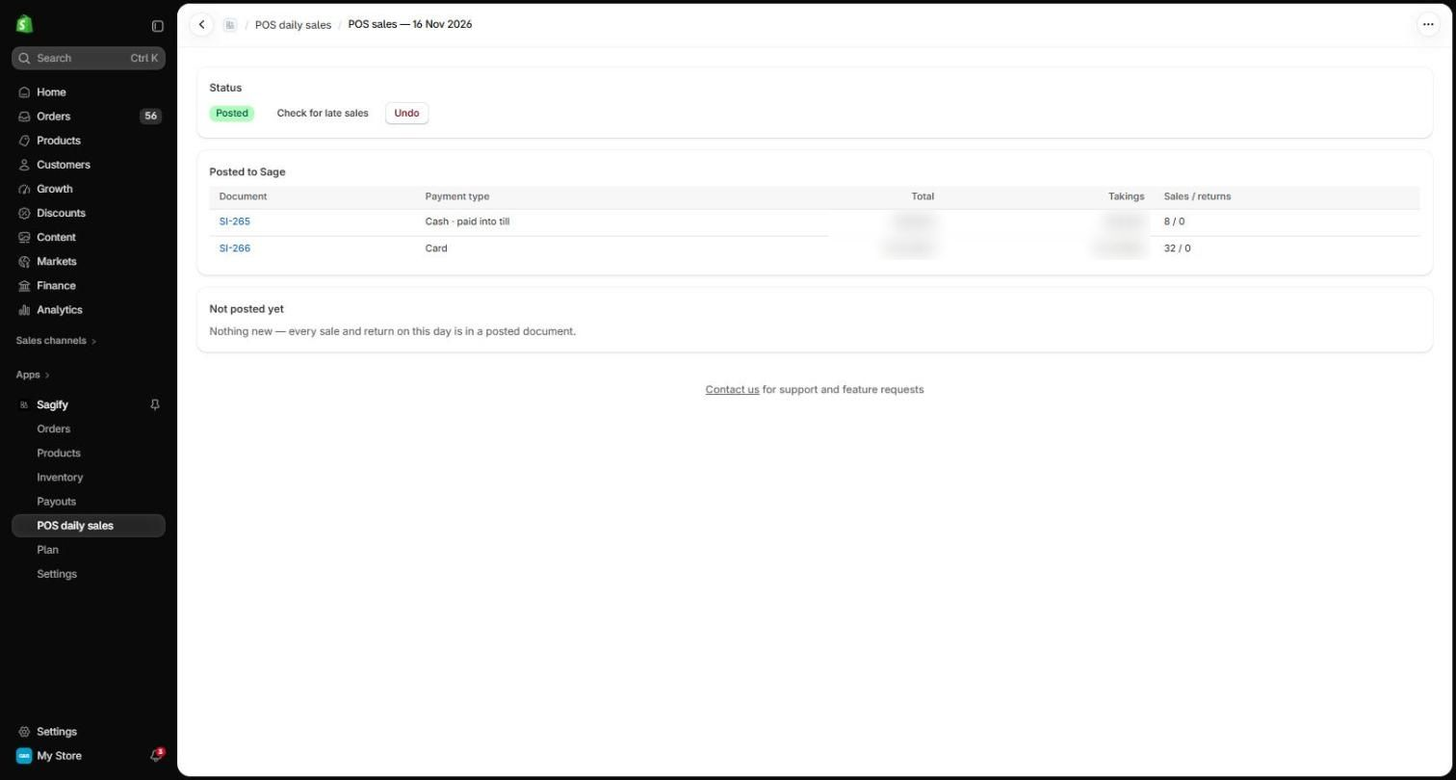
With Sync mode set to Automatic you don't need to click Post: each day posts itself after 2am the next morning. You can still review it here afterwards and Undo it if something needs fixing.
Late sales
Shopify POS keeps working offline and uploads the sales when it reconnects. A sale that arrives after its day was posted goes on a second invoice dated that same day (reference …-CARD-2); the first invoice is never changed. In Automatic mode the last three days are re-checked for late sales; manually, use Check for late sales on a posted day.
Returns
A return made in the shop is netted into the invoice for the day it was made, as a negative line at the same VAT rate as the sale: the cash invoice if the money went back in cash, the card invoice if it went back to the card. It never posts as a separate credit note, so it can't be counted twice. A return of a sale from before you switched the summary on is left out (and listed under Left out) unless you posted that sale's day yourself: otherwise it would take money off a sale that isn't in your books.
Card payments and Shopify payouts
How the card invoice gets paid depends on how you take cards:
- Your own card terminal (a custom payment method in Shopify POS): the money settles from your card processor straight into your bank. The card invoice stays open; match the processor's deposits against it in Sage, as you would by hand.
- Shopify Payments (Tap to Pay or a Shopify card reader): the money comes in through your Shopify payouts. When you process a payout on the Payouts page, Sagify pays the day's card invoice from it, adding up all of that day's card sales in the payout.
Undo a day
Undo voids the day's invoices in Sage (and the till receipt on the cash invoice) and frees its sales so you can post the day again, for example after fixing an account. A card invoice that a Shopify payout has already paid can't be undone until you undo that payout.
Note
With POS daily sales on, a POS order on the Orders page reads Skipped with the note In-store sale — posts in the POS daily sales summary for its day. That's expected. A POS order that was invoiced on its own before you switched the summary on keeps its own invoice and is left out of the day.