Create Shopify products from Sage 50 items
Turn Sage 50 items that are not in Shopify yet into draft Shopify products, then push their stock.
When you add a new item in Sage 50, Sagify can create the matching product in Shopify for you. Each item becomes a draft product with one variant whose SKU is the Sage 50 part code, ready for your Shopify team to add photos and a description before publishing it.
Note
Create in Shopify needs Inventory Sync to be turned on, and Sagify's Shopify app needs permission to write products. If Shopify asks you to approve it, reconnect the store under File → Manage Stores.
The rules
- Products are always created as Draft, so nothing appears on your storefront until you publish it.
- The price comes from a Sage 50 price list (Regular by default), and you can change it before creating the product.
- If a product with the same SKU already exists in Shopify, Sagify links to it instead of creating a duplicate.
- Sagify never changes a product after creating it. Quantities are sent separately, with a normal Inventory Sync push.
- Service items and inactive items can't be created in Shopify.
Settings
Under Settings → Inventory → Create in Shopify:
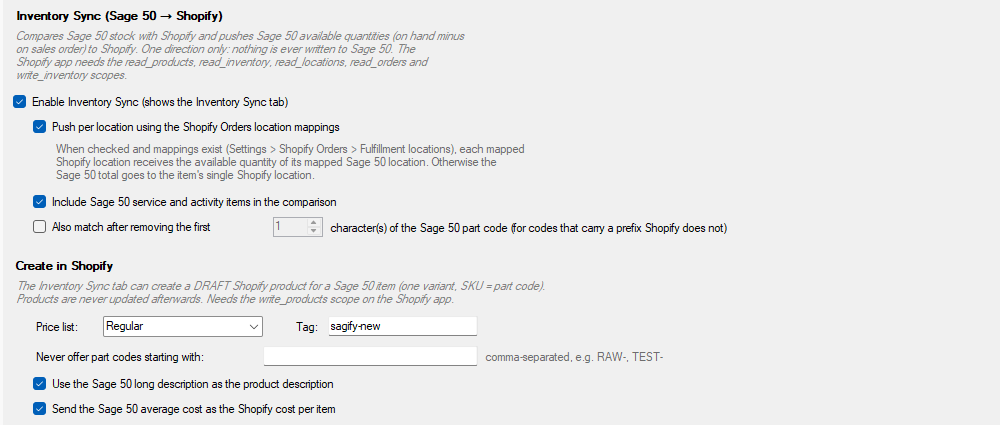
- Price list: the Sage 50 price list used for the Shopify price.
- Tag: added to every product Sagify creates (sagify-new by default), so you can find them in Shopify.
- Never offer part codes starting with: hide items whose part code starts with one of these prefixes (for example
RAW-, TEST-). - Use the Sage 50 long description as the product description and Send the Sage 50 average cost as the Shopify cost per item.
Create products
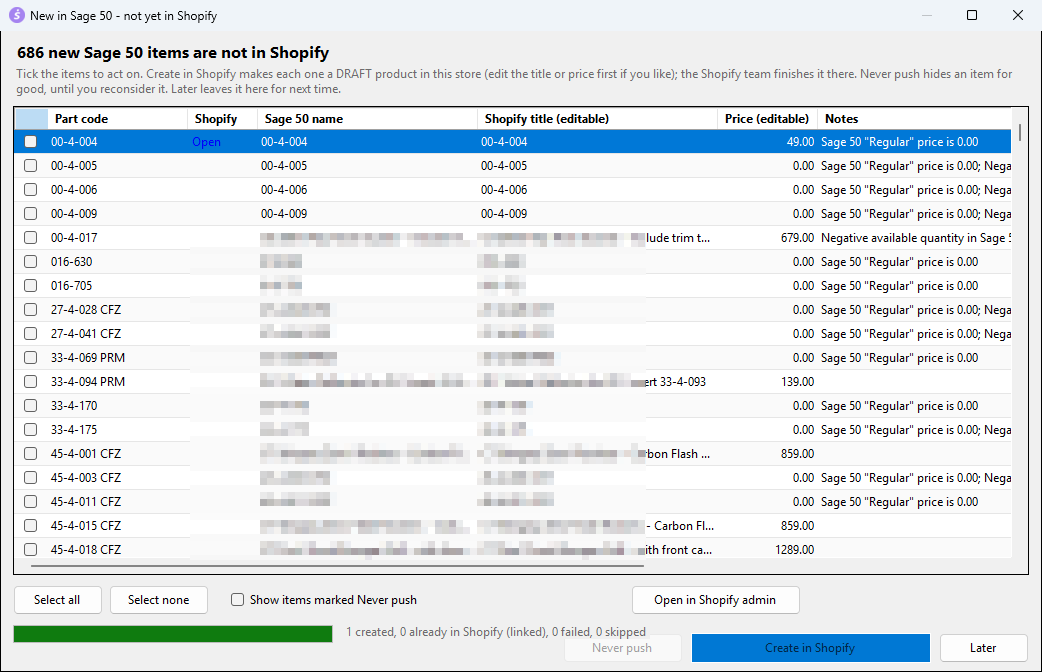
- On the Inventory Sync tab, click New in Sage 50 (…). The number is how many Sage 50 items are not in Shopify yet.
- Review the list. The Notes column warns you about items that need attention, for example a price of 0.00 or a negative quantity.
- If needed, change the Shopify title or the Price: both columns can be edited.
- Tick the items to create and click Create in Shopify (…).
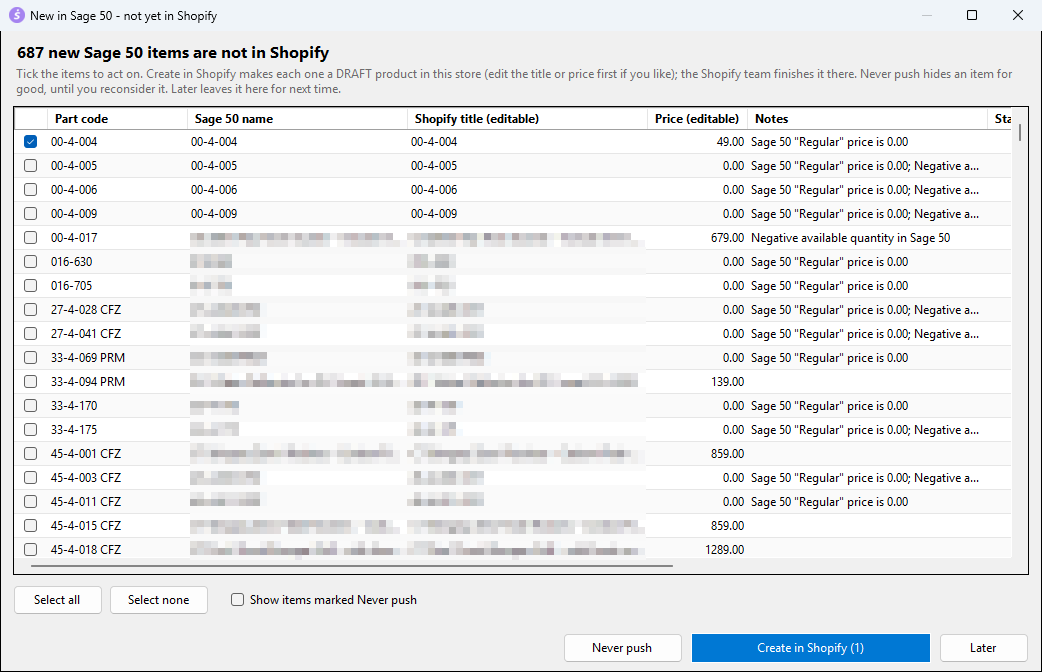
The other buttons:
- Never push: hides the ticked items for good (tick Show items marked Never push to see them again).
- Later: closes the window and keeps the items for next time.
Tip
The first time you open this window with many items (25 or more), Sagify offers to set the existing ones aside so that only items added from now on are offered.
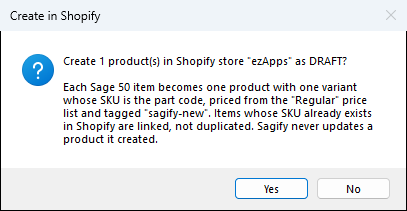
- Confirm. Sagify reminds you that products are created as drafts and that existing SKUs are linked, not duplicated.
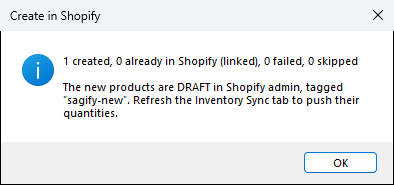
- Sagify shows how many products were created, linked, failed or skipped, and the Result column of each item is updated.
The new product in Shopify
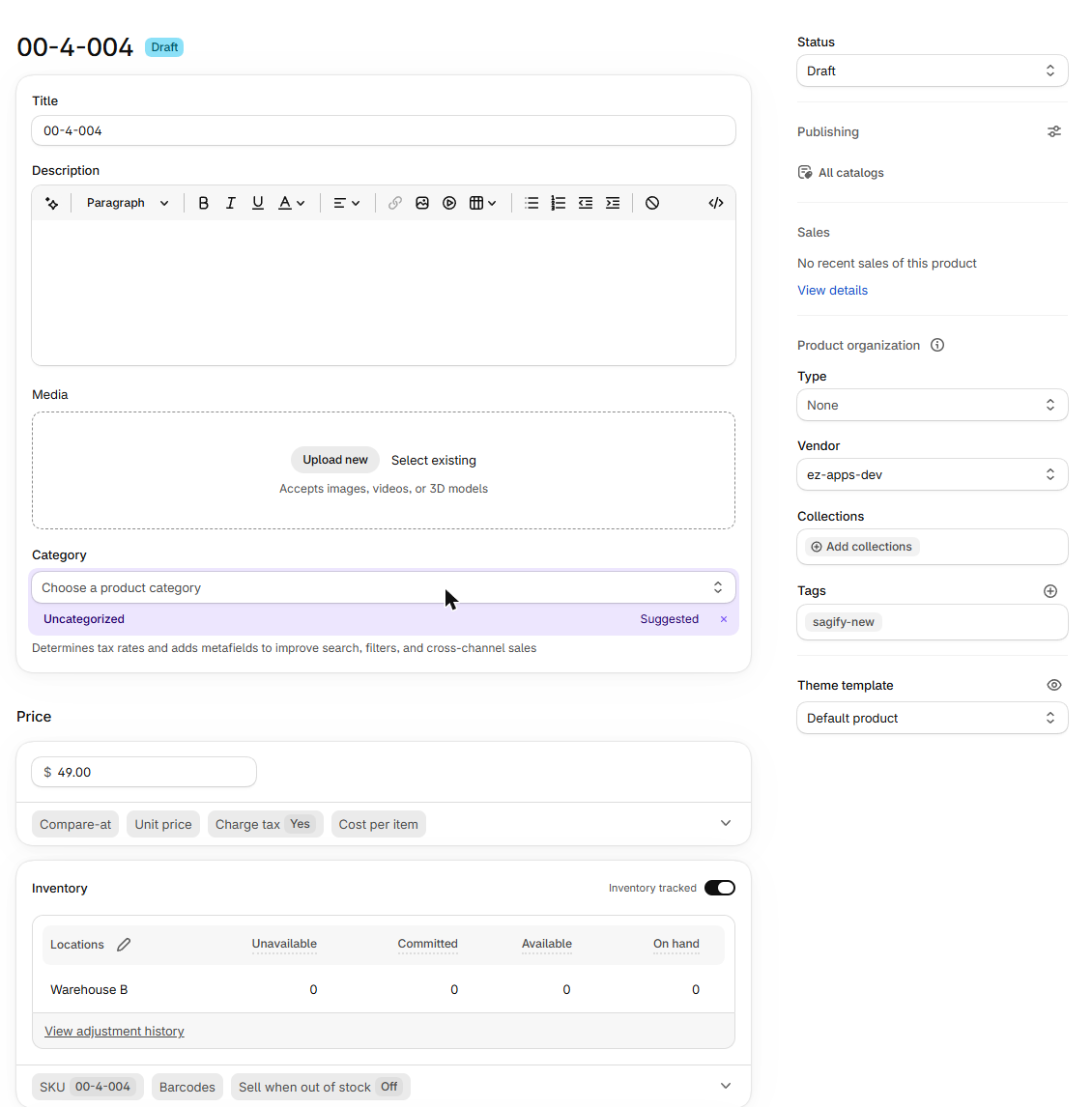
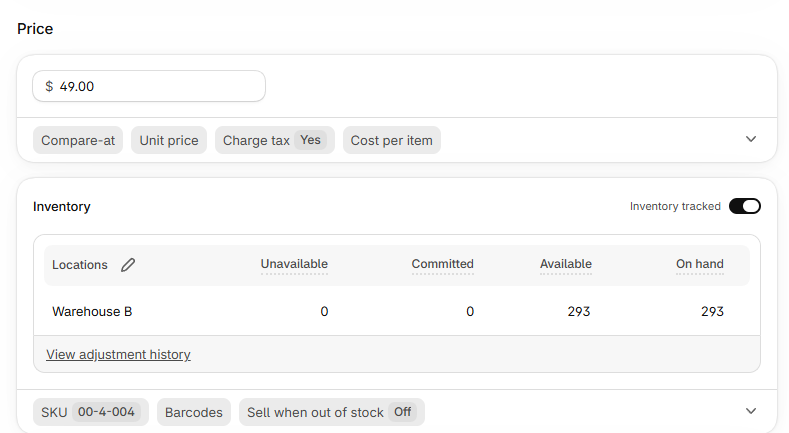
Your Shopify team can now add photos, a description and a product type, then set the product to Active.
Send the stock
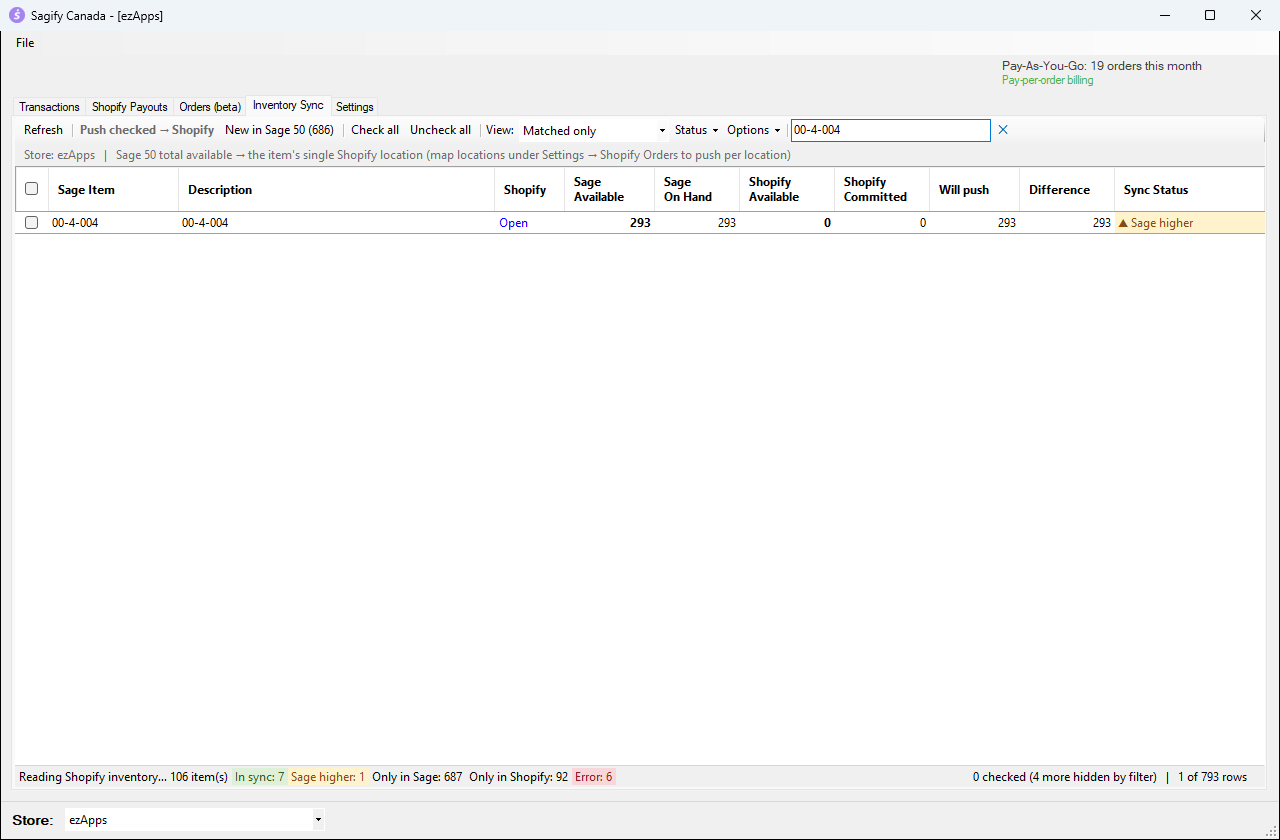
The new product starts with 0 in stock. Back on the Inventory Sync tab, click Refresh: the item is now matched with Shopify and shows Sage higher. Push it like any other item (see Push Sage 50 quantities to Shopify).