Set up Sagify for your orders
Choose how customers are matched, which revenue account to use, how taxes map to Sage 50 tax codes and which accounts new inventory items get.
Before you post your first order, tell Sagify how Shopify sales should land in Sage 50. All of this lives on the Settings tab. Each sub-tab has its own Save button, and Sagify confirms every save.
Tip
The account and customer lists are read from your Sage 50 company file the first time you open the settings, so it can take a few seconds before they fill in.
Shopify Orders
Settings → Shopify Orders controls how individual orders become Sage 50 documents. It applies to the Orders (beta) tab and to the Transactions tab.
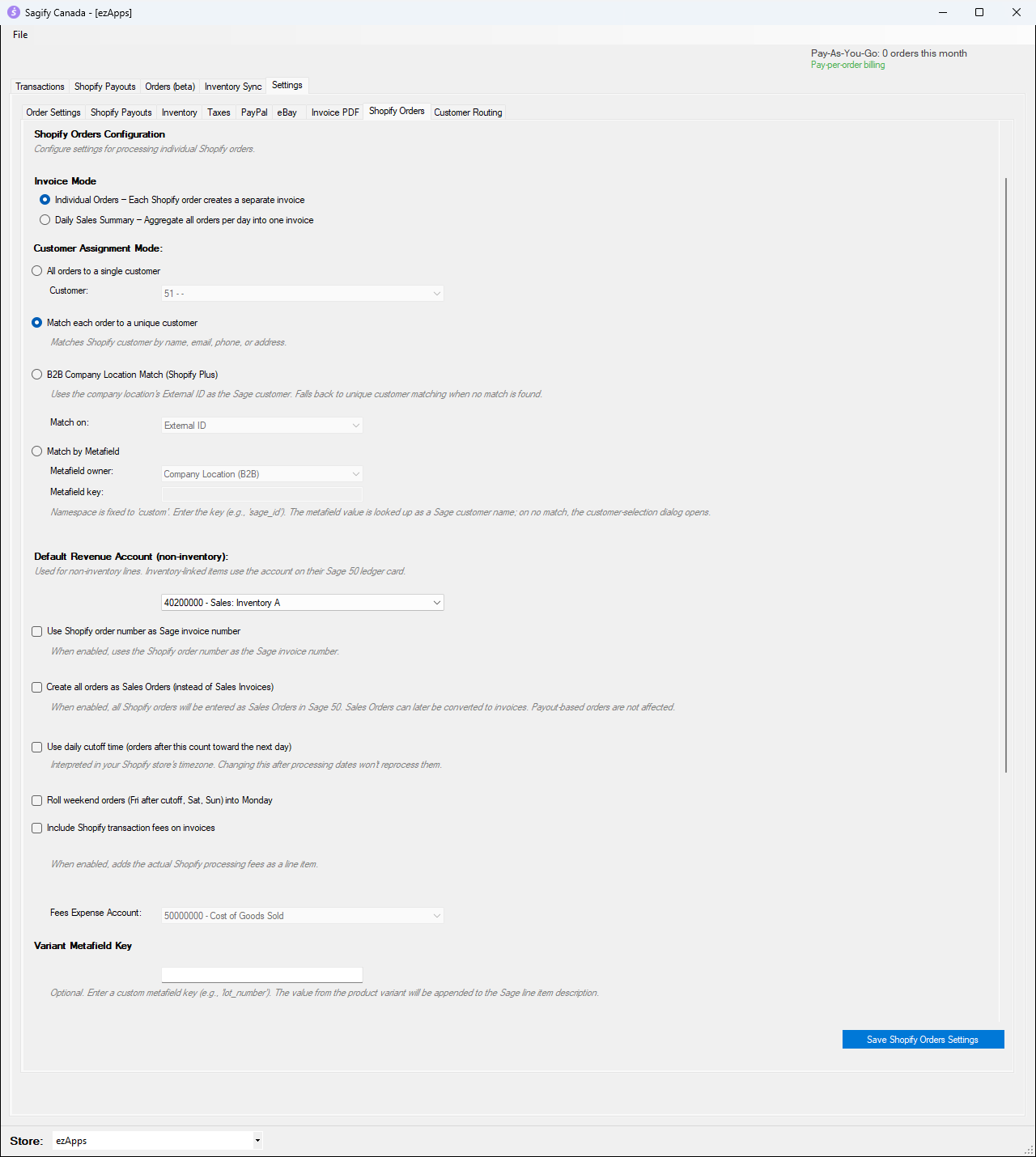
Invoice Mode
- Individual Orders: each Shopify order creates its own Sage 50 invoice.
- Daily Sales Summary: all the orders of a day go on one invoice. See Daily sales summaries.
Customer Assignment Mode decides which Sage 50 customer each invoice is for:
- All orders to a single customer: every invoice goes to the customer you pick, for example an "Online Sales" customer. Simple, and keeps your customer list short.
- Match each order to a unique customer: Sagify looks for the Shopify customer in Sage 50 by name, email, phone or address. If it can't find one, it asks you to pick an existing customer or create a new one (see Import orders from the Orders tab).
- B2B Company Location Match (Shopify Plus): for B2B orders, the company location's External ID (or the location or company name) is used as the Sage 50 customer name. Other orders fall back to unique matching.
- Match by Metafield: a Shopify metafield (namespace
custom) on the company location, company, customer or order holds the Sage 50 customer name.
Default Revenue Account (non-inventory) is used for lines that are not inventory items, such as shipping and fees. Products that are Sage 50 inventory items use the revenue account on their own Sage 50 record.
Warning
Choose an account you can post to. The list also shows heading and total accounts (for example 4000 Sales Revenue in many charts of accounts); choosing one of those makes every invoice fail with Invalid revenue account.
The other options:
- Use Shopify order number as Sage invoice number: the Sage 50 invoice gets the Shopify order number instead of the next number in Sage 50.
- Create all orders as Sales Orders (instead of Sales Invoices): see Invoices or sales orders?.
- Include Shopify transaction fees on invoices: adds the actual Shopify processing fee as a line, posted to the Fees Expense Account.
- Variant Metafield Key: adds the value of a variant metafield (for example a lot number) to the line description in Sage 50.
- Product Type Revenue Routing (further down): sends revenue to a different account for each Shopify product type.
Click Save Shopify Orders Settings when you are done.
Taxes
Settings → Taxes links Shopify's taxes to your Sage 50 tax accounts and tax codes.
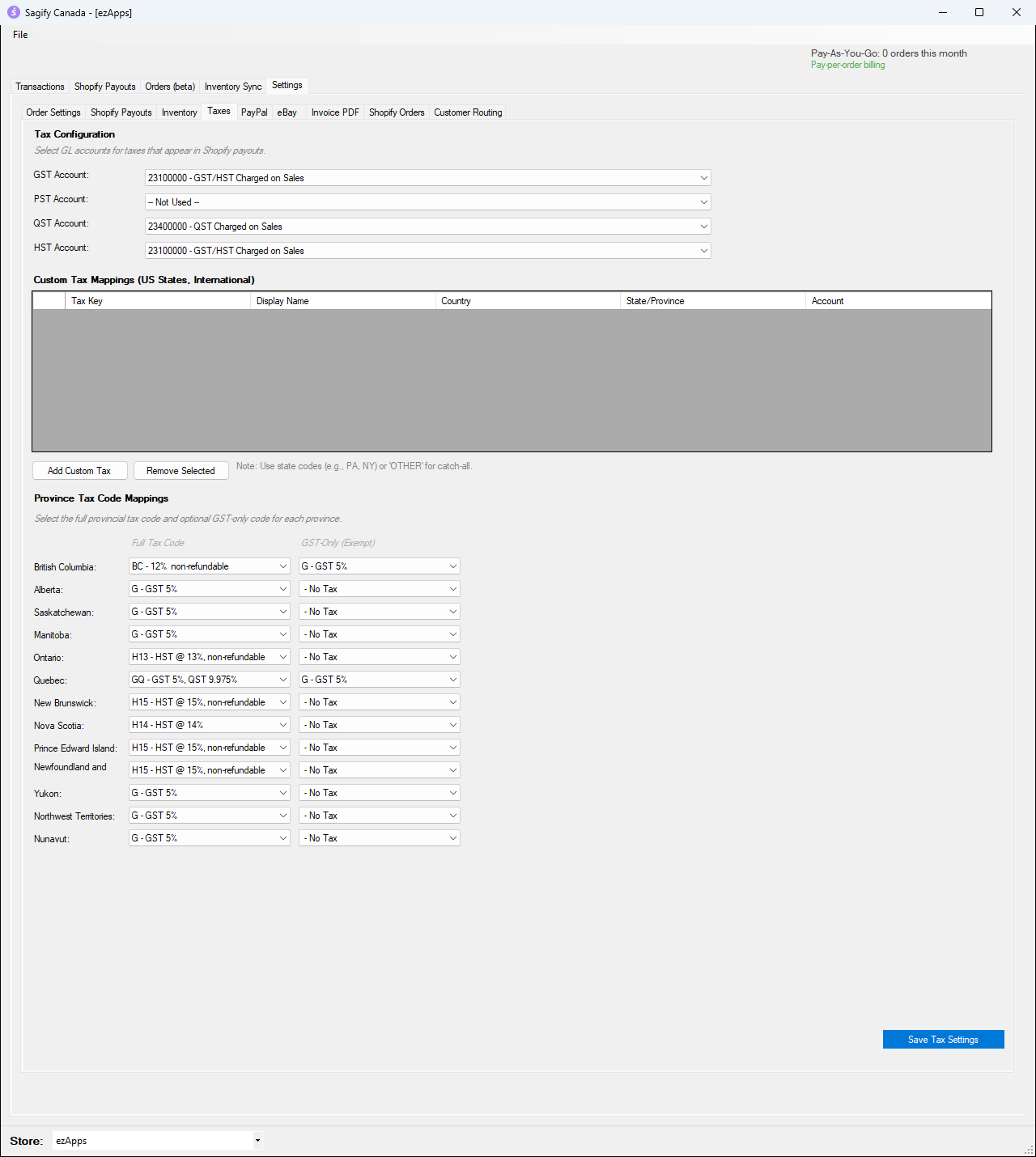
- GST, PST, QST and HST Account: the liability accounts Sagify uses for tax amounts.
- Province Tax Code Mappings: for each province, the Sage 50 tax code to put on invoice lines (for example H13 for Ontario, GQ for Quebec, G for Alberta). The GST-Only (Exempt) column is the code to use when Shopify charged only GST, for example when you are not registered for the provincial tax or the product is exempt from it.
- Custom Tax Mappings (US States, International): if you sell outside Canada, add one row per state code (for example NY) or a single OTHER row for everything else. Without a mapping, Sagify still balances the invoice but puts the tax on the revenue account and warns you in the log (see Troubleshooting).
Click Save Tax Settings.
Inventory (accounts for new items)
When an order contains a SKU that does not exist in Sage 50, Sagify can create the item for you. Settings → Inventory sets the default accounts for those new items: Asset, Revenue, Expense and Variance.
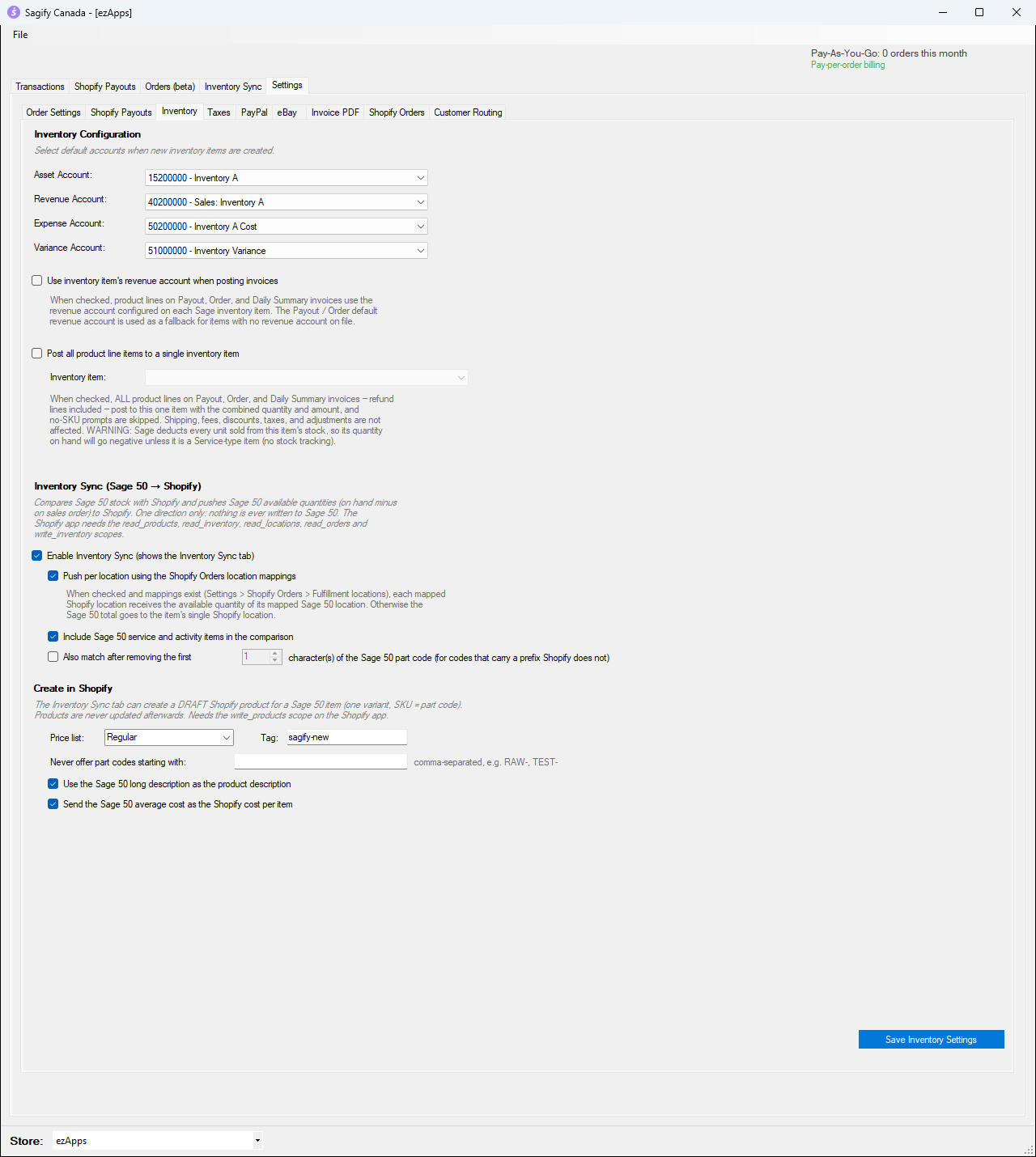
- Use inventory item's revenue account when posting invoices: product lines use the revenue account on each Sage 50 item instead of the default revenue account.
- Post all product line items to a single inventory item: every product line goes to one item you choose. Useful when you don't track Shopify products individually in Sage 50.
The lower half of this page is for Inventory Sync.
Order Settings (discounts and document language)
Settings → Order Settings controls discounts. With Show discounts as separate line item (uses original prices), products are posted at their regular price and the discount goes on its own line, either a default Discount line posted to the Discount GL Account, or a Sage 50 product you choose. Discounts on the whole cart are always posted on their own line. Pick a discount account (for example a sales discounts account) before you save.
The same page holds Customer Documents → Document language: the language of the invoice PDF and of the line names and comments Sagify writes into Sage 50 invoices for this store (Shipping, Order Discounts, Adjustment and so on). Choose Same as the Sagify language, Français, English or Bilingual (French and English on the PDF, French in Sage 50).
PayPal
Settings → PayPal is used for orders paid through PayPal, and the Transactions tab needs it in All Orders mode: the payment method, customer, deposit account and revenue account for Canadian PayPal orders, and optionally separate accounts for US orders.
Customer Routing (optional)
Settings → Customer Routing sends orders to specific Sage 50 customers, departments and locations based on Shopify tags (by location, salesperson or distributor). Leave it off if you don't need it.