Daily sales summaries
Roll up each day's Shopify orders into a single Sage 50 invoice with one line per SKU.
With daily sales summaries, Sagify rolls up all the Shopify orders of a day into one Sage 50 invoice, with one line per SKU. Your Sage 50 customer list and sales journal stay short, and each day can be checked against Shopify's daily sales report.
Turn on daily summaries
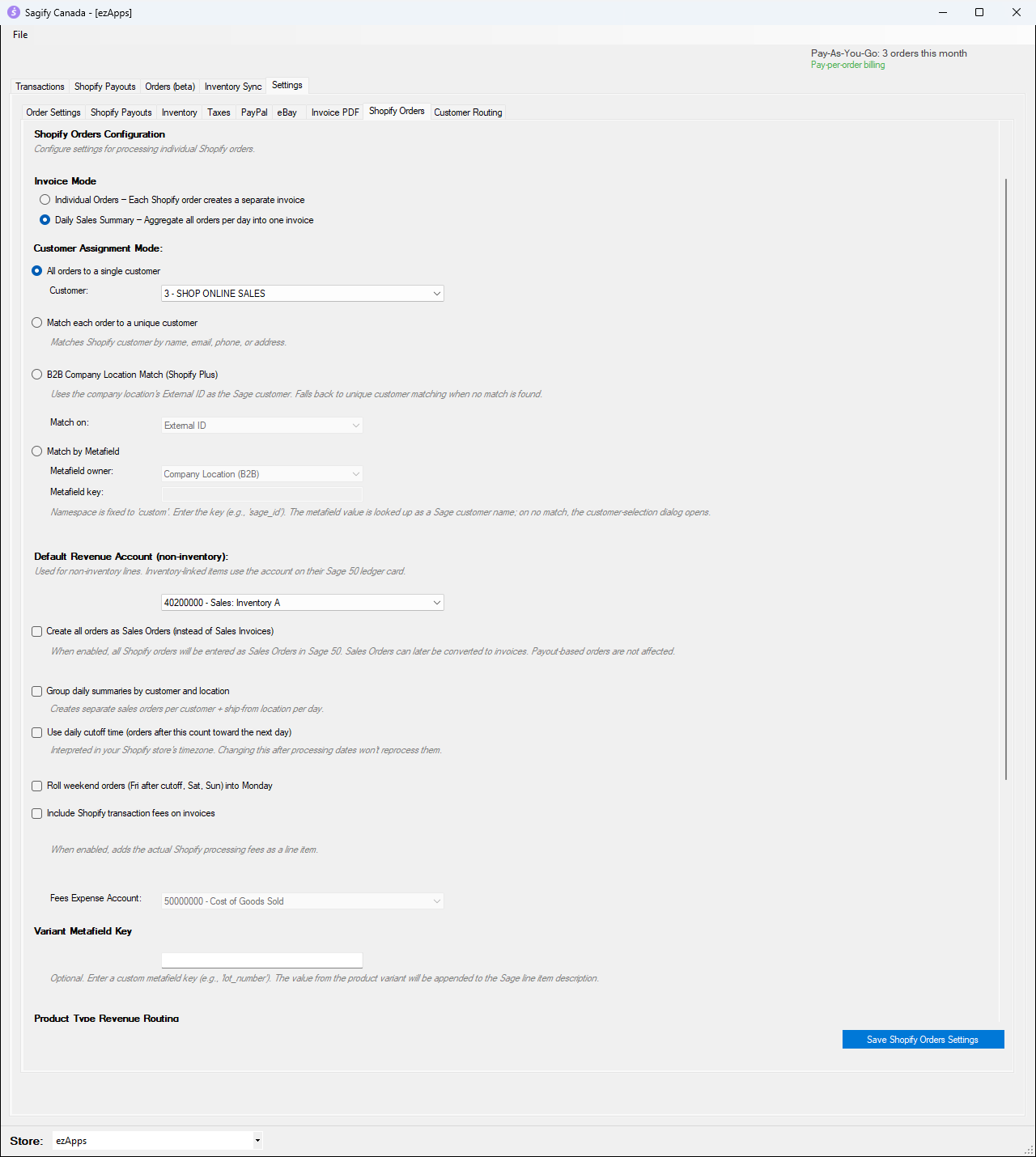
- Go to Settings → Shopify Orders.
- Under Invoice Mode, choose Daily Sales Summary – Aggregate all orders per day into one invoice.
- Under Customer Assignment Mode, choose All orders to a single customer and pick the Sage 50 customer the summaries should go to (for example an "Online Sales" customer).
- Click Save Shopify Orders Settings.
Note
If you keep Match each order to a unique customer, Sagify creates one summary per customer per day instead of one per day.
The options that appear in this mode:
- Group daily summaries by customer and location: creates a separate summary for each customer and ship-from location of the day, using the Fulfillment Location Mappings that appear underneath.
- Use daily cutoff time: orders placed after this time (in your Shopify store's time zone) count toward the next day, to match a store that closes its day before midnight.
- Roll weekend orders (Fri after cutoff, Sat, Sun) into Monday: weekend sales go on Monday's summary.
The Orders tab in summary mode
The Orders (beta) tab now lists days instead of orders: the number of orders, the total sales, the status and the Sage 50 document number of each day.
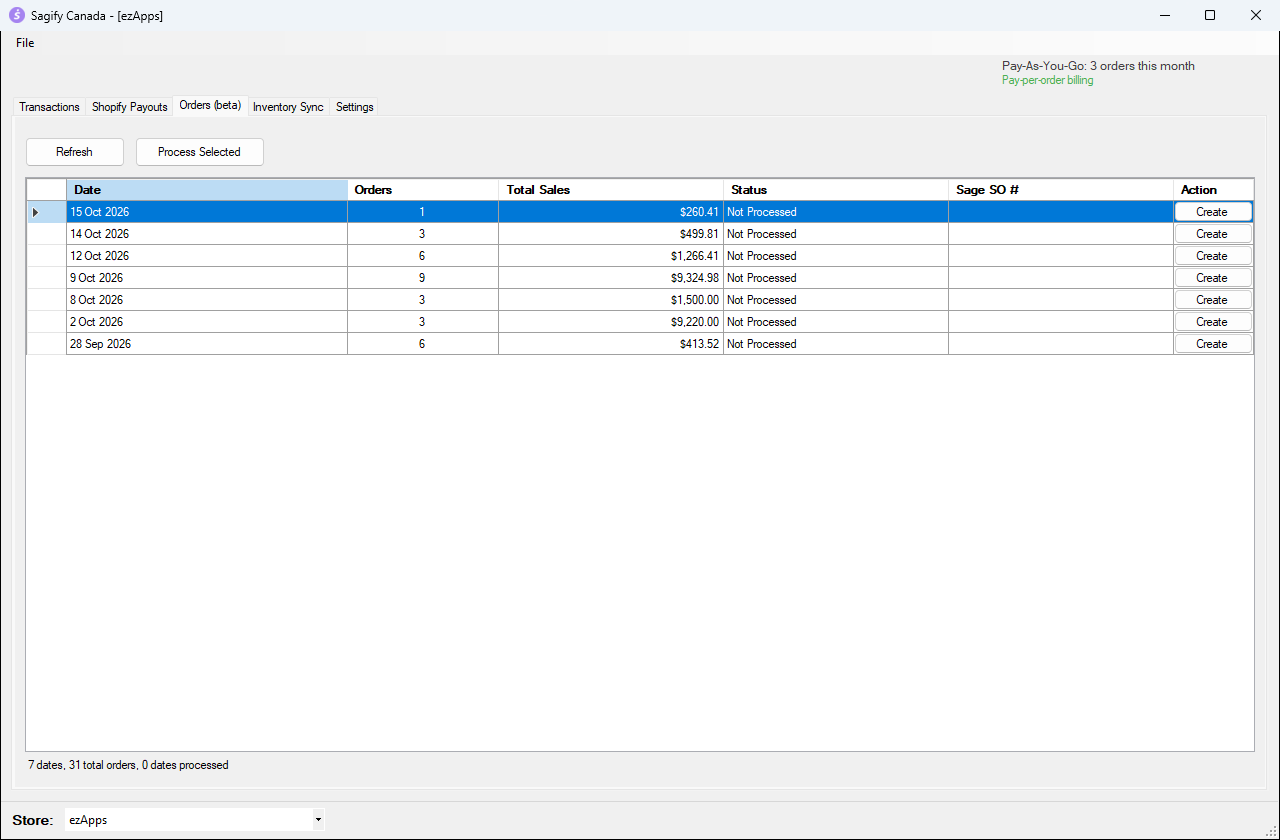
Today never appears in the list: a day can only be summarized once it is complete (after the cutoff time, if you use one).
Preview a day
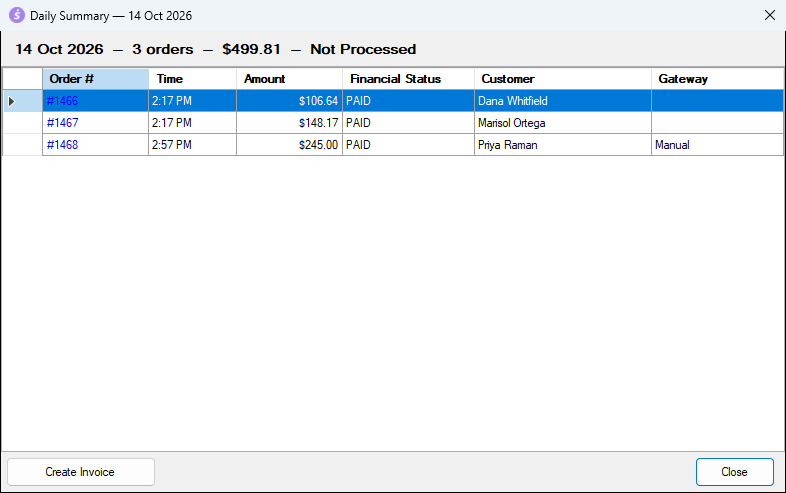
Double-click a day to see the orders it contains before you post it:
Create the summary invoice
Click Create Invoice in the details window, click Create on the day's row, or select several days and click Process Selected.
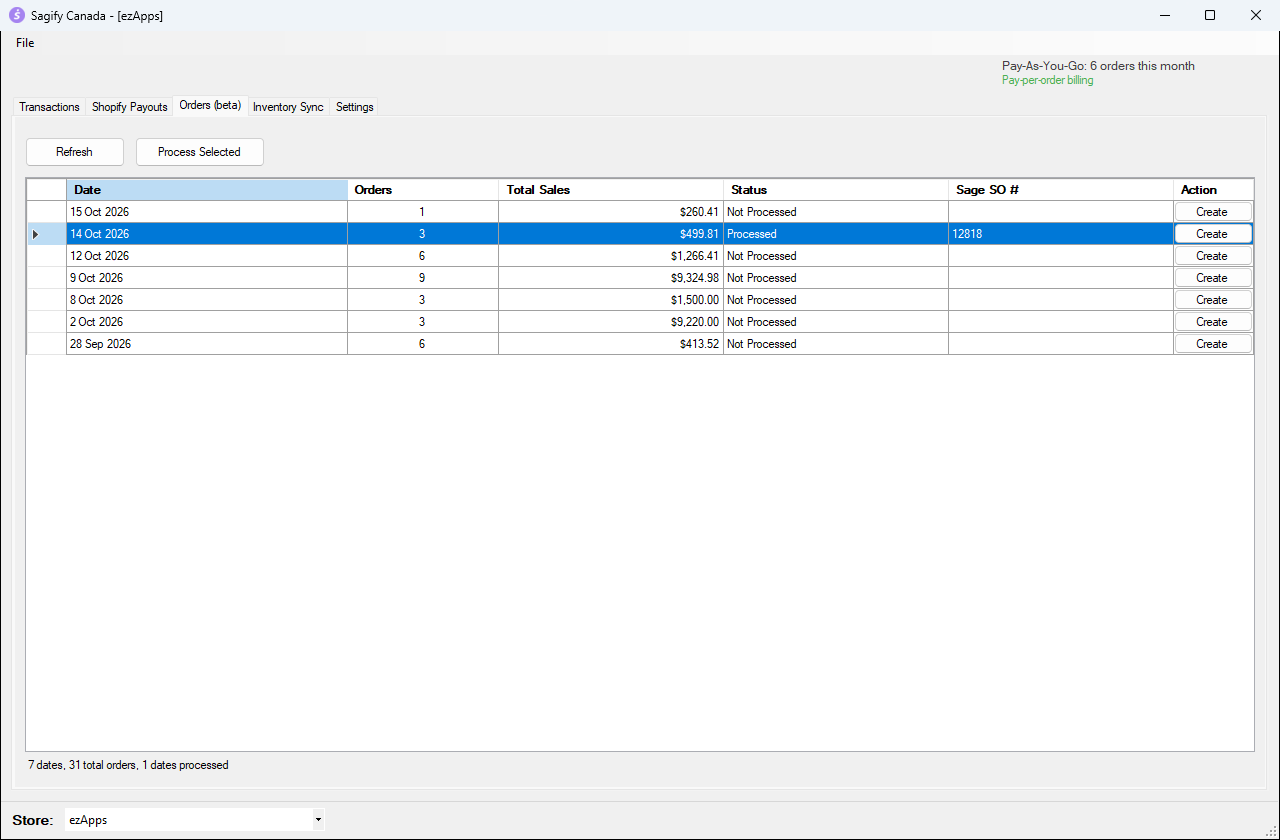
Sagify asks the same questions as for individual orders when it meets a SKU that is not in Sage 50 (see Import orders from the Orders tab). When it is done, the day shows Processed and its Sage 50 document number.
The summary in Sage 50
Find the invoice the same way as any other (Customers & Sales → Sales Invoices → Invoice → Find Invoice).
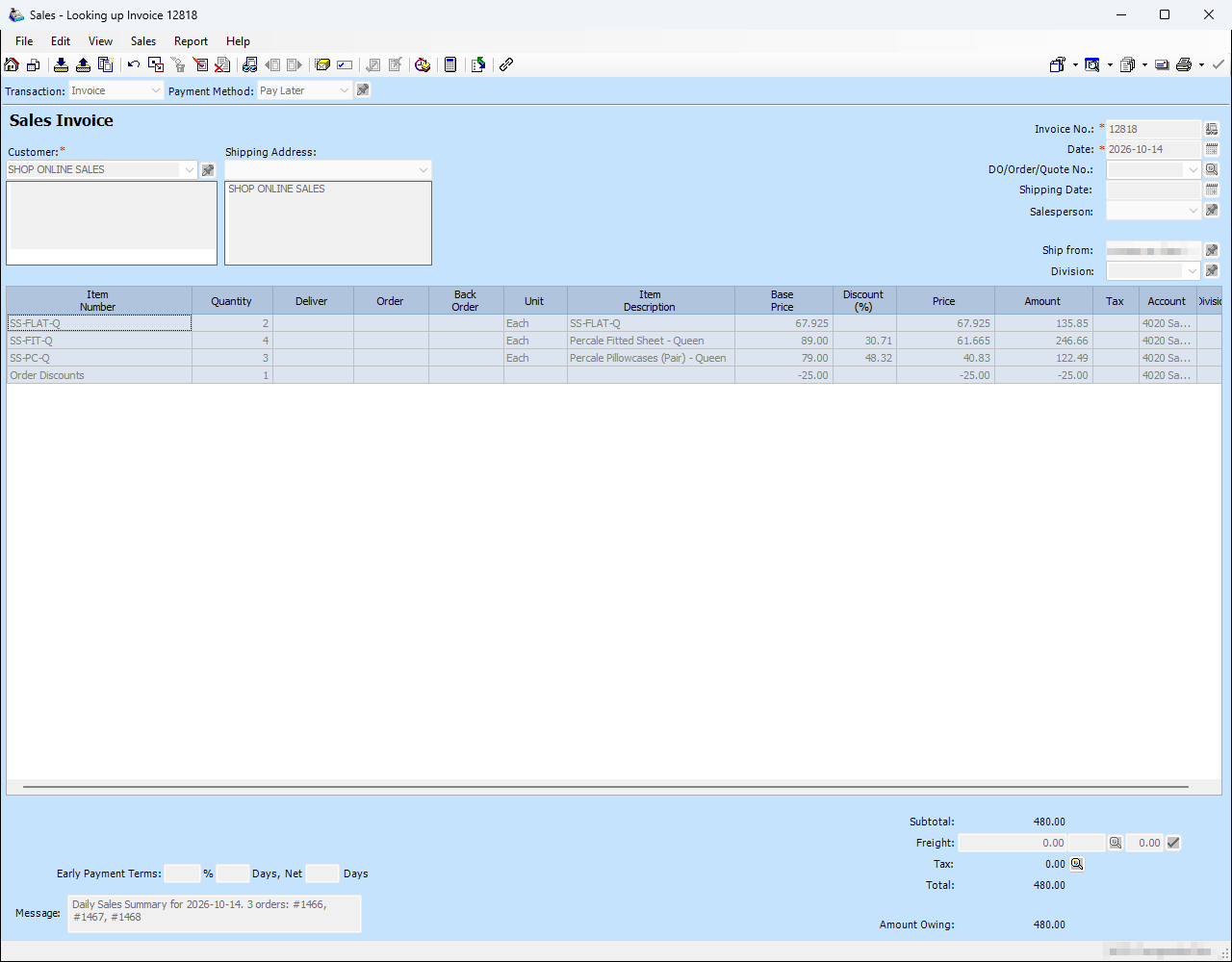
- The invoice is dated the day it summarizes and is for the customer chosen in the settings.
- Each SKU appears once with the total quantity sold that day. When the day's average selling price is below the item's price in Sage 50, the difference shows in the Discount column.
- Cart discounts are on an Order Discounts line and shipping is on a Shipping line.
- The Message lists the orders included, for example Daily Sales Summary for 2026-10-14. 3 orders: #1466, #1467, #1468.
- If you skip a SKU that is not in Sage 50, its sales go together on a Revenue (Unmatched SKU) line.
Warning
Taxes from outside Canada (US state taxes, for example) need a Custom Tax Mapping under Settings → Taxes. Without one, Sagify leaves that tax off the summary and writes No account configured for tax … in the log, so the summary total is lower than Shopify's total for the day.
Redo a day
To post a day again, for example after reversing its invoice in Sage 50, double-click the day and click Mark as Unprocessed, then create it again.