Shopify payouts
Turn each Shopify Payments payout into one paid Sage 50 invoice that matches the bank deposit to the cent.
If you use Shopify Payments, Shopify pays you in payouts: one bank deposit that covers many orders, minus Shopify's fees, refunds and adjustments. Sagify turns each payout into one paid Sage 50 sales invoice whose total is exactly the amount deposited in your bank account. Reconciling your bank in Sage 50 then becomes a one-to-one match.
What a payout invoice contains
- One line per SKU sold in the payout (or a single revenue line, if you prefer).
- Shipping, taxes and discounts collected on those orders.
- Refunds and adjustments taken out of the payout.
- Shopify's fees, as a negative line on your Shopify Fees expense account.
- If needed, a small Reconciliation Adjustment line so the total matches Shopify's payout amount to the cent.
The invoice is marked as paid (payment method Cash) and deposited to the bank account you choose, on the payout date.
Set up payouts
Go to Settings → Shopify Payouts.
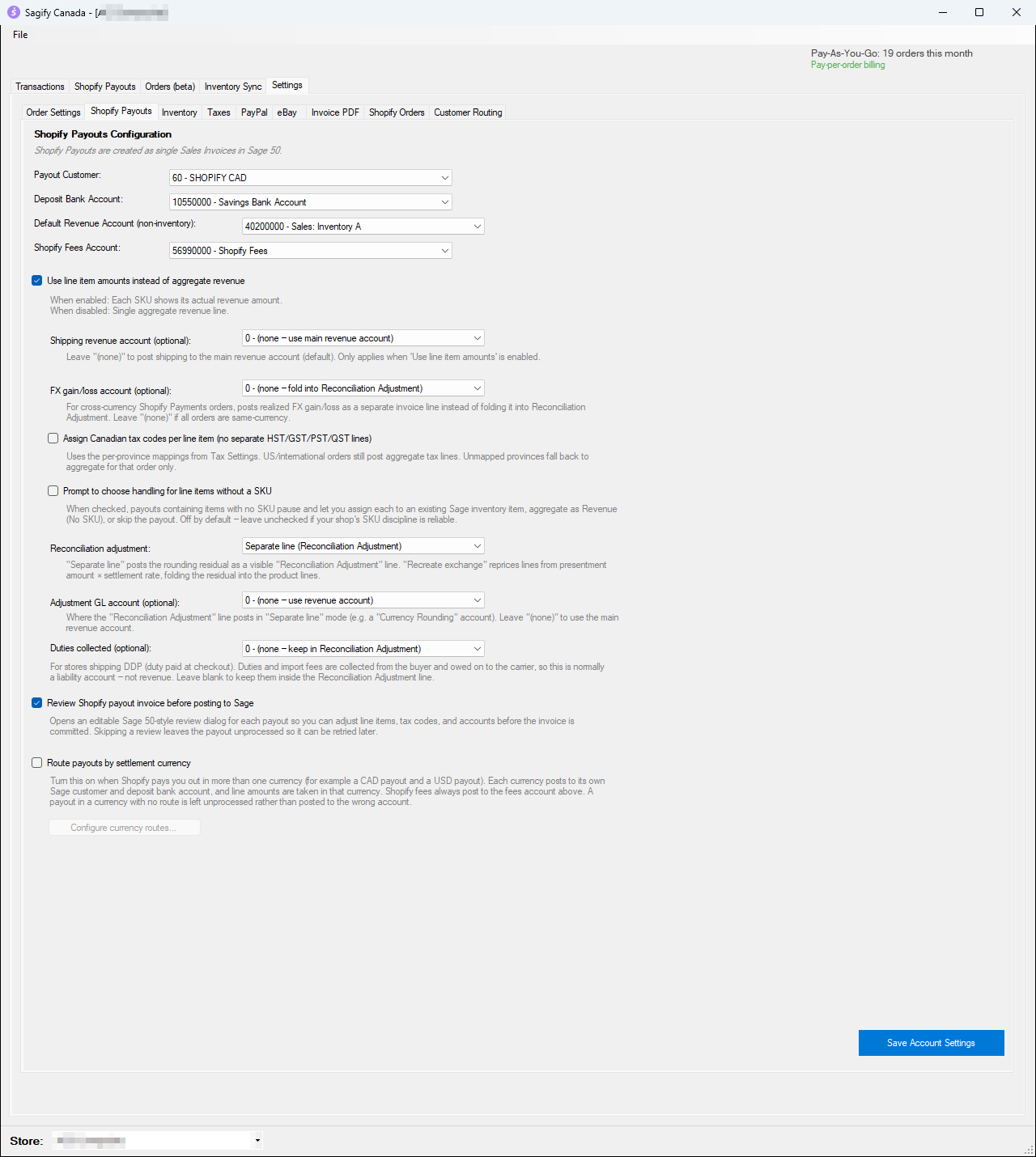
- Payout Customer: the Sage 50 customer the payout invoices are for, for example a "Shopify" customer.
- Deposit Bank Account: the bank account Shopify pays into.
- Default Revenue Account (non-inventory): for lines that are not inventory items.
- Shopify Fees Account: the expense account for Shopify's fees.
- Use line item amounts instead of aggregate revenue: show each SKU with its own revenue (recommended) instead of one revenue line.
- Shipping revenue account, FX gain/loss account, Adjustment GL account and Duties collected: optional accounts for shipping, currency differences, rounding and duties. Leave them on (none) to keep the defaults.
- Assign Canadian tax codes per line item: puts the province's Sage 50 tax code on each line instead of separate GST/HST/PST/QST lines.
- Prompt to choose handling for line items without a SKU: lets you decide what to do with products that have no SKU.
- Review Shopify payout invoice before posting to Sage: shows you each invoice before it is posted (recommended, and used below).
- Route payouts by settlement currency: if Shopify pays you in more than one currency, sends each currency to its own customer and bank account.
Click Save Account Settings.
Process a payout
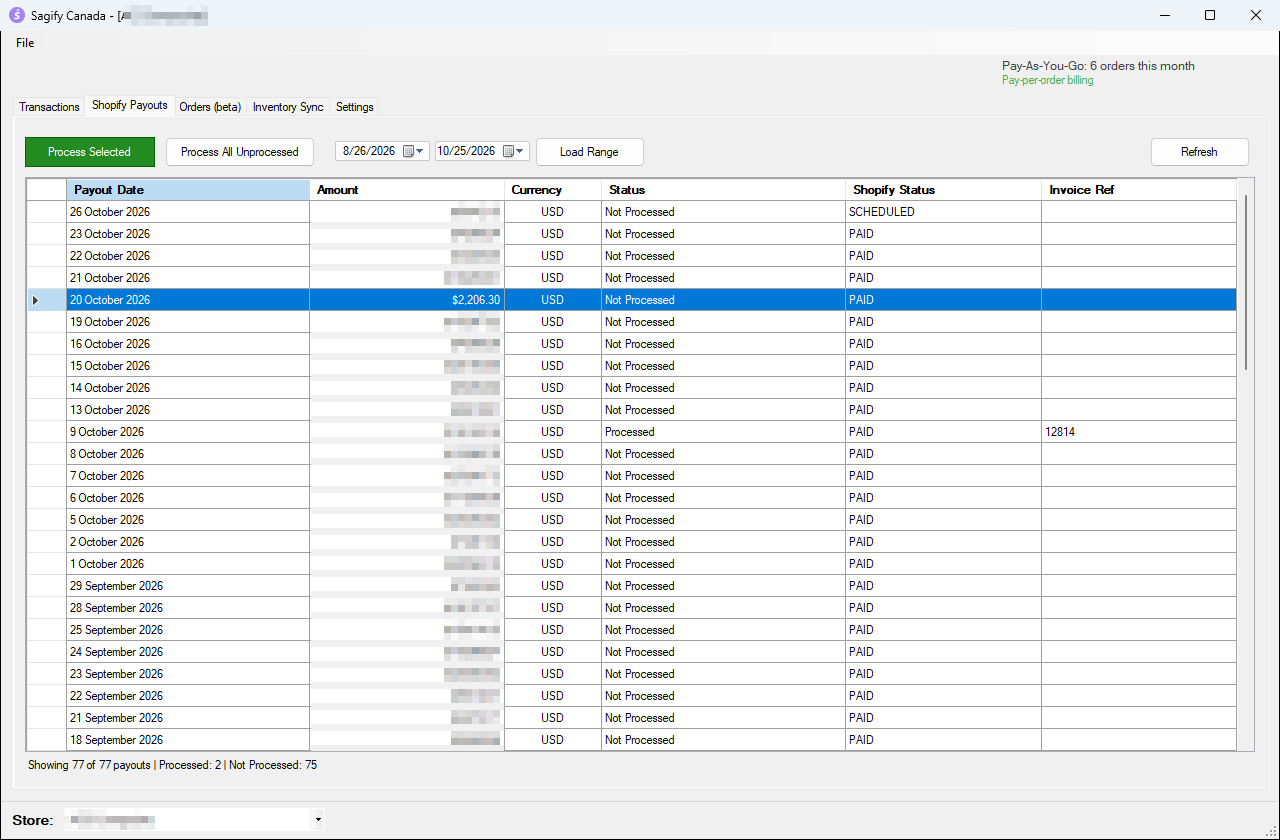
- Open the Shopify Payouts tab. Sagify lists your payouts with their date, amount, currency, Sagify status, Shopify status and, once posted, the Sage 50 Invoice Ref. Change the dates and click Load Range to see older payouts.
- Select the payout to post. Hold Ctrl to select several.
- Click Process Selected. (Process All Unprocessed posts every payout in the list that is not posted yet.)
Note
Only post payouts that Shopify shows as PAID. A SCHEDULED payout can still change before it reaches your bank.
As for orders, Sagify asks what to do when a SKU in the payout is not in Sage 50 (see Import orders from the Orders tab).
Review and post
With the review option on, Sagify shows the invoice before posting it:
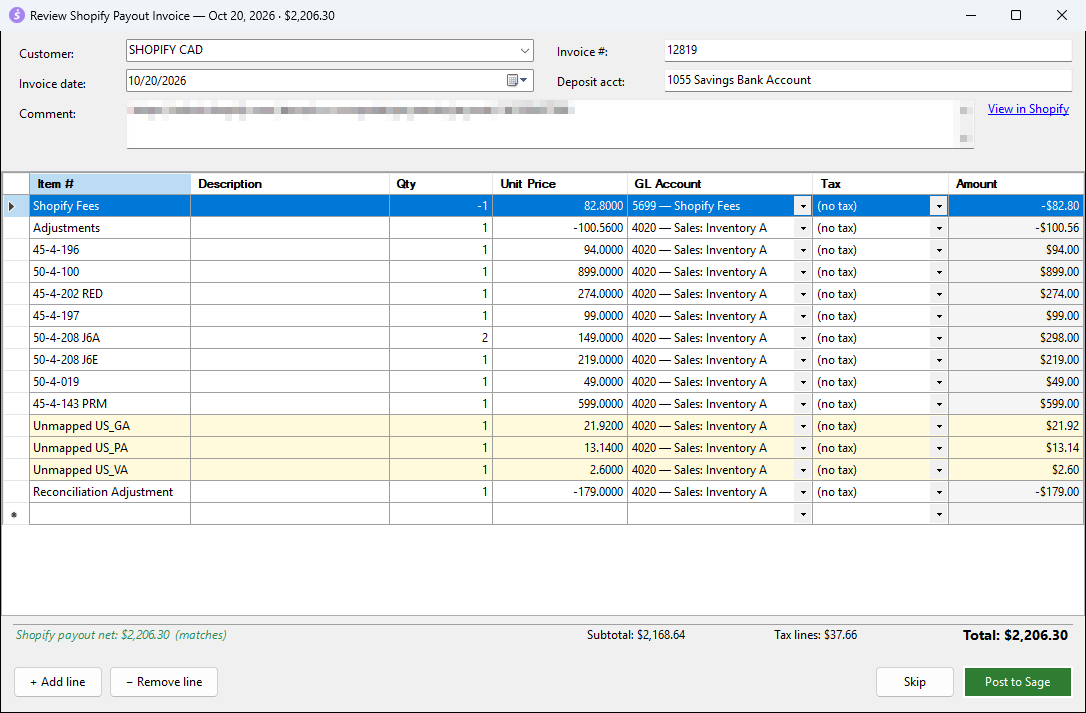
- You can change the customer, invoice number, date, deposit account and comment, and edit, add (+ Add line) or remove (− Remove line) lines, including their account and tax code.
- The footer compares the invoice total with Shopify's payout amount. (matches) means they are equal.
- Lines highlighted in yellow need attention. Unmapped US_GA, for example, is a US state tax with no mapping: it is posted to revenue so the invoice still balances. Add a Custom Tax Mapping under Settings → Taxes to send it to the right account next time.
- Click Post to Sage to post the invoice, or Skip to leave the payout unprocessed for now.
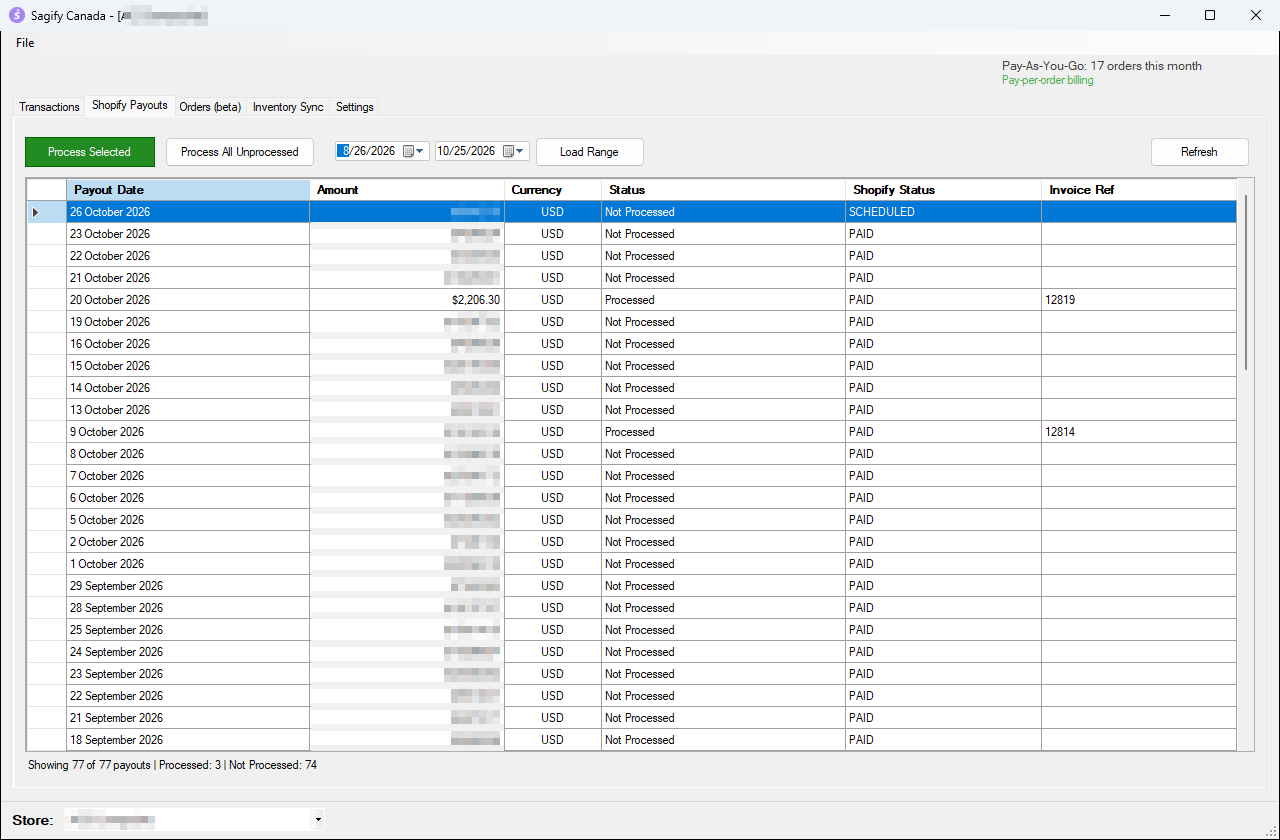
When it is posted, the payout shows Processed and its Invoice Ref:
The payout in Sage 50
Find the invoice with Customers & Sales → Sales Invoices → Invoice → Find Invoice.
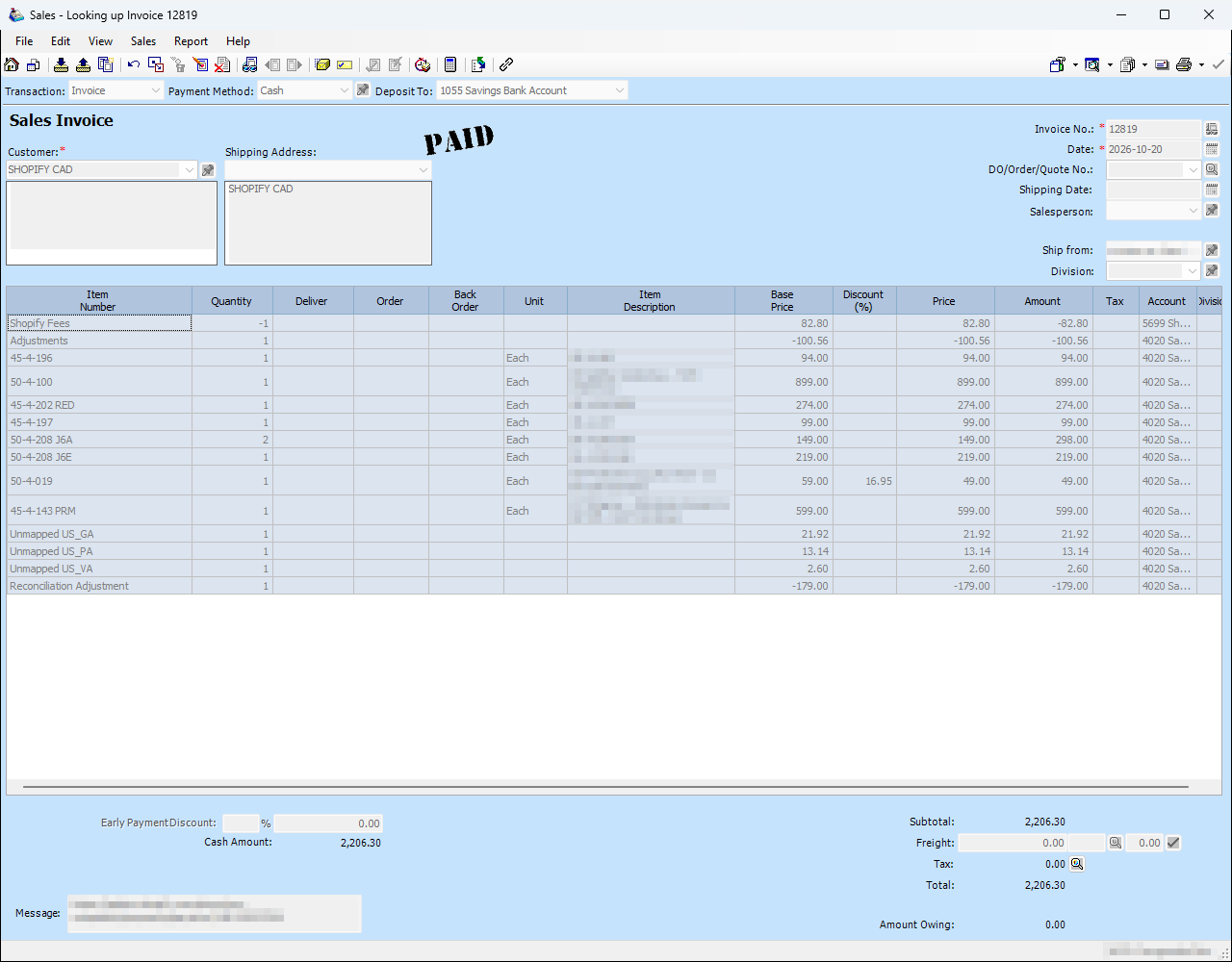
Because the invoice is paid into your bank account, the deposit appears in Sage 50 for the payout amount and matches your bank statement.