Troubleshooting
What the prompts, warnings and errors you may see while syncing mean, and how to fix them.
Most questions Sagify asks while syncing are expected the first time you post an order for a new customer or product. This page explains the messages you may see and what to do about each one.
Tip
Sagify writes everything it does to the Processing Log on the Transactions tab. If you need help, click Save Log and send the file to ezApps support.
Sagify can't open the company file
If Sage 50 is open on the same computer, the company file must be in multi-user mode while Sagify works. In Sage 50, choose File → Switch to Multi-user Mode, then try again in Sagify.
Orders show Failed
When an order can't be posted, nothing is created in Sage 50 for it, and the order shows Failed in the Sage Invoice # and Action columns.
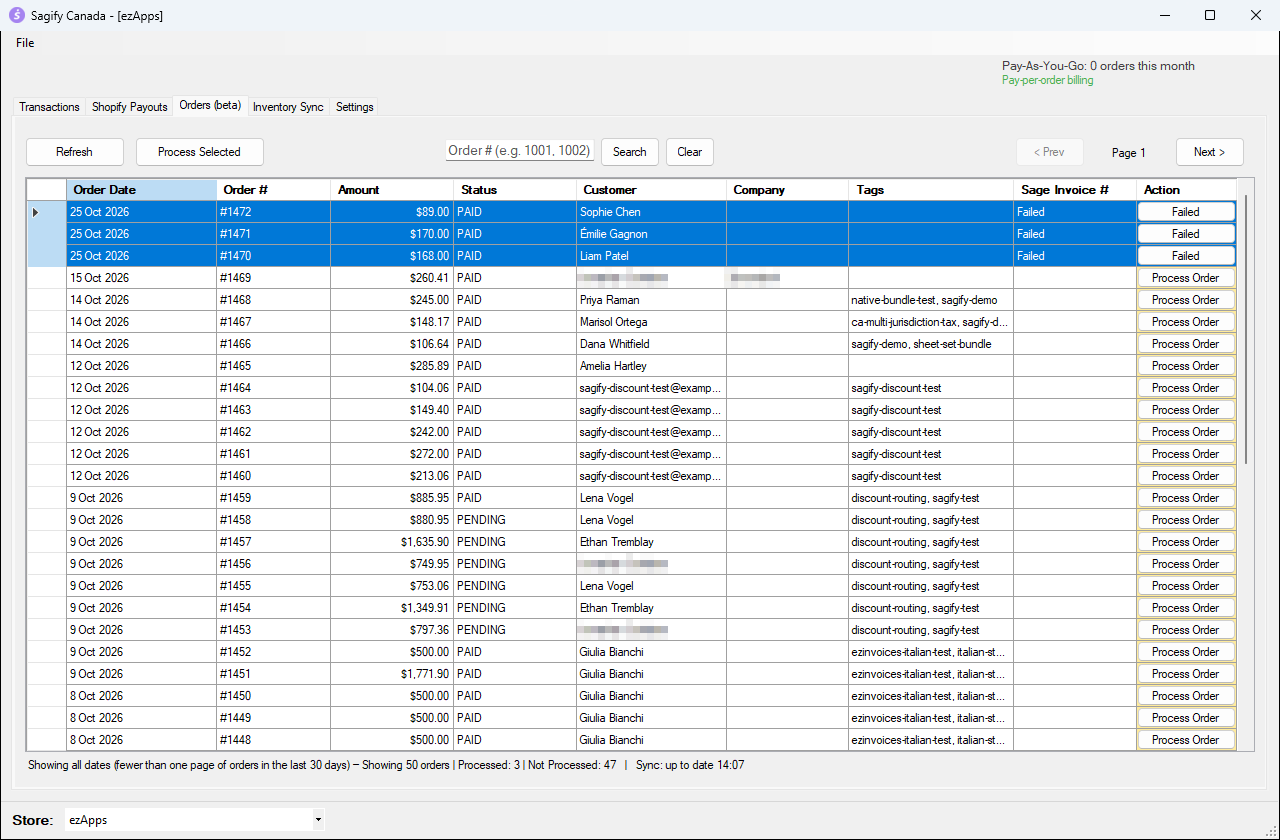
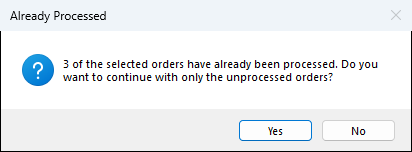
Sagify shows the reason when it happens (and in the log). Fix the cause, then select the orders and process them again: Sagify asks you to confirm that you want to retry them.
Invalid revenue account
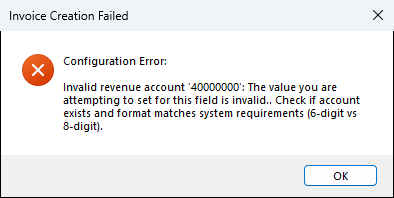
The revenue account chosen under Settings → Shopify Orders (or Settings → PayPal) is a heading or total account. Choose an account you can post to, for example 4020 Sales, save, and process the orders again.
Sage 50 asks to confirm the date
"The date entered is beyond … by more than 1 day. Are you sure you want to continue?" comes from Sage 50: the order date is later than the company's session date. Click Yes to post it with the order date, or advance the session date in Sage 50. To have Sagify answer Sage 50's confirmations automatically, turn on File → Silent Mode in Sagify.
Other Sage 50 messages
Sage 50 may show its usual advice while invoices are posted, for example "This customer often pays late" or "Entries just processed caused one or more inventory items to drop below the reorder point". They are information only: click OK and Sagify continues.
A customer or a product is not in Sage 50
These are not errors. Sagify asks you to pick an existing customer or item, or to create a new one. See Answer the first-time prompts.
Tax has no account
Taxes from outside Canada need a Custom Tax Mapping under Settings → Taxes (one row per state code, or one OTHER row). Without one:
- On individual orders, the tax is posted to the revenue account so the invoice still balances, with a warning in the log.
- On payouts, the review window shows a yellow Unmapped … line (for example Unmapped US_GA), posted to revenue.
- On daily summaries, the tax is left off and the log says No account configured for tax ….
Add the mapping, then check the affected invoices in Sage 50.
The total doesn't match Shopify
- Prices that include tax: Sagify adds Adjustment lines so that the Sage 50 total is what the customer paid.
- Payouts: a small Reconciliation Adjustment line covers cent rounding between Shopify and Sage 50. If it is large, review the payout line by line before posting and contact support.
- Daily summaries: check the log for skipped taxes (see above) and the invoice for a Revenue (Unmatched SKU) line.
An order was processed on another computer
When several computers use Sagify with the same ezapps.io account, an order processed on one of them shows as processed on the others, and Sagify skips it with a message. This prevents the same order from being posted twice.