Ways to sync Shopify orders to Sage 50
Compare the four ways Sagify Canada brings Shopify sales into Sage 50: individual orders, daily sales summaries, date ranges and Shopify payouts.
Sagify Canada reads your sales from Shopify and records them in your Sage 50 company file. There are four ways to do it. Most stores pick one main method and keep the others for special cases, and you can switch at any time: Sagify remembers what it has already posted, whichever method you used.
The four methods at a glance
| Method | Where in Sagify | What you get in Sage 50 | Best for |
|---|---|---|---|
| Individual orders | Orders (beta) tab | One sales invoice per Shopify order, for the matching Sage 50 customer | Stores that want every sale, and every customer, in Sage 50 |
| Daily sales summary | Orders (beta) tab, after choosing Daily Sales Summary in the settings | One sales invoice per day, with one line per SKU | Busy stores that only need daily totals by product |
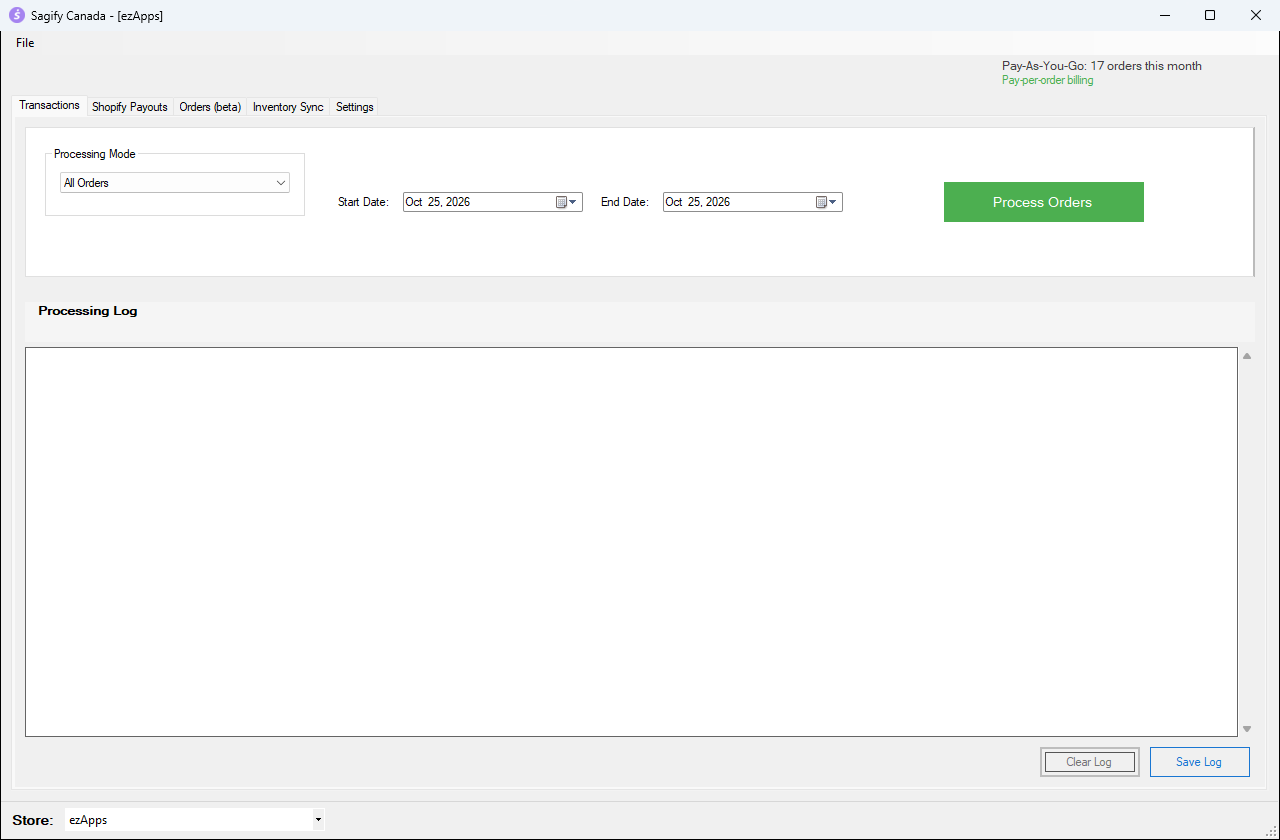
| Date range | Transactions tab | One sales invoice per order, for every order between two dates that is not posted yet | Catching up a week or a month in one run |
| Shopify payouts | Shopify Payouts tab | One paid sales invoice per Shopify Payments payout, deposited to your bank account, with Shopify's fees | Matching each bank deposit from Shopify to the cent |
Before you start
- Connect your store and company file. Sagify needs your Shopify store and your Sage 50 company file (File → Manage Stores). If you have several Shopify stores, pick the one you are working on in the Store list at the bottom of the window.
- Keep Sage 50 in multi-user mode. If Sage 50 is open on the same computer while Sagify works, the company file must be in multi-user mode (in Sage 50: File → Switch to Multi-user Mode). Otherwise Sagify cannot open it.
- Save your order settings. Choose how customers are matched, which revenue account to use and how taxes map to your Sage 50 tax codes. See Set up Sagify for your orders.
How Sagify avoids posting an order twice
Every order, day and payout that Sagify posts is remembered, with the Sage 50 invoice number. Processed orders show Processed and their invoice number in the lists, and every method skips them, so you can safely run a date range over orders that were already posted one by one.
When several computers use Sagify with the same ezapps.io account, they share the processed status of orders, so two people cannot post the same order twice.
If you ever need to post something again (for example after reversing the invoice in Sage 50), open the order, day or payout and choose Mark as Unprocessed.
Invoices or sales orders?
By default Sagify creates sales invoices, which post to your general ledger right away. If you prefer to review everything in Sage 50 first, turn on Create all orders as Sales Orders (instead of Sales Invoices) under Settings → Shopify Orders. Each order then arrives as a Sage 50 sales order that you convert to an invoice yourself. Payouts are always posted as invoices, because they represent money that has already reached your bank.
Which guide next?
- New to Sagify: Set up Sagify for your orders, then Import orders from the Orders tab.
- One invoice per day: Daily sales summaries.
- Catching up a period: Process a date range.
- Reconciling bank deposits: Shopify payouts.
- Something looks wrong: Troubleshooting.