Import orders from the Orders tab
Pick Shopify orders from a list and create one Sage 50 sales invoice per order, then find the invoice in Sage 50.
The Orders (beta) tab lists your Shopify orders and posts the ones you pick to Sage 50, one sales invoice per order. This guide follows three real test orders from Shopify to Sage 50.
Before you start, make sure Settings → Shopify Orders → Invoice Mode is set to Individual Orders and your settings are saved (see Set up Sagify for your orders).

1. Open the Orders tab
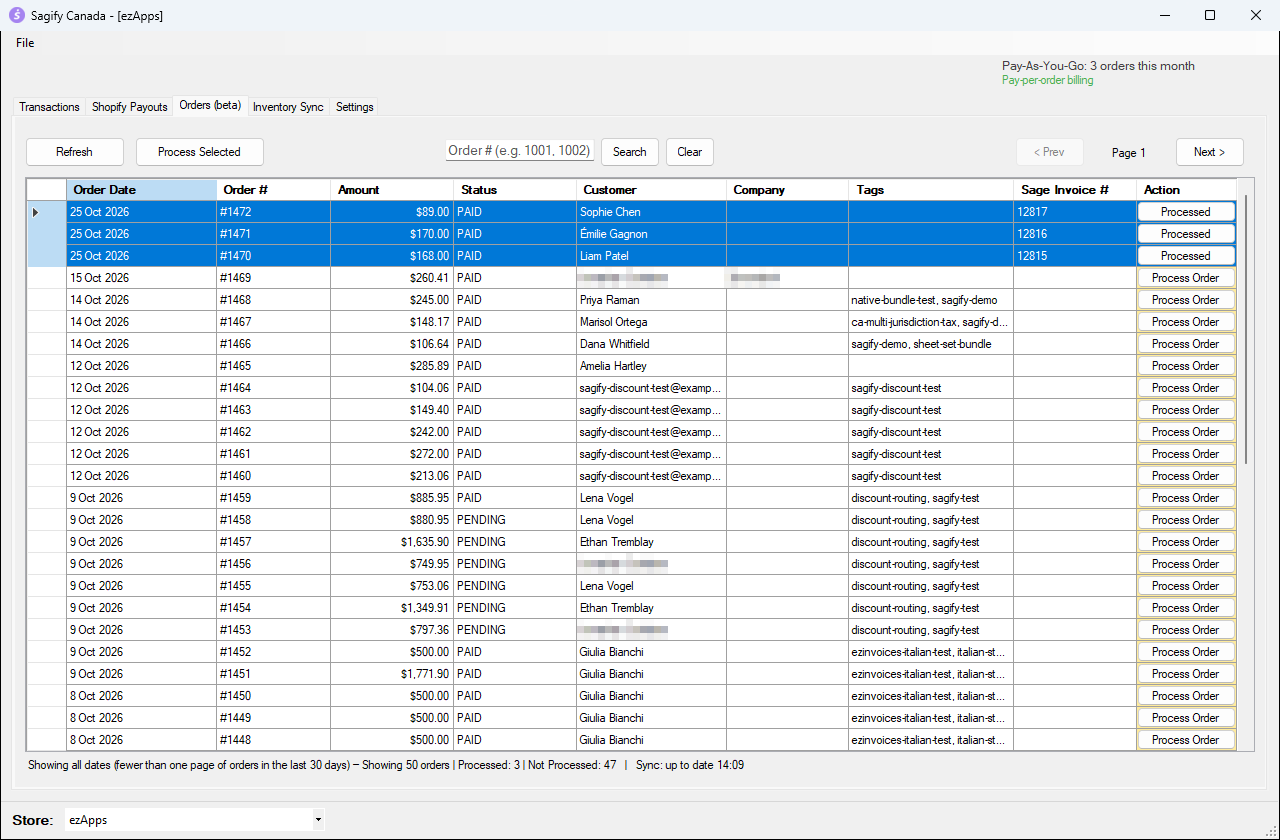
Click Orders (beta). Sagify loads your latest Shopify orders, newest first.
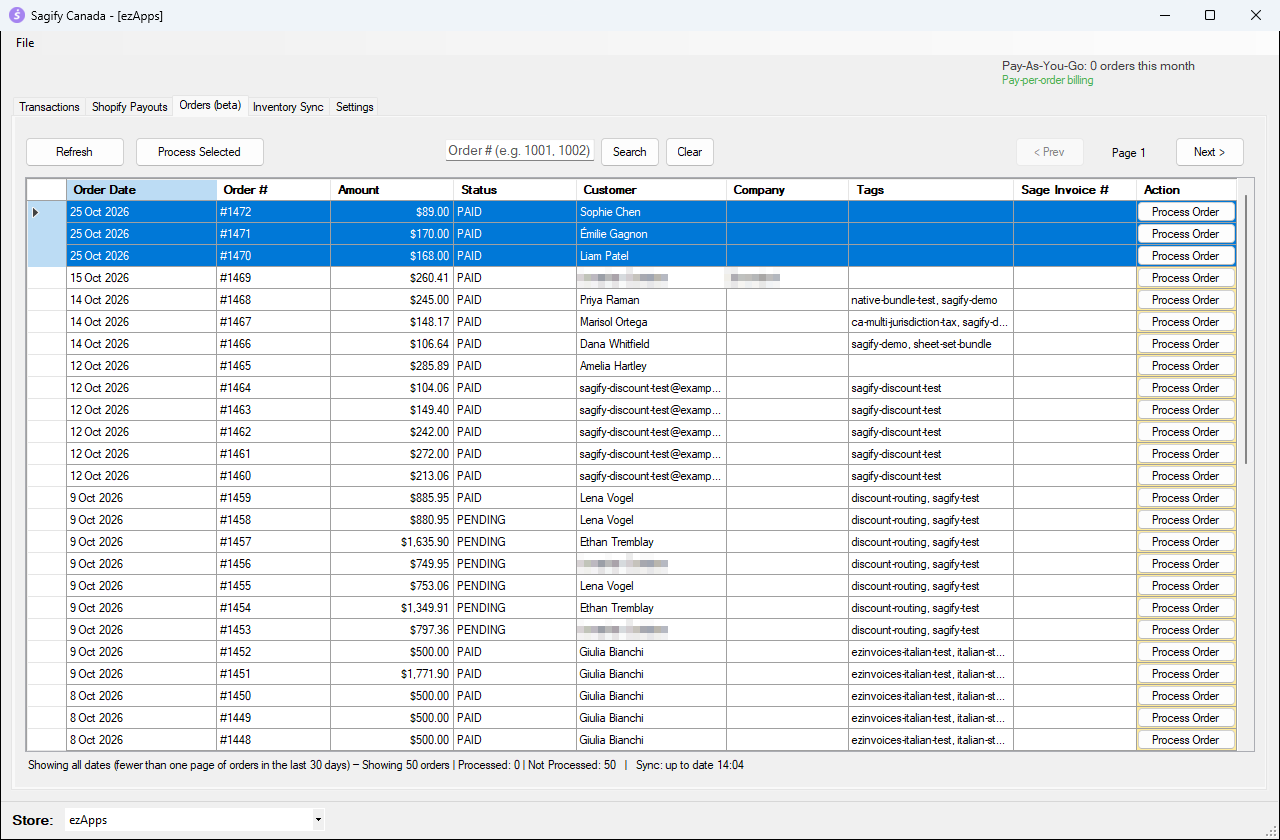
Each row shows the order date, order number, amount, payment status, customer, company, tags, the Sage Invoice # once posted, and a Process Order button.
- To find specific orders, type one or more order numbers in the search box (for example
1470, 1471) and click Search. Clear brings the full list back. - Use < Prev** and **Next > to page through older orders, and Refresh to load new ones.
2. Select the orders and process them
- Click an order. Hold Ctrl to add more orders, or Shift to select a range.
- Click Process Selected.
To post a single order, you can also click Process Order on its row.
Sagify opens your Sage 50 company file, posts the invoices one after the other and shows its progress at the bottom of the tab.
3. Answer the first-time prompts
The first time Sagify meets a new customer or a new product, it asks you what to do. Your answer is remembered through Sage 50 itself: the next order from the same customer or with the same SKU goes straight through.
A customer that is not in Sage 50 yet
With Match each order to a unique customer, Sagify looks for the Shopify customer in Sage 50 by name, email, phone and address. When nothing matches, you see Customer Selection:
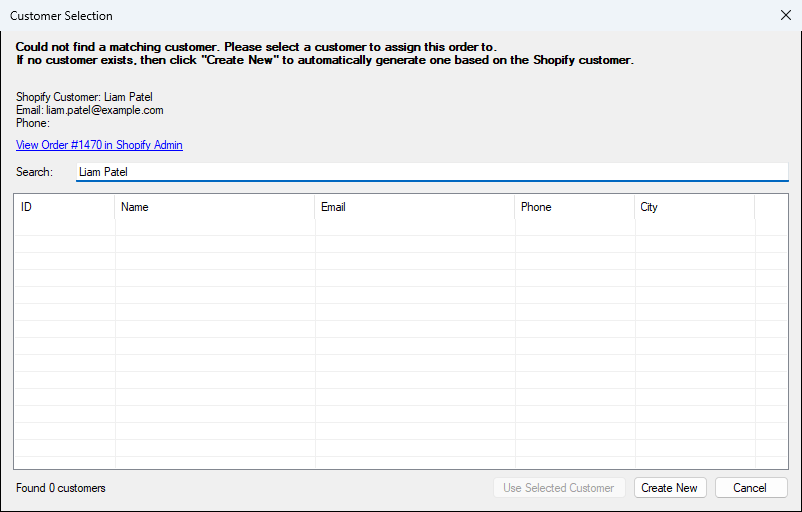
- Use Selected Customer: post the order to the Sage 50 customer you pick in the list. Use Search to find it.
- Create New: create the customer in Sage 50 from the Shopify name, email, phone and address.
- Cancel: skip this order. It stays unprocessed.
A product (SKU) that is not in Sage 50 yet
When an order contains a SKU that has no matching inventory item in Sage 50, you see Select Inventory Item:
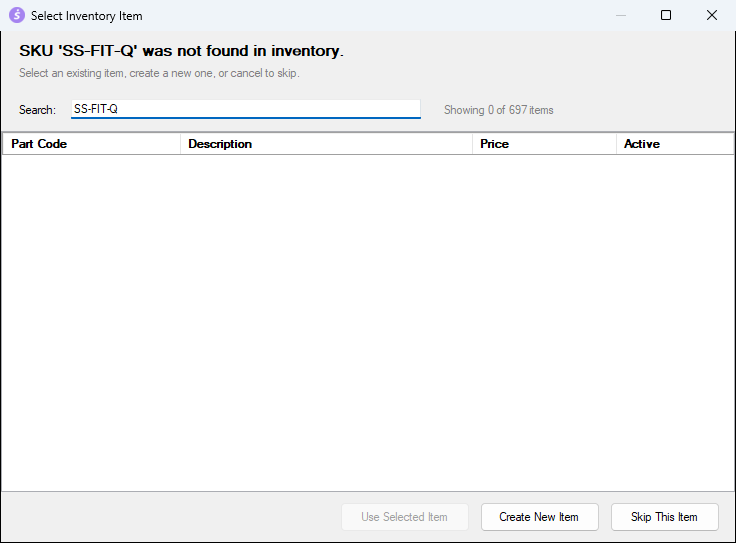
- Use Selected Item: use an existing Sage 50 item for this SKU (search by part code or description).
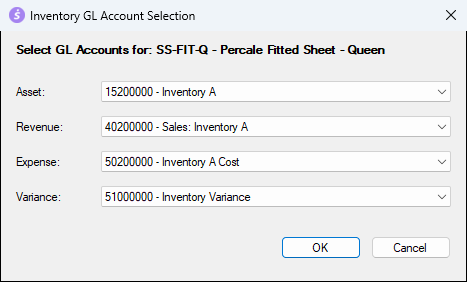
- Create New Item: create the item in Sage 50 with the SKU as its part code and the Shopify product name as its description. Sagify then asks which accounts to use, pre-filled from Settings → Inventory:
- Skip This Item: the line is not linked to a Sage 50 inventory item for this order.
Messages from Sage 50
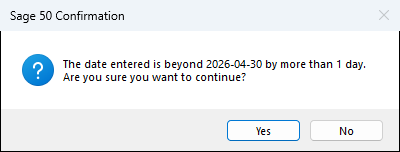
Sage 50 sometimes shows its own messages while Sagify posts, for example when the invoice date is far from the company's session date, or when an item drops below its reorder point. Read them and click Yes or OK to continue.
Tip
To stop Sage 50 from asking about dates, advance the session date in Sage 50. To have Sagify answer Sage 50's confirmations for you, turn on File → Silent Mode in Sagify.
4. Check the result in Sagify
When the run is over, each posted order shows its Sage Invoice # and the Action column says Processed.
If an order shows Failed, nothing was posted for it. Fix the cause (the log on the Transactions tab explains it) and process it again. See Troubleshooting.
Find the invoice in Sage 50
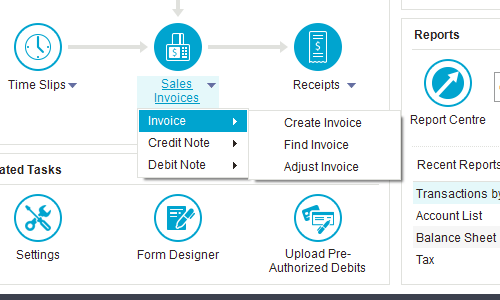
- In Sage 50, open Customers & Sales.
- Click the arrow next to Sales Invoices, then Invoice → Find Invoice.
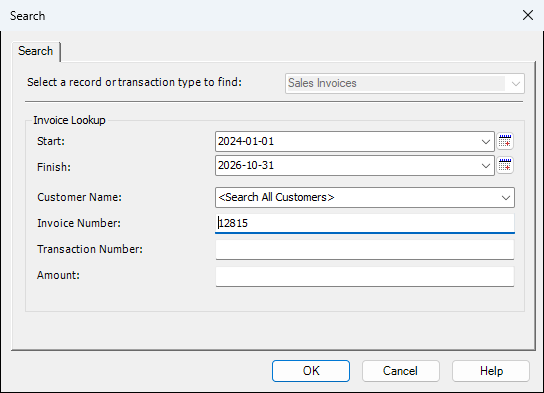
- In the Search window, make sure Start and Finish include the order date, type the Invoice Number shown in Sagify and click OK.
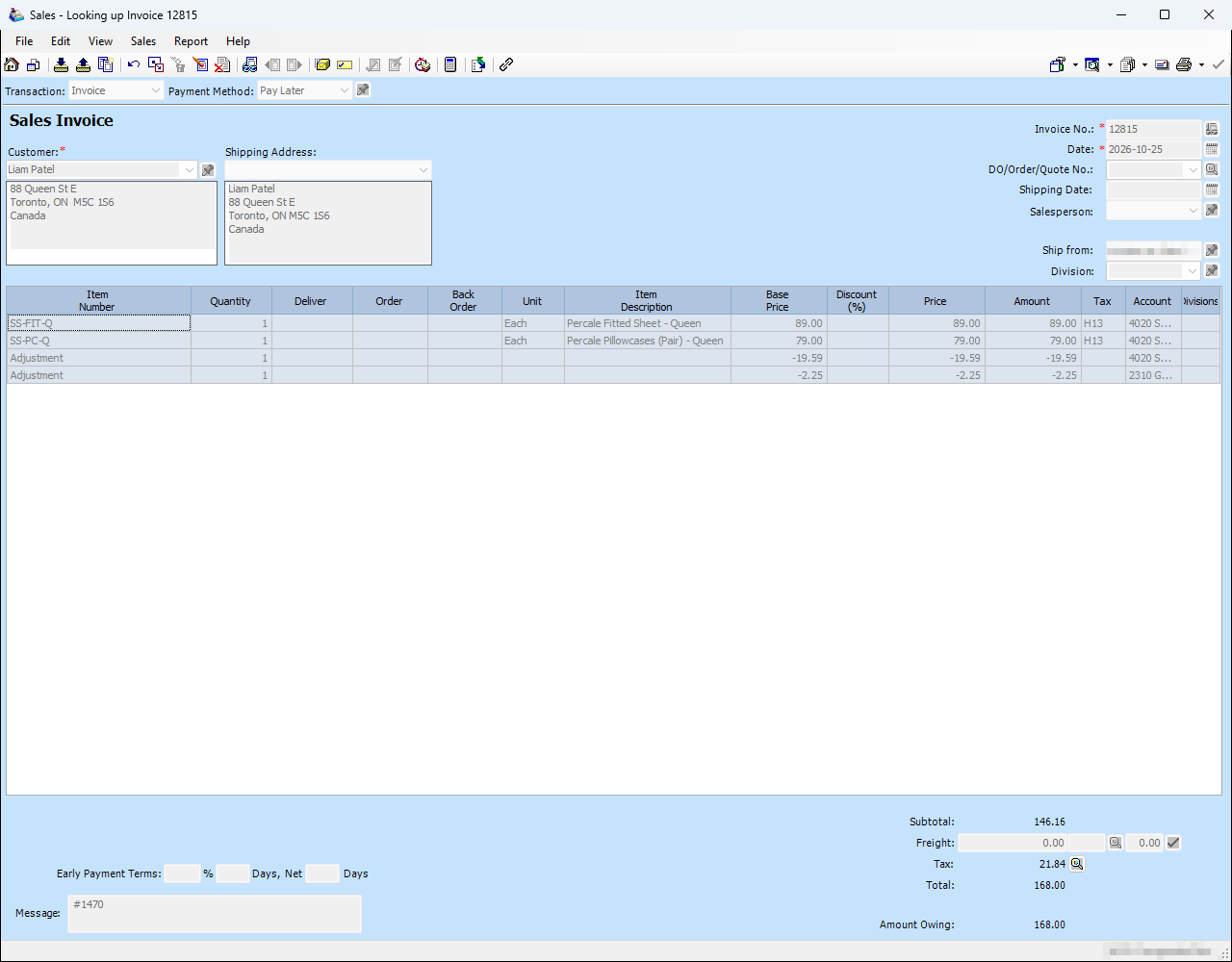
Sage 50 opens the invoice in look-up mode:
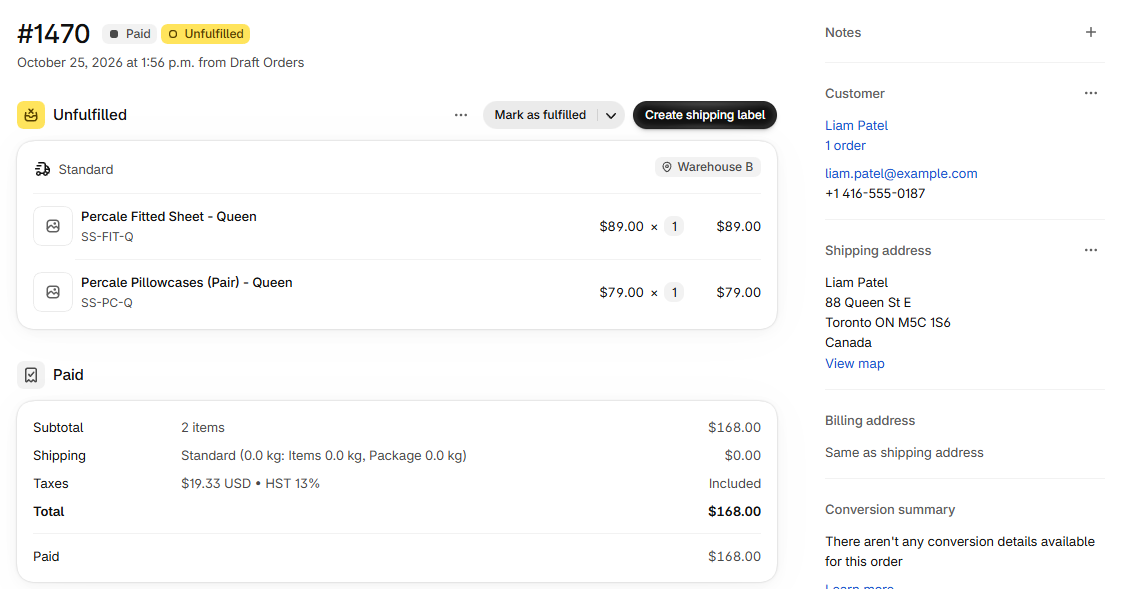
Compare it with the same order in Shopify:
What to look for on a Sagify invoice:
- Customer: the matched or newly created Sage 50 customer, with the shipping address from Shopify.
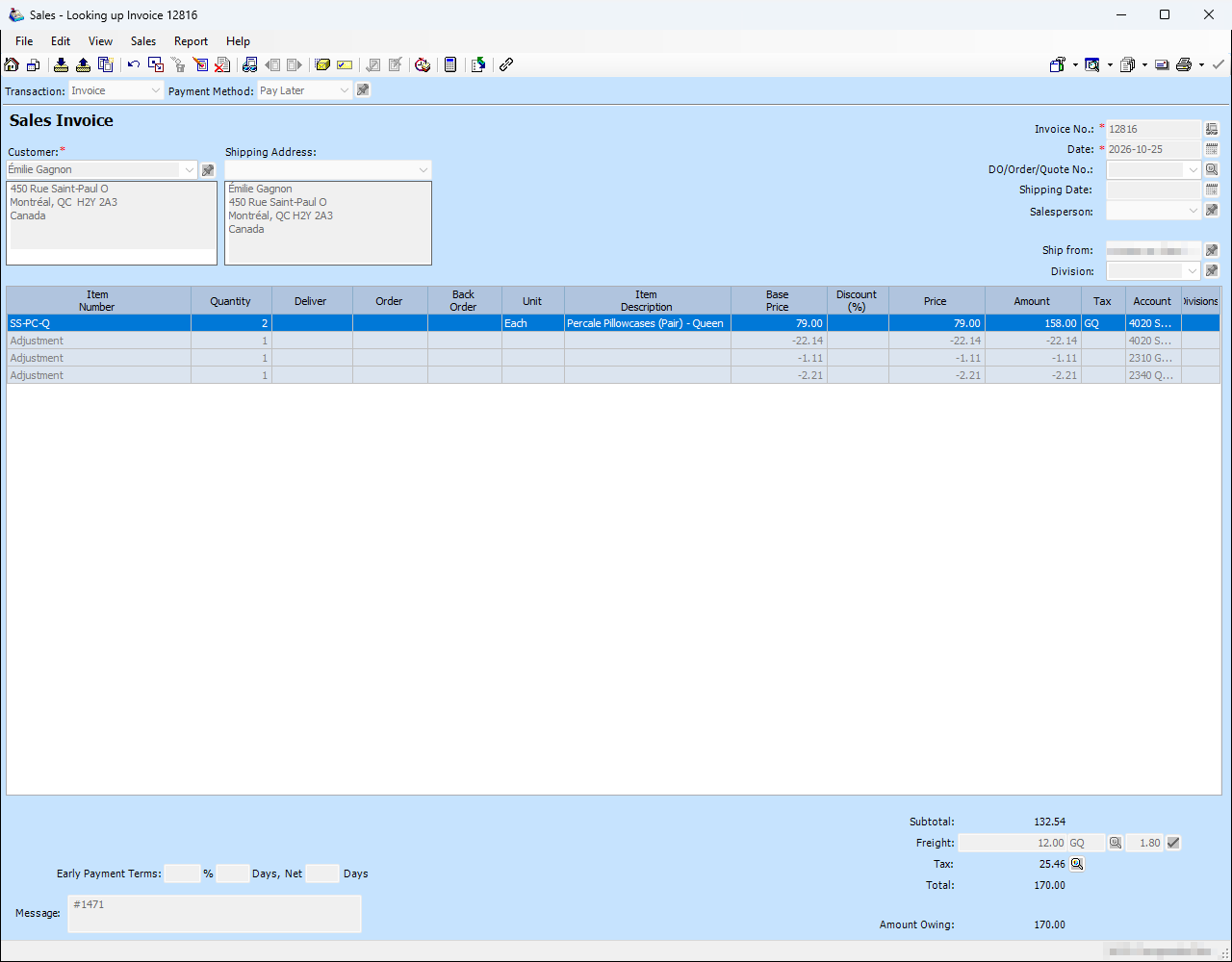
- Lines: one line per product, using the Sage 50 inventory item and the tax code for the customer's province.
- Freight: shipping charged in Shopify is posted as freight (see the Quebec order below).
- Message: the Shopify order number, so you can always trace an invoice back to Shopify.
- Total: matches the Shopify order total.
Note
If your Shopify prices include tax, Sagify adds Adjustment lines so that the Sage 50 total is exactly what the customer paid in Shopify.
Post an order again
To post an order a second time, for example after reversing its invoice in Sage 50, double-click the order to open its details and click Mark as Unprocessed. Then process it as usual.
Warning
Only mark an order as unprocessed after you have removed or reversed its invoice in Sage 50, or the order will be in Sage 50 twice.