Purchase orders: Shopify to Sage 50
Create Sage 50 purchase orders from Shopify purchase orders, then turn Shopify receipts into Sage 50 purchase invoices.
The Purchase Orders tab brings your Shopify purchasing into Sage 50 in two steps: the purchase orders you place with suppliers in Shopify become Sage 50 purchase orders, and what your warehouse receives in Shopify becomes Sage 50 purchase invoices, which is what puts the stock on the shelf and the bill in Accounts Payable.
It works one way: from Shopify to Sage 50. Shopify is where you buy and receive; Sage 50 gets a copy. Nothing is written back to Shopify.
Both steps are started by you. Shopify does not tell Sagify when a purchase order or a receipt is created, so you open the tab, click Refresh, and push what is new.
Before you start
- Purchase orders in Shopify. You create them under Products → Purchase orders in Shopify admin, add the supplier, the destination location and the products, then mark them Ordered. Sagify only lists purchase orders that are ordered; drafts and archived ones are hidden unless you ask for them.
- Suppliers = Sage 50 vendors. Sagify finds the vendor by its name, so the Shopify supplier name and the Sage 50 vendor name must match. If no vendor has that name, Sagify can create one (just the name; fill in the rest in Sage 50).
- Products = Sage 50 items. Each Shopify variant's SKU must equal a Sage 50 part code. A line whose SKU is not a Sage 50 item is skipped and listed in the result.
- Currency. The purchase order keeps the currency it was created with in Shopify. The Sage 50 vendor must be set up in that currency.
- Purchase orders must be turned on in Sage 50 (Setup → Settings → Vendors & Purchases).
Note
Sagify's Shopify app needs three extra permissions for this tab: to read purchase orders, transfers and shipments. If Shopify asks you to approve new permissions, reconnect the store under File → Manage Stores. Until then the tab shows a message saying which permission is missing.
The Purchase Orders tab
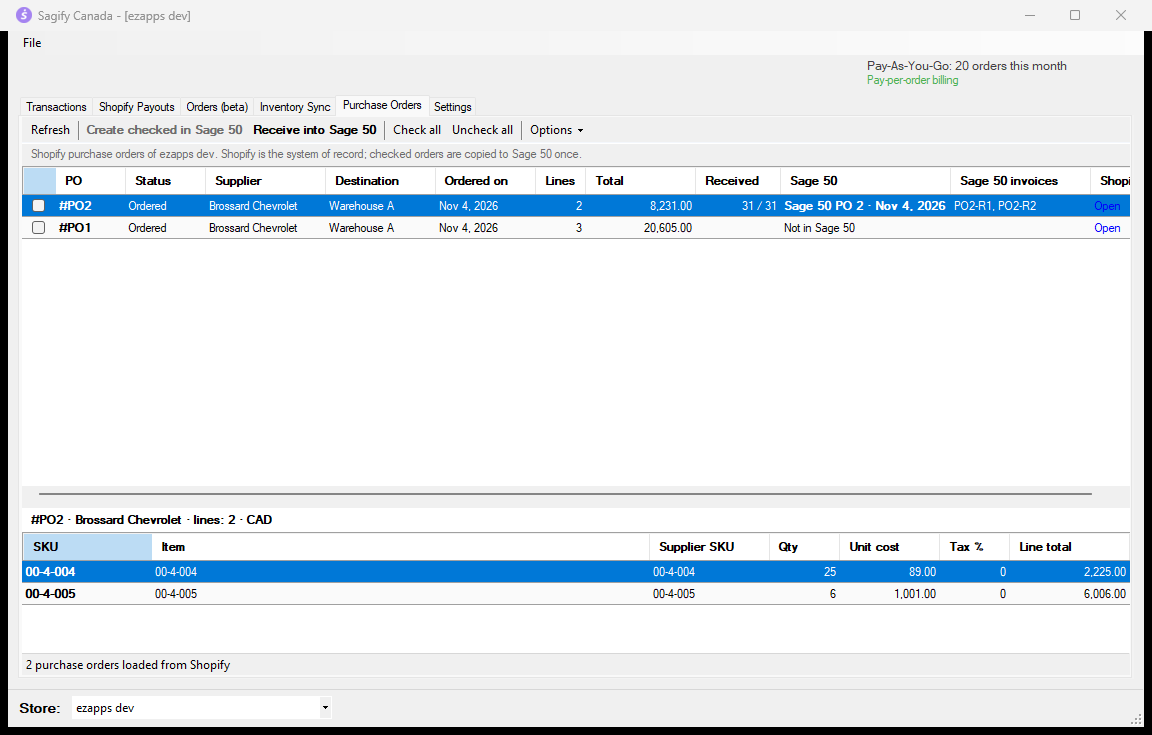
Open the Purchase Orders tab and click Refresh. Sagify reads the store's purchase orders and lists them. Select a row to see its lines underneath.
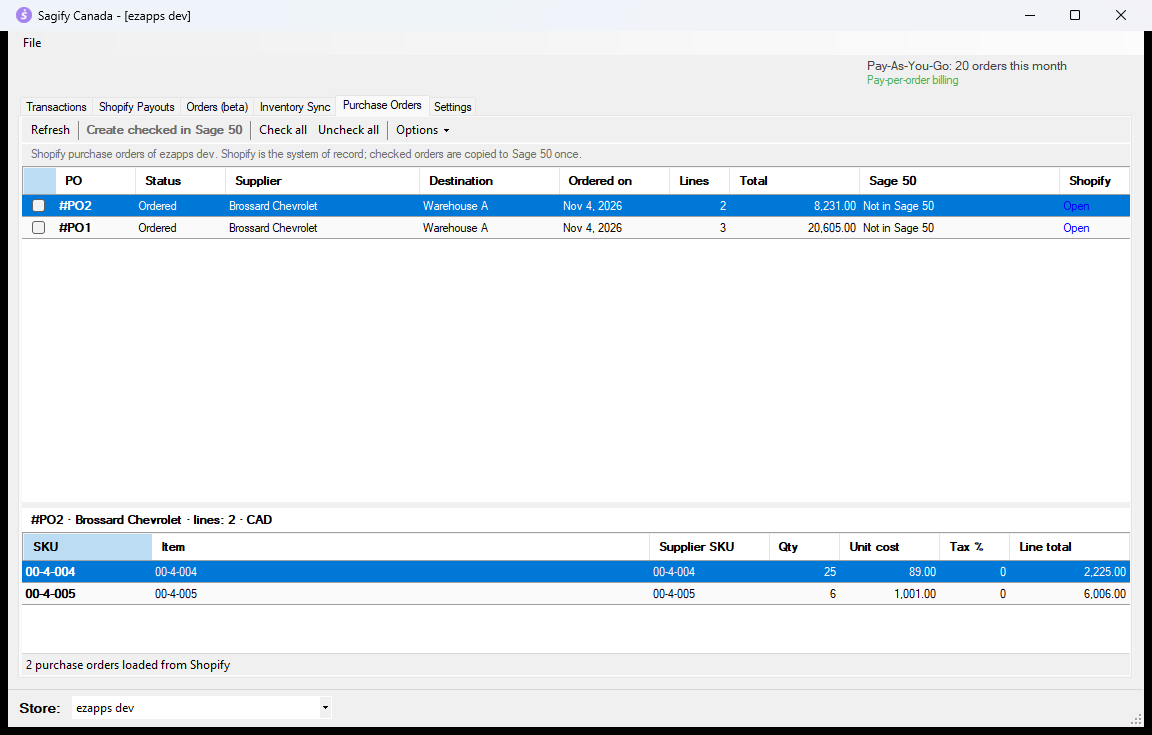
The toolbar
| Button | What it does |
|---|---|
| Refresh | Reads the purchase orders from Shopify again. |
| Create checked in Sage 50 | Creates a Sage 50 purchase order for each checked row. |
| Receive into Sage 50 | Turns what Shopify has received on the selected purchase order into a Sage 50 purchase invoice. |
| Check all / Uncheck all | Checks or unchecks every row that can still be created. |
| Options | Whether to create missing vendors, whether to reuse the Shopify number, the Invoice received flag, and whether to show draft and archived purchase orders. |
The columns
- PO, Status, Supplier, Destination, Ordered on, Lines and Total come from Shopify.
- Received shows how many units Shopify has received so far, out of the units ordered.
- Sage 50 reads Not in Sage 50 until you create the purchase order, then Sage 50 PO n with the date it was created.
- Sage 50 invoices lists the purchase invoices Sagify created from receipts.
- Open opens the purchase order in Shopify admin.
Create purchase orders in Sage 50
- Tick the purchase orders to send. Rows that are already in Sage 50 can't be ticked again.
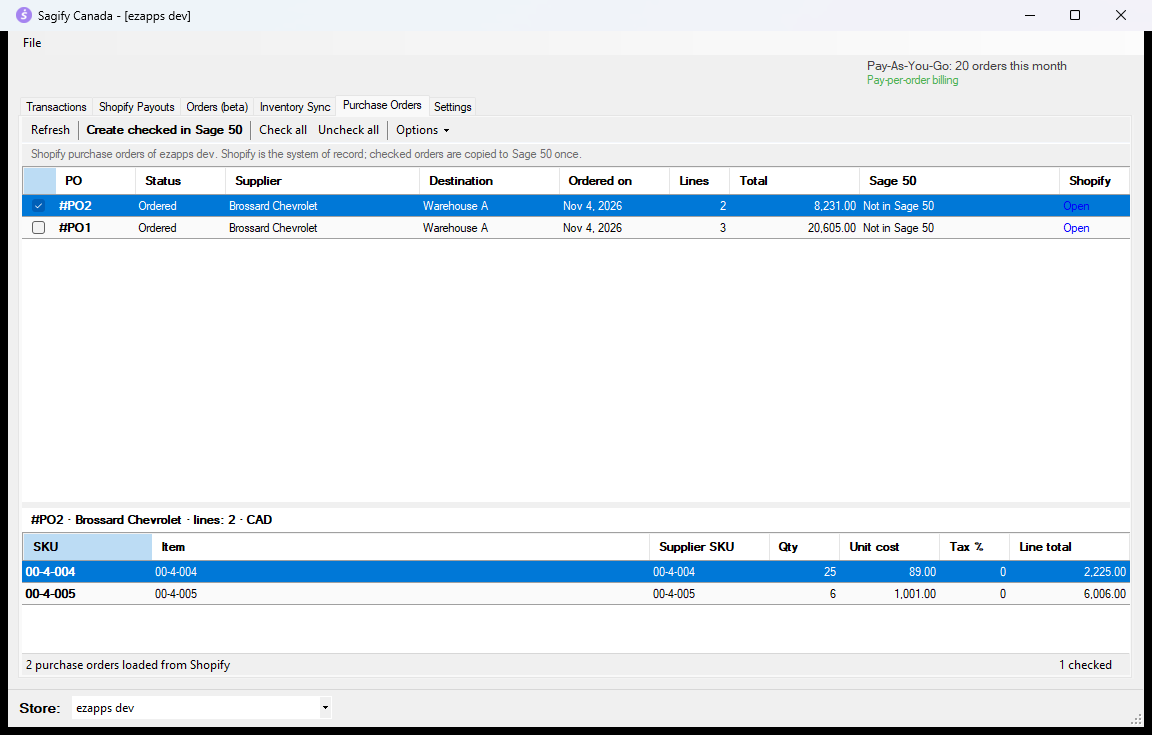
- Click Create checked in Sage 50 and confirm.
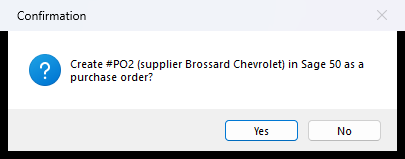
- Sagify opens your company file once and creates one Sage 50 purchase order per checked row: the vendor, one line per product with the ordered quantity and the unit cost, dated the day the purchase order was marked ordered in Shopify. When the Shopify number is free in Sage 50, it is reused (#PO2 becomes purchase order 2); otherwise Sage 50 assigns the next number.
- The Sage 50 column updates and the status bar sums up what happened.
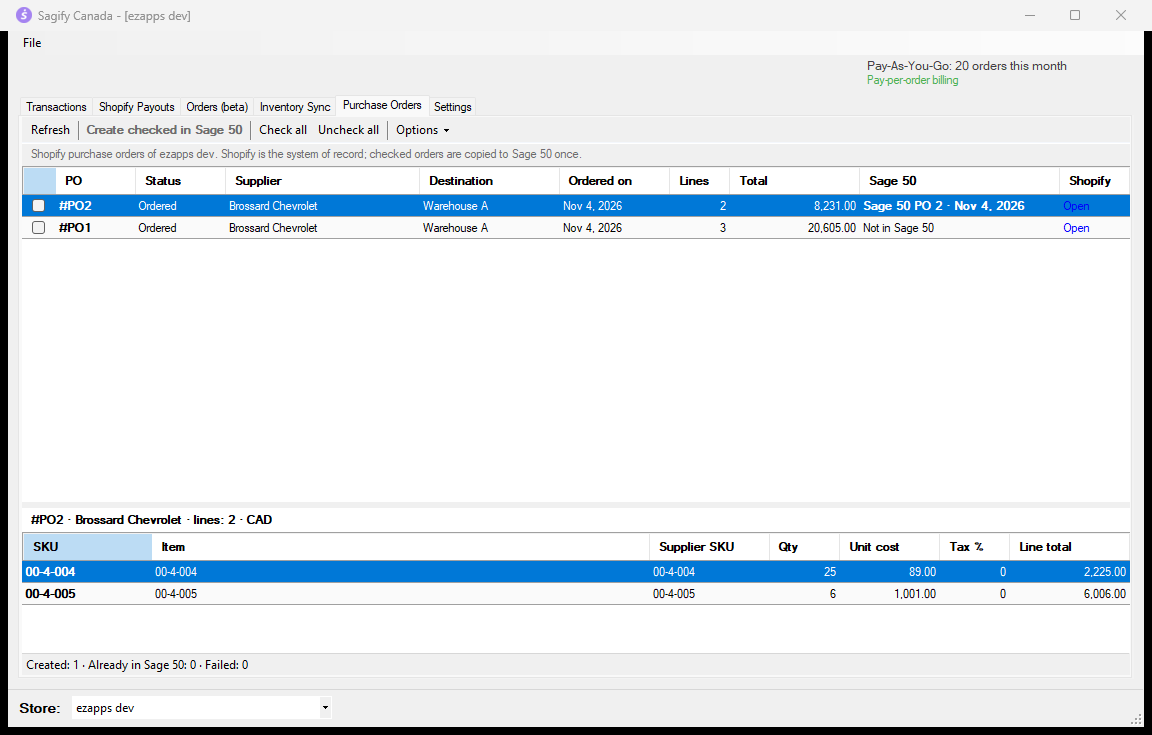
In Sage 50, the purchase order looks like one you typed yourself:
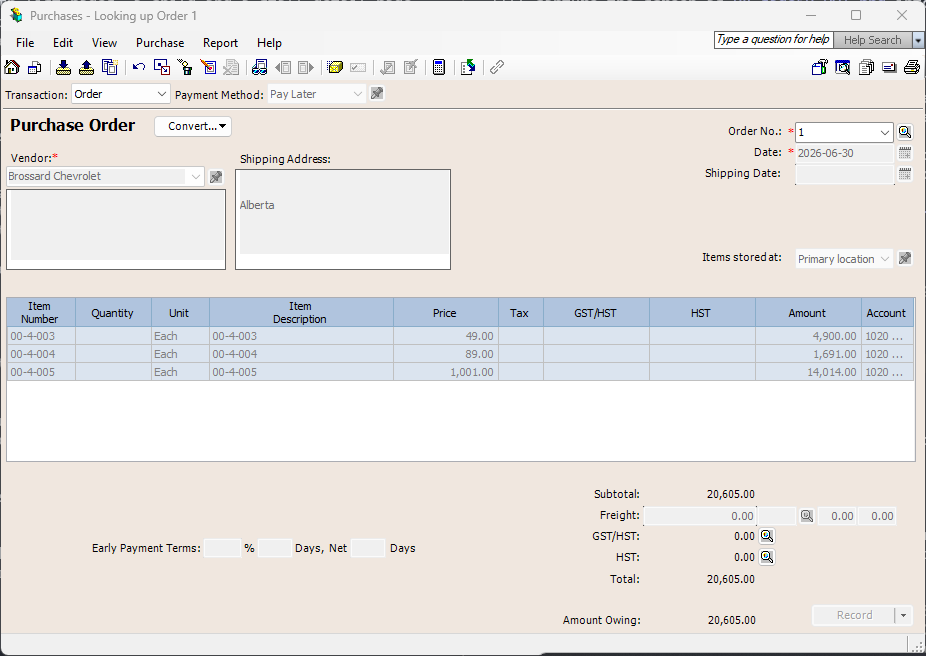
A Sage 50 purchase order changes neither stock nor the general ledger. It records the items as on order until the goods arrive. The receipt is what moves stock and creates the payable, which is the next section.
Never twice. Sagify remembers which Shopify purchase orders it has created, and it also checks Sage 50 for an order with that number before creating one. Refreshing or clicking Create again never duplicates a purchase order.
Receive goods into Sage 50
In Shopify, goods are received on the transfer linked to the purchase order (the purchase order page's Create transfer button creates it). The warehouse receives units on that transfer's shipment, all at once or in several deliveries, accepting or rejecting units per product.
When a delivery has been received in Shopify:
- In Sagify, select the purchase order and click Receive into Sage 50. The button is only available for purchase orders Sagify created in Sage 50.
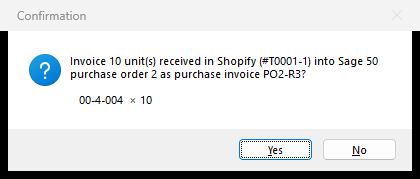
- Sagify reads the receipts from Shopify, keeps only what has not been invoiced yet, and asks you to confirm. The confirmation lists the shipment, the Sage 50 purchase order, the invoice number it will use and the quantity of each product.
- Sage 50 converts the purchase order into a purchase invoice for exactly those quantities. Stock goes up, the vendor's balance goes up, and the quantity on order goes down. Products that have not arrived stay on back order, and the purchase order stays open in Sage 50 until the last unit is received.
- The status bar shows what was posted and what is still on order, and the invoice appears in the Sage 50 invoices column.
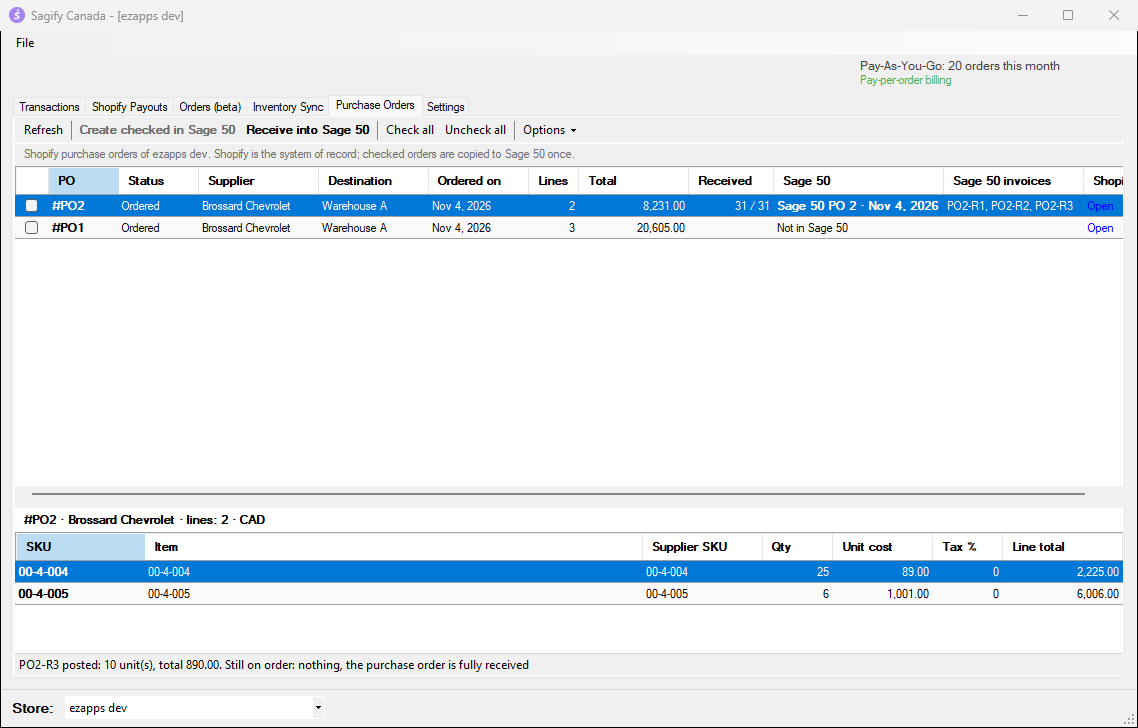
Partial deliveries are the normal case. Each receipt invoices only the difference between what Shopify has accepted and what Sagify already invoiced. Three deliveries give three invoices: PO2-R1, PO2-R2, PO2-R3. If Shopify shows nothing new, Sagify says so and creates nothing.
Invoice numbers. Shopify doesn't know the supplier's invoice number, so Sagify numbers the Sage 50 invoice after the purchase order: PO2-R1 for the first receipt of #PO2, PO2-R2 for the second, and so on. You can change the number in Sage 50 afterwards.
Invoice received. By default the Sage 50 invoice is marked as received from the supplier. If you receive goods before the supplier's invoice, untick Mark the purchase invoice as received from the supplier under Options, and Sage 50 treats it as goods received, invoice to follow.
Options
| Option | Effect |
|---|---|
| Create missing vendors in Sage 50 | On by default. Off: a purchase order whose supplier is not a Sage 50 vendor is skipped with a message. |
| Use the Shopify PO number as the Sage 50 order number | On by default. Off: Sage 50 assigns its next order number. |
| Mark the purchase invoice as received from the supplier | Sage 50's Invoice received flag on the purchase invoices Sagify creates. |
| Show draft and archived purchase orders | Lists every purchase order; only ordered ones can be created. |
Warning
Fiscal year. Sage 50 refuses a date outside the open fiscal year. If the Shopify date falls after your year end, Sagify dates the purchase order or invoice on the last day of the open year, tells you in the result and in the processing log, and you should run Maintenance → Start New Year in Sage 50 so the real dates can be used.
When something is refused
| Message | What to do |
|---|---|
| Vendor '…' does not exist in Sage 50 | Create the vendor in Sage 50 with the exact supplier name, or turn on Create missing vendors under Options. |
| …: not a Sage 50 item (a skipped line) | Give the Sage 50 item the same part code as the Shopify SKU, or create it (see Create Shopify products from Sage 50 items for the other direction). |
| No line matched a Sage 50 item | None of the purchase order's SKUs is a Sage 50 part code. Fix the SKUs, then create again. |
| Purchase orders are turned off in this company | Turn them on in Sage 50 under Setup → Settings → Vendors & Purchases. |
| The Shopify app needs the … permission | Reconnect the store under File → Manage Stores and approve the new permissions. |
| Nothing new to receive | Every unit Shopify has accepted is already on a Sage 50 invoice. Receive the next delivery in Shopify first. |
| Received in Shopify but not on the Sage 50 purchase order | A product was added to the Shopify purchase order after it was created in Sage 50. Add the line to the Sage 50 purchase order by hand, then receive again. |
| … is below the … already invoiced (reversed receipt?) | Shopify now shows fewer accepted units than Sagify invoiced. Sagify never creates a negative invoice; adjust it in Sage 50. |
| Sage 50 has no open purchase order n | The order was fully invoiced or removed in Sage 50. Nothing more can be received against it. |
What this tab does not do
- It never writes to Shopify: no purchase order, transfer or receipt is created or changed there.
- It does not map Shopify's tax percentage to a Sage 50 tax code yet; the Sage 50 lines use the item's default tax code.
- It does not run on a schedule. There is no Shopify notification for purchase orders or receipts, so refreshing and pushing stay manual.