Inventory Sync: Sage 50 to Shopify
Compare Sage 50 stock with Shopify and push Sage 50 available quantities to Shopify.
Inventory Sync compares the stock in your Sage 50 company file with Shopify and sends Sage 50's available quantities to Shopify, so you don't sell what you don't have.
It works one way: from Sage 50 to Shopify. Nothing is ever written to Sage 50.
How quantities are calculated
- Sage 50 available = quantity on hand minus quantity on sales orders.
- The push sets Shopify's Available quantity to that number.
- A negative Sage 50 quantity is sent as 0, and fractions are rounded down to whole units (Shopify only accepts whole units).
- Products are matched by SKU: the Sage 50 part code must equal the Shopify variant's SKU. A Shopify variant with no SKU is matched on its product title.
Turn it on
- Go to Settings → Inventory.
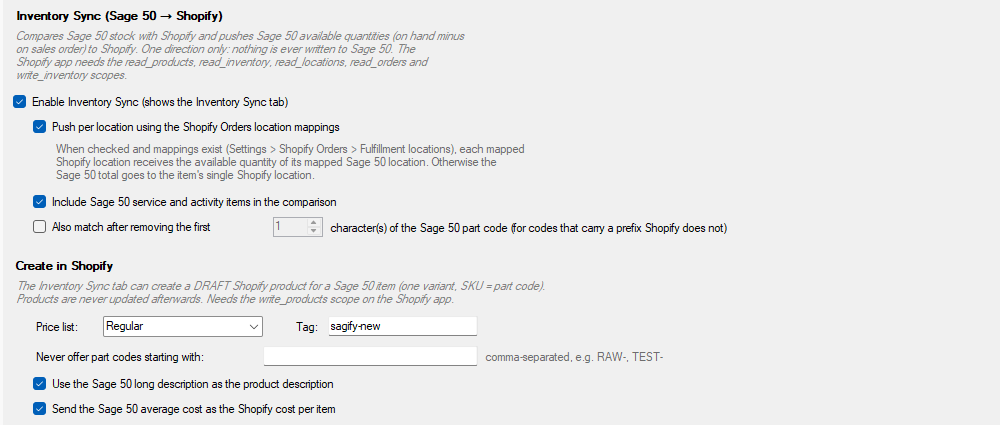
- Under Inventory Sync (Sage 50 → Shopify), tick Enable Inventory Sync (shows the Inventory Sync tab).
- Click Save Inventory Settings.
The options:
- Push per location using the Shopify Orders location mappings: if you stock products at several Shopify locations and use several Sage 50 locations, each mapped Shopify location receives the quantity of its Sage 50 location. Without mappings, Sagify sends the Sage 50 total to the product's only Shopify location.
- Include Sage 50 service and activity items in the comparison: also list service items (they have no stock).
- Also match after removing the first … character(s) of the Sage 50 part code: for part codes that carry a prefix Shopify's SKUs don't have.
Note
Sagify's Shopify app needs permission to read products, inventory, locations and orders, and to write inventory. If Shopify asks you to approve new permissions, reconnect the store under File → Manage Stores.
The Inventory Sync tab
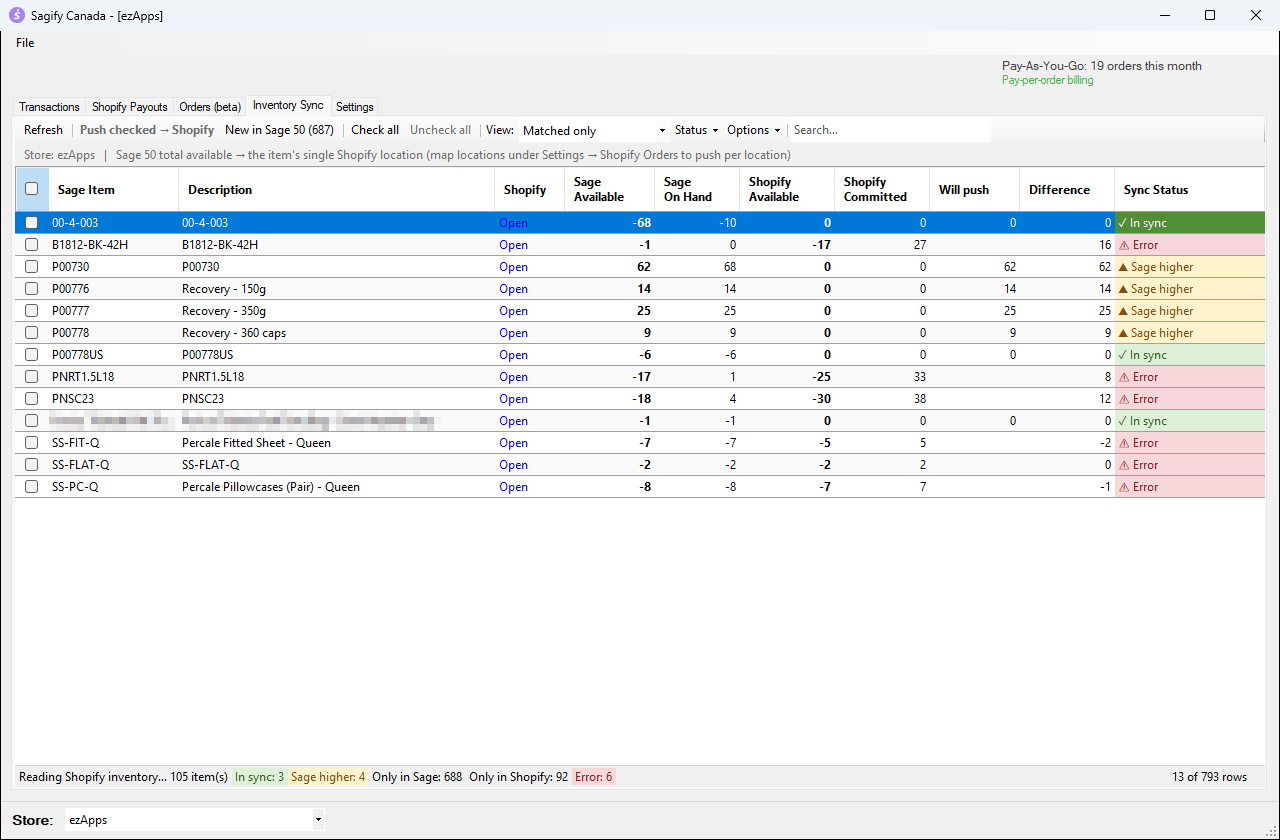
Open the Inventory Sync tab. Sagify reads your Sage 50 items and your Shopify products and lists them side by side.
The toolbar
| Button | What it does |
|---|---|
| Refresh | Reads Sage 50 and Shopify again. |
| Push checked → Shopify | Sends the Sage 50 quantity of the checked rows to Shopify. |
| New in Sage 50 (…) | Sage 50 items that are not in Shopify yet. See Create Shopify products from Sage 50 items. |
| Check all / Uncheck all | Checks or unchecks every row in the current view. |
| View | Ready-made views: All items, Matched only, Needs push, Not in Shopify, Not in Sage 50, Errors. |
| Status | Shows or hides rows by sync status. |
| Options | Inactive and service items, columns, export to CSV, copy rows and the push history. |
| Search | Finds rows by part code, description or SKU. |
The columns: Sage Available and Sage On Hand come from Sage 50; Shopify Available and Shopify Committed (quantities reserved by unfulfilled orders) come from Shopify; Will push is the quantity a push would set; Difference is the change it would make. Click Open to see the product in Shopify admin.
The sync status
| Status | Meaning |
|---|---|
| In sync | Shopify already has the Sage 50 quantity. |
| Sage higher / Shopify higher | The quantities differ; a push will fix it. |
| Only in Sage | No Shopify variant has this SKU. |
| Only in Shopify | No Sage 50 item has this SKU. |
| Error | The item can't be pushed. Hover over its Sync Status to read why (see When a row shows Error). |
Push Sage 50 quantities to Shopify
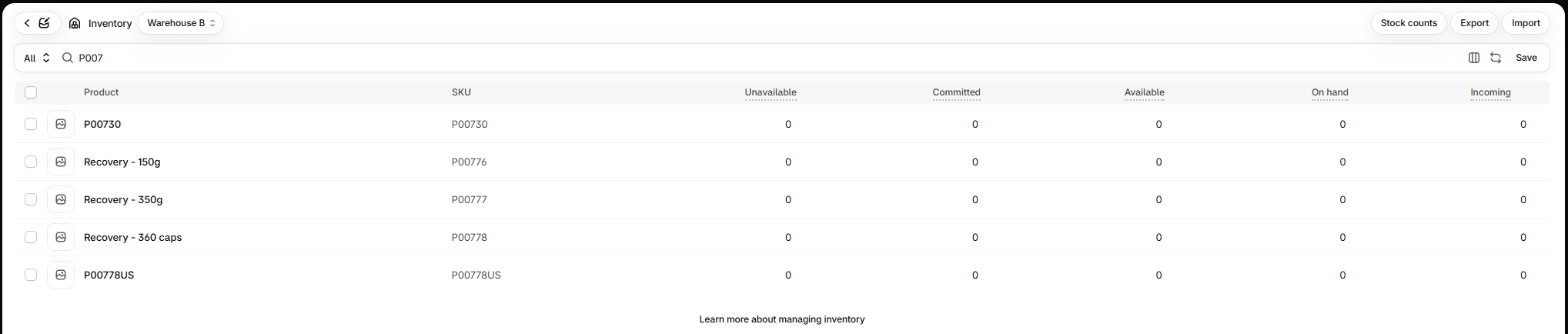
Here is the dev store before the push: Shopify shows 0 available for four products that Sage 50 has in stock.
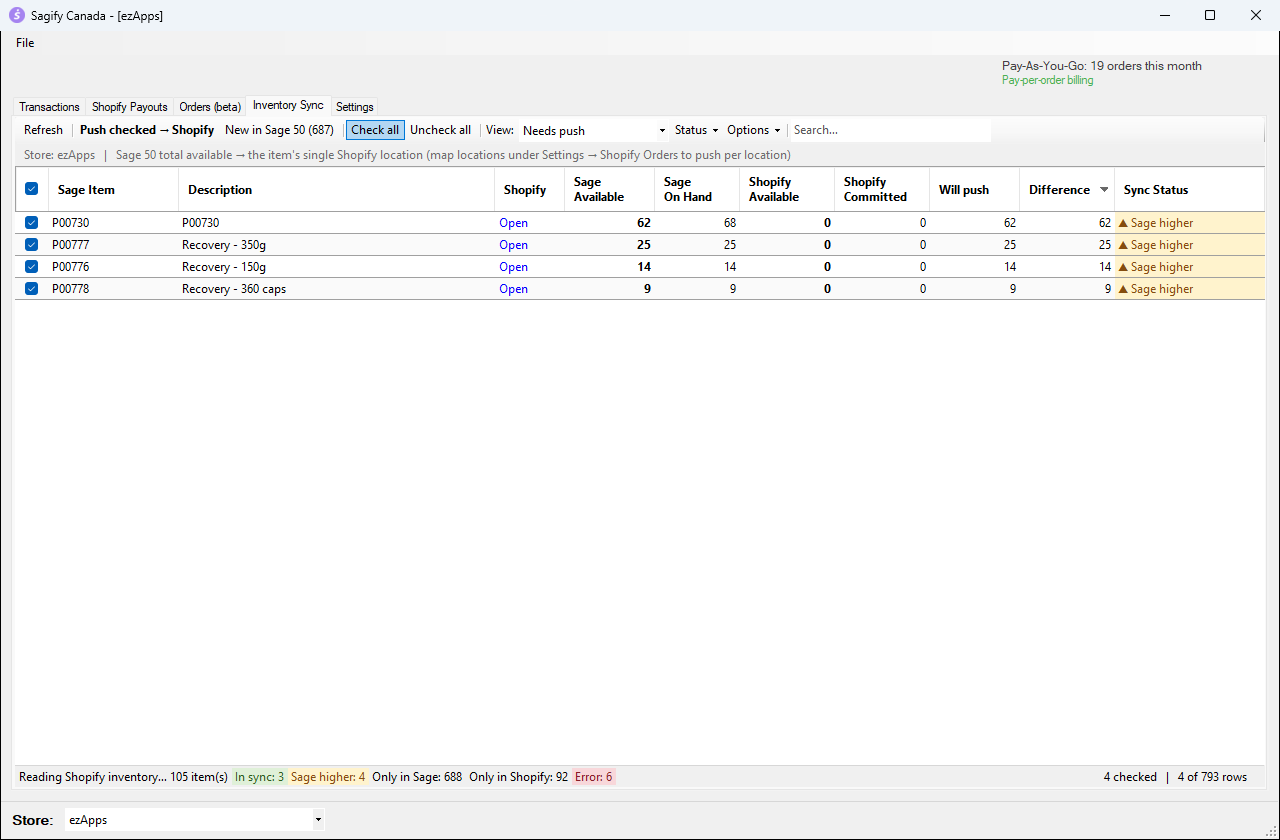
- Choose View → Needs push to list only the items whose quantities differ.
- Tick the items to send, or click Check all.
- Click Push checked → Shopify.
- Sagify asks you to confirm and reminds you that nothing is written to Sage 50. Click Yes.
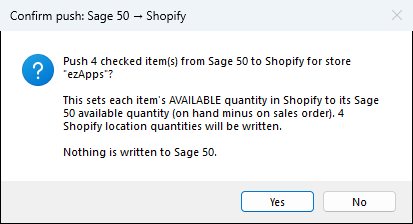
- If some of the items are on recent Shopify orders that you have not posted to Sage 50 yet, Sagify shows Open orders not yet in Sage 50. Shopify has already reserved that stock, but Sage 50 has not seen the sale, so pushing now would put those units back on sale. Choose Process orders first (recommended: post them from the Orders tab, then push) or Push anyway.
- When the push is done, Sagify shows a summary and the rows turn In sync.
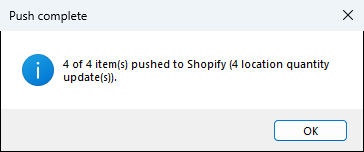
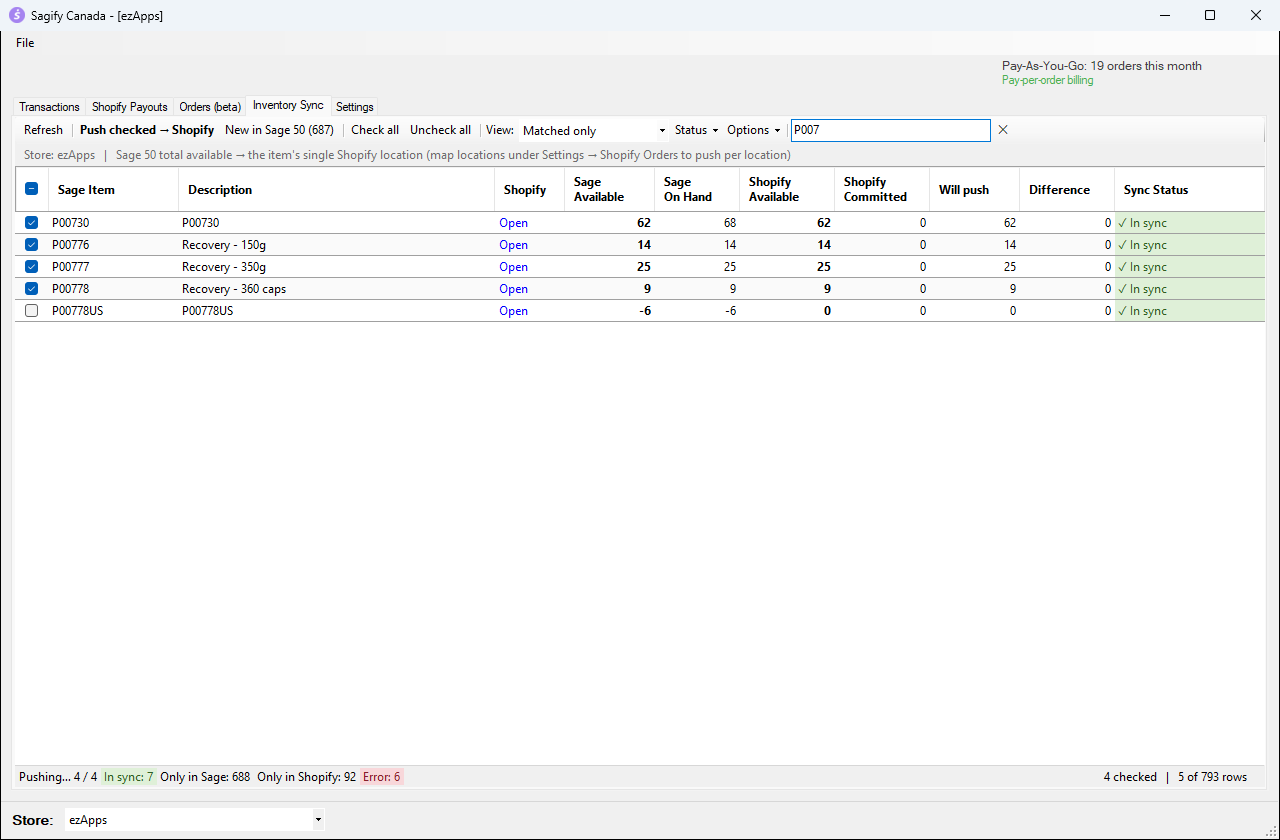
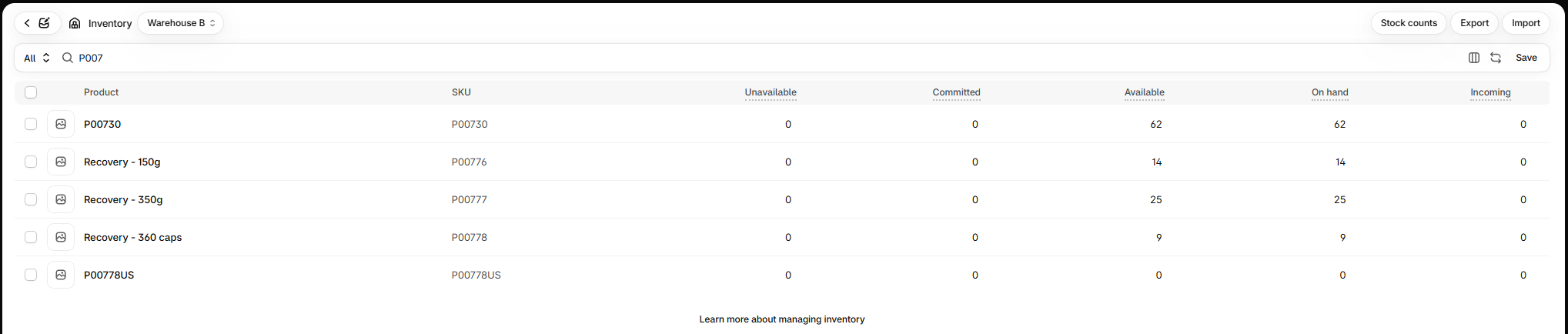
In Shopify, the quantities now match Sage 50:
Push history and other tools
The Options menu holds the extra tools:
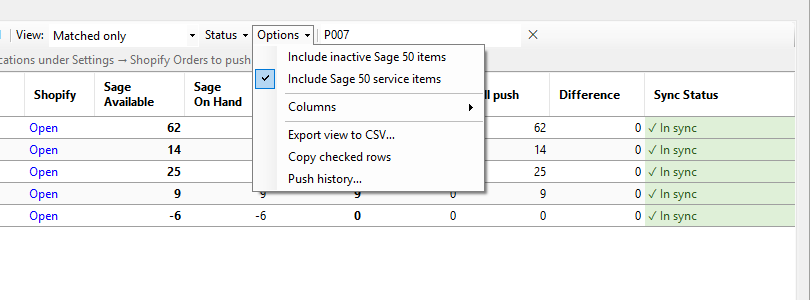
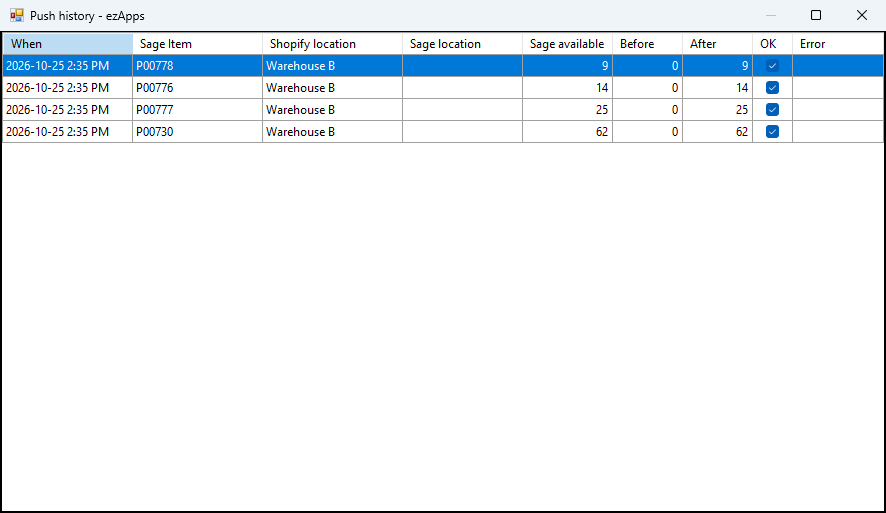
- Push history… lists every quantity Sagify has written: when, which item, which Shopify location, the quantity before and after, and any error.
- Export view to CSV… saves the rows you are looking at to a spreadsheet.
- Copy checked rows copies them so you can paste them elsewhere.
- Columns shows extra columns, such as Sage On SO, Sage Avg Cost or Last pushed.
When a row shows Error
| Reason shown | What to do |
|---|---|
| Stocked at several Shopify locations | Sagify can't split one Sage 50 total between locations. Stock the product at one Shopify location, or set up per-location pushes with location mappings (ezApps support can help). |
| Shopify does not track inventory for this variant | In Shopify, open the product and turn on Track quantity. |
| Not stocked at any Shopify location | In Shopify, stock the product at a location. |
| SKU is on several Shopify variants | Fix the duplicate SKU in Shopify so each SKU is used once. |