Sagify v2.2.3.7 - Inventory Sync, French Interface & Multi-Computer Sync
Sagify (Canada) v2.2.3.7 adds Sage 50 → Shopify inventory sync, Create in Shopify, customer invoice PDFs, a full French interface, shared processed-order status across computers and Sage 50 Canada 2027.0 support.
Sagify version 2.2.3.7 for Sage 50 Canada is here, and it is our biggest release yet. Sagify now keeps your Shopify stock in step with Sage 50, creates Shopify products from new Sage 50 items, saves a customer-facing PDF for every invoice it posts, speaks French from the installer to the last dialog, and shares what has already been posted between every computer on your ezapps.io account. Here's everything that's new.
⚠️ IMPORTANT: Sage 50 Canada 2027.0 Required
This version is built on the Sage 50 Canada 2027.0 SDK. Update Sage 50 to 2027.0 and let it convert your company file before you install Sagify 2.2.3.7. Sagify opens a company file only when its version matches the SDK, so on an older Sage 50 the connection fails with the message "This SDK is valid only for databases with version 34001".
If your Sage 50 is still on 2026, stay on your current Sagify version until you have upgraded.
⚠️ New Shopify Permissions for Inventory Sync
Inventory Sync and Create in Shopify need permissions the Sagify app did not use before:
read_products,read_inventory,read_locations,read_orderswrite_inventory(the quantity push)write_products(Create in Shopify)
You only need them if you turn Inventory Sync on. If Shopify asks you to approve new permissions, reconnect the store under File → Manage Stores. Order and payout processing keep working as before without them.
✨ New Features
Inventory Sync: Sage 50 → Shopify

The new Inventory Sync tab compares the stock in your Sage 50 company file with Shopify and pushes Sage 50's available quantities to Shopify, so you never sell what you don't have. It works one way, from Sage 50 to Shopify: nothing is ever written to Sage 50.
- Sage 50 available = on hand minus on sales orders, sent as Shopify's Available quantity. Negative stock is sent as 0.
- Matched by SKU: the Sage 50 part code must equal the Shopify variant's SKU. Part codes with a prefix Shopify doesn't use can be matched after stripping the first n characters.
- Per-location pushes: if you stock products at several Shopify locations, each mapped location receives the quantity of its Sage 50 location.
- Ready-made views: All items, Matched only, Needs push, Not in Shopify, Not in Sage 50 and Errors, plus search, CSV export and a push history that records every quantity written, before and after.
- Open-orders check: if the items you are about to push are on Shopify orders you have not posted to Sage 50 yet, Sagify warns you first, so a push can never put stock that Shopify has already sold back on sale.

Turn it on under Settings → Inventory → Enable Inventory Sync. The full walkthrough is in the new help guide: Inventory Sync: Sage 50 to Shopify.
Create Shopify Products from Sage 50 Items

When you add a new item in Sage 50, Sagify can now create the matching product in Shopify for you. Click New in Sage 50 (…) on the Inventory Sync tab to review the items that are not in Shopify yet, then Create in Shopify.
- Products are always created as Draft, with one variant whose SKU is the Sage 50 part code, so nothing appears on your storefront until your team adds photos and publishes it.
- The price comes from the Sage 50 price list you choose (Regular by default) and can be edited before creating. The long description and average cost can be sent too.
- Every product gets a tag (sagify-new by default) so you can find them in Shopify.
- If a product with the same SKU already exists, Sagify links to it instead of creating a duplicate, and it never changes a product after creating it.
- Never push hides items you don't sell online for good; Later keeps them for next time. With a large catalogue, Sagify offers to set the existing items aside so only new ones are offered from now on.

After a refresh, the new product is matched and you push its stock like any other item. See Create Shopify products from Sage 50 items.
Customer Invoice PDFs
When an order is transferred to Sage 50, Sagify can now also save a customer-facing PDF invoice to a folder on your computer, the document the Sage 50 SDK itself cannot print or export. Configure it under Settings → Order Settings → Invoice PDF → Configure invoice PDF…:
- Seller details: Sagify reads your company name, address, phone and tax number straight from the Sage 50 company profile, and you can override any of them.
- Branding: your logo, an accent colour, a footer for terms or a thank-you note, Letter or A4 paper.
- File naming: a pattern with tokens such as
{InvoiceNumber},{OrderNumber},{CustomerName}and{Date}; a backslash creates sub-folders. The default folder is Documents\Sagify\Invoices{store name}. - Sales orders too: stores that post sales orders instead of invoices get a Sales Order PDF.
- Live preview while you edit, an option to open each PDF right after it is written, and a custom HTML template for stores that want full control.
The PDF shows the Shopify order number, payment status and gateway, line taxes, discounts and shipping, with totals that match the Sage 50 invoice.
Sagify en français

Sagify is now fully available in Canadian French: every tab, dialog, prompt, confirmation and progress message, including the Yes/No buttons Windows normally draws in English. Switch with File → Passer en français (Sagify restarts), or choose the language in the installer. Dates and amounts follow Canadian French formatting throughout. The help centre is available in French as well: Centre d'aide Sagify.
Document language per store. Under Settings → Order Settings → Customer Documents, choose the language of what your customers see, independently of the interface language: Same as the Sagify language, Français, English or Bilingual (Français / English). It applies to the invoice PDF (GST/QST become TPS/TVQ, dates and amounts in the right format) and to the fixed text Sagify writes into Sage 50 invoices, such as the Shipping / Expédition line and comments.
Shared Processed Status Across Computers
If several people use Sagify with the same ezapps.io account, they now see the same thing. Every order, refund and daily summary posted on one computer shows as Processed, with its Sage 50 invoice number, on the others.
- No double posting: when you click Process Selected, orders a colleague imported since your list loaded are deselected and listed, and date-range runs skip them.
- Mark as Unprocessed is shared too, so a reset on one computer reaches the others. Sagify reminds you of this in the details window.
- Settings backups: each time you save a store's settings, Sagify keeps a snapshot on your account. A second install, or a new computer, is offered that configuration on start-up: Import (Sage 50 accounts and customers are re-matched by name in the new company file, never copied by id), Keep mine, or Don't ask again. Nothing is ever imported without you choosing it, and machine-specific paths such as the PDF output folder or the logo are never shared.
- Sync runs in the background and never blocks you: if the server is slow, the grid shows Sync: still running… and repaints when it finishes.
What to expect after updating. On first launch, Sagify asks you to accept the updated Terms of Service, which now cover this server-side synchronization, and does a one-time upload of the orders this computer has already processed so your other computers can see them. Your local database is upgraded automatically.
🚀 Improvements
Shopify Payouts

- Route payouts by settlement currency: a Shopify Payments account that pays out in both CAD and USD now sends each currency's payouts to its own Sage 50 customer and bank account, so the deposit is recorded in the currency it arrived in.
- Duties collected account: for stores that ship DDP, duties and import fees the buyer paid at checkout get their own line on the payout invoice, net of refunded duties. Leave the account empty to keep the previous behaviour.
Orders
- B2B Company Location Match can now use the company location's External ID, its location name or the company name as the Sage 50 customer name. Not every store maintains External IDs, and this lets you match on what you already have.
- Terms of Service acceptance is recorded against your account, and a configuration backup is created on every save, not only on demand.
Under the Hood
- Sage 50 Canada 2027.0 support (SDK 34.x).
- Responsive window during long reads: Inventory Sync loads your Sage 50 items on a background Sage session, so the window no longer freezes while a large company file is read.
- One Sage 50 session at a time: sessions are serialized, so two operations can never open the company file at once.
📚 New Help Centre
Every feature in this release has a step-by-step guide, in English and in French, with real screenshots from Shopify, Sagify and Sage 50:
- Ways to sync Shopify orders to Sage 50
- Set up Sagify for your orders
- Import orders from the Orders tab
- Daily sales summaries
- Process a date range
- Shopify payouts
- Inventory Sync: Sage 50 to Shopify
- Create Shopify products from Sage 50 items
- Troubleshooting
Start at the Sagify Help Centre, or en français.
✨ Discover Sagify
If you're new to Sagify, see how it brings your Shopify sales, payouts and inventory into Sage 50 Canada without manual entry. Visit the Sagify product page or book a demo to see it on your own company file.
As always, your feedback drives our development. Many of the features in this release came directly from requests by Sagify users, and we would love to hear what should come next.
Related Reading
- How to Sync Sage 50 and Shopify Inventory - Why inventory timing matters and how a one-way push keeps Shopify honest
- Reconcile Shopify Payouts in Sage 50 - Matching each bank deposit to the cent
- Running Multiple Shopify Stores with Sage 50 - One Sagify, several stores
Related articles
Inventory Problems Start Upstream — Not in the Warehouse
Bad data, not bad counting. Why orders don't sync, refunds don't decrement, adjustments don't propagate. Data hygiene before physical reconciliation.
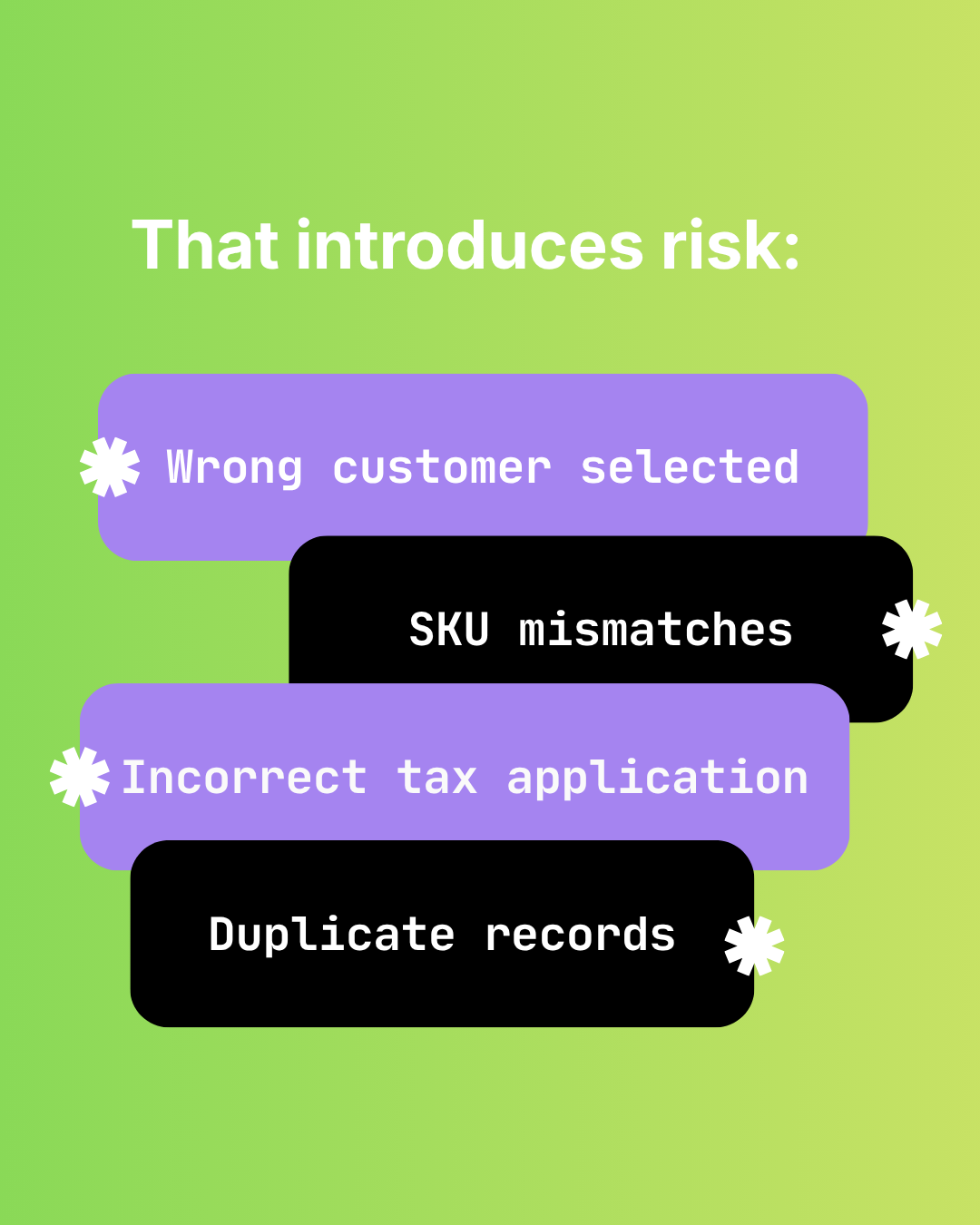
The Hidden Risks of Manual Shopify-to-Sage 50 Data Entry
Audit failure, tax errors, fraud risk, and key-person dependency. The real costs of manual Shopify to Sage 50 data entry beyond time.

How Manual Order Re-Entry Silently Corrupts Your Accounting Data
The hidden cost of manual order entry. Error rates, compounding mistakes, tax drift, and why data corruption isn't visible until month-end reconciliation.